How to Configure Stations
Stations are computers added to the system, which are identified by their IP addresses. These computers can be used as workstations to fill out data-entry or display information for a specific Activity.
Cookie-based Station Authorization
By default, LearningSpace identifies devices—computers or tablets used as stations—by their IP addresses.
Warning
In an environment, for example, with no static IP reservation, devices' IPs can change. Meanwhile, the IP addresses of devices featured on the Stations tab are not dynamically updated, which means you would have to add each computer or tablet again to the system—as shown below on this page.
Cookie-Based Station Authorization
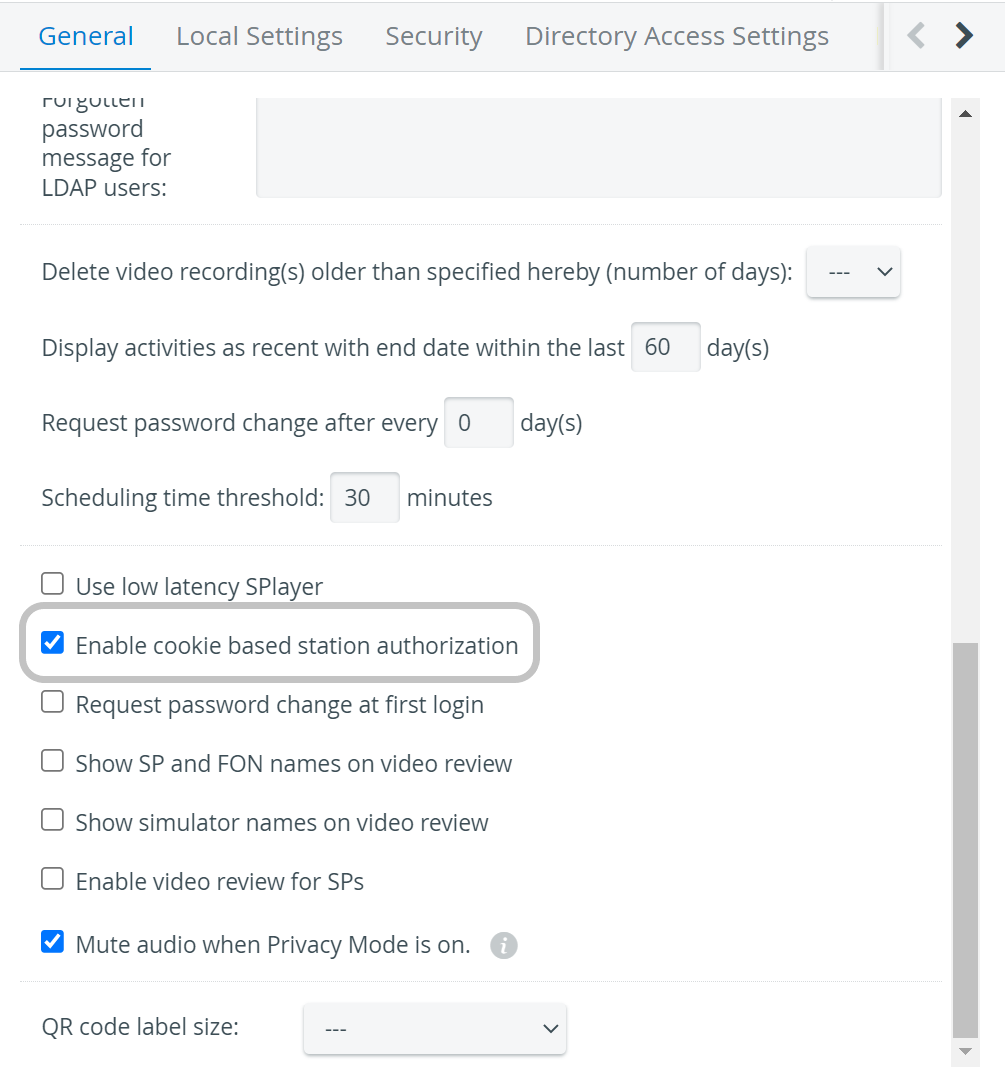
In case the IP addresses of your devices are not static, select "Enable cookie-based station authorization" on the General tab in System Manager. This way, the system will identify stations by placing a software "cookie" into the browser instead of checking the IP addresses of the devices.
Station types
You can choose between three kinds of station settings:
Hallway Station: A computer located outside but near the simulation room for learners to submit their checklists. ⚠️ Automatic user-forwarding does not work with In-room configuration for learners.
In-room Station: A computer located inside the simulation room, where SPs submit their checklists. ⚠️ Automatic user-forwarding does not work with the Hallway configuration for SPs.
Additional Station: A computer to
display the door note of the Activity (if assigned to a room)
store the data logs of third-party simulators (log-upload station) - to enable finding recordings based on the room assigned (if assigned to a room)
display "Today's Activities" (if not assigned to a room)
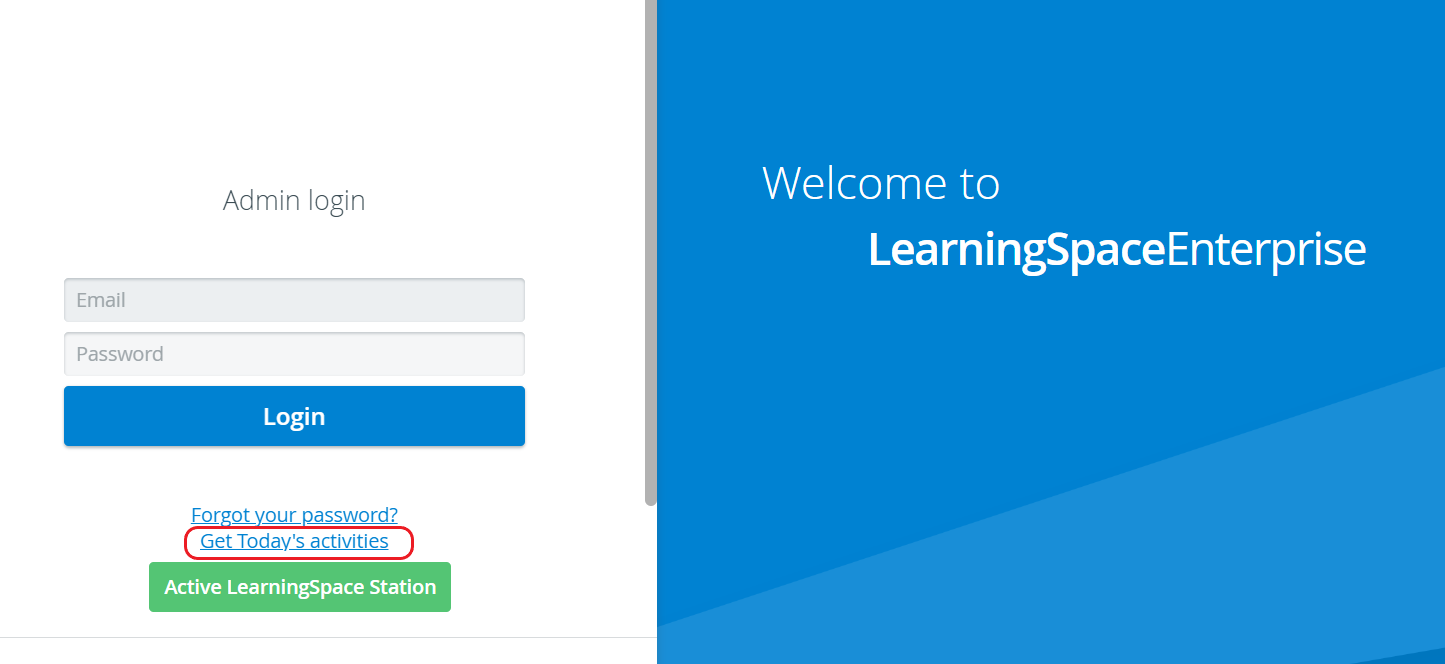
⚠️ Automatic user-forwarding is not available on Additional Stations. This station type is for display purposes only.
Automatic User-forwarding
Find out more about Automatic User-forwarding here.
Station configuration
Complete the following steps to configure a computer as a Station:
Go to System.
Go to Stations.
Click Add This Computer at the bottom.

The Station Manager window opens.
Enter the name of the workstation and
Select the functionality of the station.
Optionally, each station type can be used as a memo board to display information about the Activity.
Feature Today's Activities on an In-room or Hallway station, or display a placard of an Activity with an Additional Station.
Learn more about information display features at the Get Placard and Today's Activities pages.You can use the computer as any type of workstation later by selecting all of the functionalities in the Station Manager pop-up.
Save your settings.
The computer will be added to the system as a station.
On the Stations page, the computer you are currently logged in on appears in bold and is highlighted in blue.
Black ticks indicate the station's selected functionalities, whereas greyed-out ticks mean the functionality does not apply. Simply click on a tick to select or remove the functionality.

Decoder
Assigning a decoder to a station facilitates a low-delay camera display with PTZ functions via a separate monitor.
NOTE: See further details at How to Use a Joystick for PTZ Functions.
For further information, visit our System Manager pages.