Group Performance Review
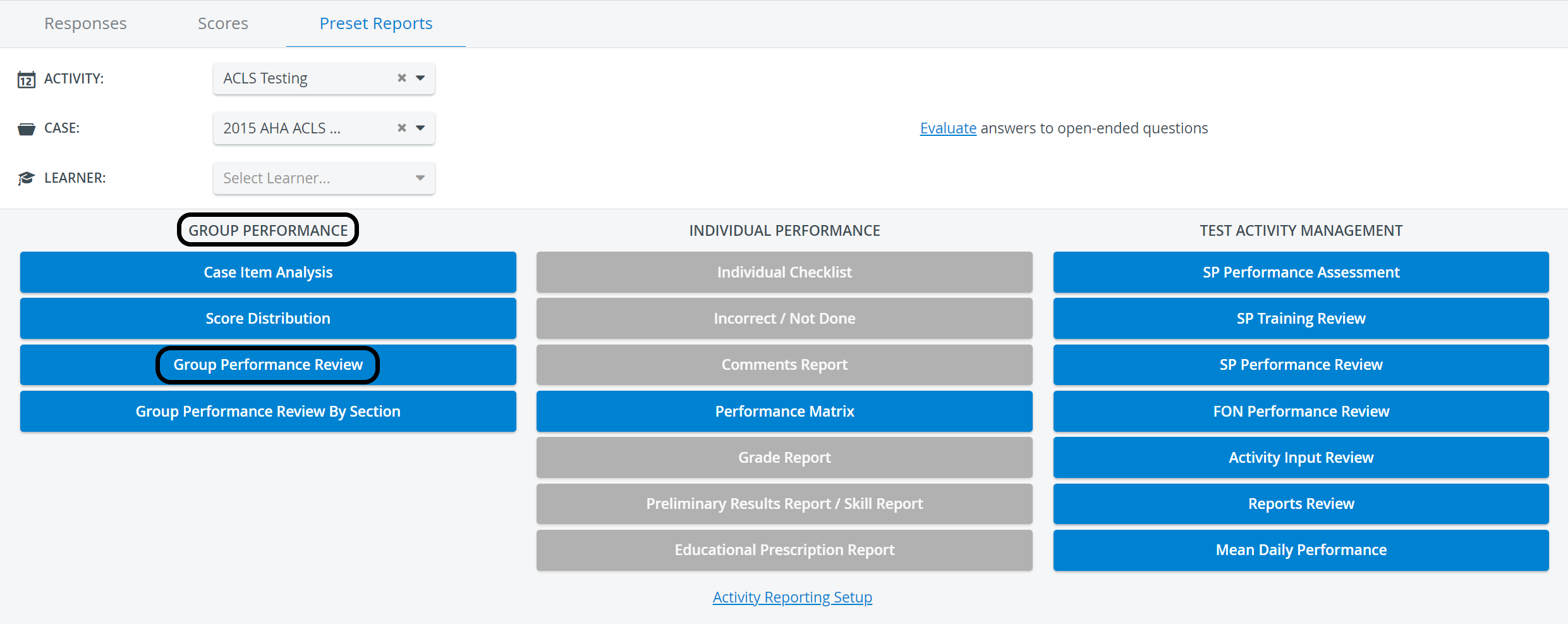
The Group Performance review report assesses Learners' performance, including the class average, for all Cases of an Activity.
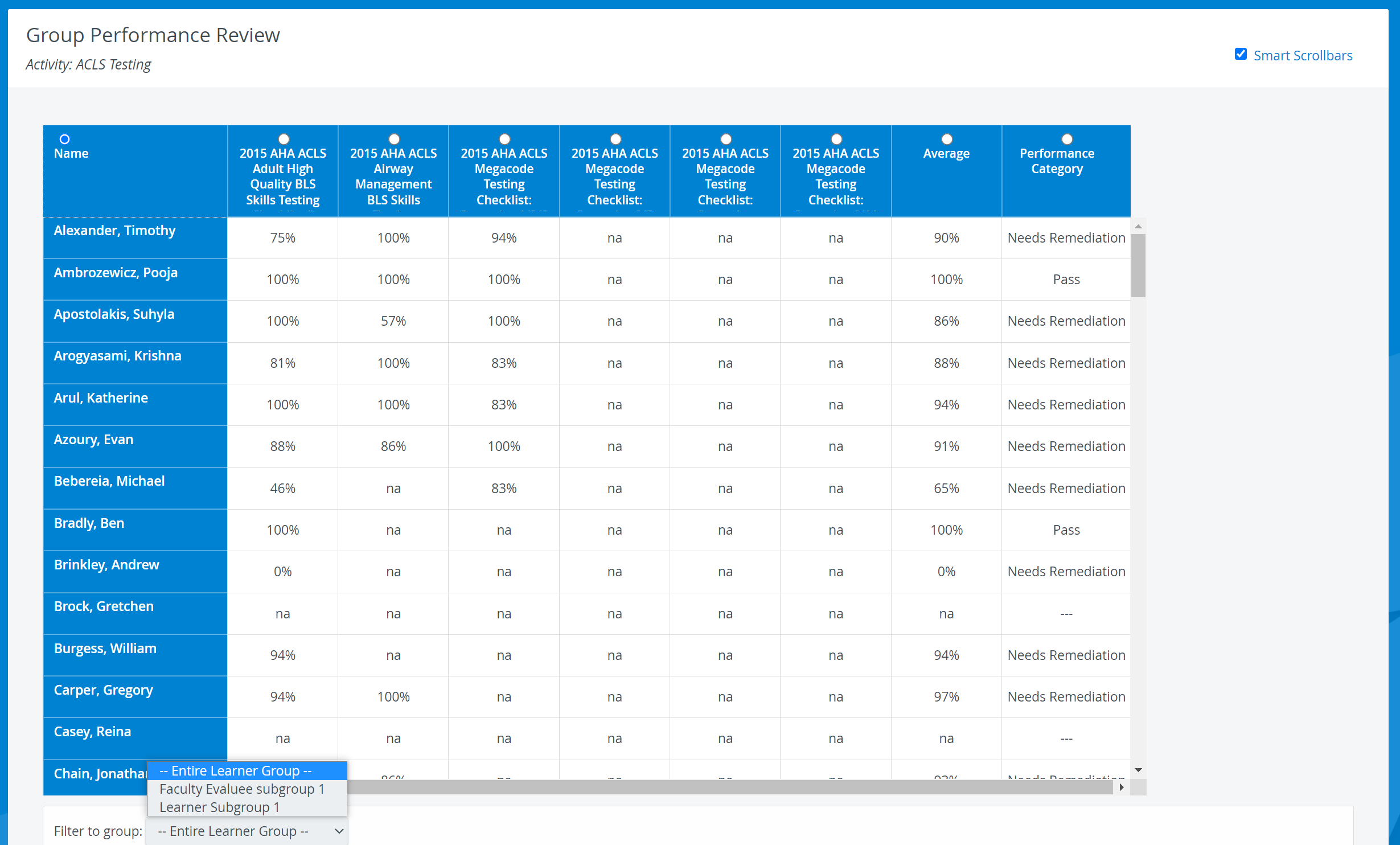
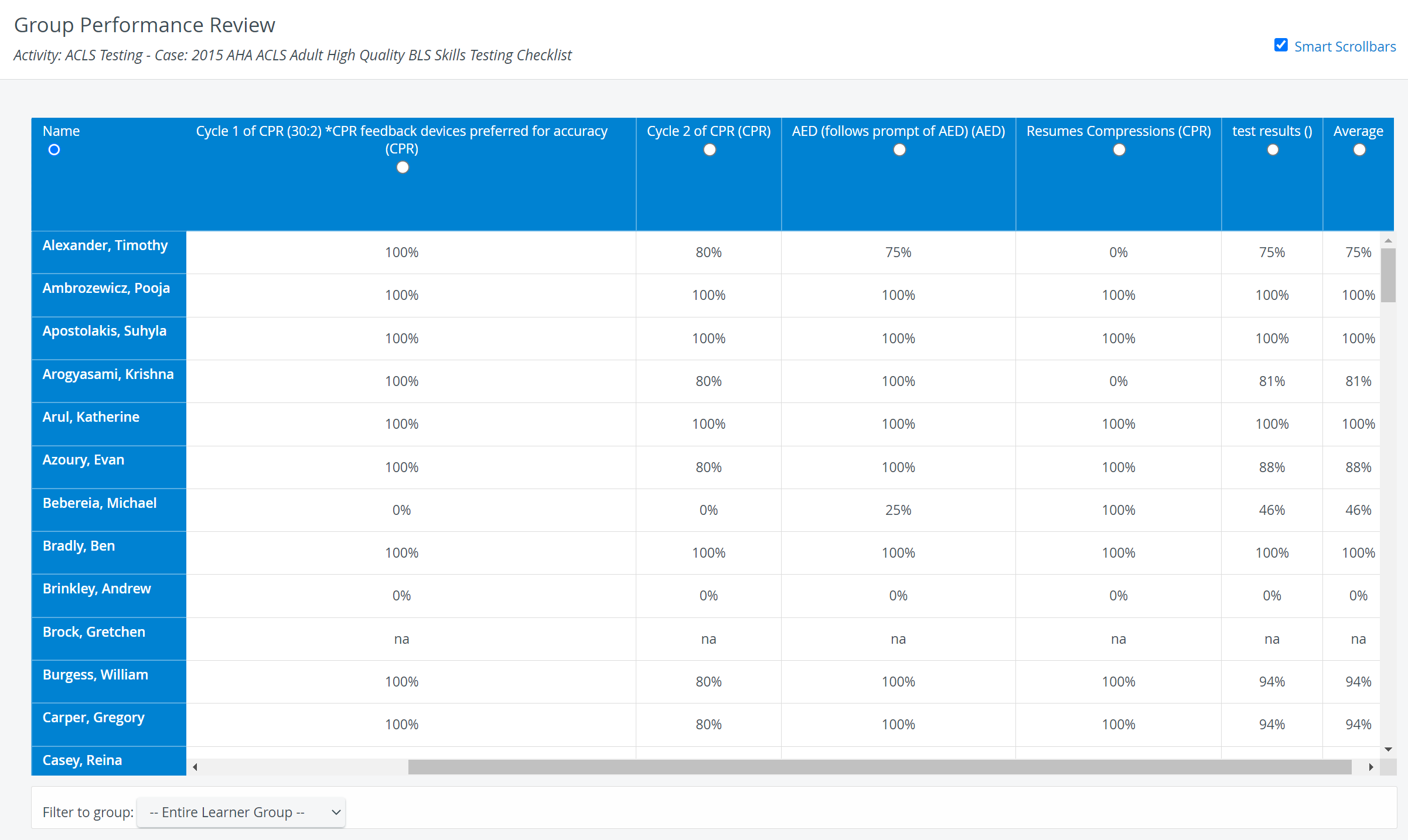
The table lists
the Learners assigned to the Activity
the Case total score of learners achieved in each Case of the Activity - when selecting only an Activity * and no Case,
the Sections scores of that specific Case - when selecting an Activity and a Case** as well (not the same as Group Performance Review by Section!)
Performance category - if set on the Activity Reporting Setup page, under Privacy, and if Performance categories are set up in the system for the related Activity. (See How to Set Up Performance Categories)
Passing Score (if it is determined in the Activity Reporting Setup and the checkbox is ticked for displaying it in the Group Performance Review reports),
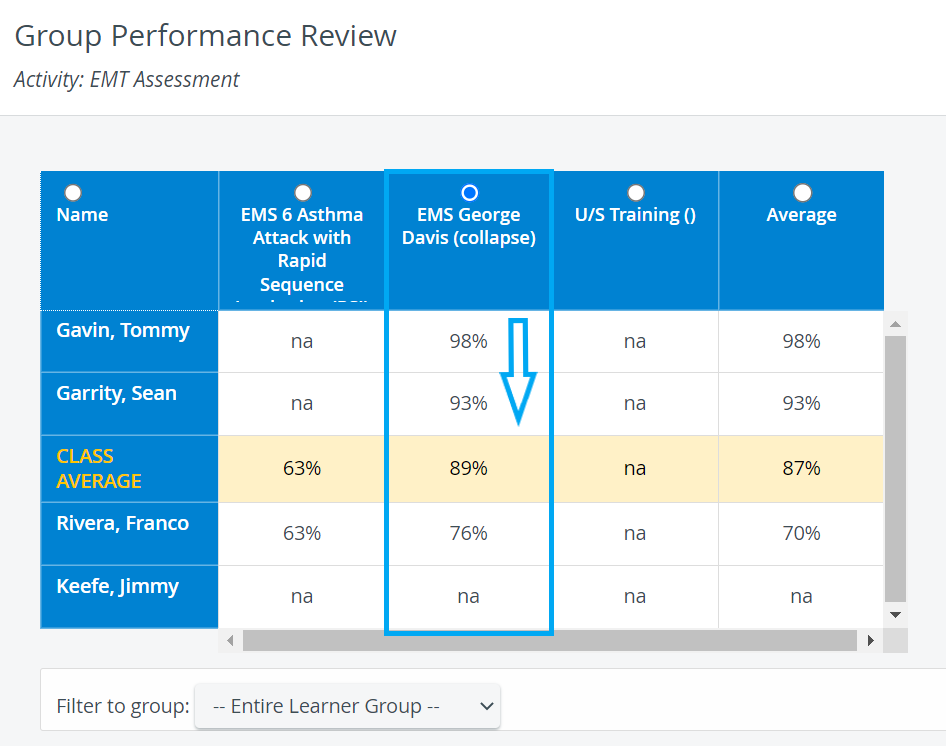
*Group Performance Review with only Activity selected:
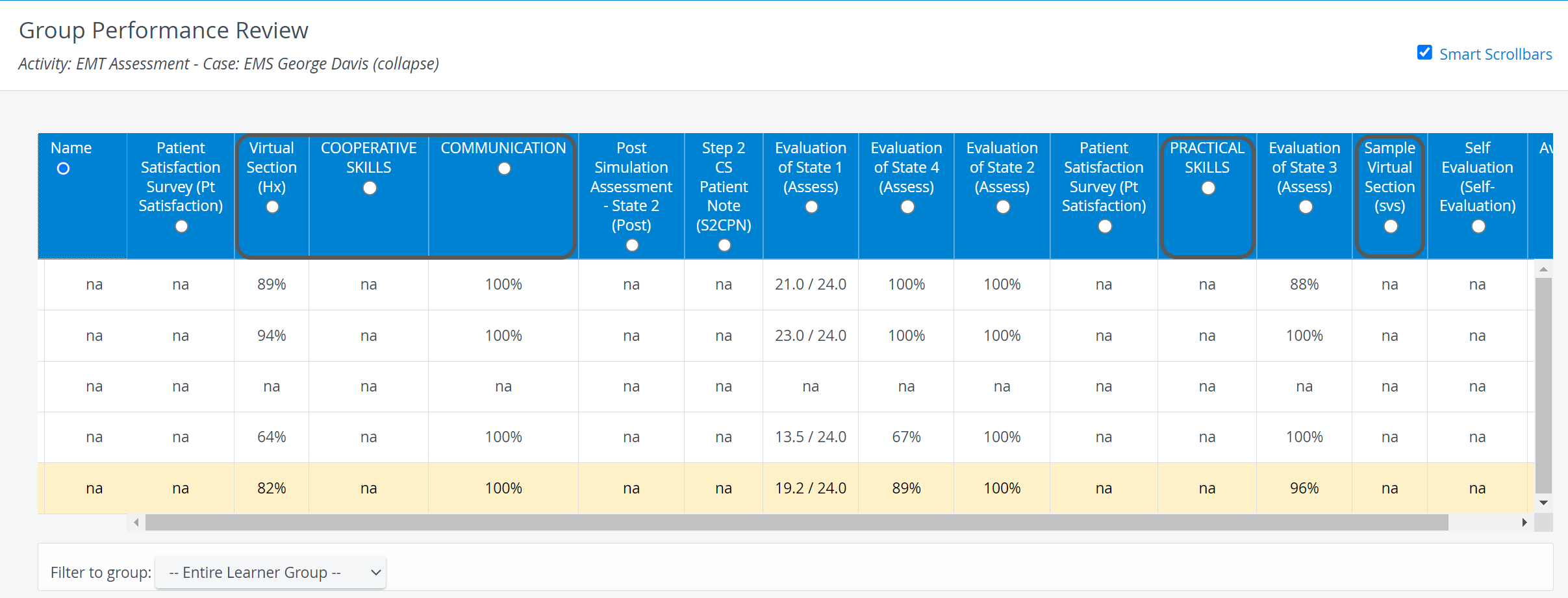
**Group Performance Review with Activity and Case selected:
Filter to group - results can be filtered for subgroups, if any are available (Learner subgroups, Evaluee Subgroups).
The abbreviation 'na' stands for 'not applicable' and indicates that the Learner has no record submitted for the relevant Case.
The Average column reports the average of the Learners' Case total scores.
In the Class Average row, the class Case average is calculated for each assigned Case.
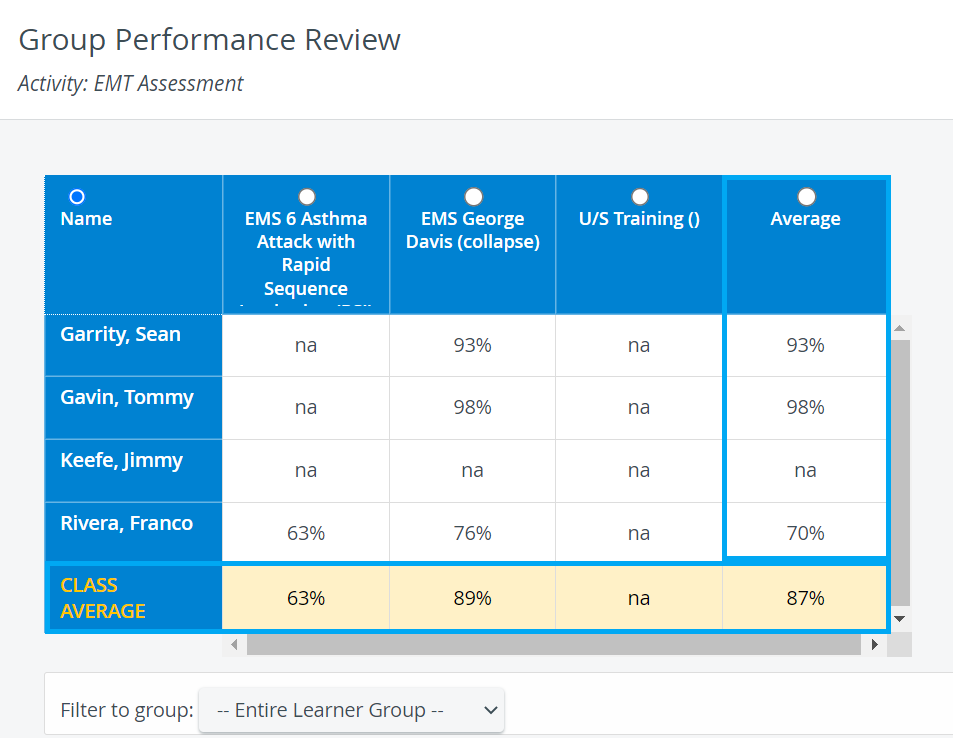
By default, the results are listed in alphabetical order of the Learners.
When the radio button for either Case or Average is clicked, the Learners are arranged in order of their results, from top to bottom, with the best performer listed first.
This report also displays Virtual sections (items with specific tags, creating a unit) used within a specific Case/Activity:
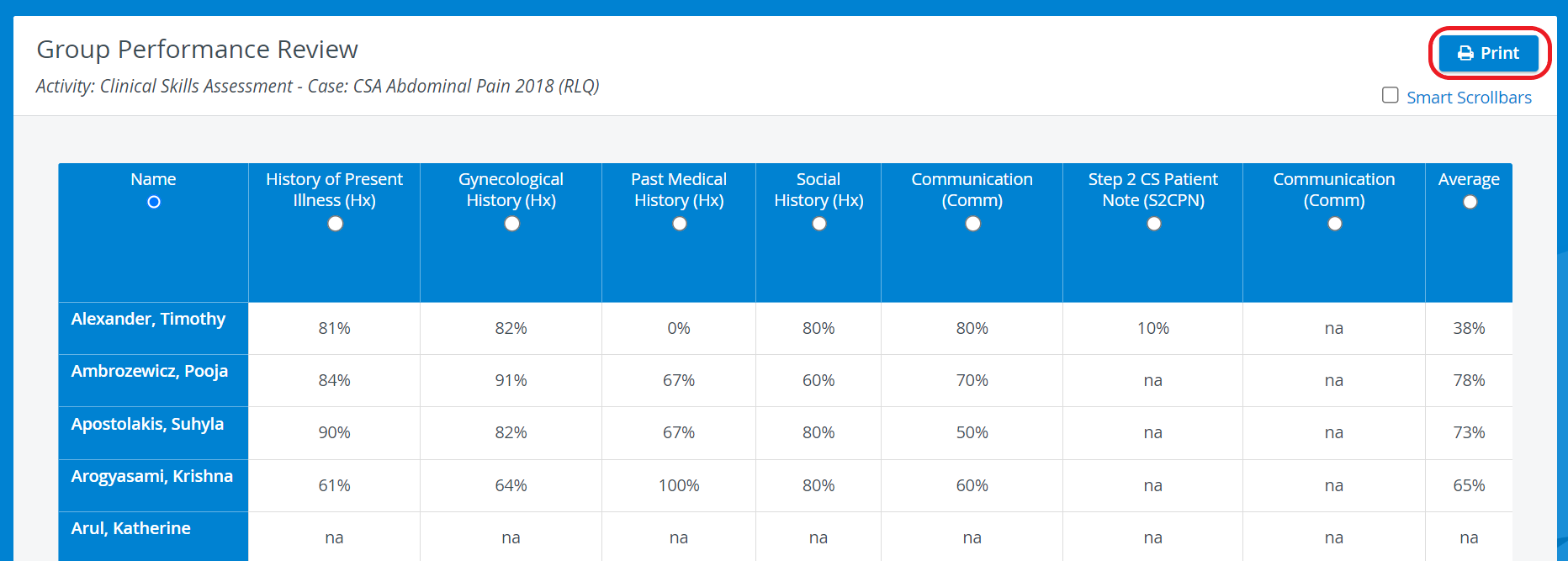
Printing a Report
To print a Group Performance Review Report (on paper or as a PDF), click the Print button at the top right corner of the screen.
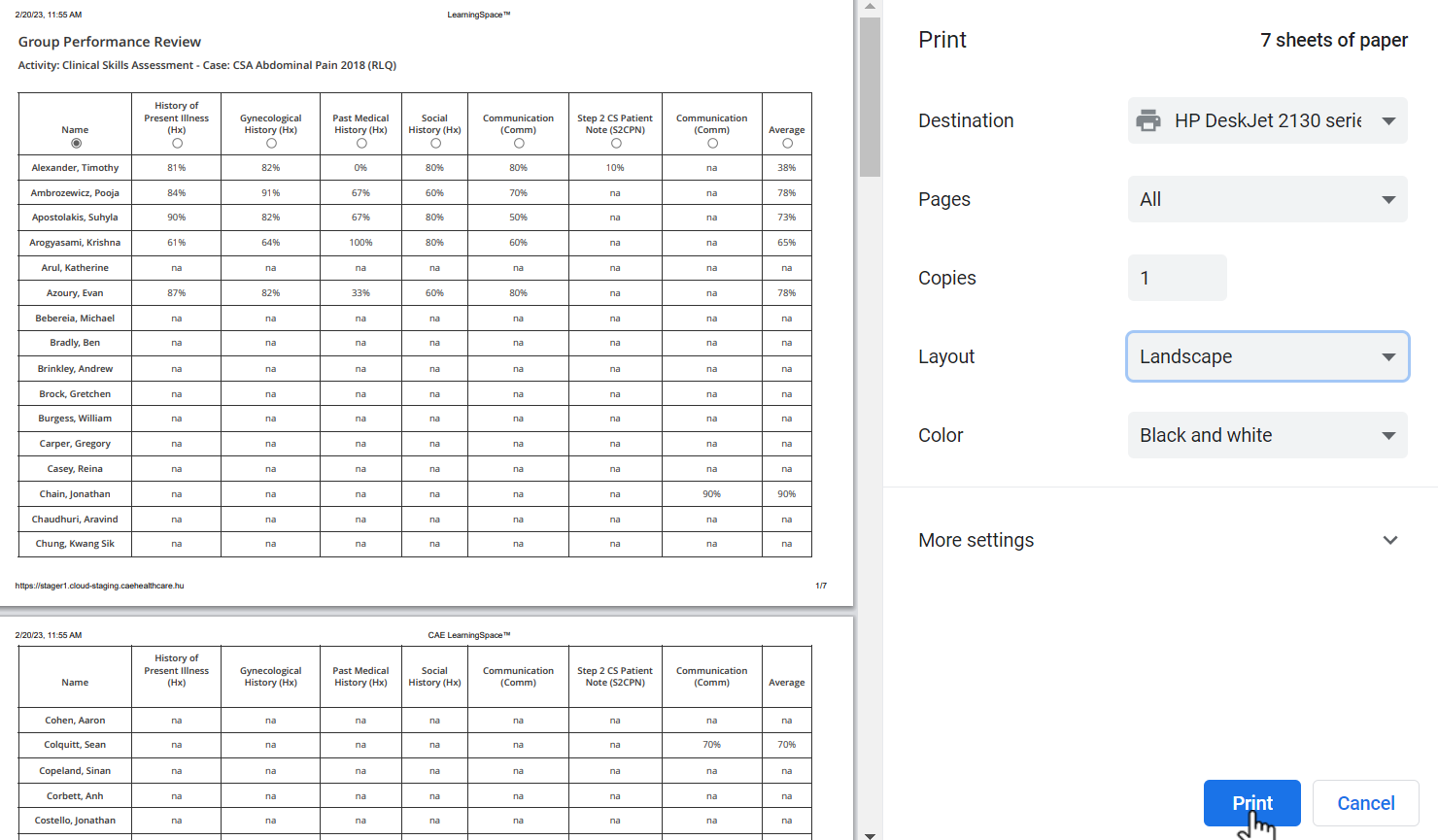
For more information, go to How to Print a Report.
The smart scrollbar needs to be turned off before printing reports.
Export to Excel
In the latest versions of LearningSpace, reports can also be exported to an Excel (xls) file for more convenient management and an essentially easier use of the exported data in applications like Microsoft Excel or Google Sheets.

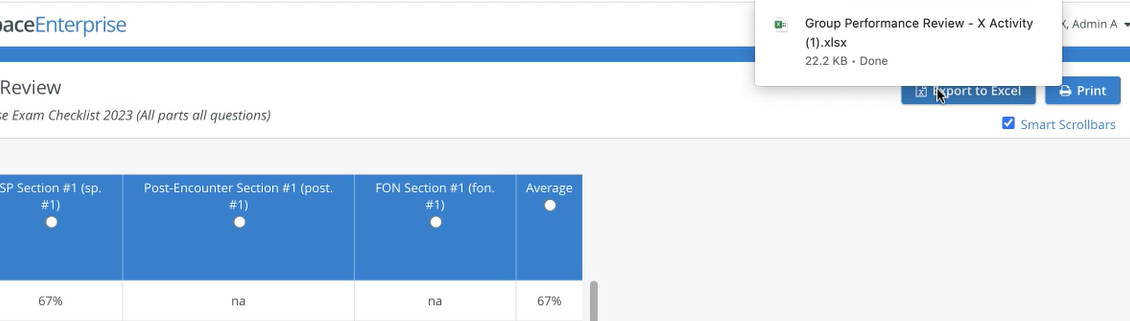
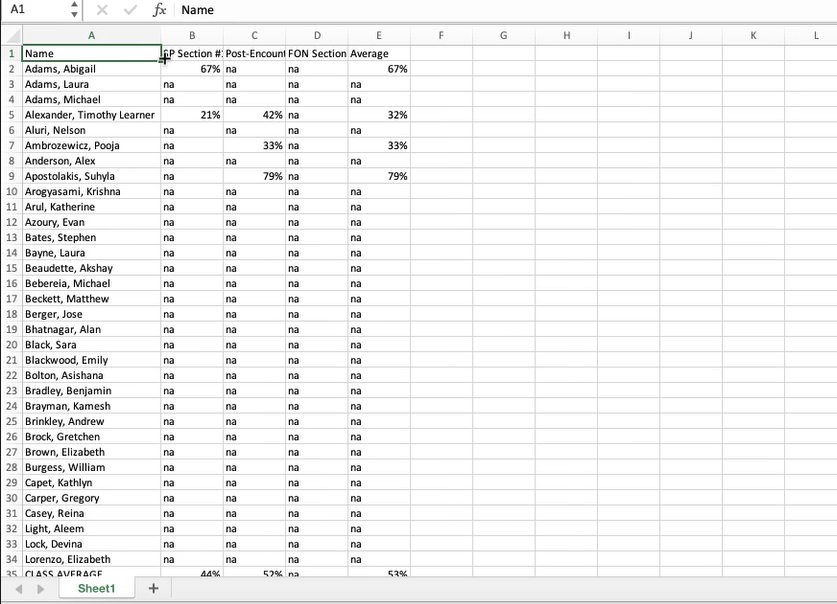
The ‘Print Reports’ and ‘Export to Excel’ options are hidden for Learners by default. The options can be enabled under the "Report Printing" section in the Report settings of a given Activity >> See Learner Access
For further information, see the Reports - How to pages and the Reports Module Training Videos.