Comments Report
The Comments Report displays
every text item type that is activated as a Reported Comment Item (page icon
in the item field) in all the Cases of an Activity;
the related textual answer(s), with the point value(s) given.
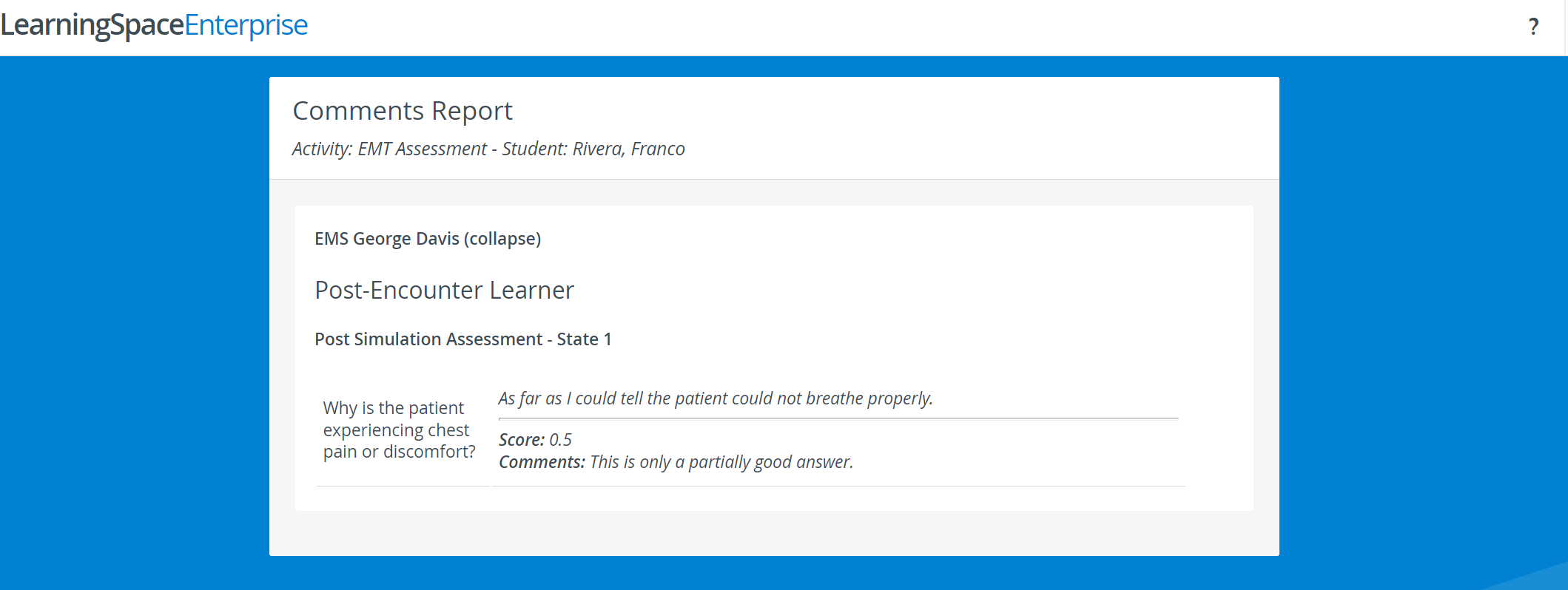
The Comments Report displays comments if:
the Reported comment item icon is selected for that particular item in Case Manager, and
comments are entered into the Comments field during the Open-Ended Question Scoring process.
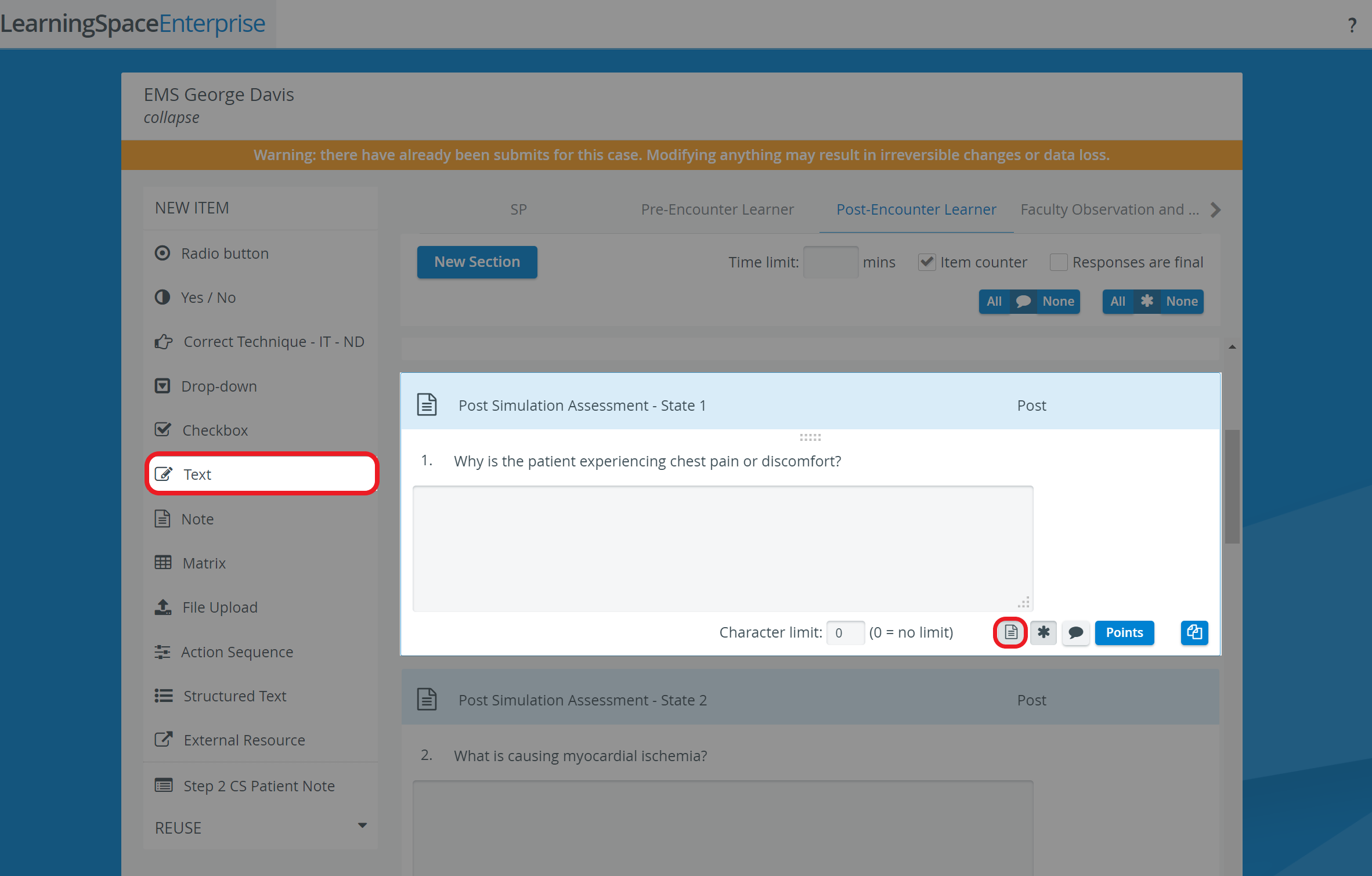
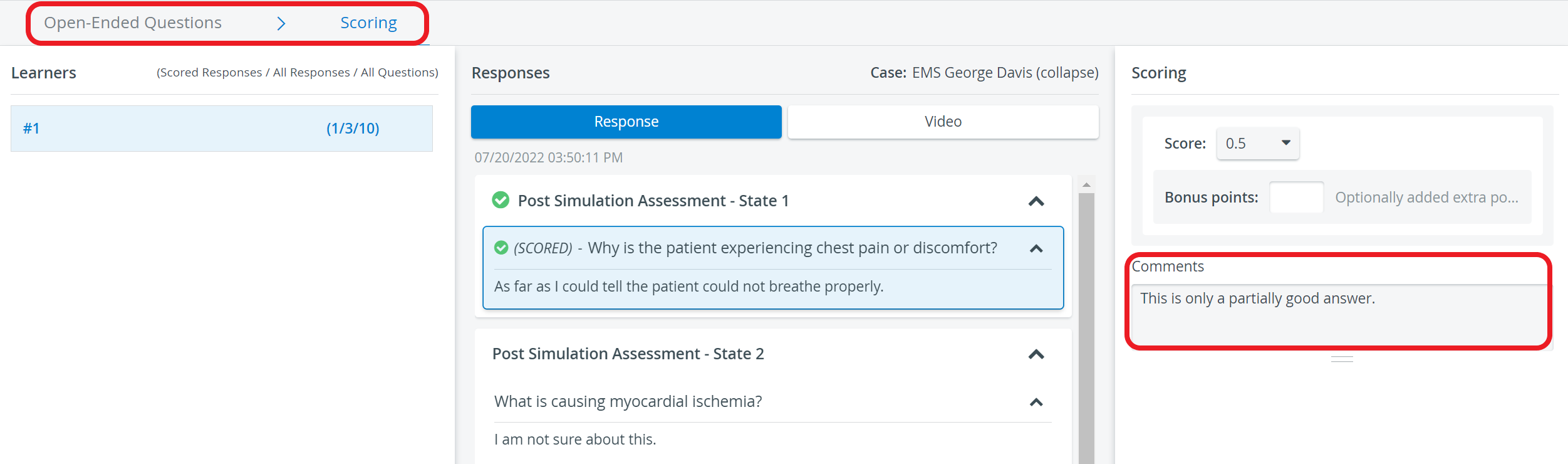
The Comment Box and the Reported Comment Item serve two different purposes:
The Comment box serves as additional information for the evaluation of an answer;
The Reported comment item is an answer itself.
 Comment box - when activated
 (darker background) For any item type in the Case editor, a text field is displayed during data entry, providing space for additional notes. The content of these comment boxes (i.e., the notes of the FON-s/SPs) is displayed in the Individual checklist.

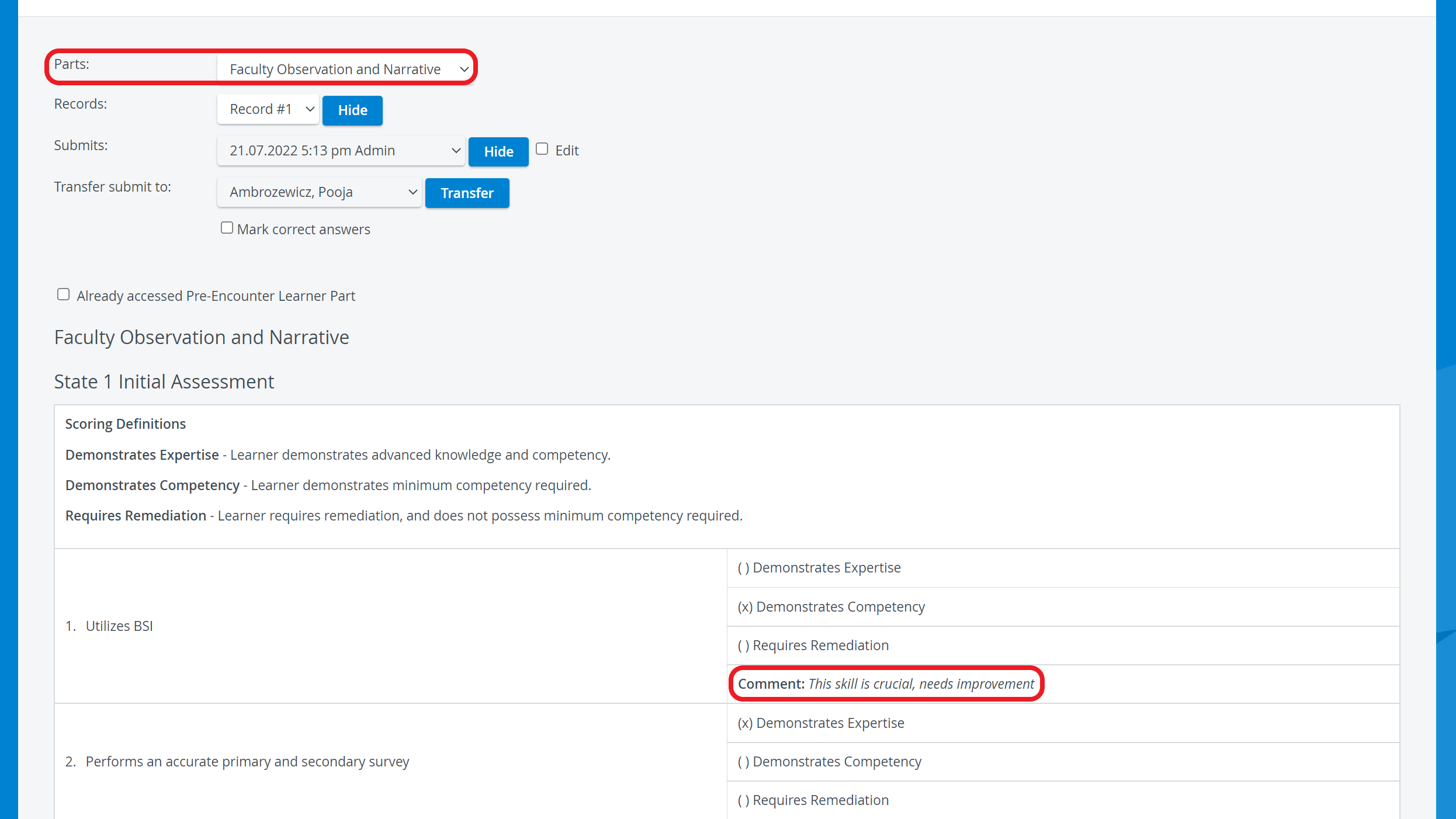
If the Individual Checklist is not sufficient for the Comment box contents to be displayed, or you wish to have certain comments given by the SPs presented in the Comments report as well, place not-scored text items in the SP checklist to allow SPs to give feedback (instead of using Comment boxes). These items can be configured as Reported comment items, and the related comments can be included in the Comments Report.
Printing a Report
To print a Comments Report (on paper or in PDF), click the Print button at the top right corner of the screen.

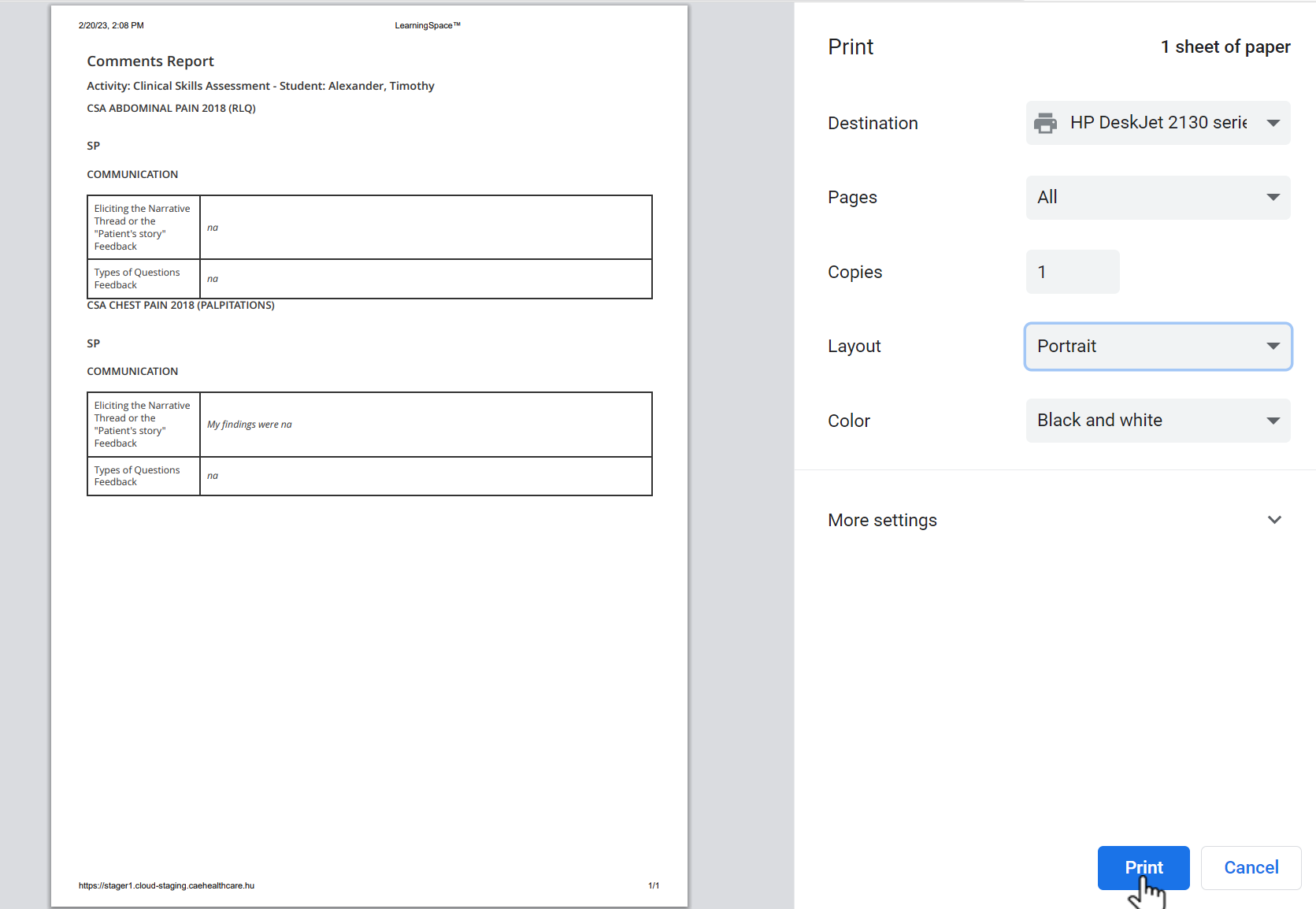
The ‘Print Reports’ and ‘Export to Excel’ options are hidden for Learners by default. The options can be enabled under the "Report Printing" section in the Report settings of a given Activity >>
See Learner Access
For more information, go to How to Print a Report.
Learn more on the Reports Module and Reports - How to pages, and watch our Reports Module Training Videos.