2024 October New Features
Video Playback Speed Controls
 With this new release, LearningSpace Enterprise is introducing Video Playback Speed Controls to the video player on the Video Review page. The following enhancements have been designed to implement fast-forward and slow-motion playback capabilities within the Video review feature.
Video playback speed
Overall, implementing these enhancements gives users greater control over their video review experience, enabling them to tailor the playback speed to their individual needs and preferences.
Users can change the playback speed to the following values:
0.25x
0.5x
0.75x
Normal
1.25x
1.5x
1.75x
2x
3x
4x
Playback Speed Icon
 A new icon representing video playback speed has been added to the video control bar.
When inactive, the icon is displayed in a dark color. The icon itself utilizes a universally recognized symbol:
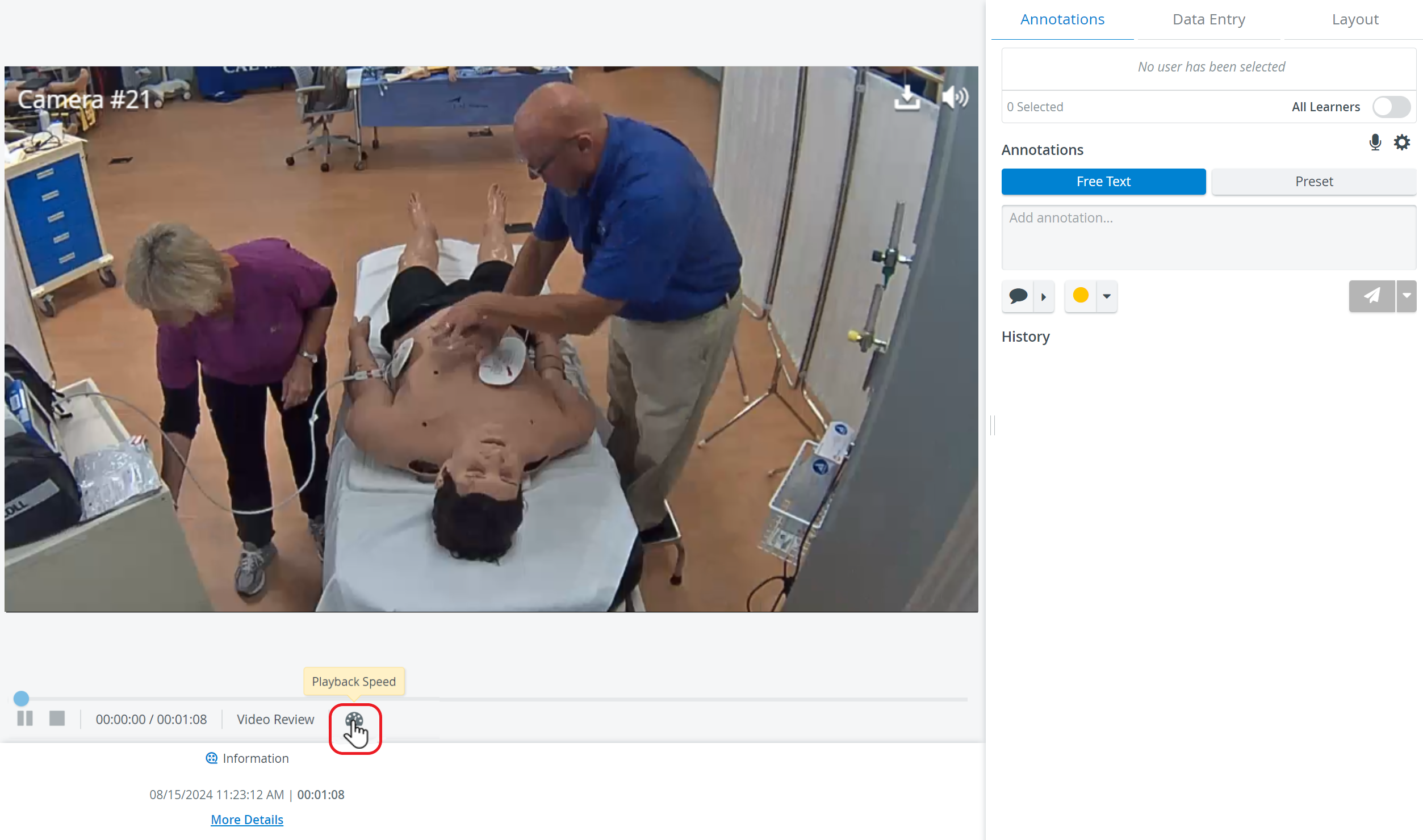
Playback Speed Options
Click the Playback Speed icon to access the playback speed options. A tooltip with the label "playback speed" appears on hover. Upon clicking, a popup presents the following options:
0.25x, 0.5x, 0.75x, Normal, 1.25x, 1.5x, 1.75x, 2x, 3x, 4x
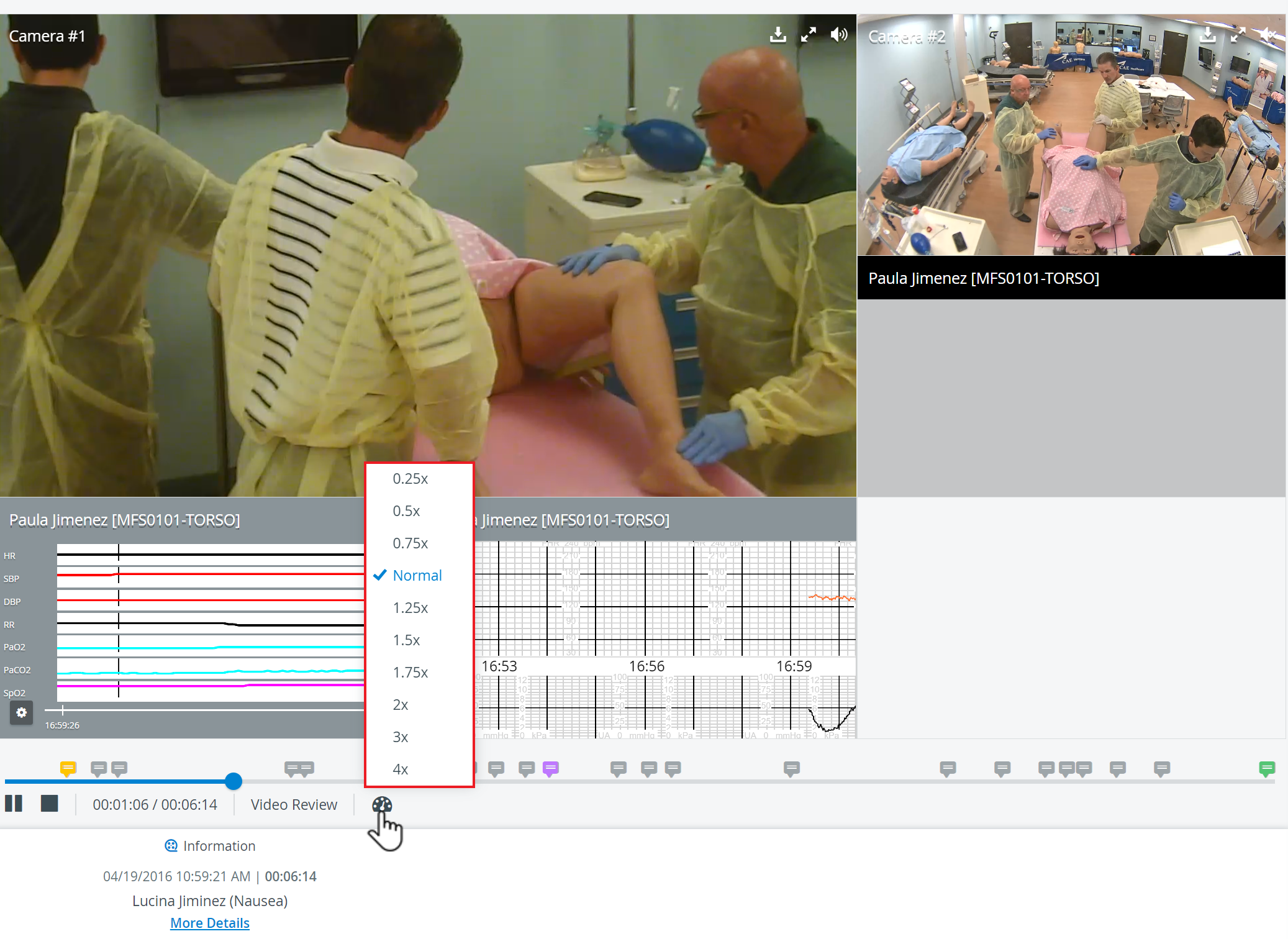
Hovering over each option will change its background color. The text turns blue upon selection, and a checkmark appears next to the chosen playback speed.
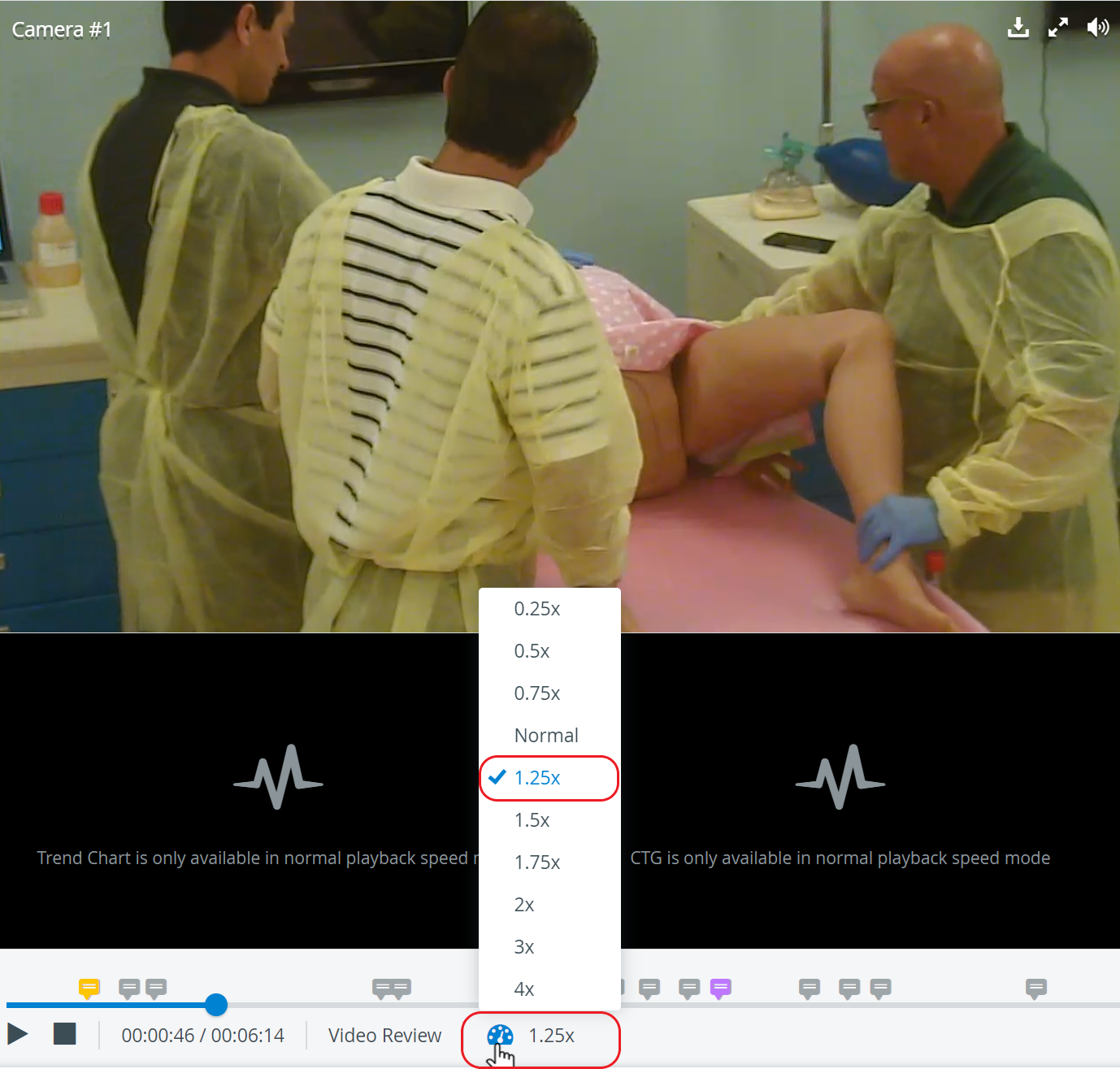
To close the popup, click the playback speed icon again or anywhere else on the screen.
Video playback speed feature is also available in full-screen mode.
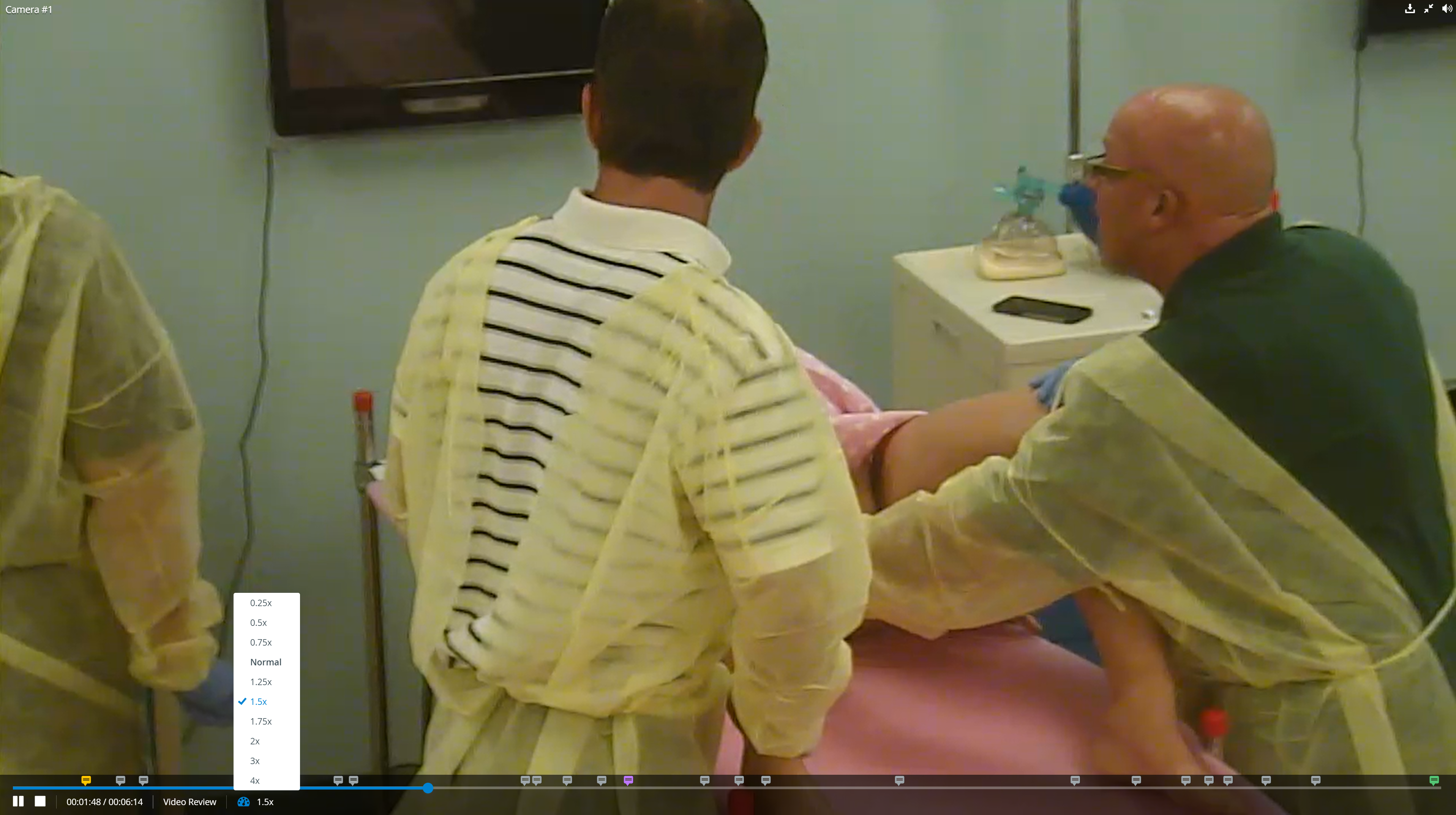
Playback Speed Implementation
Upon selecting a playback speed, the video immediately accelerates or decelerates accordingly. The playback speed icon turns blue, and the selected playback speed will be visible. The selected playback speed value will be displayed numerically to the left of the blue playback speed icon.
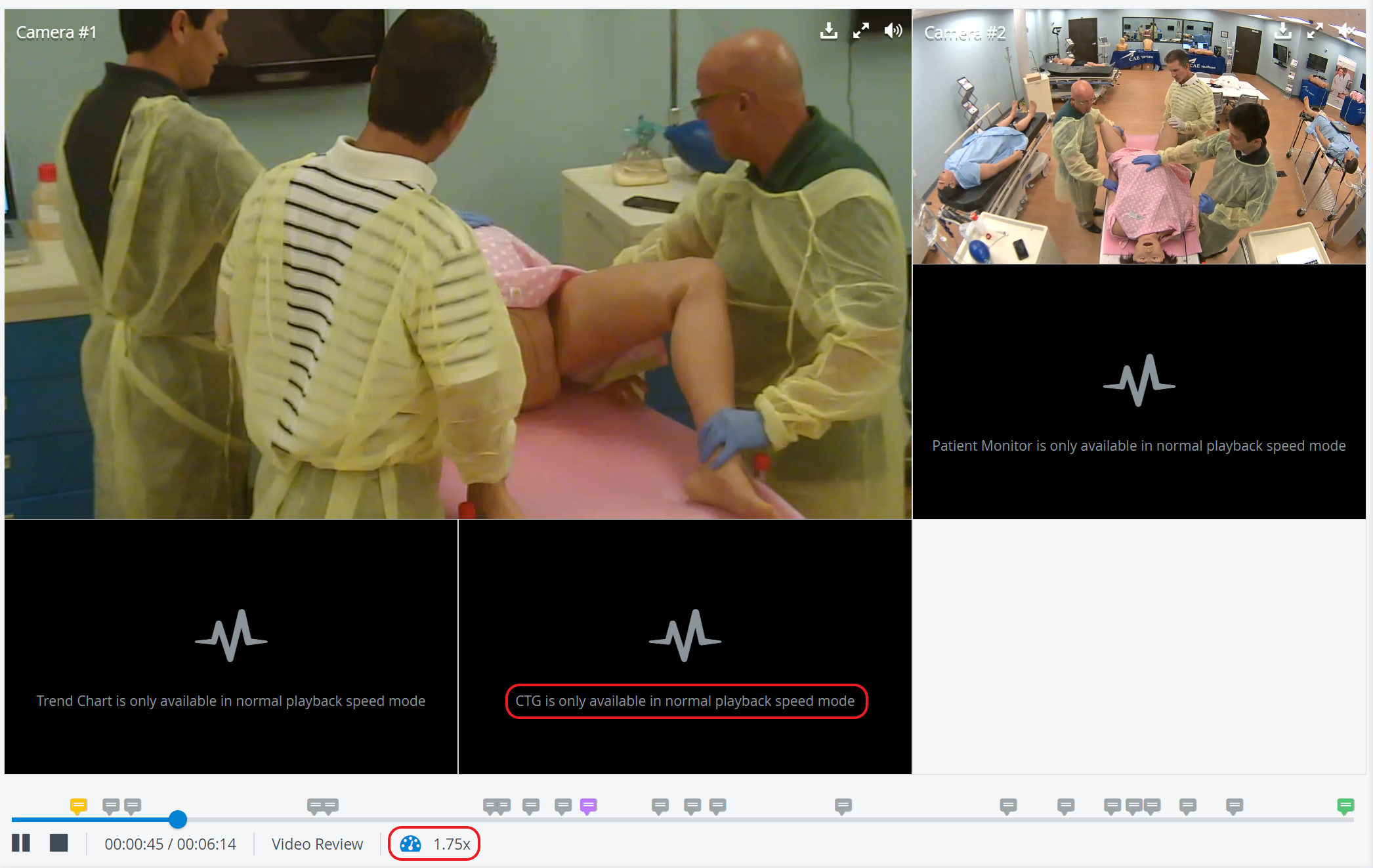
IMPORTANT: Only videos can be sped up, not waveforms. Simulator widgets (Patient Monitor, Trend Chart, CTG) will be disabled when fast forward or slow motion is enabled. A tooltip will appear on waveforms stating, "Patient Monitor / Trend Chart / CTG is only available in normal speed mode.”
Returning to Normal Playback Speed
To return to normal playback speed, you should click the now blue playback speed icon again, select the "normal" option from the list, which will receive a checkmark, and the video speed will revert to its original state, and waveforms will become accessible again.
IMPORTANT: Simulator logs or annotations stay in sync with the video speed.
For further information, visit our Video Review and Video Review - How to pages.