Scheduling Events
Event: a scheduled time range when a specific SCE is planned to be performed by an assigned group of people, including the simulation and any data submission.
Activity: events can be assigned to a specific activity, allowing for grouping of events.
IMPORTANT: Arranging events under an activity has a prominent impact in the Reports module, where certain scores, results, and evaluations can be analyzed concerning a whole activity (i.e., group of events), not just in terms of an event.
Adding an event within the Calendar can be done by clicking and dragging the cursor, thereby prompting the Edit Event window to pop up.
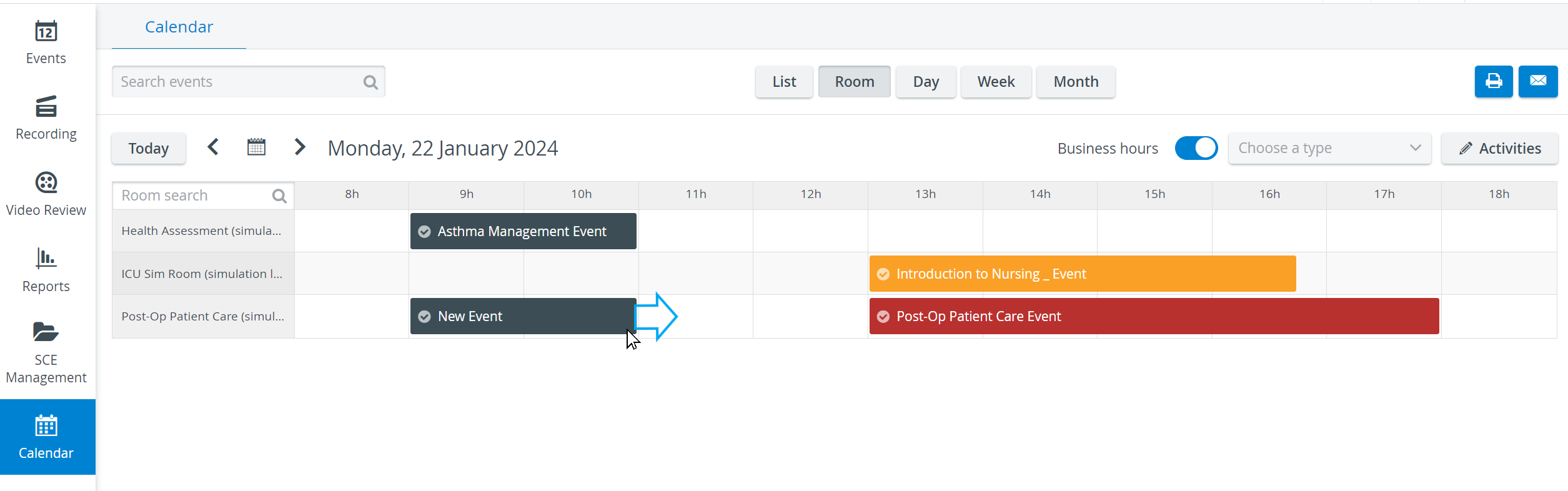
Already created events—displayed in the calendar—can be edited or deleted in the same window, which can be opened by double-clicking the desired event.
Edit Event pop-up
Event Details - accommodates all basic data regarding timing (Date, Repetition) and content (SCE, Activity).
Participants - a tab where all groups involved in the SCE should be assigned.
SCE Scheduling - accessible only when an SCE has already been assigned to the event; allows for customization of the SCE Scheduling for the actual event.
Automatic E-mail Sending


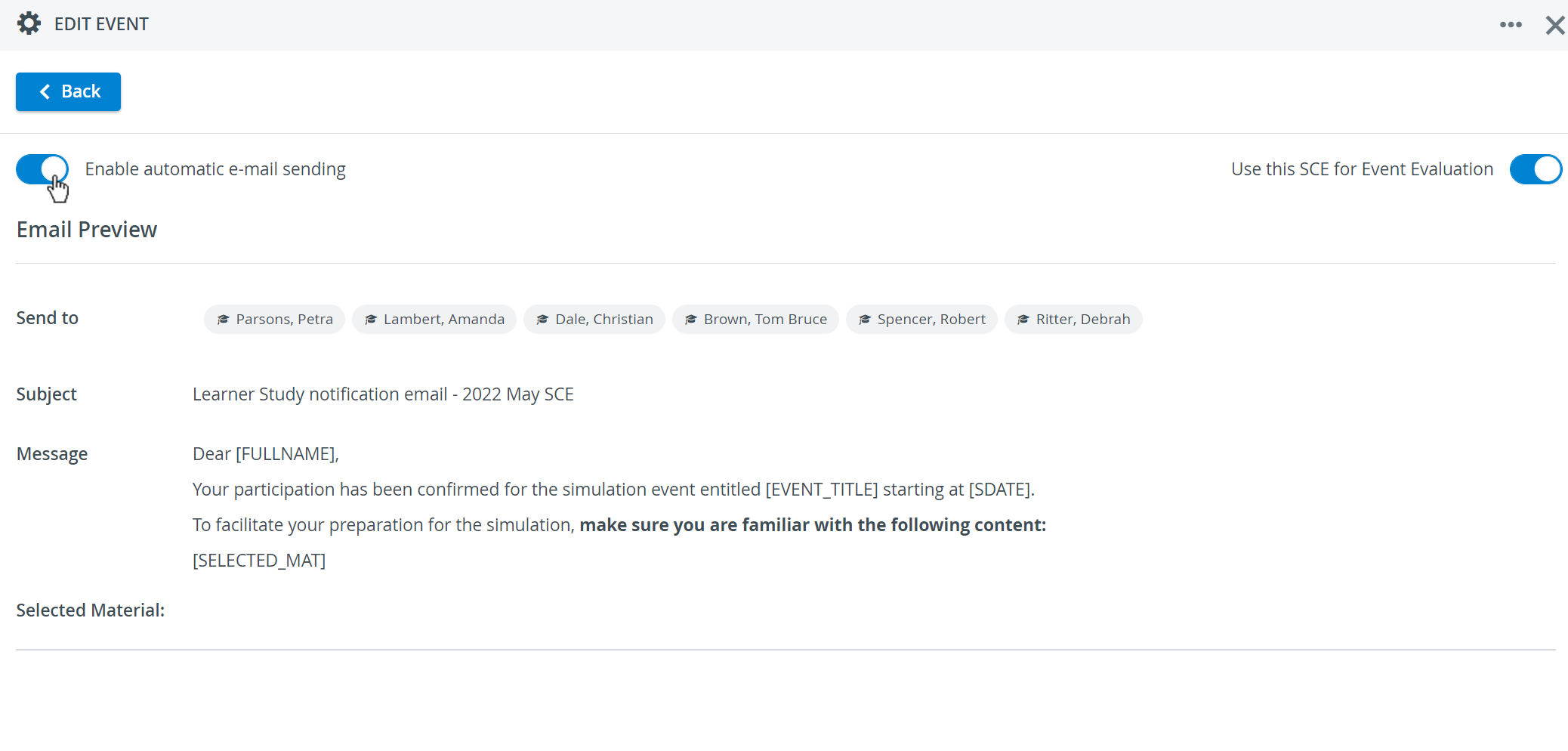
Modifications on an SCE - including modifying the text of the included Emails - do not affect previously created Events. This means that modifications only come into force once the Event has been updated with the modified SCE, meaning that the SCE has been re-added to the Event.
Recurring Events
Events can be repeated by using the respective functionality in the Edit Event pop-up.
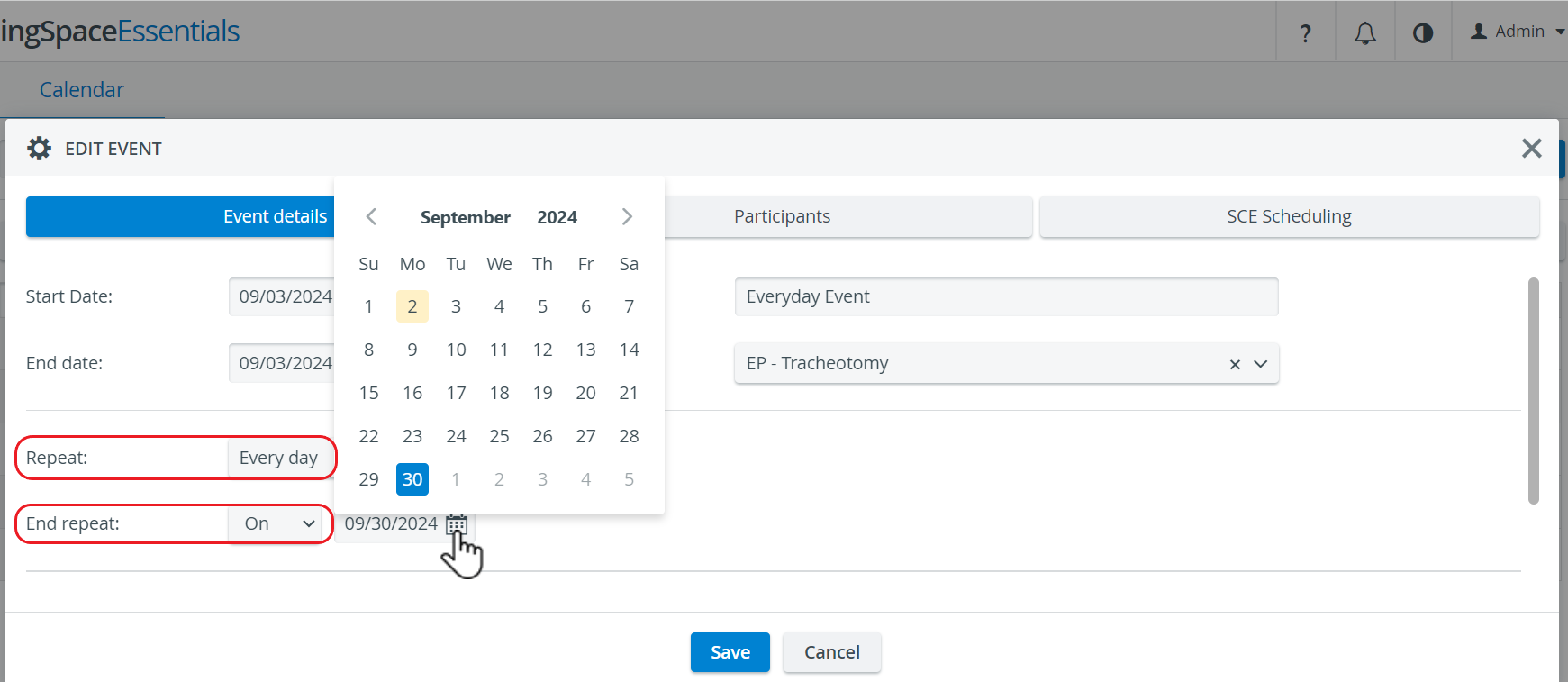
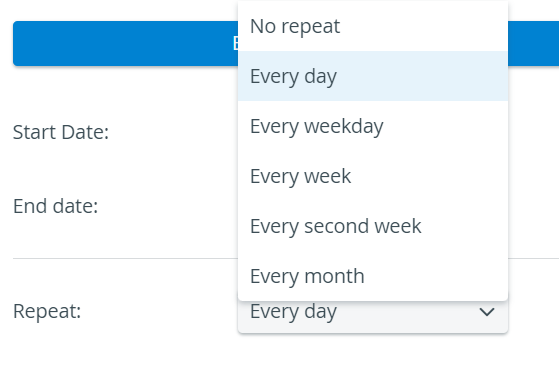
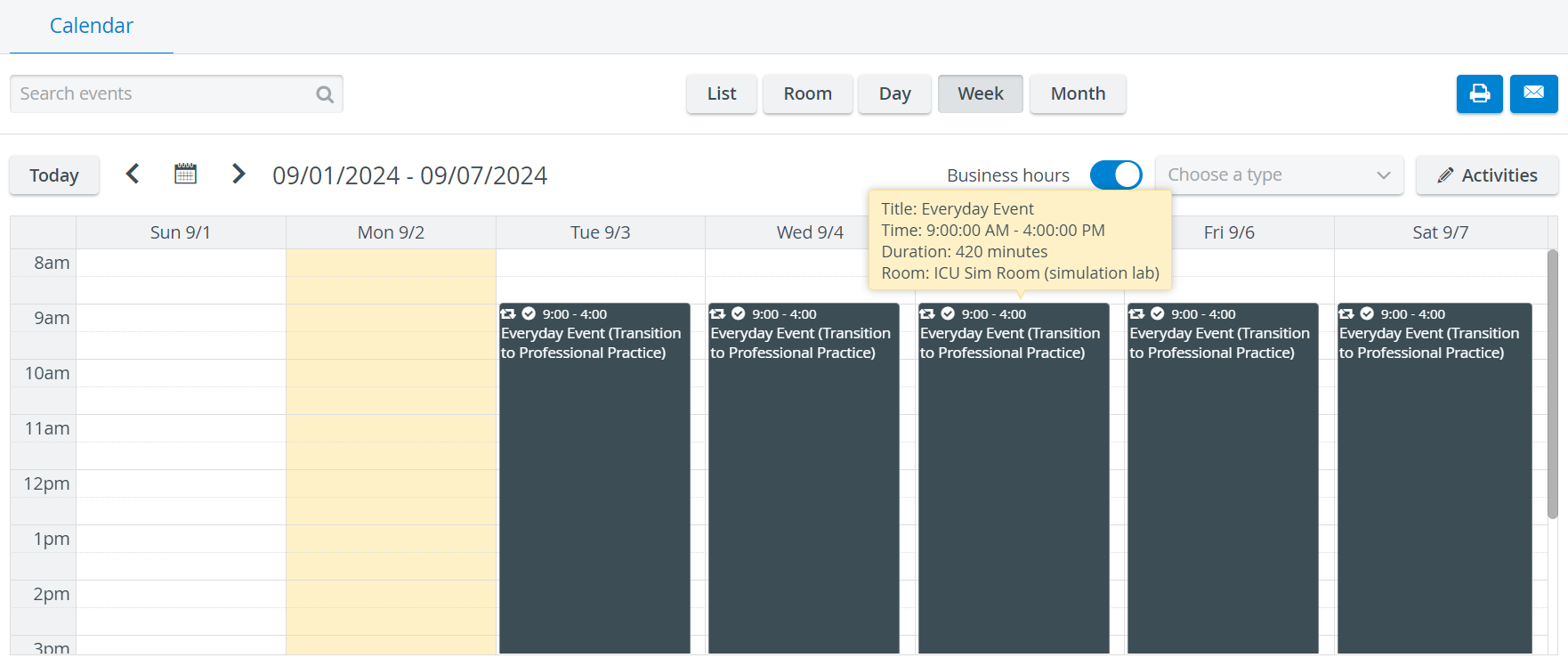
 Once repeat frequency and end have been set, all sequence instances will appear in the Calendar, marked with the respective icon.
Each such event will have the same Title, Activity, SCE, Rooms, Time, Duration, and Automatic Recording settings.
For more information, go to Recurring (repeated) Events.
For further information, visit our Calendar - FAQ and Calendar Practical pages: