What should I do if I can’t see a camera?
If a camera is connected to the LearningSpace network and is ready to be used, its status is listed on the Cameras tab of the System module as one of the following:
Configured: it has been added to the system and can be assigned to a room; that is, it will be listed in the Camera drop-down menus in the Room Settings pop-up.
Not Yet Configured: it is connected but must be added to the system by clicking the plus icon in the Controls column.
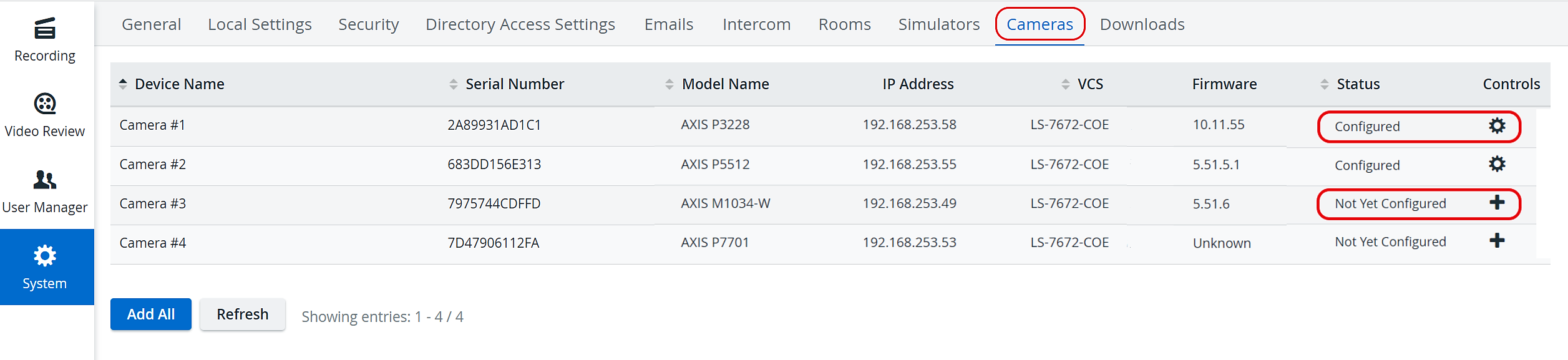
NOTE: Configured cameras have a cogwheel icon in the Controls column. Clicking the icon prompts the Camera Settings pop-up to open, where all fine-tuning can be completed.
Already configured camera unseen:
If a previously configured camera is not displayed in the Recording module or is not available in a Camera drop-down menu in the relevant modules, it is listed on the Cameras tab as Disappeared, and there is a red minus icon


In such a case, physically check the camera device and make sure that it is connected to the network:
If not, then connect it.
If connected, power off the camera, wait a minute, then power it back on.