Single Room View - SRV
Single Room View (SRV)
When a single room panel is selected in Center Overview, that is, the screen displays all the aspects of a single room.
The SRV can be accessed
either via the CO, or
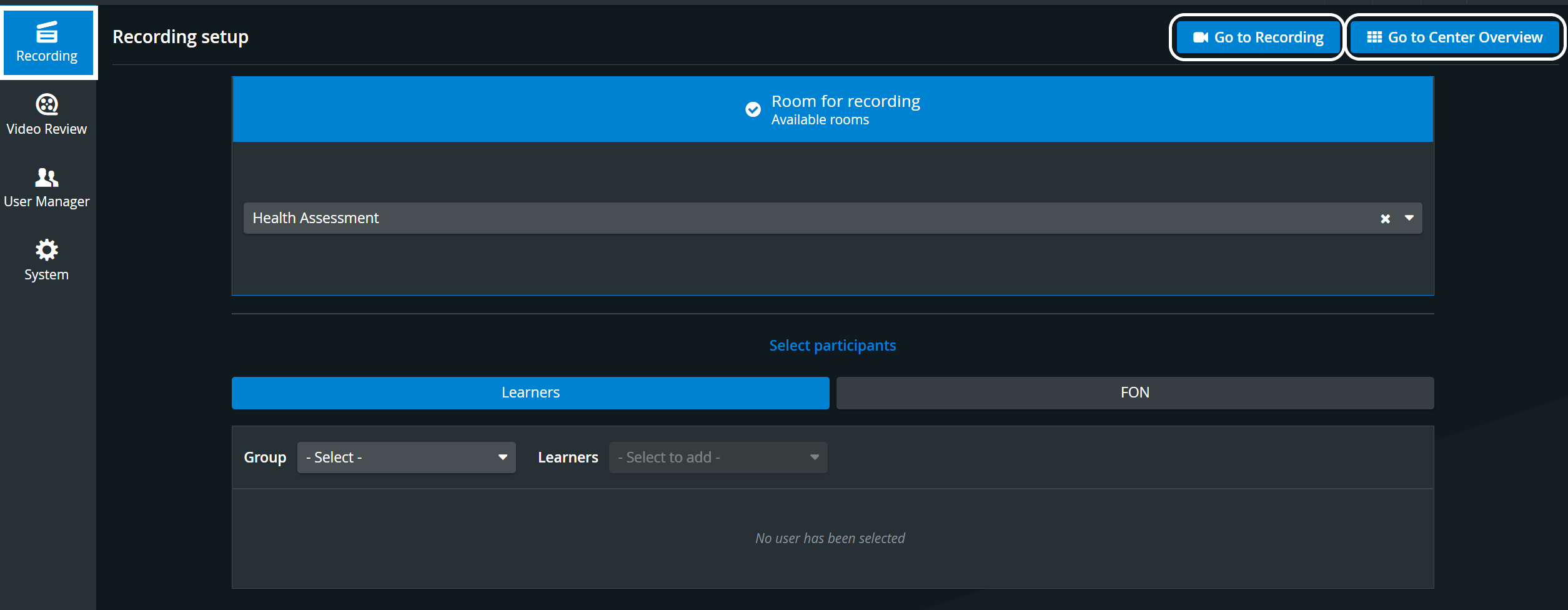
if the system is a one-room constellation - directly from the Dashboard by selecting a room under Room for recording and then clicking Go to Recording in the upper right corner.
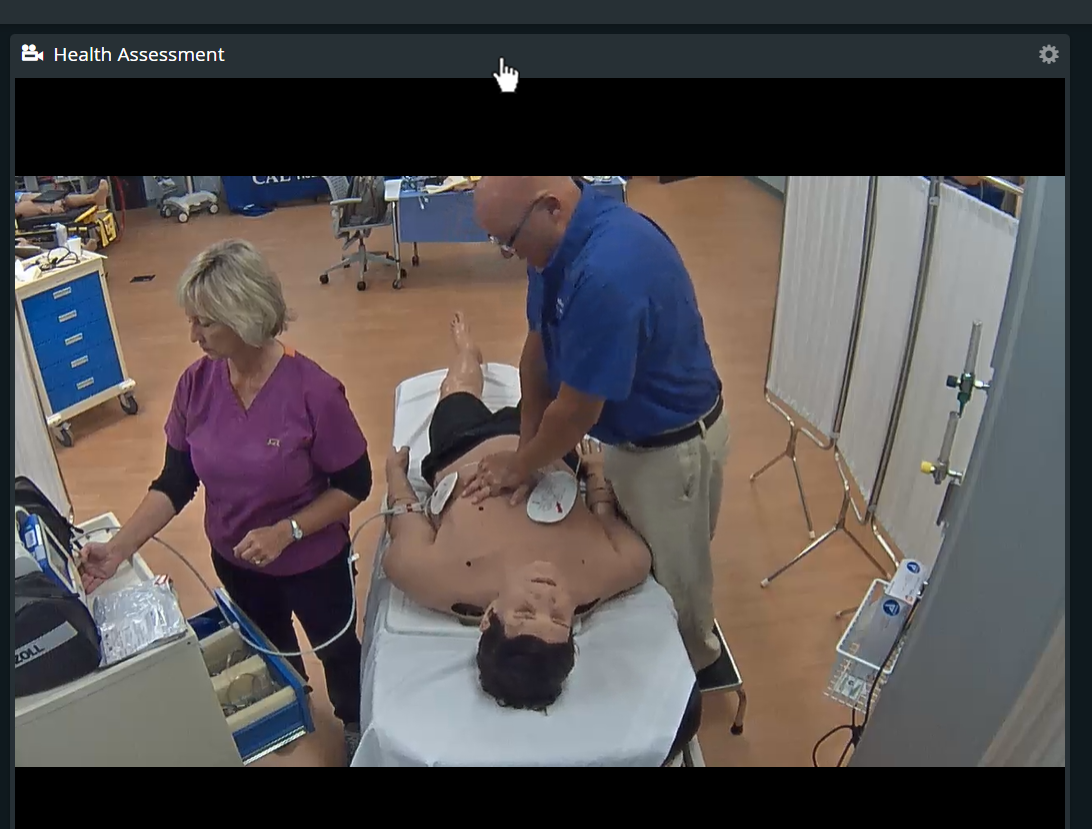
The SRV is accessed via the CO by clicking anywhere in the camera panel's header:
The Single Room View shows all the camera and DCU feeds assigned to the room, along with
the Annotations and the Layout tabs,
the Recording setup,
the Recording Control Options (REC button, STOP button)
and the Intercom buttons.
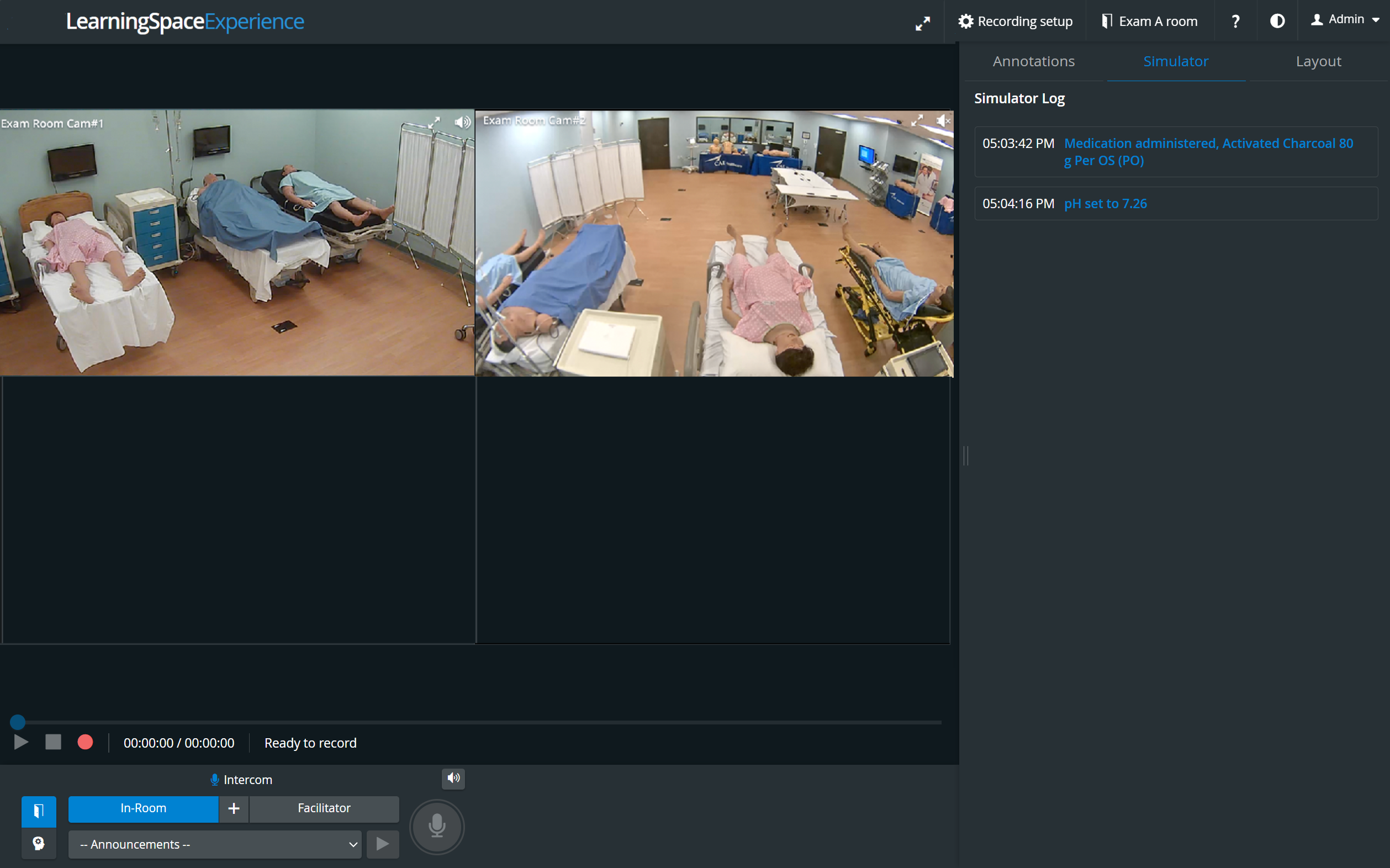
IMPORTANT - In LearningSpace Experience, an Instructor manages the scenario on the patient simulator via the instructor workstation (tablet, control workstation), and LearningSpace captures the simulator's data. (Therefore, no Sim Control Panel is available in any Recording views.)
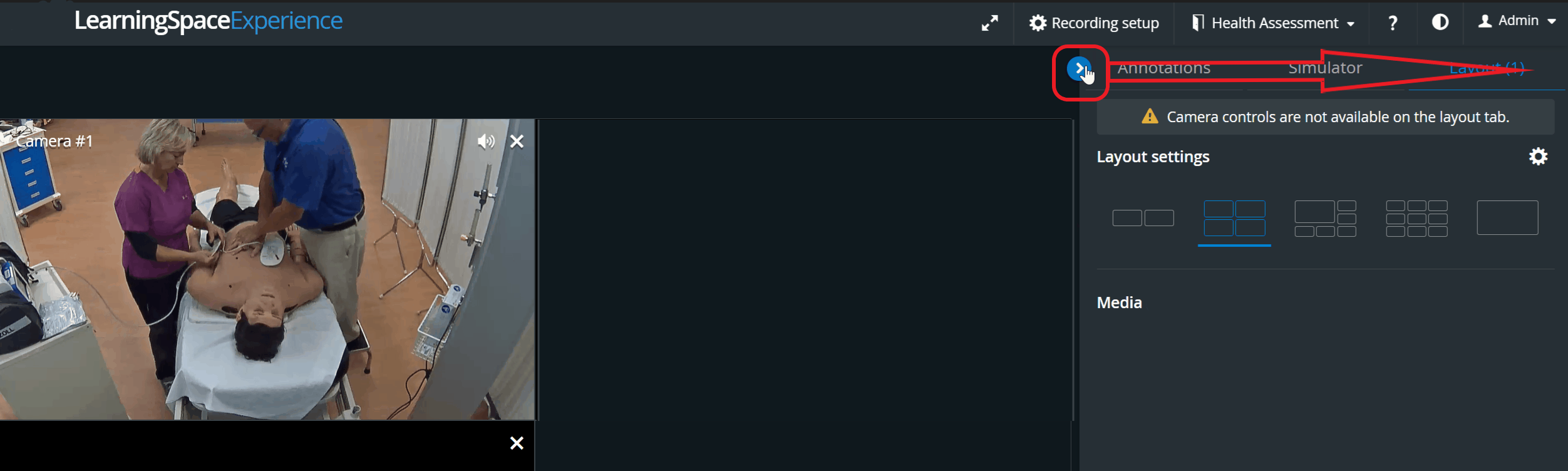
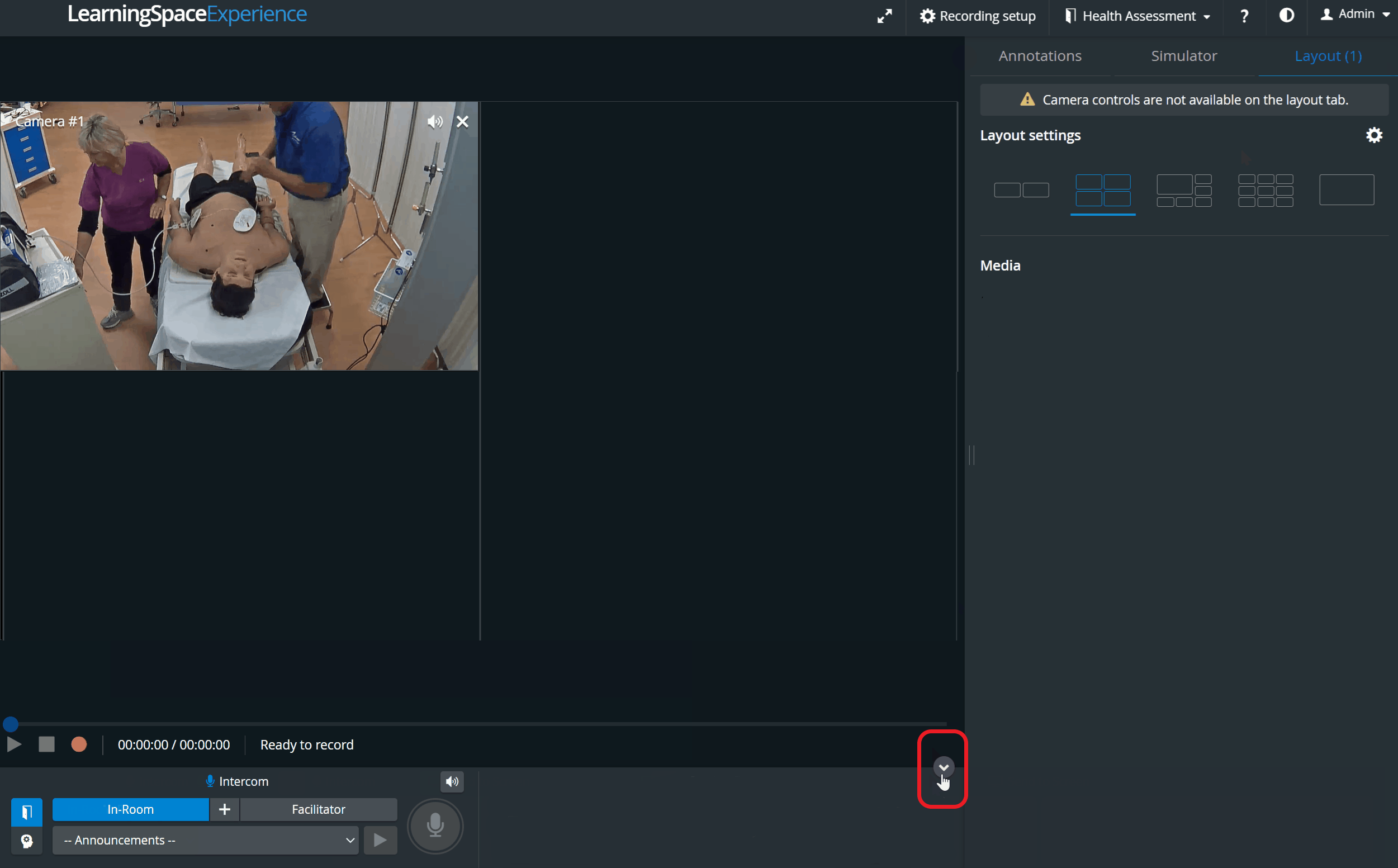
Toggle Panel Width/Height
With the Toggle Panel Width/Height functionality, the bottom and side panels can be minimized to maximize the displayed camera or media view.
The toggle reveals itself by hovering over the bottom or side panel or on the panel border lines. When activated (i.e., when the camera view is maximized), the toggle arrows are displayed constantly.
Vertical Double Layout
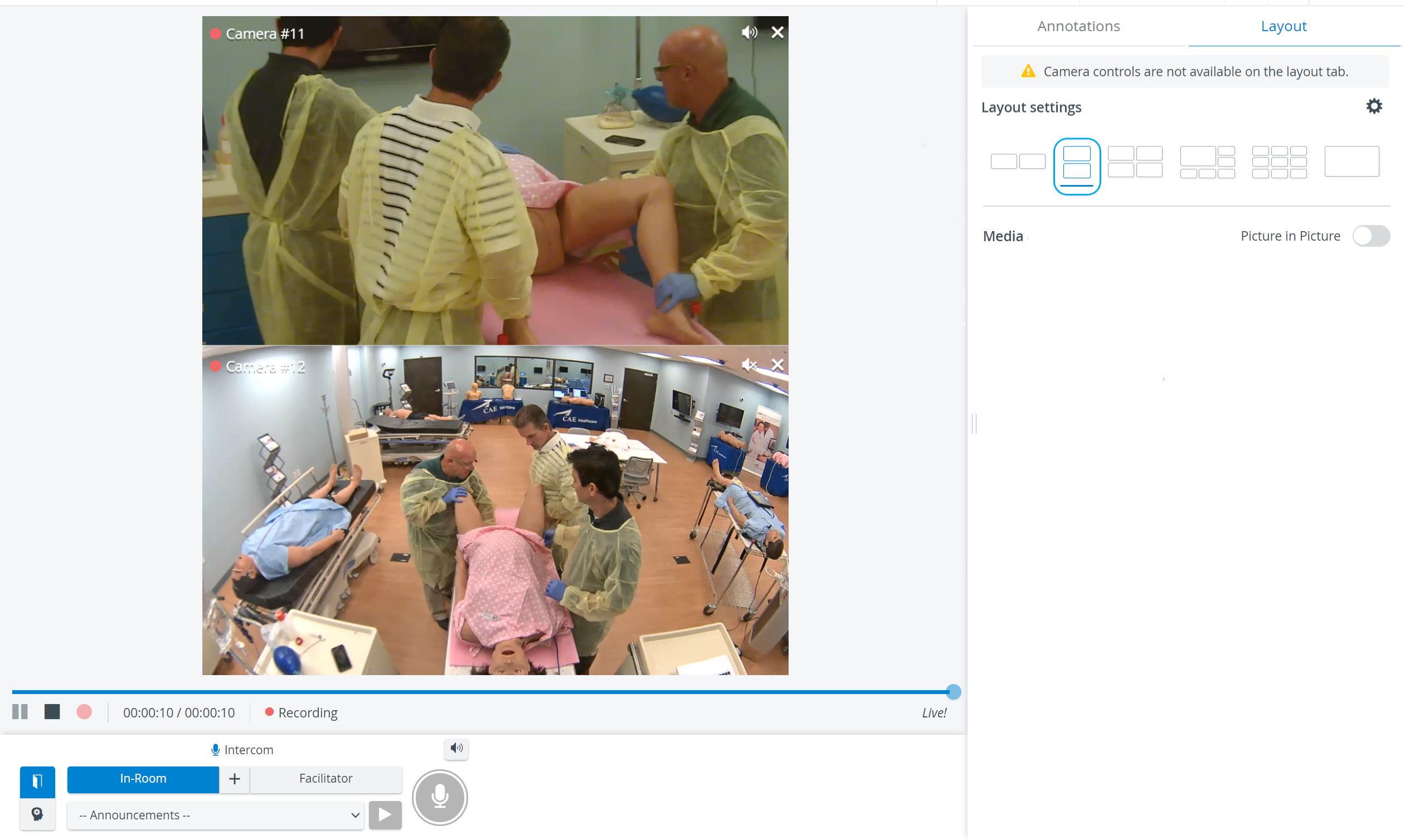
In some cases, two camera views must be displayed on top of each other (i.e., in a single column) during recording.
In the latest versions of LearningSpace, the utilization of the space available in the Single Room View panels can be maximized, and the panels on the right side (Annotations tab, Layout tab) or additional windows can be displayed in a larger size by using the Vertical double layout feature.

9-camera feed
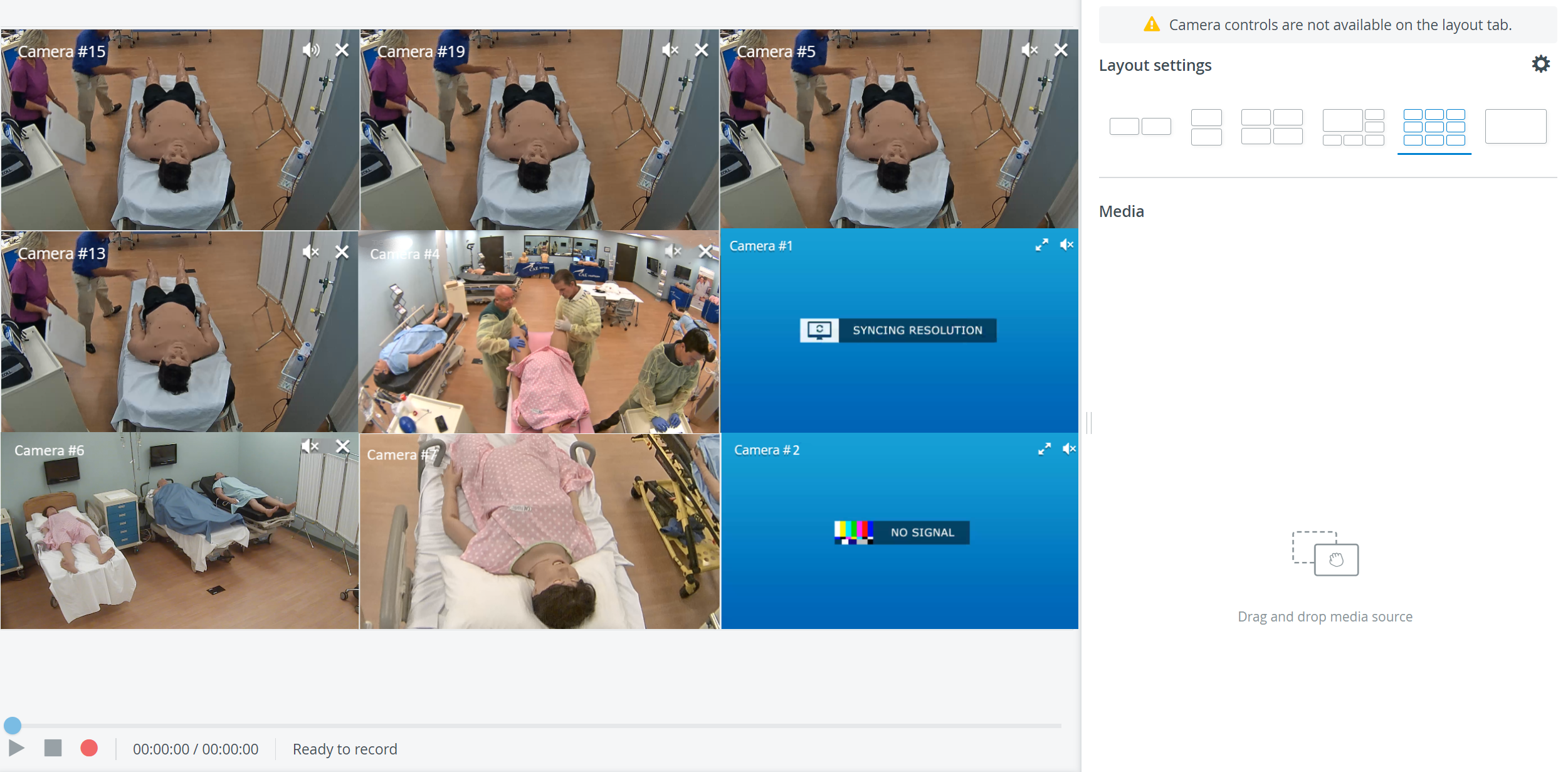
In the newest release of LearningSpace, #6, #7, #8, and #9 optional camera selector dropdowns have been added to the Room editor of the System module.
It only allows the Single Room View's 3x3 layout to be used with camera feeds.

See also our Practical Recording and Recording - FAQ pages and watch our related Training Videos.