Simulators
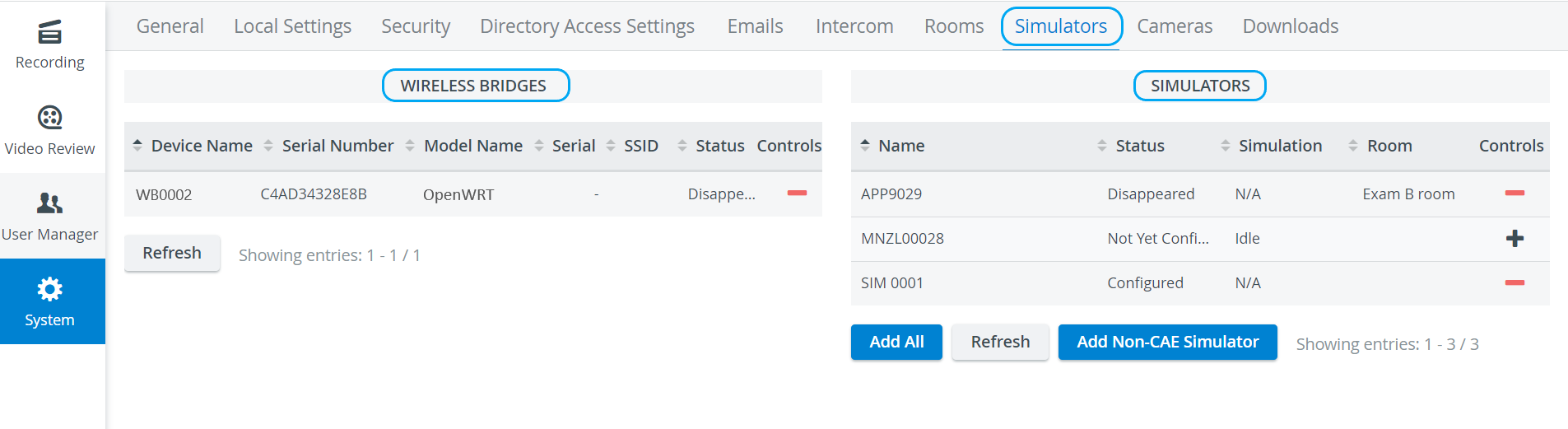
The Simulators tab in the System Manager accesses information on connected simulators and wireless bridges used in a LearningSpace system.
The tab displays the
Device Name
Serial Number
SSID and the Controls
Serial of the LearningSpace server
Name/Model Name of each wireless bridge and simulator
Room, Status, and Simulation Status of each simulator
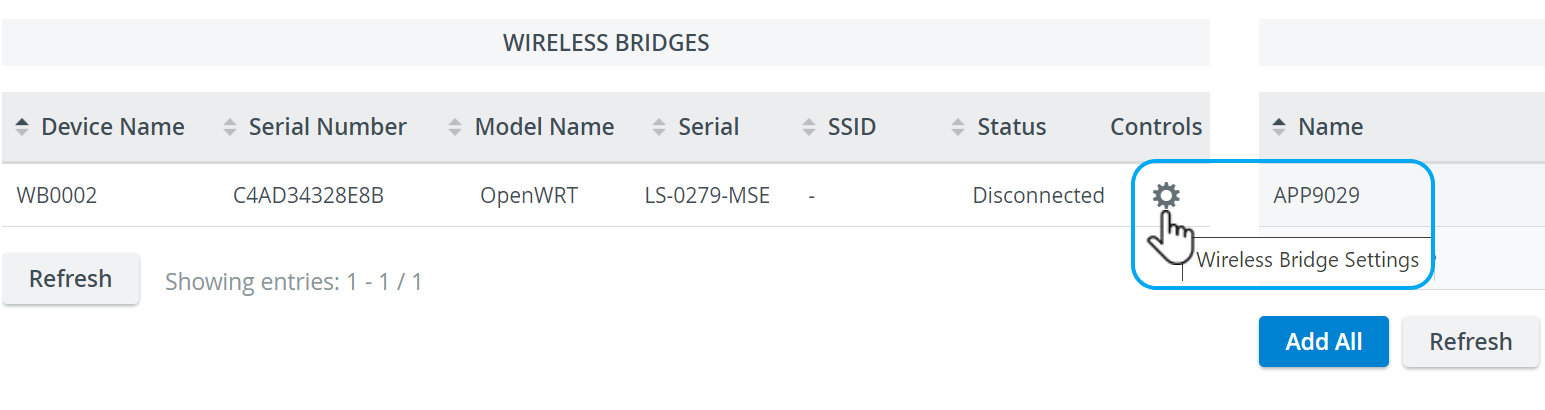
To connect to an Elevate Healthcare simulator, the following options are available:
Connect wirelessly
Connect using ethernet
💡 See How can I connect a simulator? for details on how to accomplish this in LearningSpace.
To capture the physiological signals of a third-party simulator, display video capture has to be used.
IMPORTANT: To capture the data logs of third-party simulators, additional software is required. See Third-party simulation integration for details.
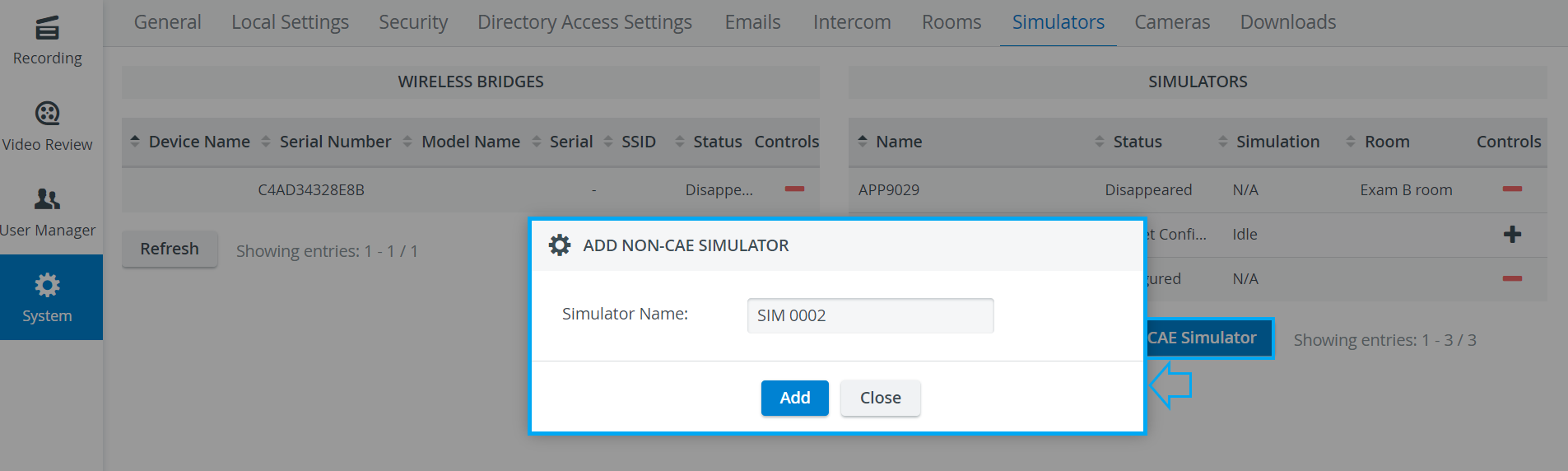
IMPORTANT
In LearningSpace Experience, an Instructor manages the scenario on the patient simulator via the instructor workstation (tablet, control workstation), and LearningSpace captures the simulator's data. (Therefore, no Sim Control Panel is available in any Recording views.)
When using a wireless bridge, ensure that the appropriate hardware and software are available for the simulator to be recognized by the system. See an IT professional for more details.
💡 See how to name and/or connect wireless bridges here.
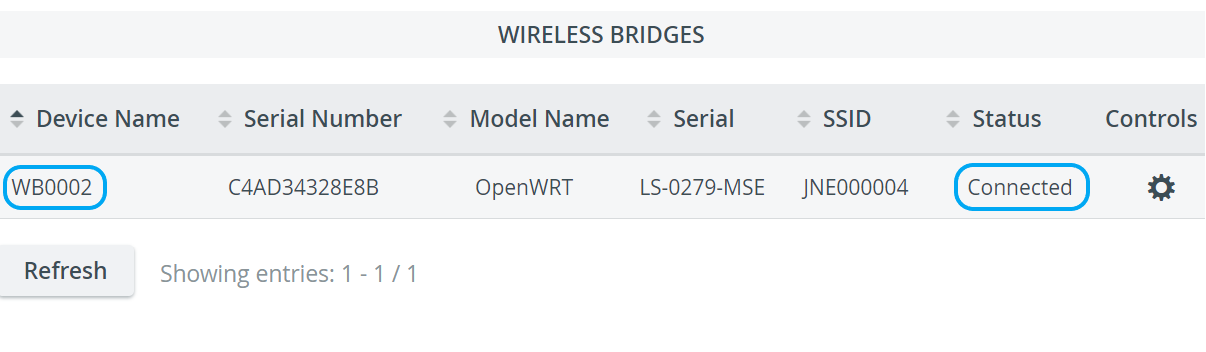
Password authentication ensures a secure connection to the wireless bridge.
The factory password or a custom password can be used for the access point of the simulator.

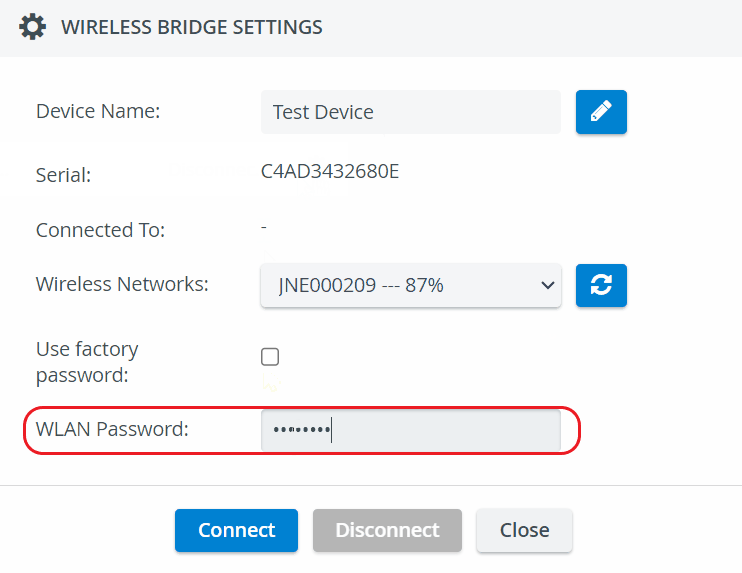
For more information on Custom password handling for wireless bridges, go to How can I connect a Simulator.
For more information, visit the related System - FAQ pages.