Room View during Video Review
Video recordings can be reviewed for rooms. Therefore, the screen setup is similar to the SRV of the Recording module. The panel in the screen's bottom left corner indicates the proceeding time and includes the Pause and Stop controls. The Information panel displays the date and time of the start of the recording, as well as its length.
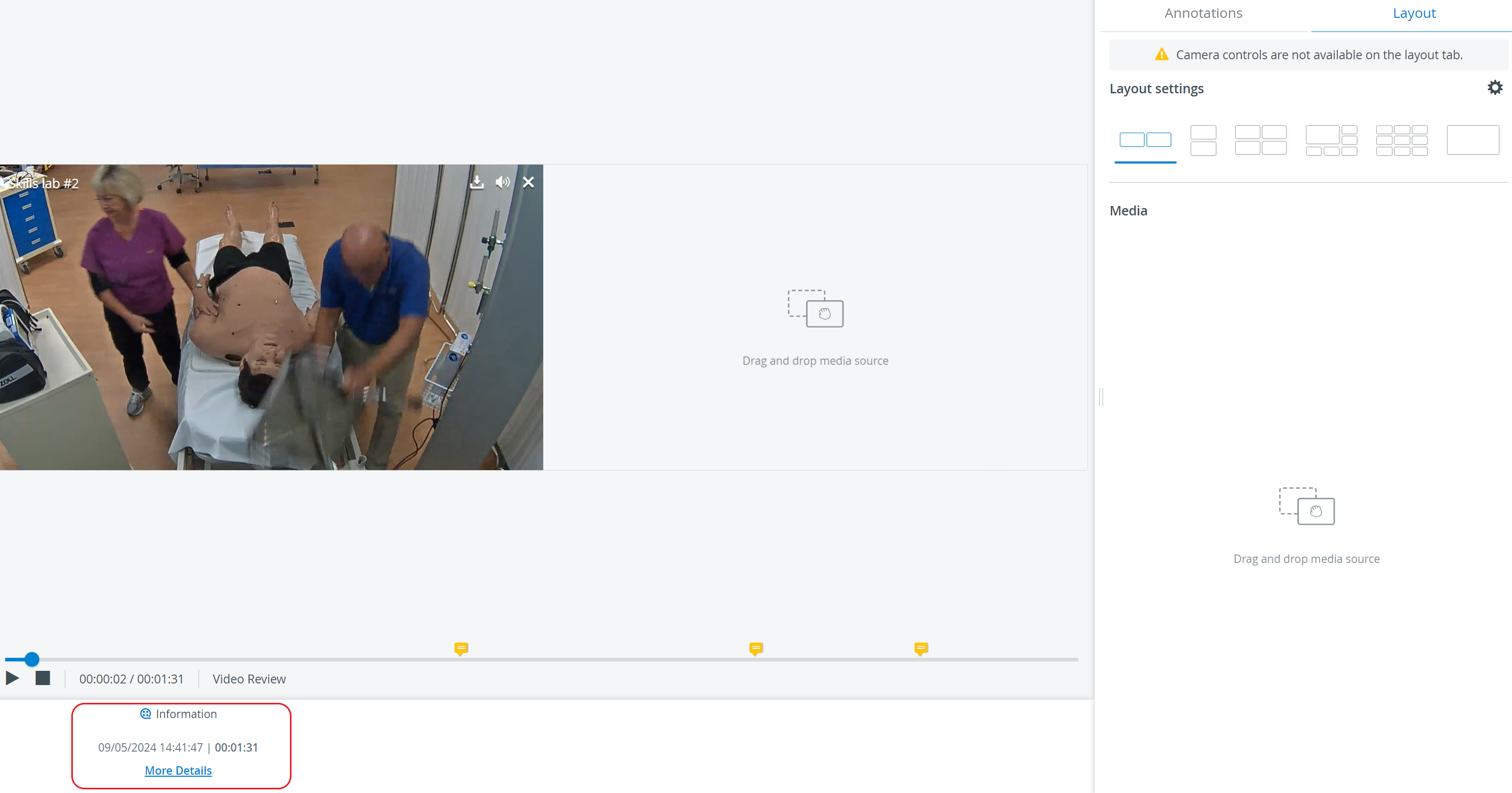
Clicking the More Details link at the bottom of the panel prompts the Information Details pop-up to appear where the participants and the simulation data are listed.
How to Play a Recording
Click anywhere on a row from the Video Review list to play a recording.
The recording opens and plays automatically.Click the Pause button to pause the video.
Click the Play button to resume play.
Click the Stop button to stop th
e video.
The panel in the screen's bottom left corner indicates the proceeding time and includes the Pause, Stop, and Play controls.
Timeline
In video review mode, a timeline is displayed below the camera panel(s). All added annotations are marked with a flag on the timeline at the time of the addition.
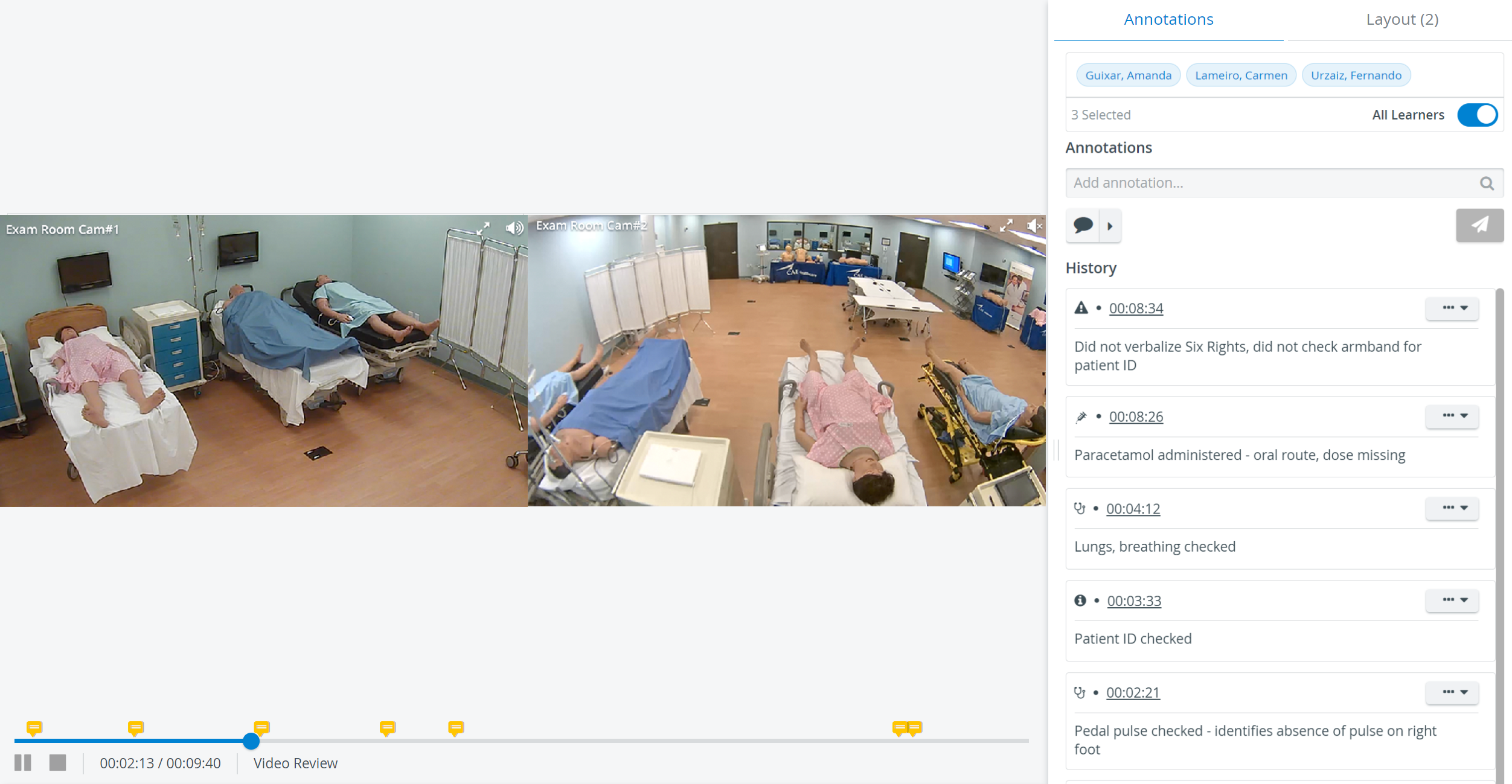
Particular points of the recording can be accessed by dragging the progress indicator to the desired point or clicking a particular point of the timeline once.
Full-screen mode

The sizing of camera views might not be optimal (images might be cut) in the Single Room View of the Video Review, with a 4:3 video size during Recording. The recommended ratio is 16:9. See details here.
Audio setting

NOTE: Only one camera in a room can have its audio turned on at a time.
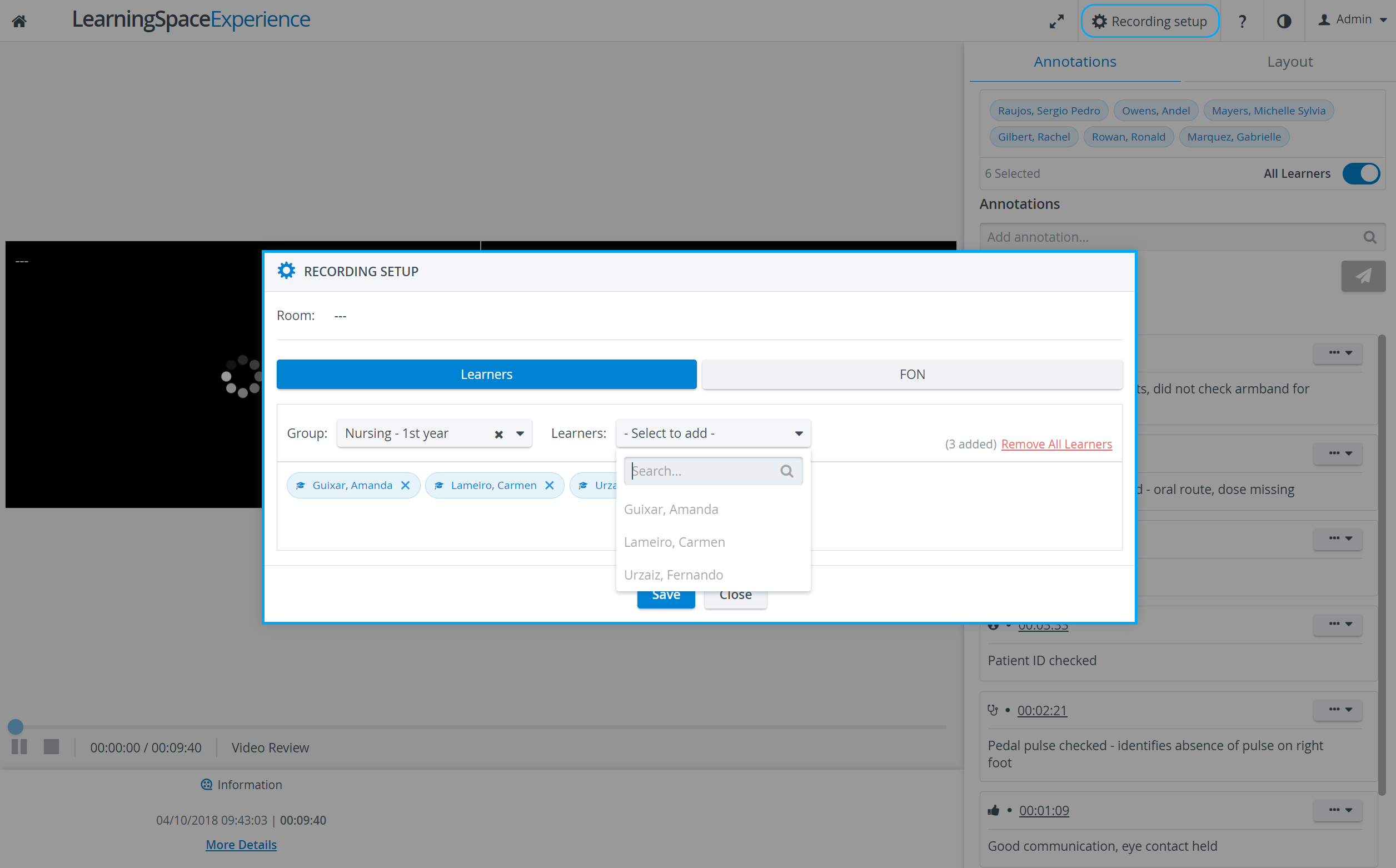
Recording Setup
The Recording Setup feature is used for assigning users to a recording. Learner groups can be assigned to or be modified here after a video recording has been completed:
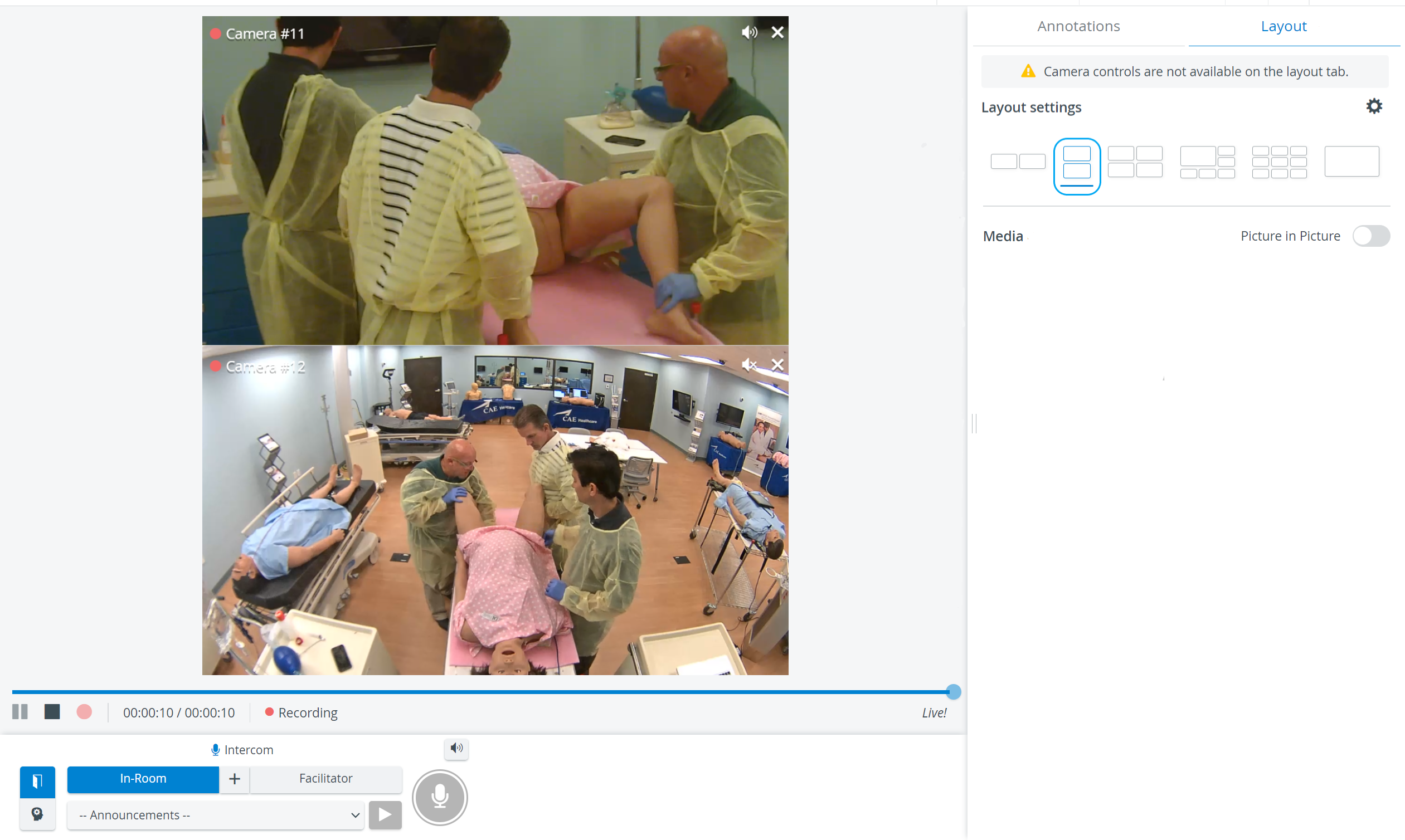
Vertical double layout
In the latest versions of LearningSpace, the utilization of the space available in the Single Room View panels can be maximized, and the panels on the right side (or additional windows) can be displayed in a larger size using the Vertical double layout feature.
Jump Forward/Backward Hotkey
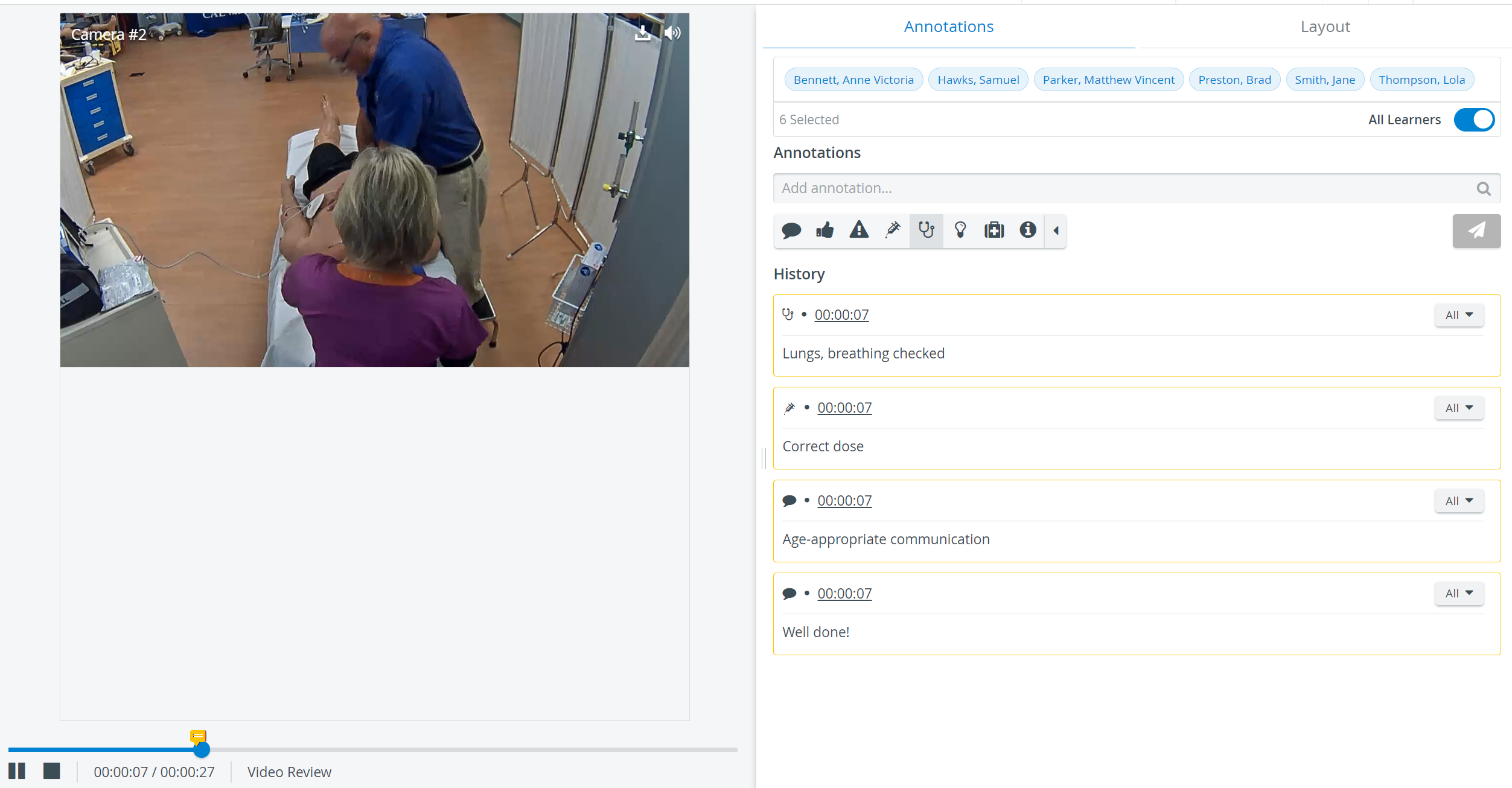
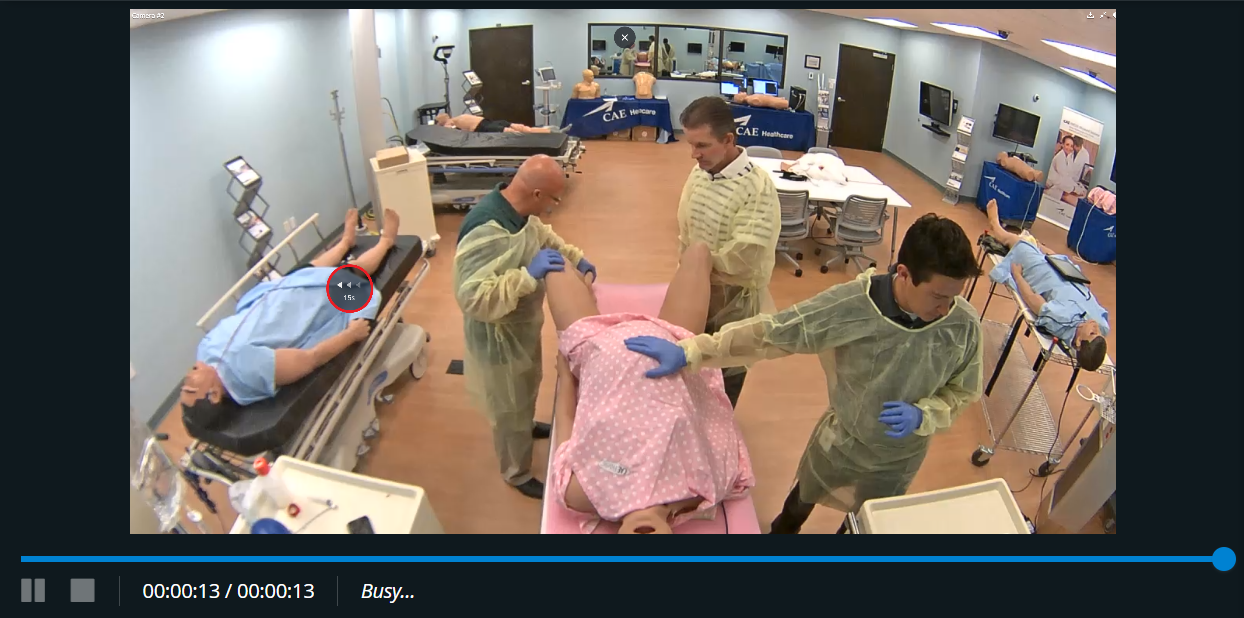
Users of LearningSpace can easily jump forward or backward in any video recording (in Video Review) by simply using the right or left arrows on their keyboard.
By pressing the respective key, the video will jump 15 seconds forward or backward, respectively.
Video Playback Speed Controls
 With the help of the Video Playback Speed Icon, the fast-forward and slow-motion playback capabilities of the Video Review module can be utilized.
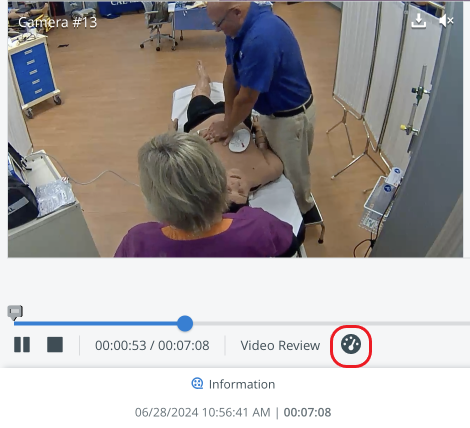
Users can change the playback speed to the following values:
0.25x, 0.5x, 0.75x, Normal, 1.25x, 1.5x, 1.75x, 2x, 3x, 4x
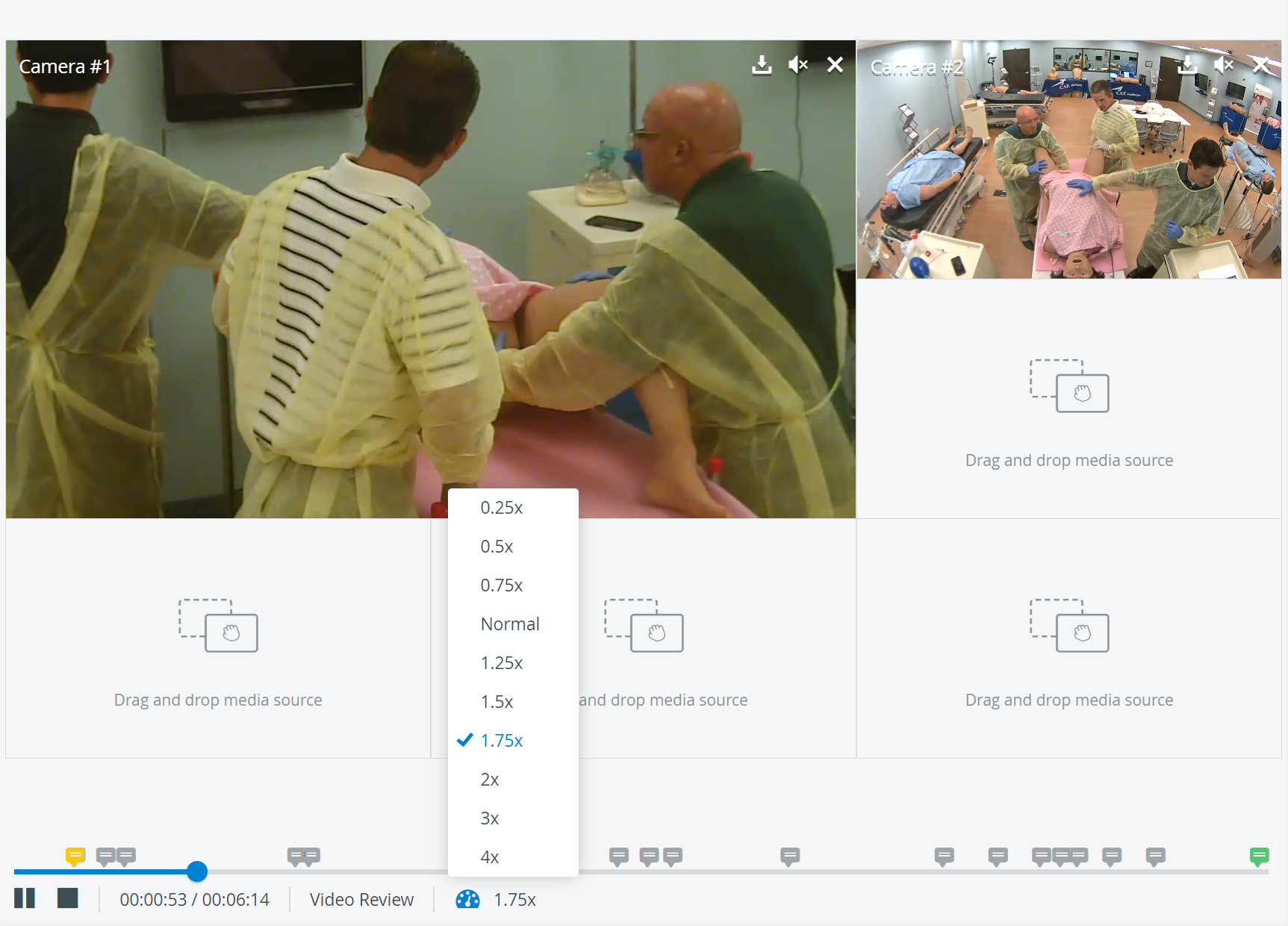
Annotations stay in sync with the video speed.
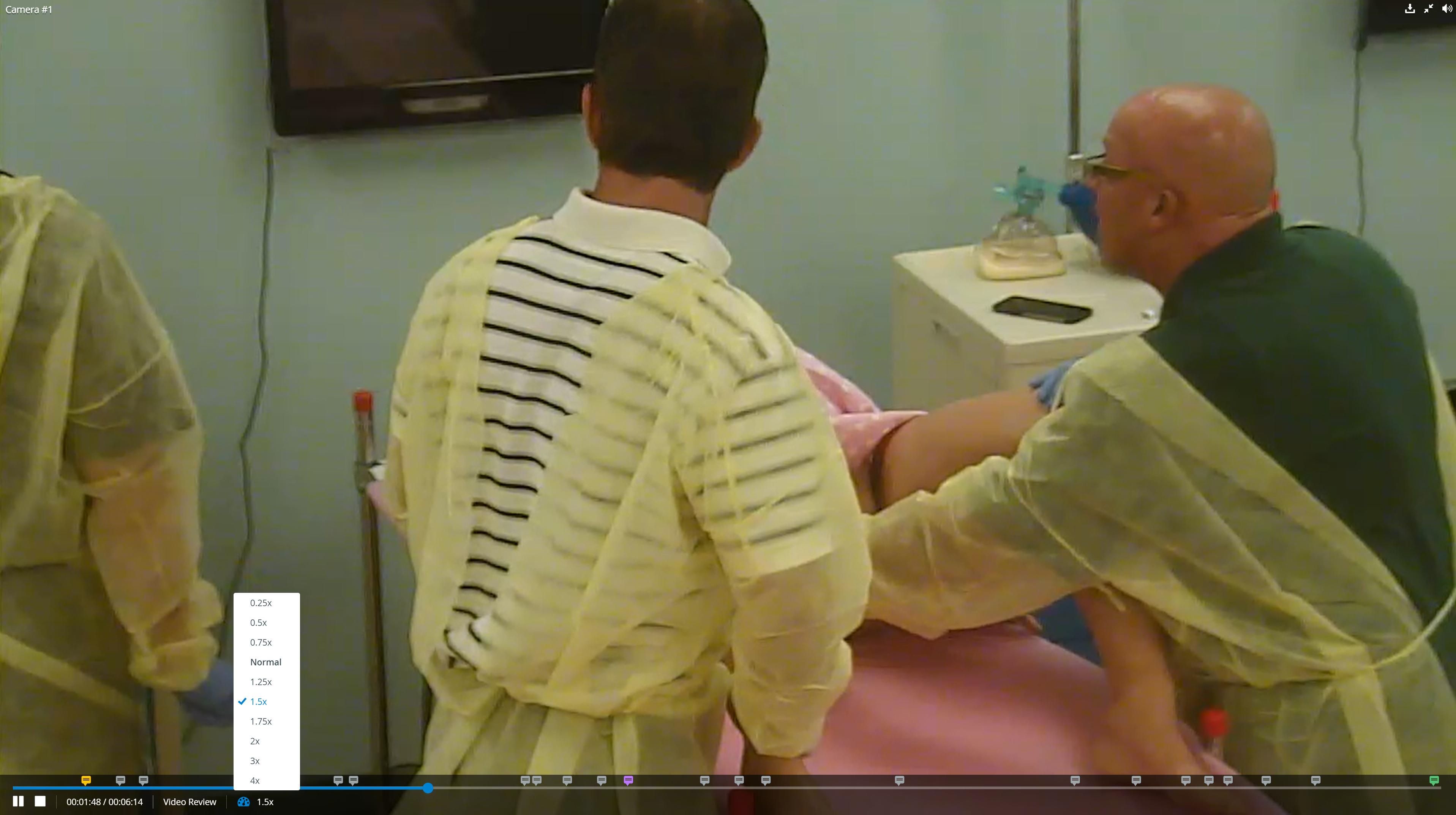
Video playback speed feature is also available in full-screen mode.
See our Video Review - FAQ pages and watch our related Training Videos.