Navigation and SRV Enhancements 2022 Release Notes
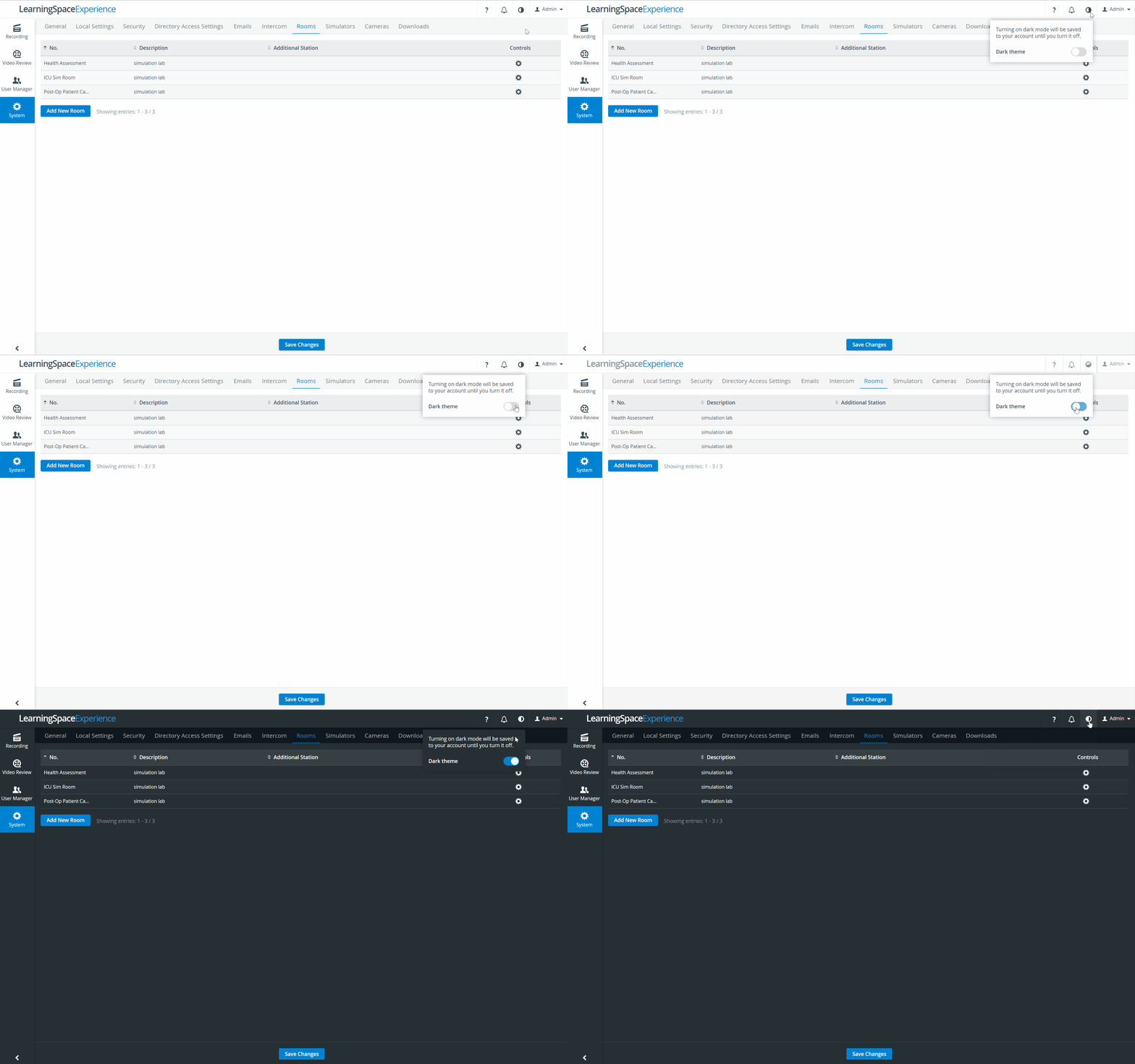
In our 2022 Summer release, we made major improvements to our navigation system and also introduced enhancements for our Single Room View (SRV). Besides this, we have made sure that our Dark Theme is available throught the whole application.
See what is changing in your LearningSpace Experience environment with this new release:
List of Enhancements of the Single Room View
Side menu
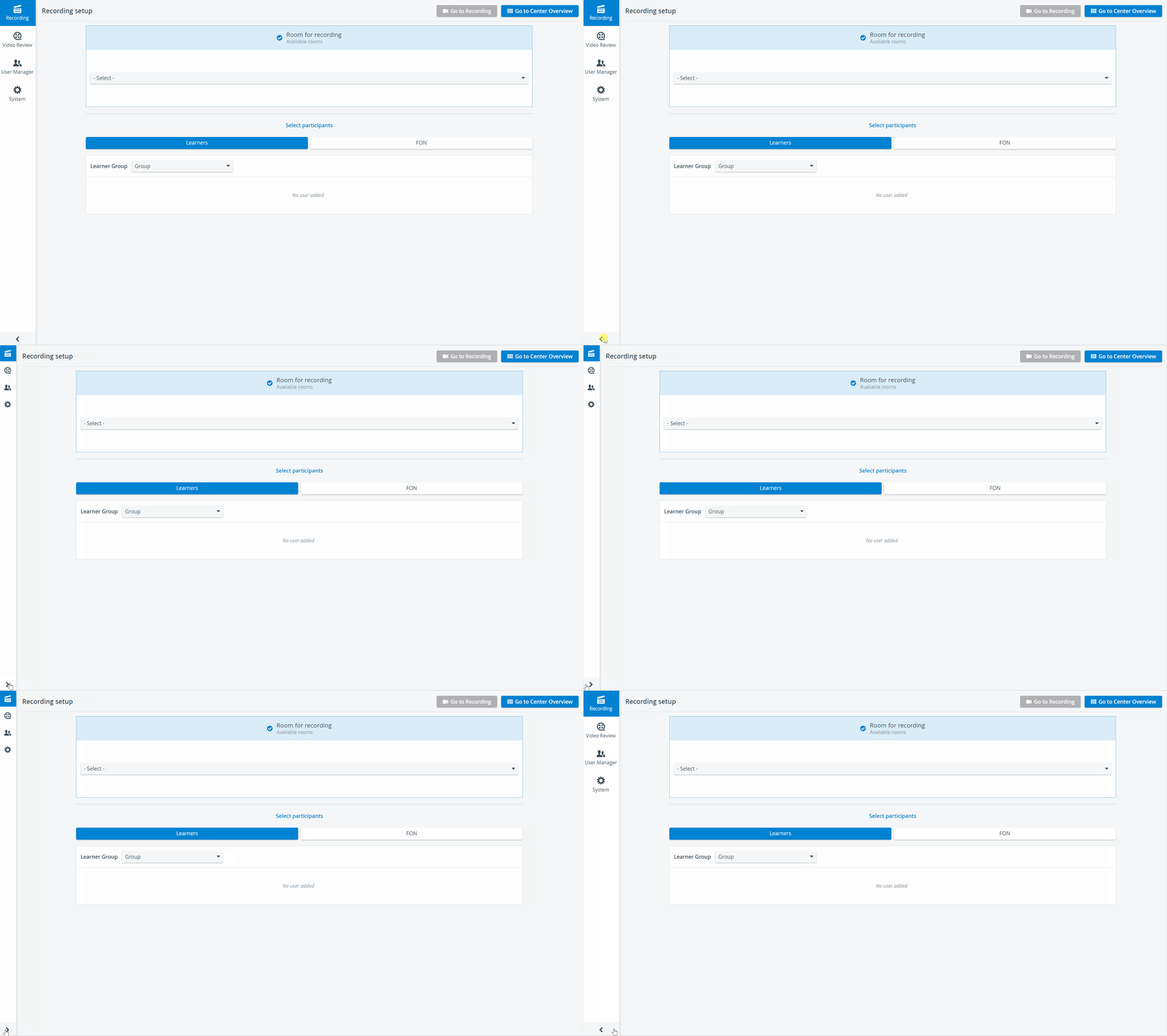
In the new release of LearningSpace Experience, navigation has been moved to the left side of the screen to enable easier access across the pages.
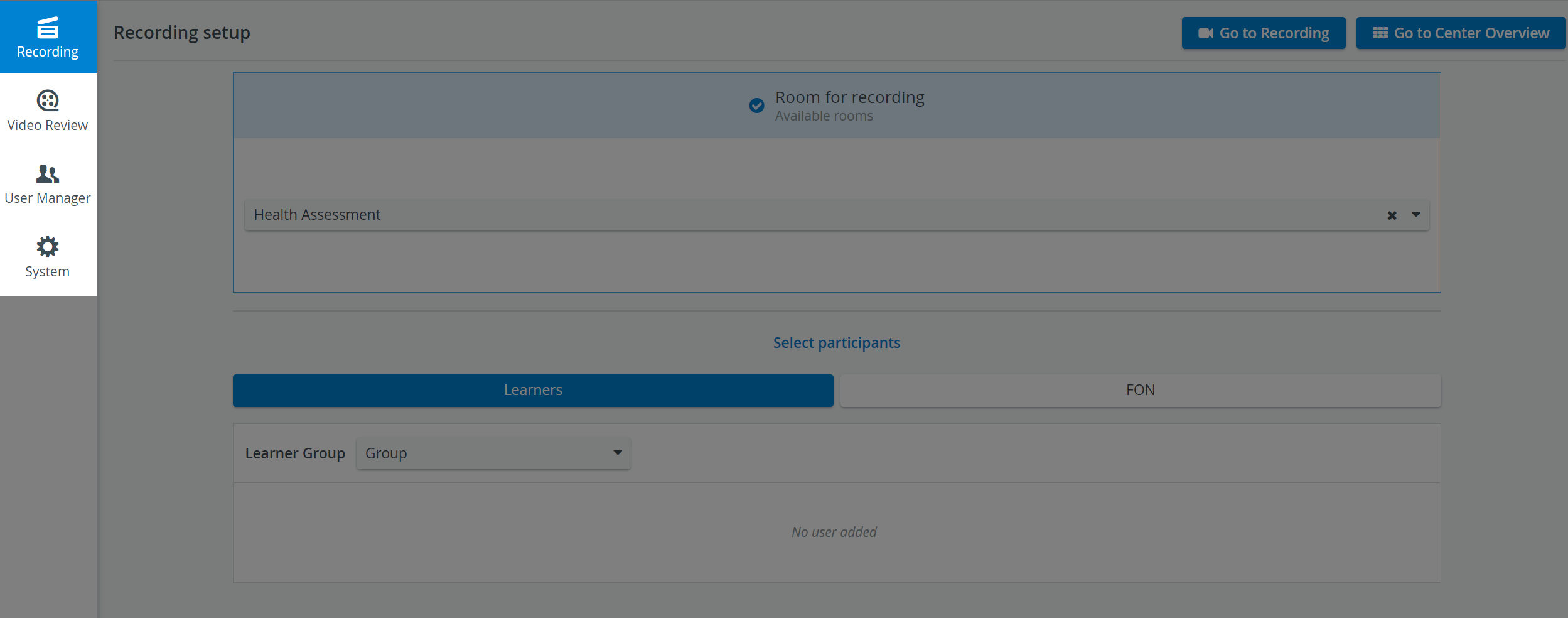
This new and progressive Side menu is togglable for more space on the focused content.
Updates to Full-screen mode
The Slider component at the bottom is now available even in full-screen mode.
From now on, the whole camera layout can be set to full-screen mode, not just a single media stream.
Layout tab
The Layout tab is located on the right side of the Single Room View and contains the Layout settings and the Media section panels.
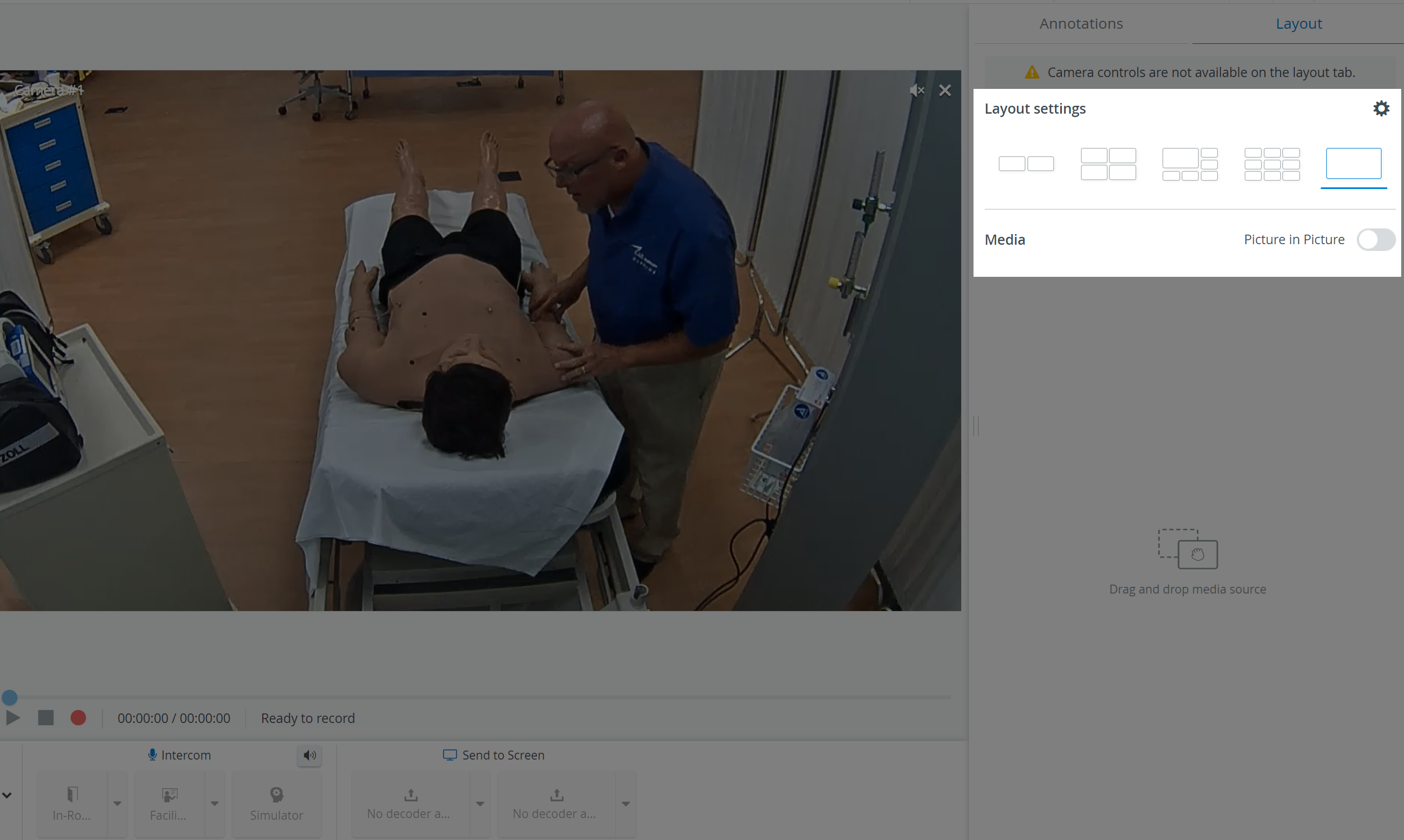
Here, users can choose from the following views to get the most convenient and suitable layout for their aims:
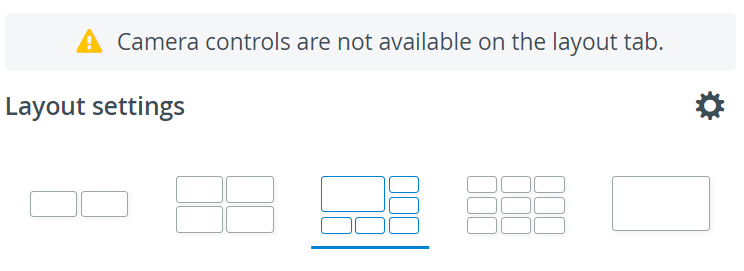
Double view: 2x1 feeds displayed
Quad view: 2x2 feeds displayed
Pinned view: 1+5 feeds displayed; one feed is highlighted
3x3 view: A maximum of nine feeds displayed
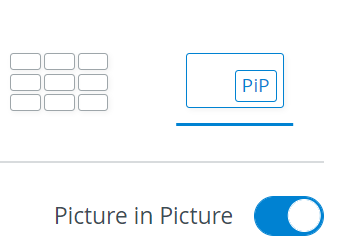
Single view: One selected feed is displayed. Picture-in-Picture view can be enabled by the toggle:
IMPORTANT
While the Layout tab is active, the on-screen Camera controls (e.g., PTZ) are disabled.
Before saving personalized layouts for new rooms, all media sources are displayed in the optimal layout by default.
Media Section
Camera feeds and simulator-related media (CTG, waveform, and trendchart/patient monitor) added to a room are available in the Media section. Media can be moved to and removed from the video layout—pinned or unpinned—by using the drag-and-drop or pin-to-layout functionalities. This way, only the selected media sources will be presented to the viewers.
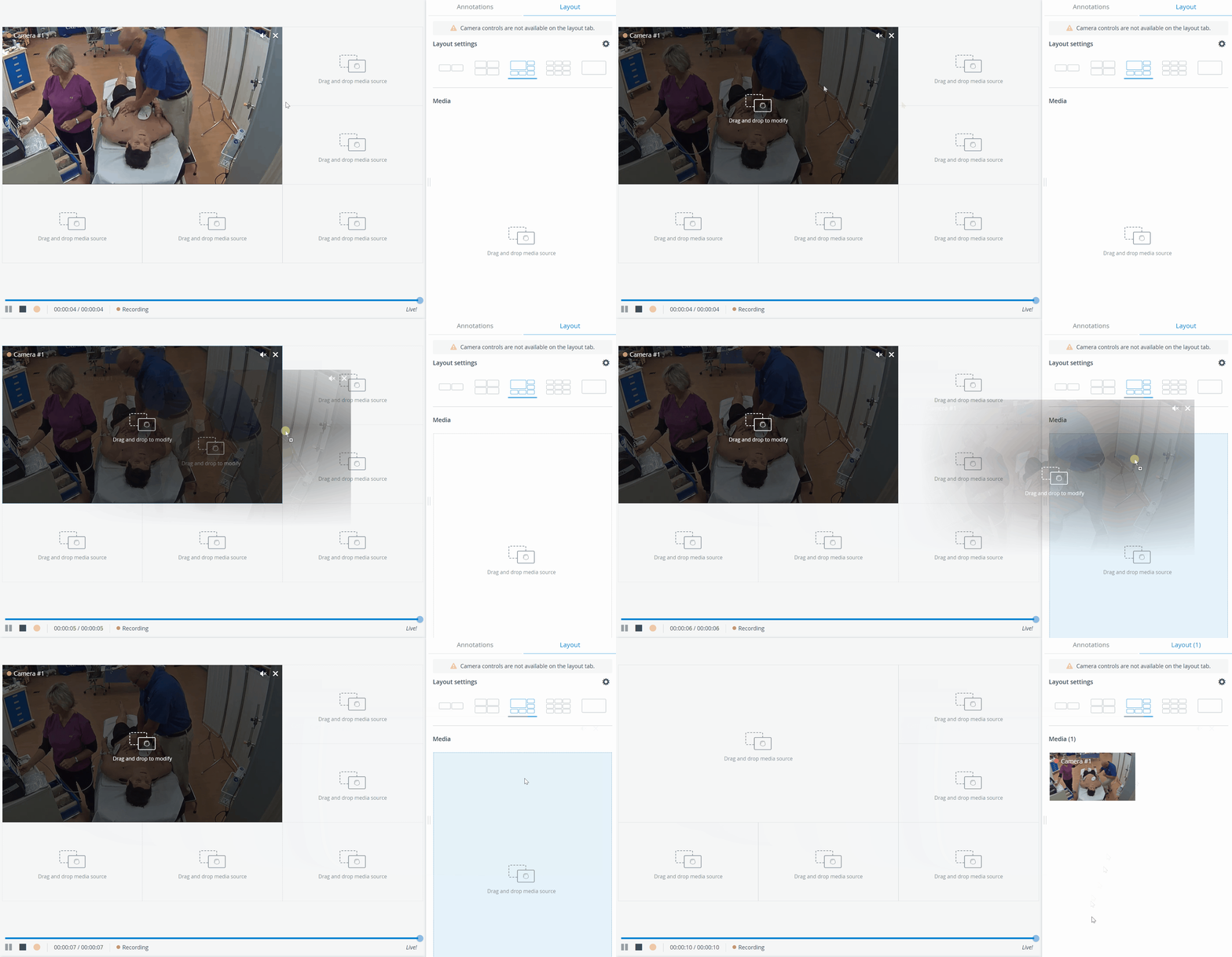
Drag-and-drop functionality
Media sources (camera feeds, physio apps) can be moved into the layout or into the Media section as desired using the SRV's new drag-and-drop functionality.
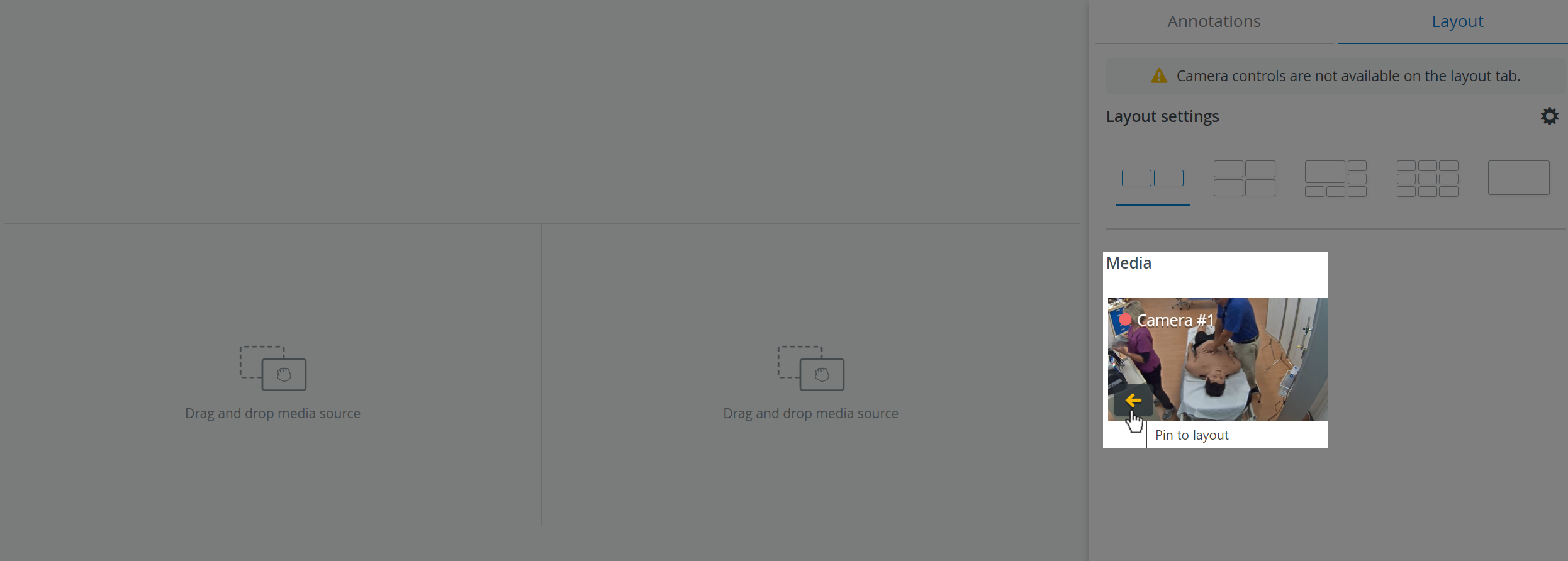
Pin-to-Layout
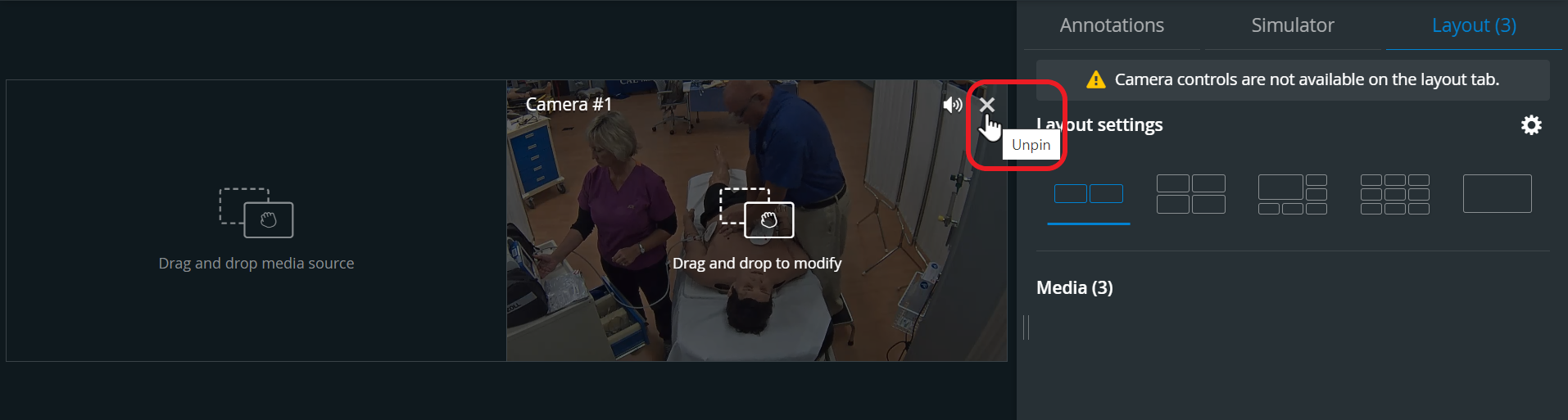
Media sources can be "pinned" to the layout also by clicking on the icon in the respective feed.

Media can be "unpinned" by clicking in the upper right corner of the camera/media panel and thus moving it to the Media section.

Picture-in-Picture
One desired camera feed/media source can be displayed focused, while the rest media sources (a maximum of four) are displayed in the corners of the video layout.
Media sources (camera feeds, physio apps) can be moved into the layout or into the Media section as desired using the SRV's new drag-and-drop or pin-to-layout functionalities.
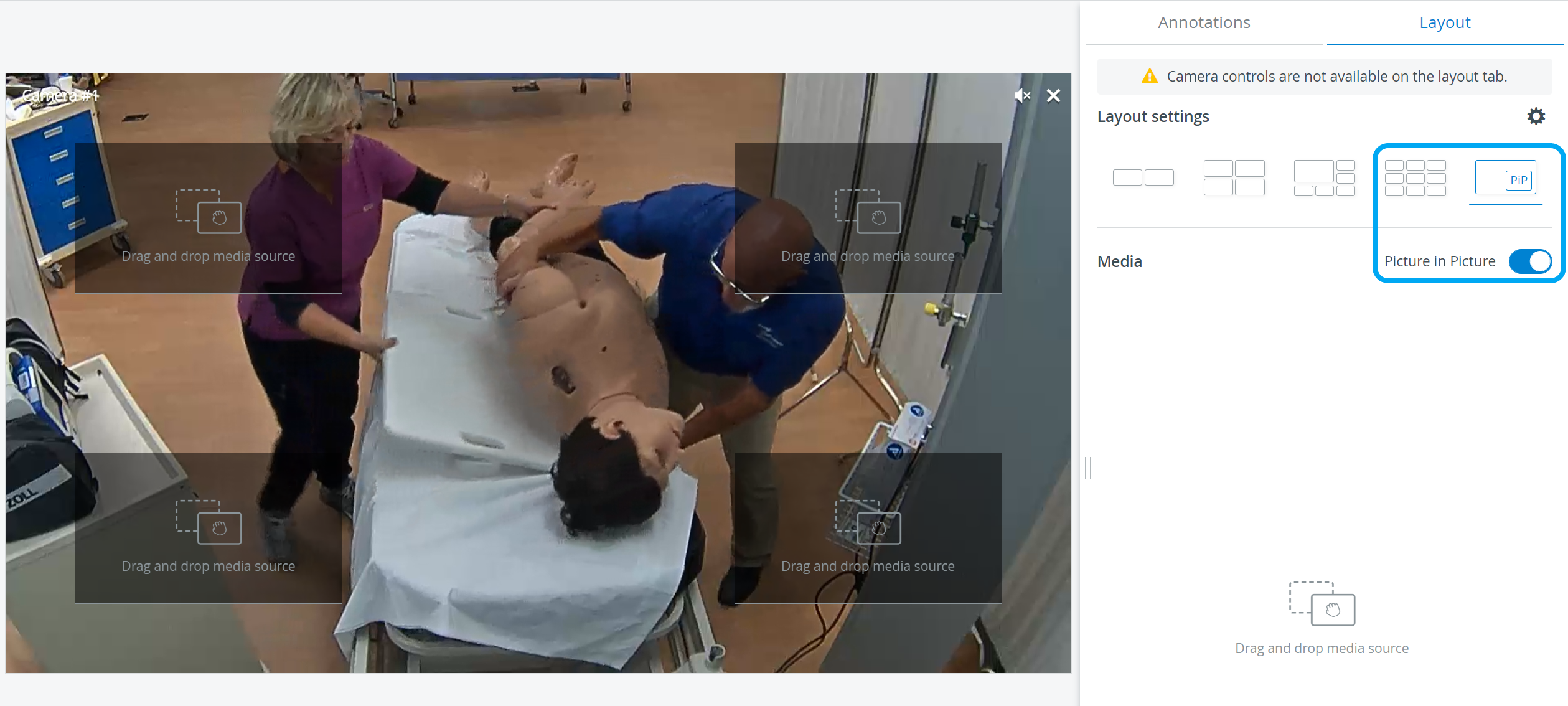
The Picture-in-Picture toggle is only available in the single Layout view.
Video timeline introduced to Live Recording
Video timeline controls are now available during Live Recording (as in the Video Review).
During live recordings, the following enhancements can make video review easier:
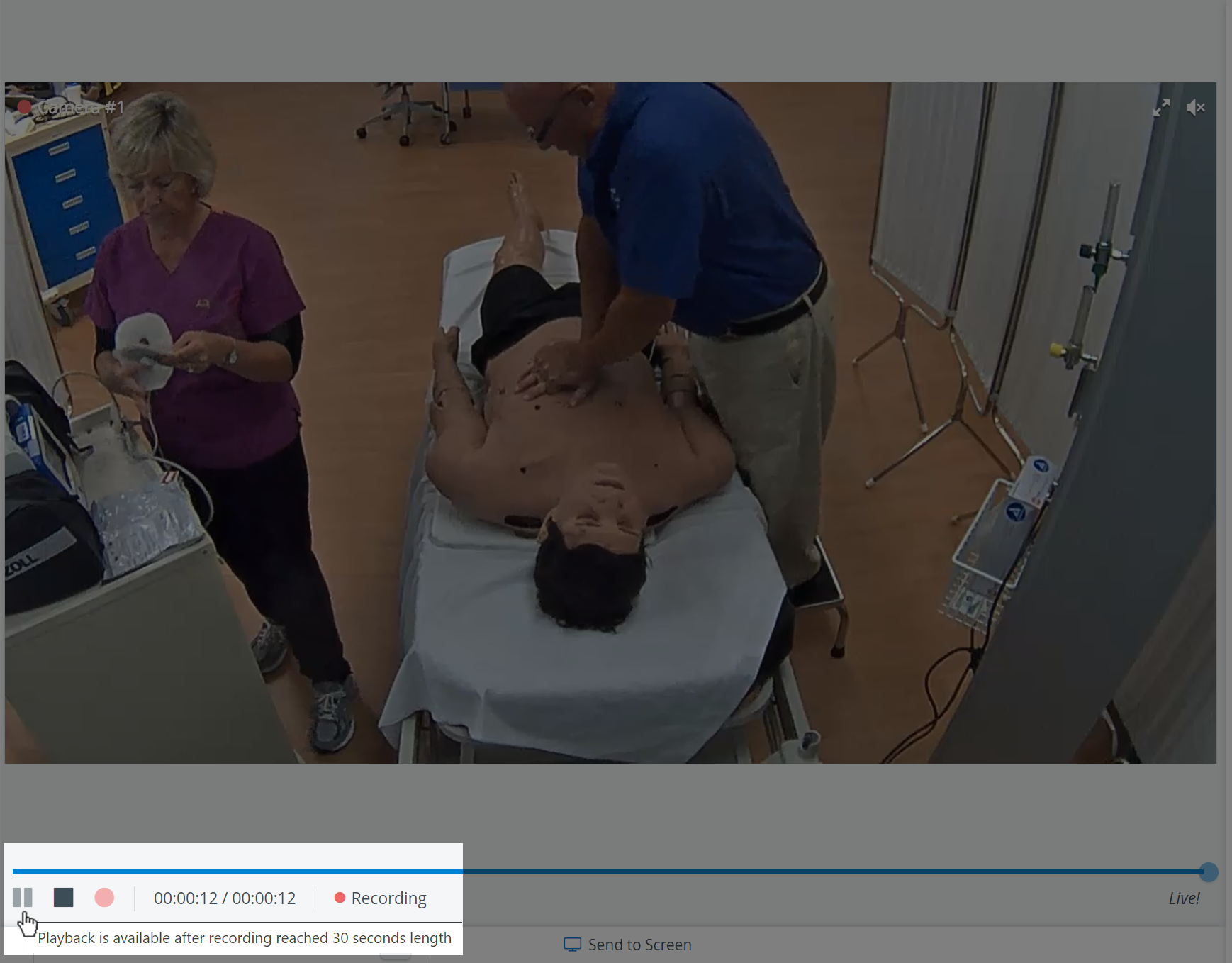
Recording can be paused or played back by dragging the slider to the desired point on the video slider.
Both current and live timestamps are displayed next to each other in the video record panel. Live view can be switched back to by pushing the Go Live button.

After 30 seconds have passed from the start of the recording, the video can be paused, and the slider can be dragged. Before that time, the pause button is grayed out, and the slider cannot be moved.
Room selector
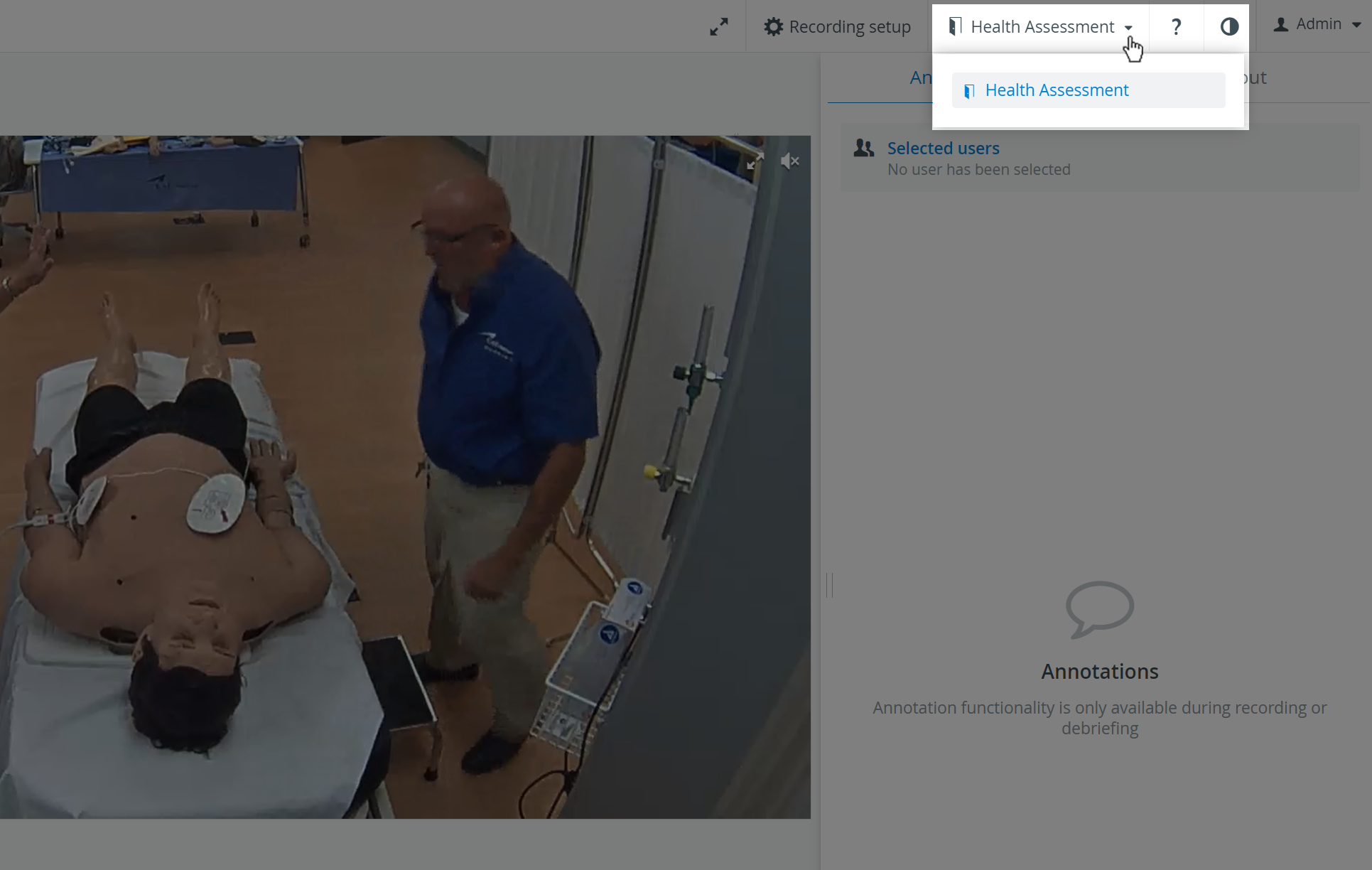
A room selector has been added to the top of the SRV screen. Rooms to be recorded can be selected from the respective dropdown.
Dark theme
From this new release, all pages support dark mode in LearningSpace Experience. It can be enabled by using the Dark theme toggle: