How can user accounts be edited in batch?
The most efficient way to edit information for a group of users is via the Batch User Create (BUC) function.
IMPORTANT: This option requires that the users be in the same group.
This function is optimal when modifications are to be made to different individual data segments.
If role or group membership is to be set to the same value, the Edit Multiple Users function is more efficient.
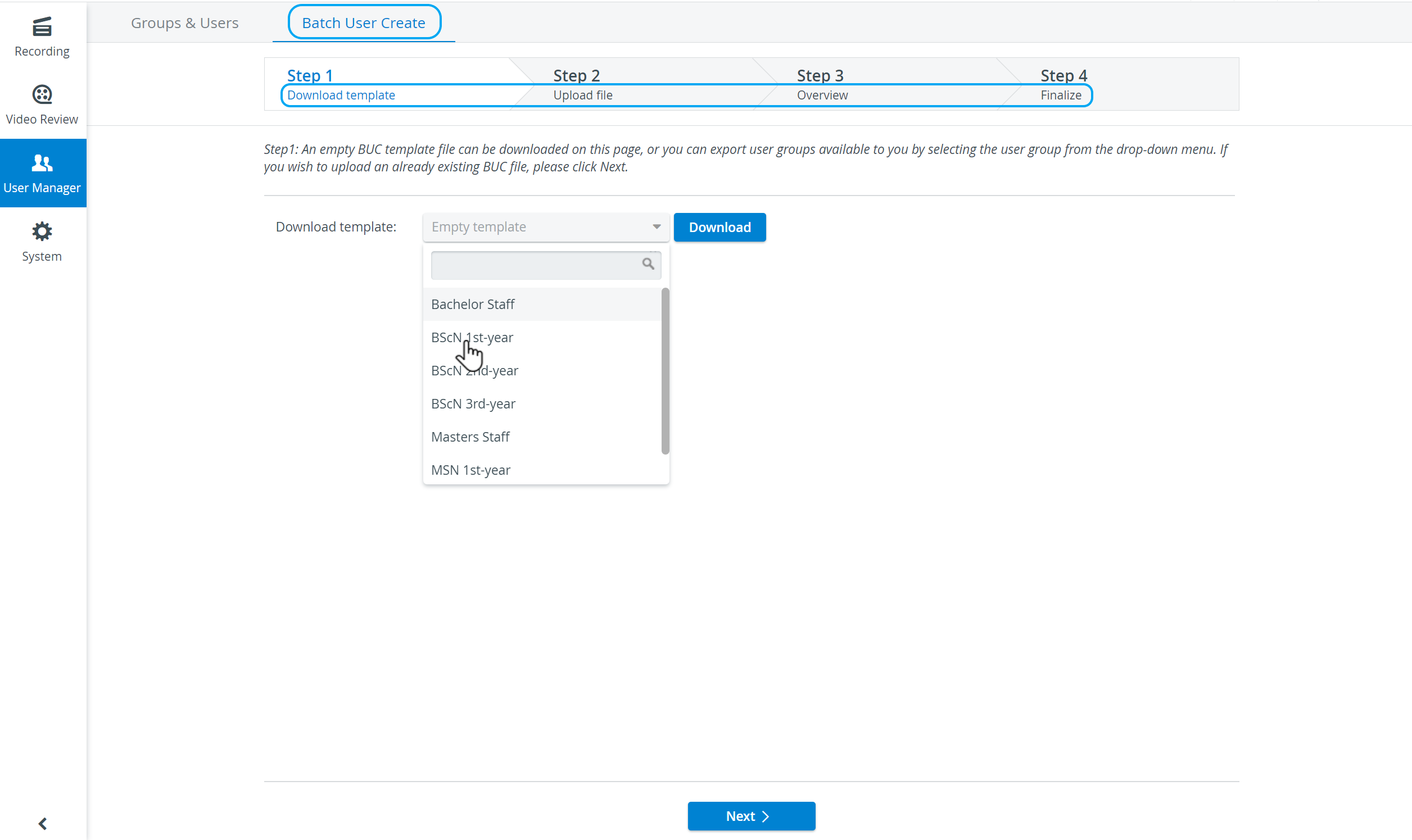
Open the User Manager module and switch to the Batch User Create tab.
Select the group you intend to modify the members' user information from the Download template drop-down, then click Download.
An excel file containing all data entered in the system about each member of the selected group will be downloaded.
Make the desired modifications in the Excel file, then save it to a folder from which it can be uploaded back into the system.
Click Next to move forward to Step 2 of the process.
Click Browse to upload the modified Excel file saved on your computer.
Switch the radio button to Update the existing user account, then click Next.
NOTE: The Next button only becomes activated when a file is selected for upload.
Step 3 appears with an overview of how the system will upload the changes in the user accounts.
NOTE: Hovering over the information icon prompts the tooltip window containing an explanation about the BUC table icons.
IMPORTANT: If data is missing, the system warns the user about the specific errors in the file on the Step 3 surface. In such a case, the user needs to return to Step 2 and upload the corrected Excel file according to the error messages.
Click Finalize at the bottom of the tab.
The Step 4 surface appears with a summary of the number of updated user accounts and, if any, the number of user accounts that have not been uploaded due to accessibility issues.Click Done at the bottom of the tab to conclude the Batch User Create process.
Step 1 will be displayed for further possible uploads.