How can I set up a new room in LearningSpace
Within the LearningSpace system, a simulation environment corresponds to a Room. Recording within LearningSpace is only possible in Rooms that have been set up within the system. Setting up a room entails adding it to the system with a specific name and assigning the cameras, manikin, DAK, or other A/V devices intended to be used during the simulation event.
IMPORTANT: Room setup should be completed after all devices intended to be used in the simulation environment are physically connected and configured on the corresponding tab(s) of the System (e.g., cameras added on the Cameras tab).
NOTE: Room management depends on the hardware system. For example, a LearningSpace ONE Box is a one-room system, so no additional room can be added.
To add a new room within the system, click the Add New Room button at the bottom left corner of the Rooms tab.
The Room Settings pop-up appears.Enter the room number and room description, then click the Add button.
The Room Settings pop-up automatically expands with other details.Assign the devices desired to be added to the room by selecting them in the corresponding drop-down menus.
NOTE: Depending on the screen size, you may need to scroll down to see all the assignable devices.
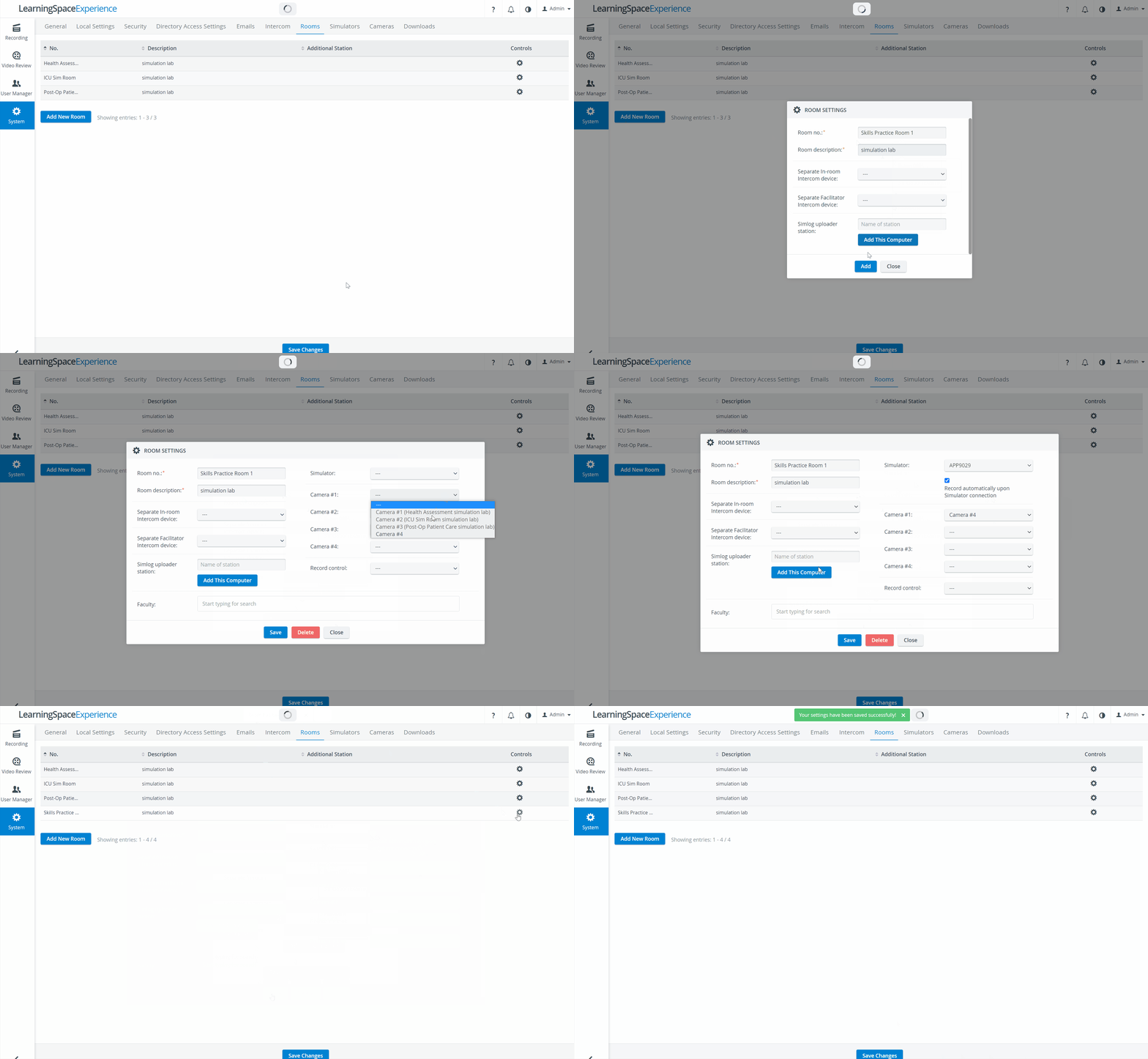
Click Save to save and add the new room.
Once the data have been saved, the list of rooms will be displayed with the new room added.
Additional room setting information can be added or modified at any time by clicking the cogwheel for a desired room, prompting the Room Settings pop-up to appear.
To delete a room (including all assignment settings), open the Room Settings pop-up and click the Delete button.