How can annotations be added to a live recording
Users with Admin, Facilitator, and Faculty roles can add annotations to a recorded simulation during live recording and in the Video Review module.
IMPORTANT: Annotations are added to learners; therefore, the Annotation panel can only be used if learners are assigned to a recording.
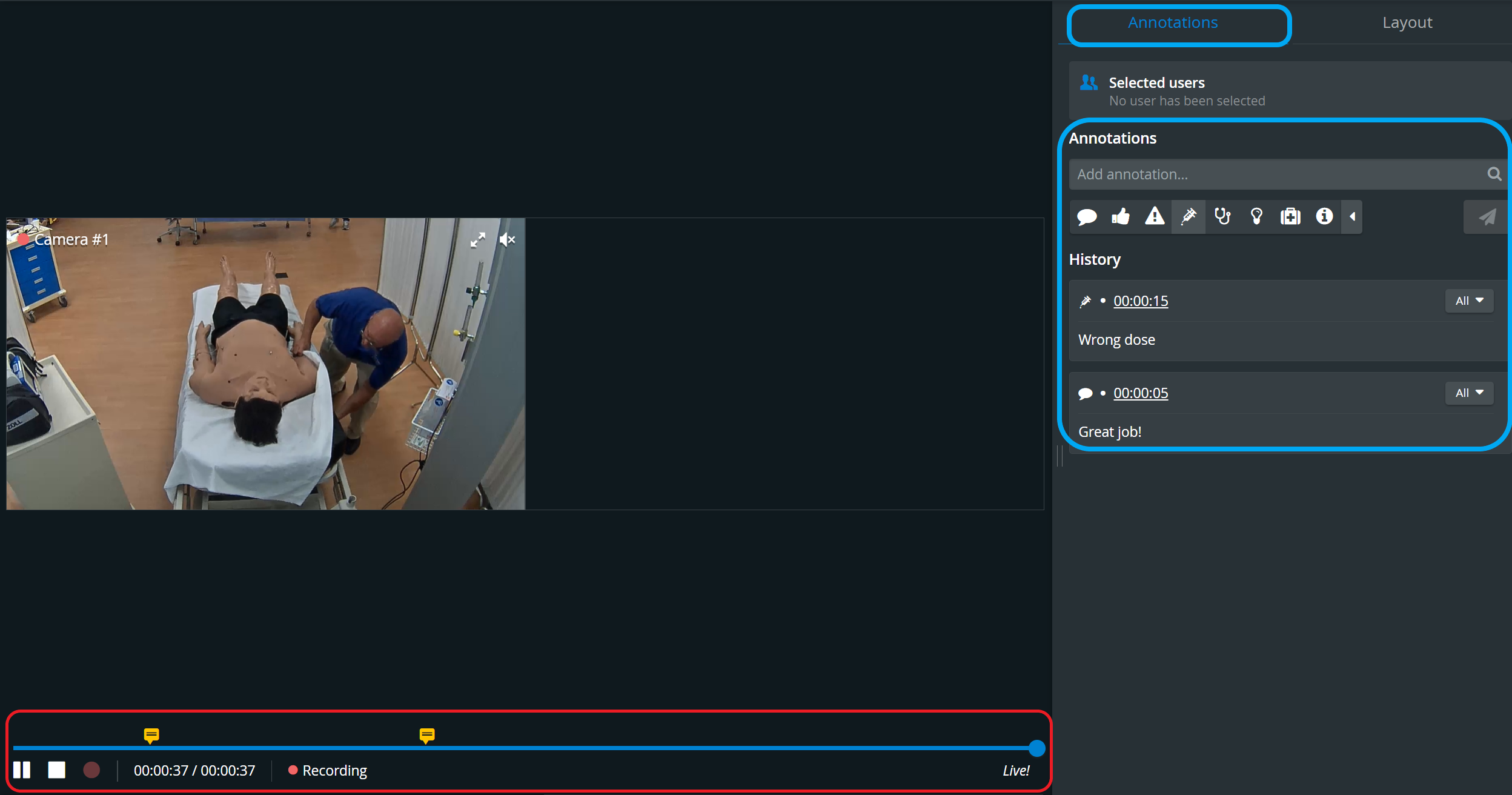
By default, annotations are added to all the members of the Learner group assigned to the recording. To deselect learners, click the All button in the Selected Users panel and click the names to be excluded.
Learners can also be deselected or added to an annotation in the Video Review module.
To categorize the annotation to be added, click the desired category icon.
The default category is the first one, and since the category cannot be changed after an added annotation, it should be changed in advance if desired.
Type the note intended to be added, then press Enter.
Already used annotations can be promptly added, as they are listed in a drop-down based on the character combination typed in the Add annotation... field.
The added annotation will be listed in the Annotation panel with the time when it was added. In the Video Review module, the annotations are also indicated with a flag above the timeline.
See also our Practical Recording and Recording Module pages and watch our related Training Videos.