Groups & Users
The Groups & Users tab contains all the groups created in the system and lists all the existing users.
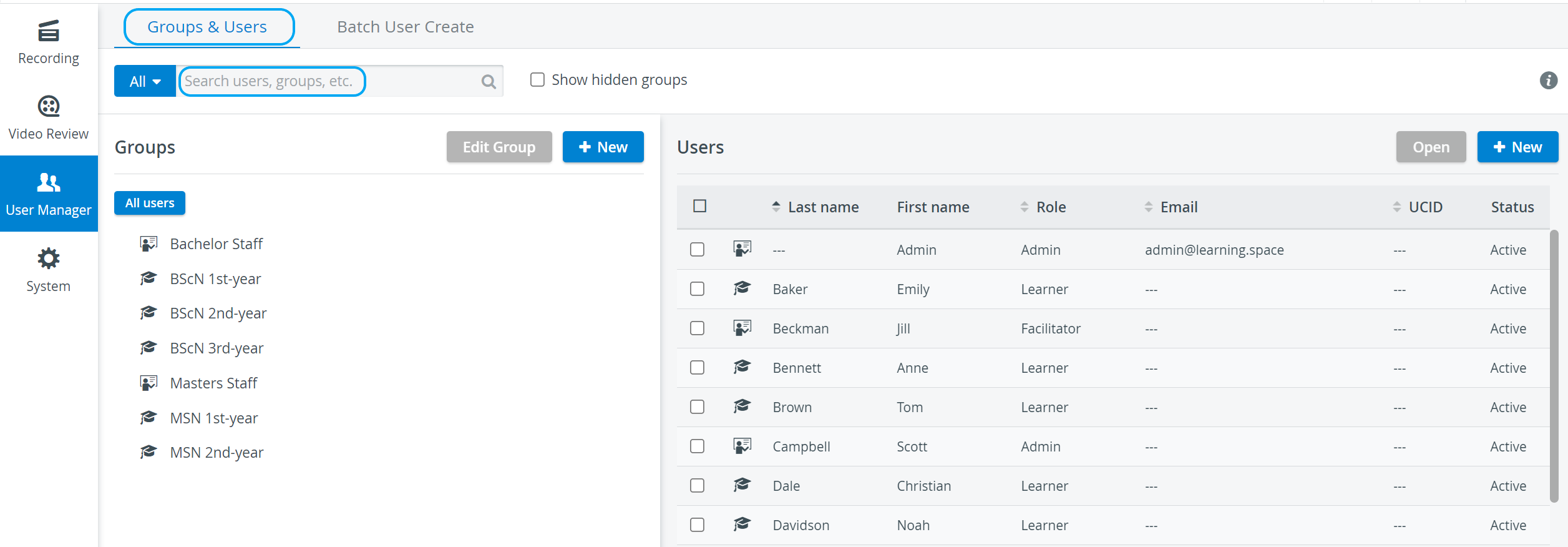
Use the search bar in the top left corner of the tab to filter for specific users or groups. Clicking the All button next to the search field prompts the Type of users drop-down to appear, where the search can be filtered for by users/ groups of the selected type.
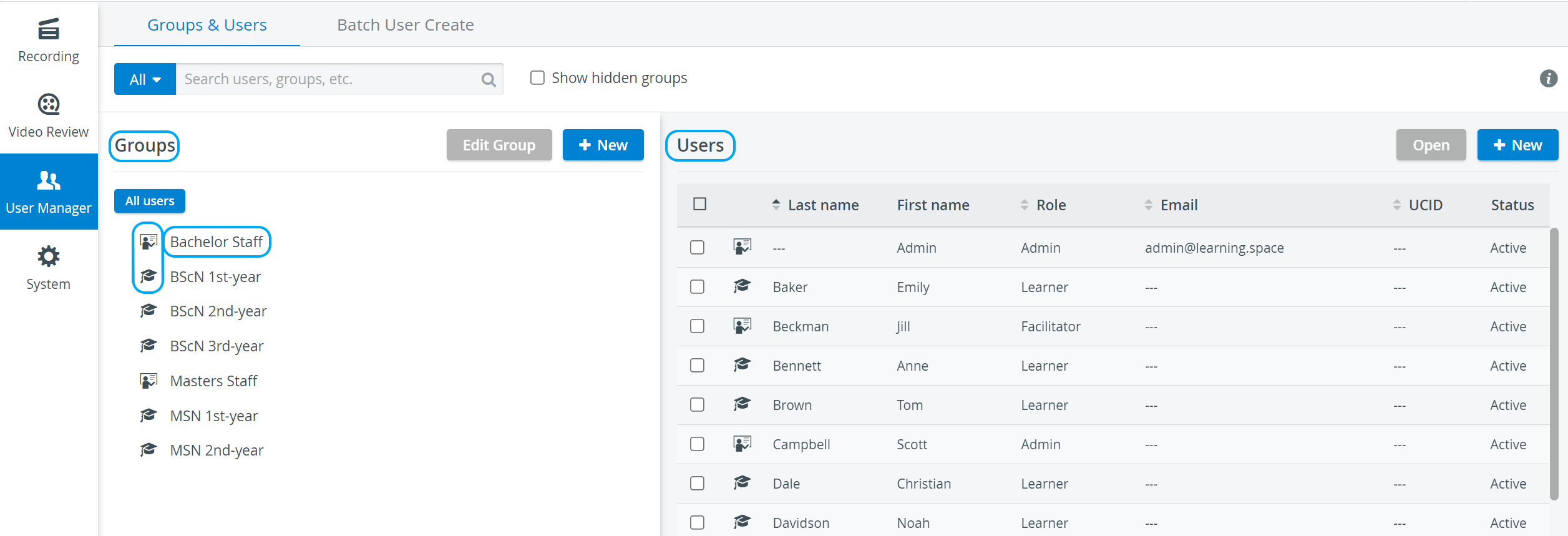
Icons facilitate distinguishing between users with different roles. Groups are categorized by the majority of roles they contain; that is, a group is indicated by the icon corresponding to the role assigned to most of its members.
NOTE: By default, all the users are listed on the right side of the screen, but if a group is highlighted in the list on the left side, only the group members are displayed. To have all the users listed, click the All Users button at the top of the list of groups.
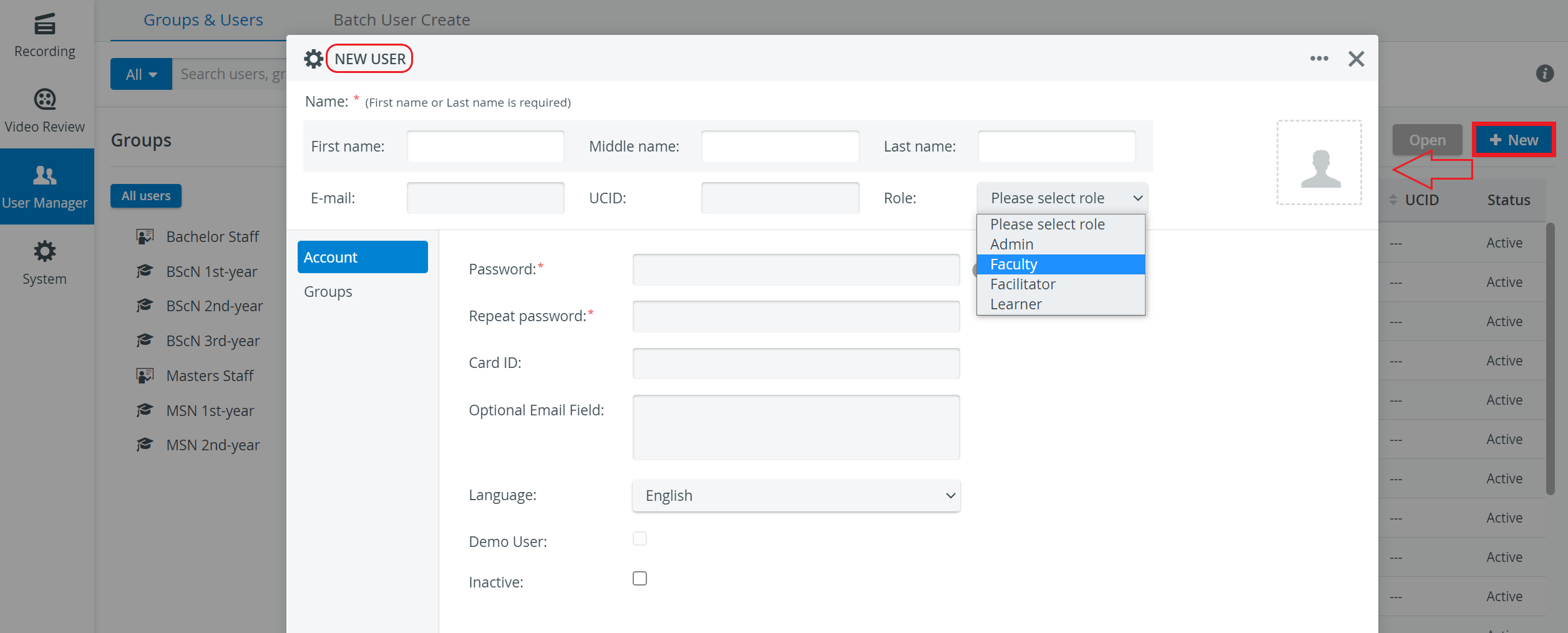
New User pop-up
The pop-up is opened by clicking the New button in the top right corner of the Users panel.
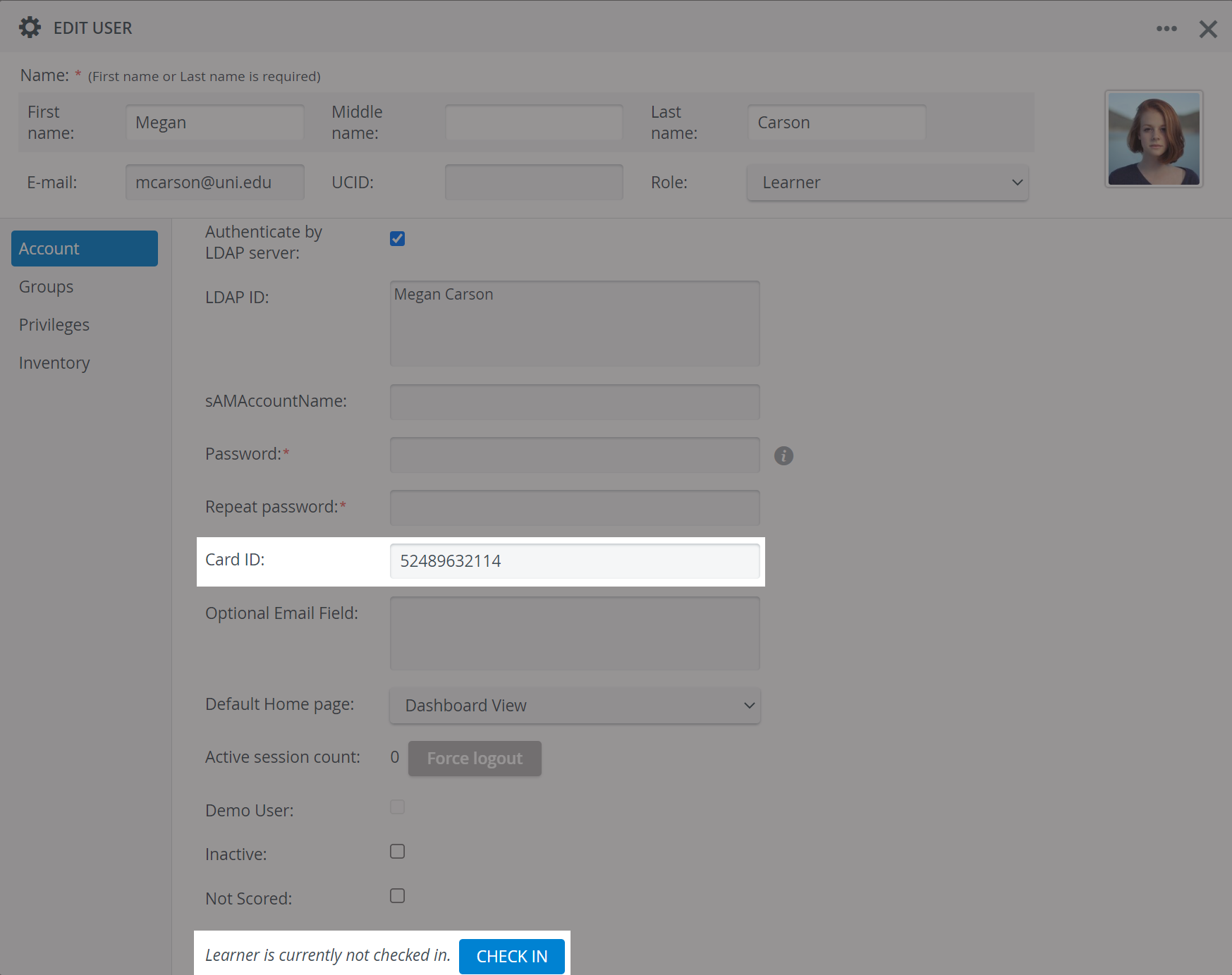
Card ID
In the Card ID field, you can enter the numeric equivalent of a barcode or a combination of numbers/characters related to the QR code associated with a Learner user account.
This way, LearningSpace will be able to identify a user based on this ID in case the related QR code/barcode is printed out and used at the Kiosk or other type of Check-in Station: the Check-in Station will detect the barcode/QR Code and match it with the Learner user account it belongs to in LearningSpace.
With LearningSpace's Batch user create (BUC) feature, card ID values can be added to multiple users.
Character limit:
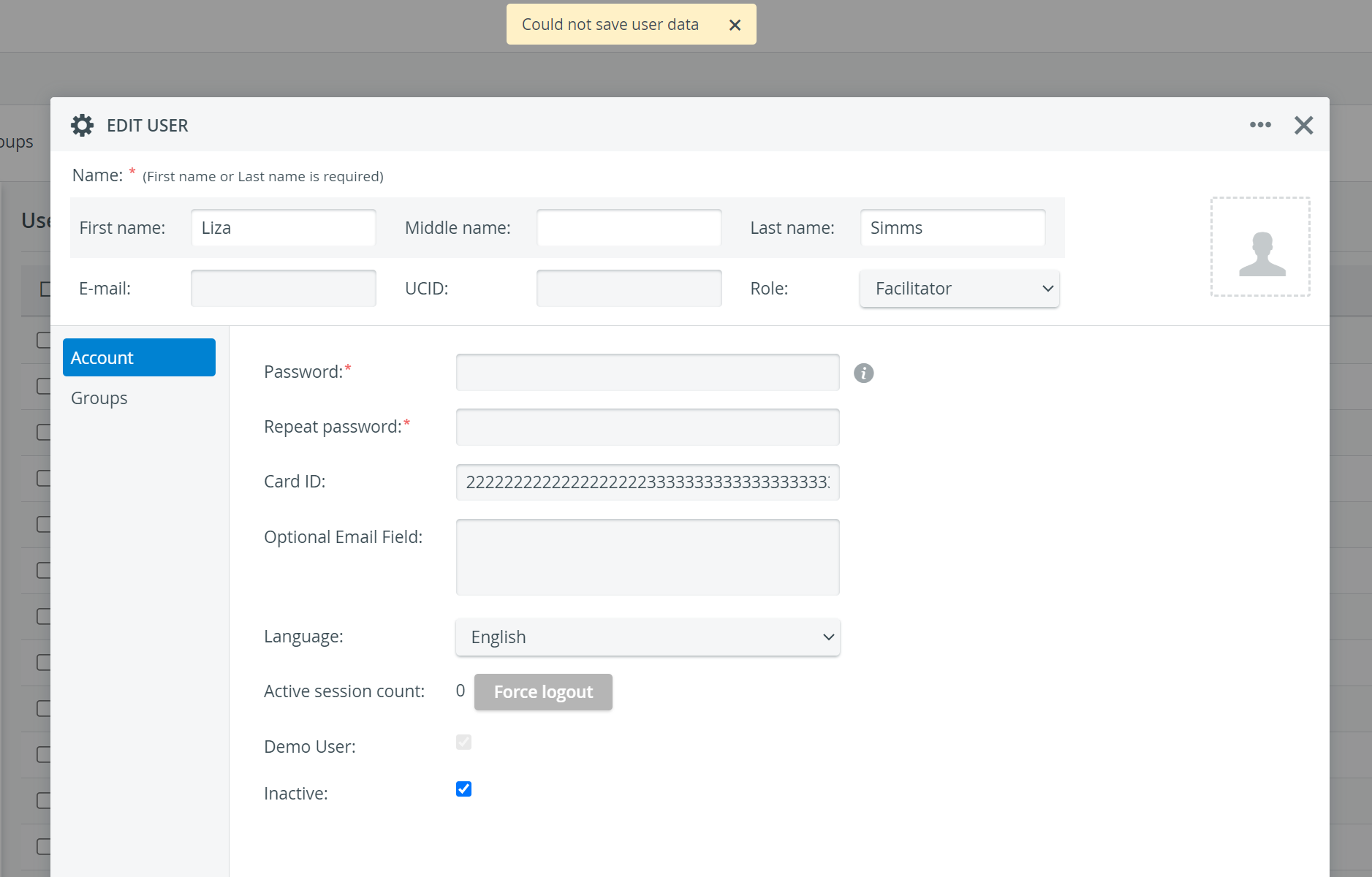
The Card ID cannot be longer than 127 characters - otherwise, the following error message will be displayed when trying to save it as user data:
Additional Custom ID
This new field has been added to allow users to “label” LS users without the need to use “unique” ID-s (UCID), e.g., the same for a group of people.
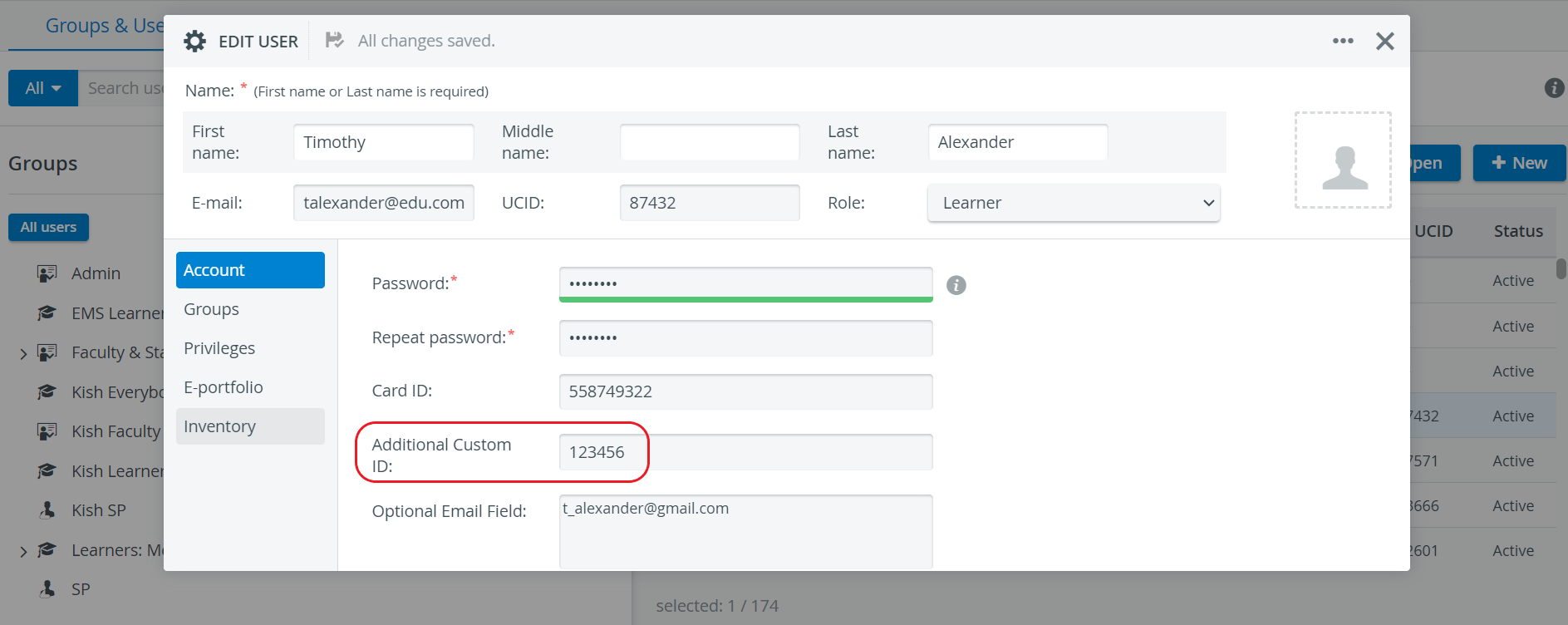
This field will additionally appear in the Batch User Upload Module.
IMPORTANT: Three main pieces of information have to be provided regarding the basic data about the user: the first or last name (at least) AND the email address or UCID (unique custom ID), as well as the user's role. These data provide the necessary distinction to identify different users of the system.
The Account tab accommodates technical information, including the user's password and the Inactive checkbox (unchecked by default), which determines the user's status.
The Groups tab is where the user's membership can be managed. By adding groups in the User panel's List of Group(s), the user can be assigned as a member of the listed group(s).
NOTE: If the New button is clicked while a group is highlighted, the system will automatically add that group to the Groups tab.