Center Overview - CO
Center Overview (CO): The screen appears when entering the Recording module. It accommodates all the rooms of the system that contain cameras. The room panels of the CO display the feed of the first camera of each room.

Clicking on any room panel opens that specific room's Single Room View (SRV).
IMPORTANT: LearningSpace ONE Box or Ultraportable units have no CO, as they are single-room constructions. That is, when entering the Recording module, the SRV is displayed.
Clicking the plus icon in the header creates an additional tab that helps arrange the rooms, thereby customizing the CO.
The default number of rooms for a tab is 12, but this number can be increased to 30 by dragging and dropping rooms onto the tabs. To create custom tabs, use + on the right side of the header and drag and drop the rooms to your new tab.
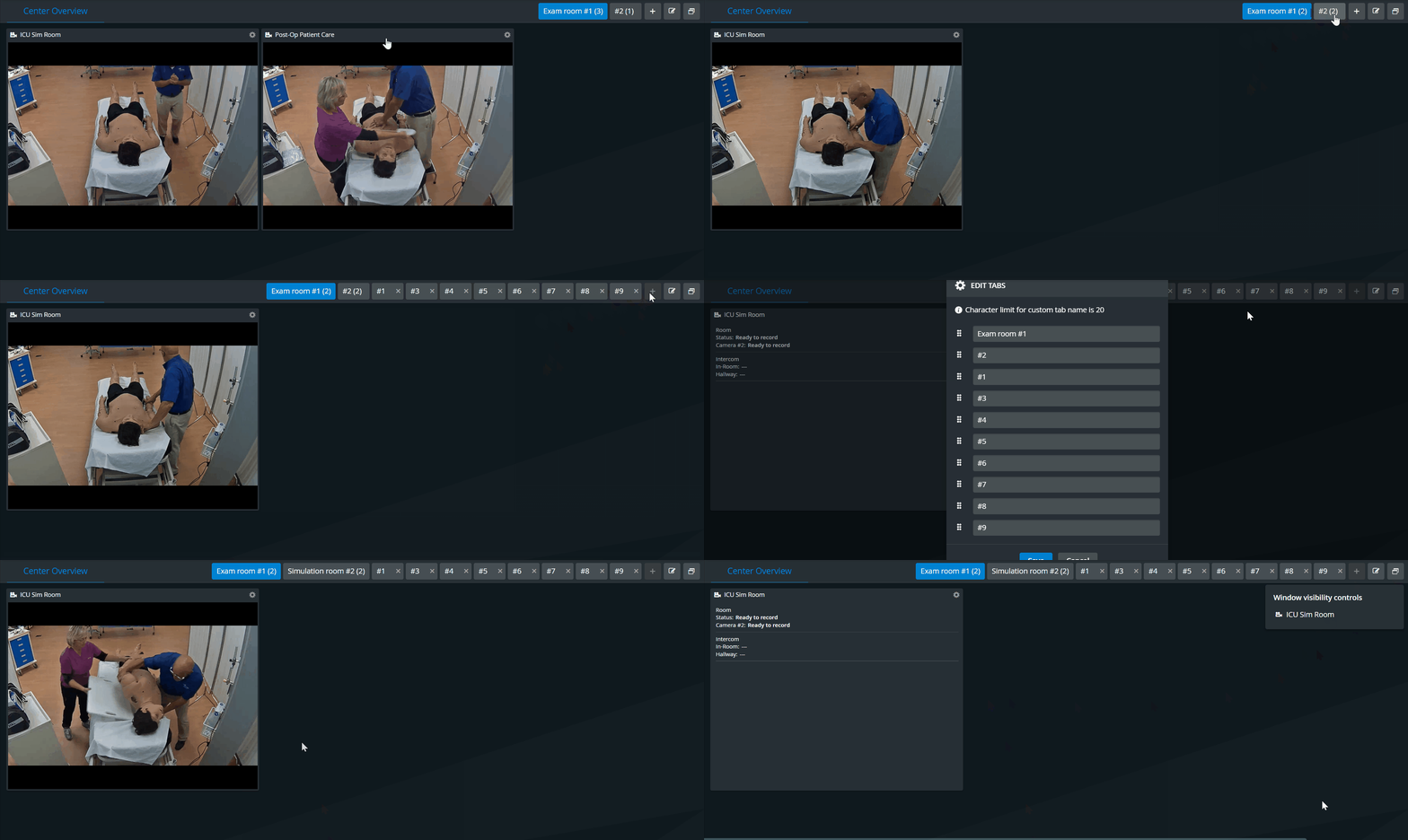
Once you have added some tabs, you can change their names by clicking the Edit Tabs icon and making the necessary changes in the Edit Tabs pop-up.
The maximum length for a tab name is 20 characters.
⚠️Tab names are saved per user.
Users can create and customize multiple tabs in Center Overview (CO). Each newly created layout will be saved in the user profile for future use, so users can return to their custom tabs anytime. A custom tab can also be deleted if it is no longer needed.
IMPORTANT: Only room tabs containing no room panel can be deleted.
Custom tabs can be deleted after they are emptied. To empty a custom tab, drag & drop every room to another tab.

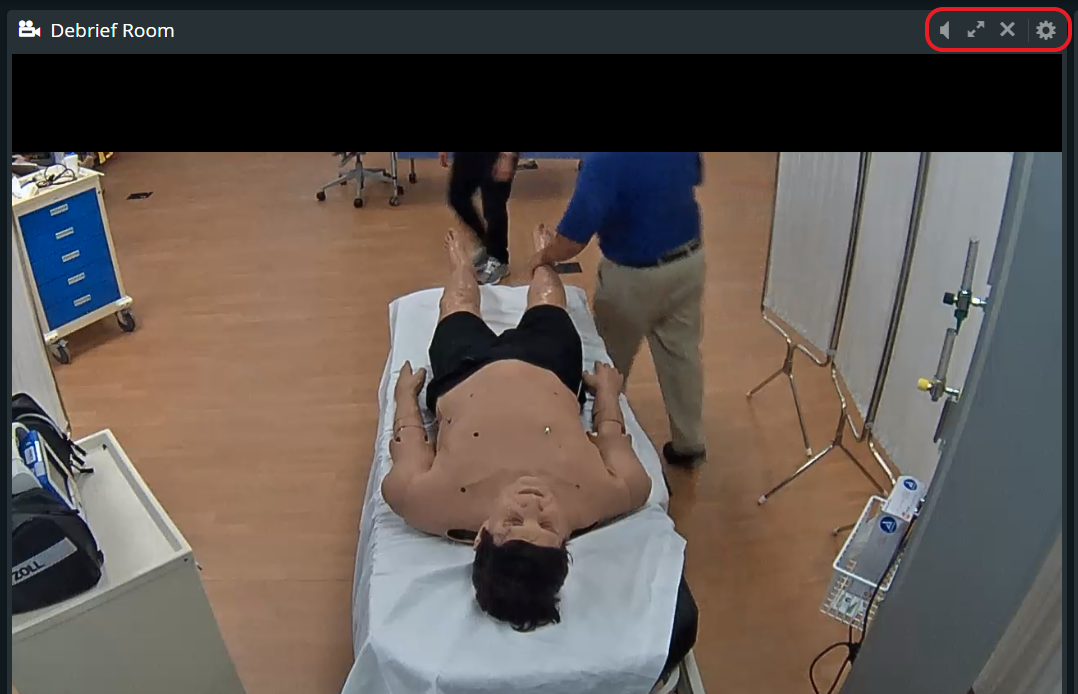
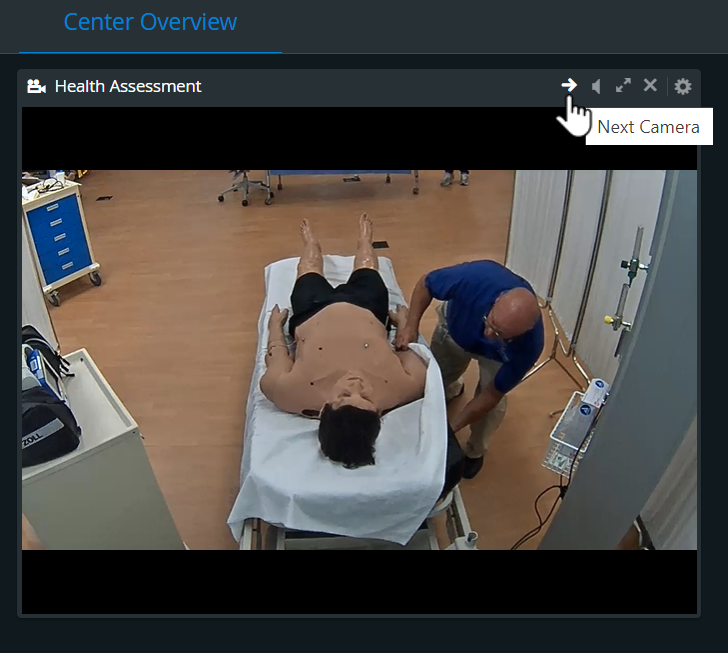
Right-pointing arrow: switching between camera feeds assigned to the room
This icon is only displayed when multiple cameras are assigned to the room.
 loudspeaker: toggling audio feed of a specific room on/off
- diagonal arrows: sending the displayed camera feed to full screen

- closing the specific room panel

PTZ functions: if the displayed camera of the room is PTZ-camera, then the cogwheel prompts the arrows for the pan-tilt-zoom directions as well
For more information, see our Practical Recording and Recording - FAQ pages.