Can a Sim Log be uploaded to a video recording?
IMPORTANT: LearningSpace supports two third-party simulators: Laerdal and Gaumard.
Data logs saved from these simulators can be uploaded to and synchronized with recordings in the Video Review module of LearningSpace.

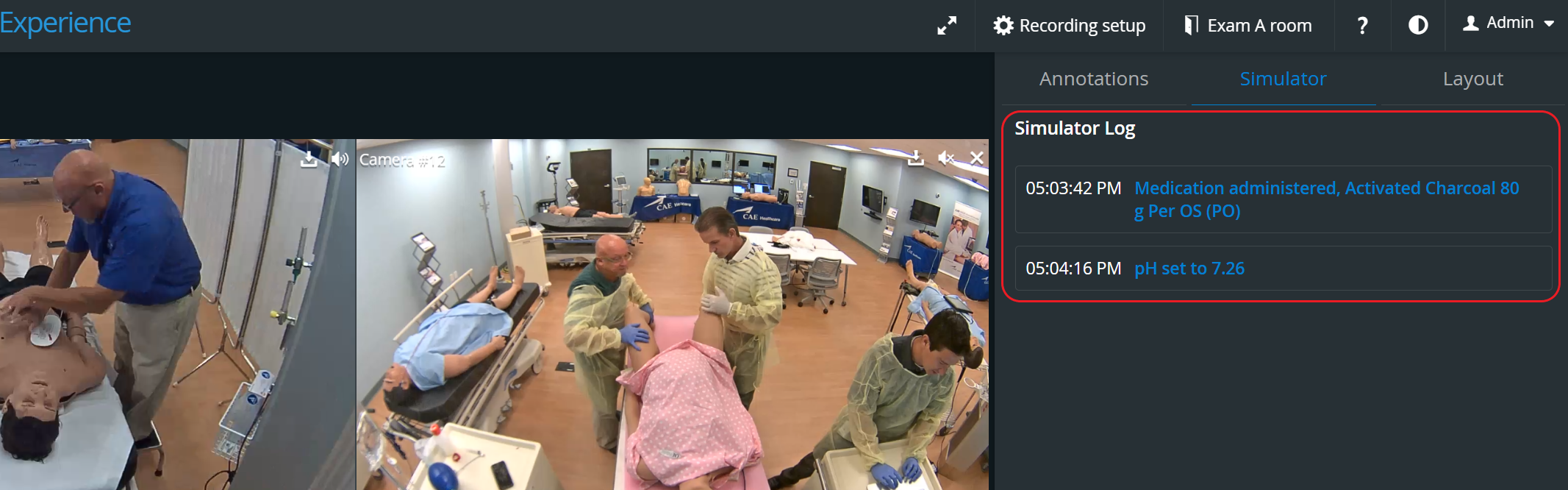
Data logs (Sim logs) uploaded this way will appear under the Simulator log events associated with the given video recording.
On the Video Review page, check the box for the encounter to which you intend to upload a data log.
Use the Quick search bar for a targeted search.
Once a recording is selected, the gray Upload data log button activates.
NOTE: Since the data log can be uploaded to one specific recording at a time, selecting more than one video deactivates the button (gray) again. (The number of selected recordings is indicated above the option buttons.)
Click the Browse button and select the file saved to your computer to upload to the recording.
Select the simulator from the Simulator drop-down.
Click Upload.
NOTE: The upload may take a minute, depending on the file size.
When the upload is complete, information about the data file is listed in the Data Logs pop-up.
To synchronize the uploaded data log with the recording:
Open the recording to which the data log has been uploaded.
The Simulator Event Log panel will be displayed along with the video recordings.In the Event Log panel, select a specific event that can be unambiguously linked to the recording.
Use the progress indicator to display the selected event on the recording.
When the selected event is screened, click Synchronize at the selected event in the Event Log.
NOTE: The Synchronize option is darkened when hovering over it within the selected event of the Event Log panel
White flags will display the synchronized events on the timeline.
For further information, visit the Video Review pages and watch our Training Videos.