Annotations
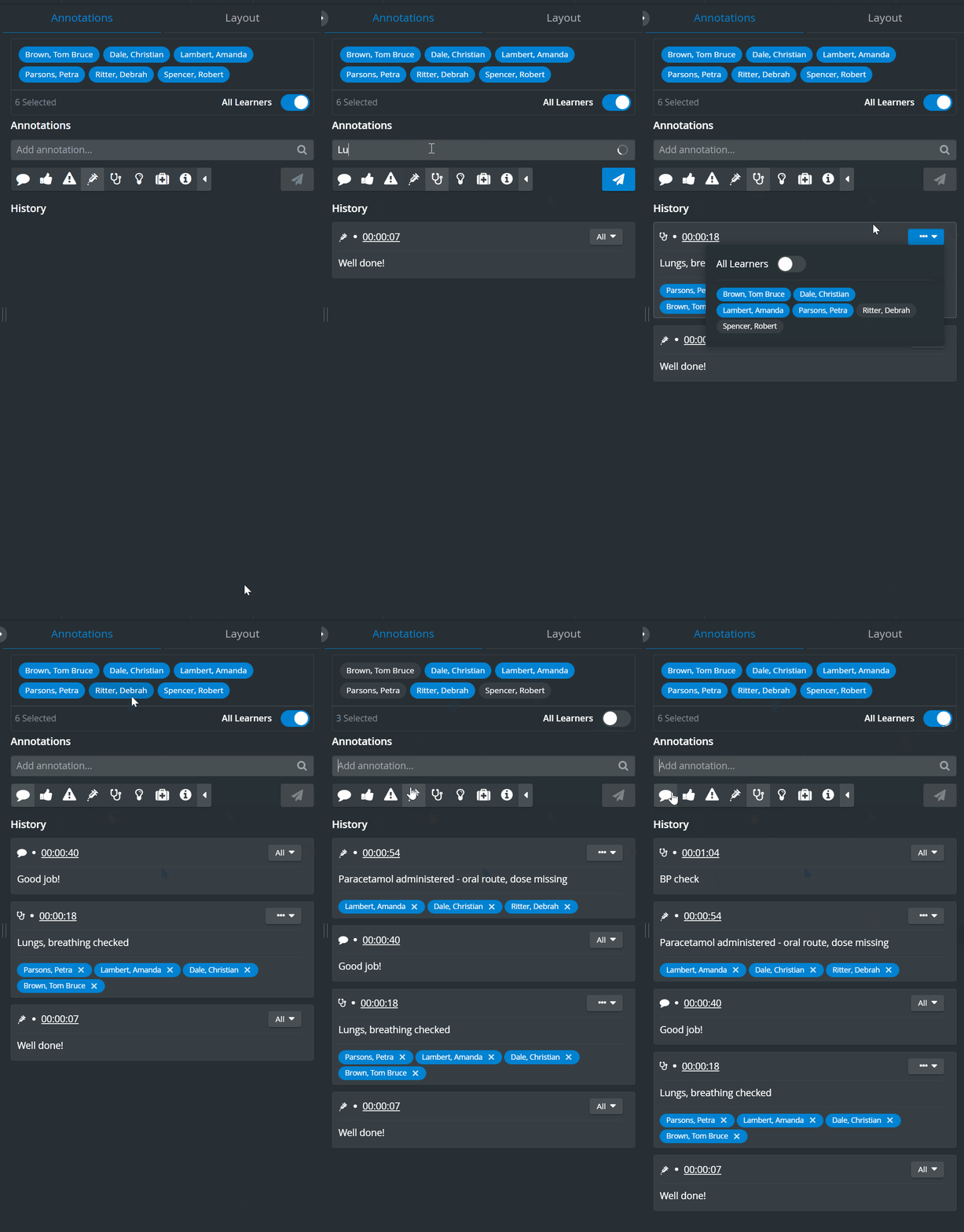
Annotations are notes and remarks added at specific moments of the recording.
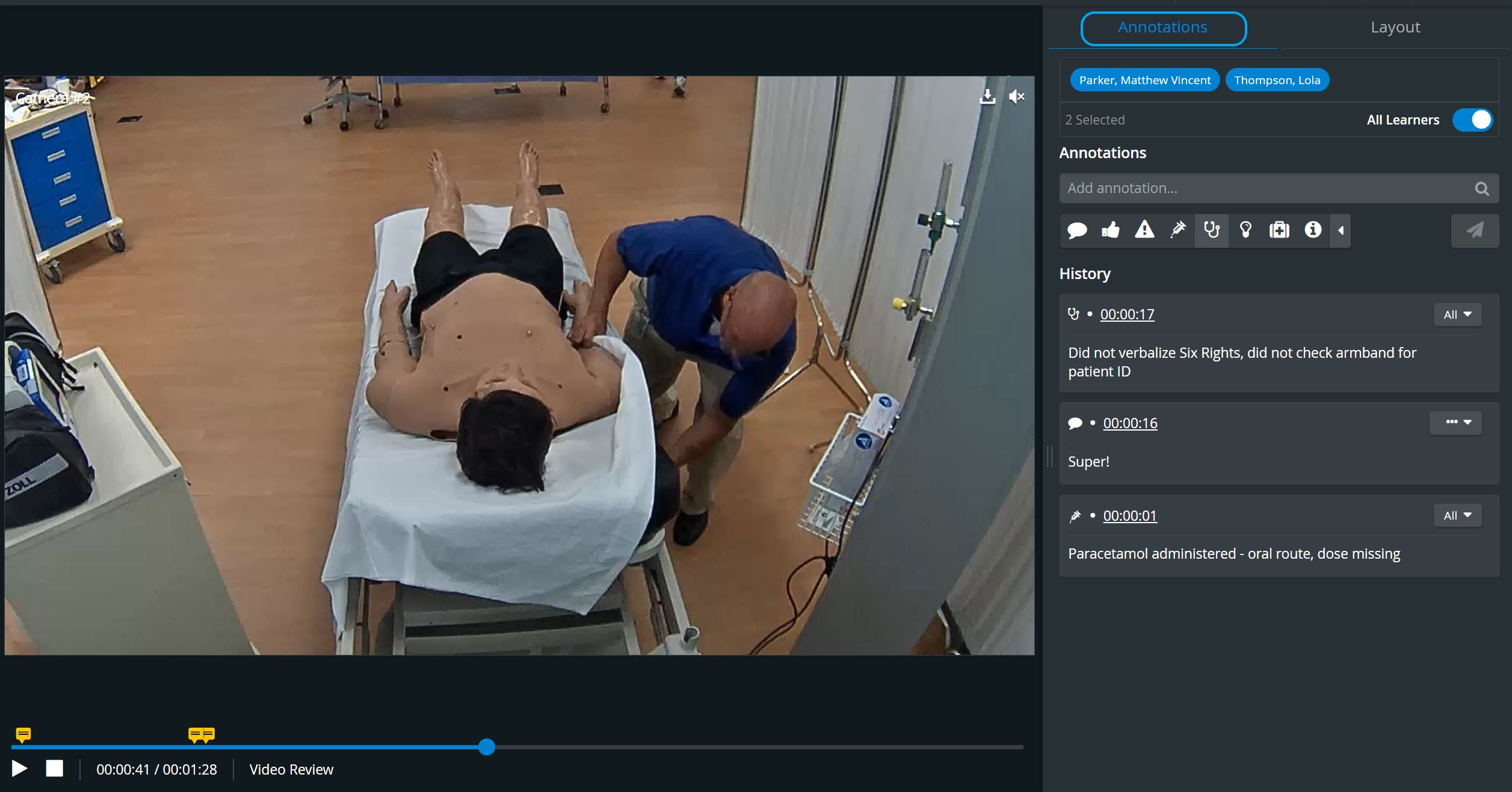
The Annotations tab is displayed on the right side of the SRV and is active when the tab name is displayed in blue. The functionality is only available during recording or debriefing.
Adding an annotation
When available, annotations can be added by category by typing the required remark in the Add annotation field.
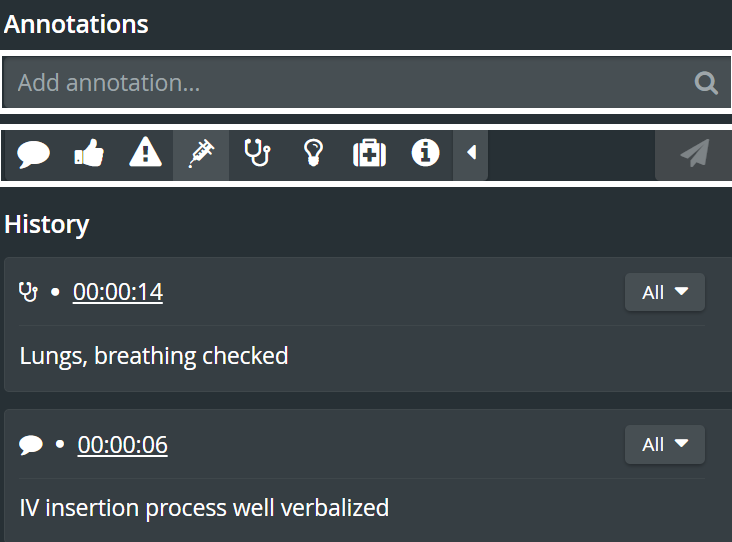
To change the annotation category to be added, click the desired icon below the Add annotation field.

Once an annotation is added, it is reusable. Therefore, the Add annotation field also searches for previously added annotations. When typing anything in the field, the system yields all results with the typed character combination.
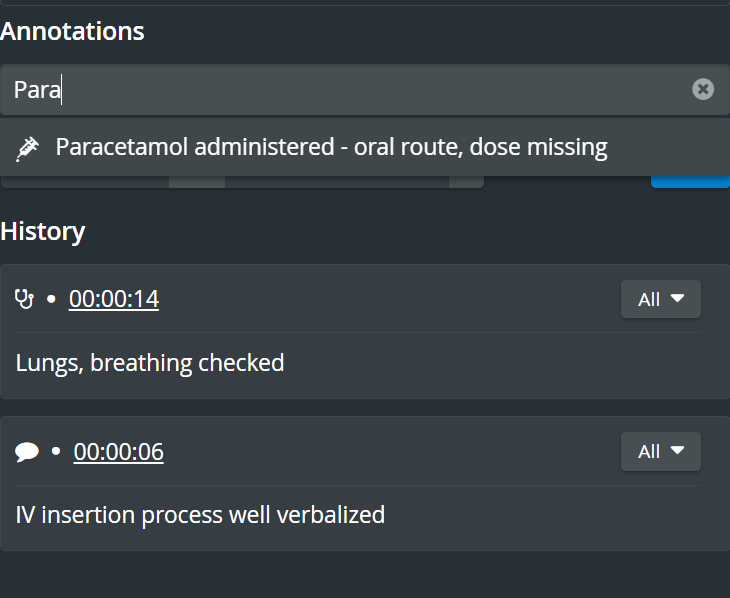
To send the annotation, click on the selected (preset) annotation or click the icon for newly created (free-text) ones.

Annotations are marked with orange on the video timeline/slider. Click on each speech bubble to display the annotation added at that time point. Grey bubbles represent Simulator logs.

As annotations normally refer to learner performance, it is recommended that a learner group be assigned to the recording: it can be done via the Recording settings function.
You can add the participant groups (if desired) before starting the recording. Still, Learner groups can also be assigned/modified to a completed (saved) video recording via the Recording setup feature of the Video Review module. See Room View during Video Review.
By default, all the learners of the assigned group are added to an annotation, displayed in blue. Members can be deselected by clicking their names (disabling them).
💡All Learners can be selected/deselected by the All Learners toggle.
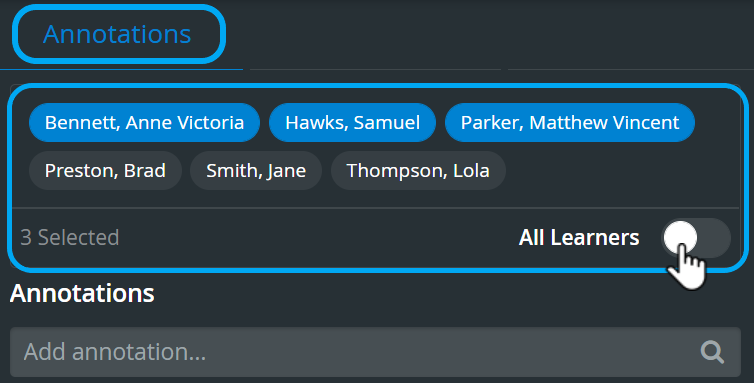
An added annotation refers to the most recently selected learner set. Any change to the selected learners will only apply to an annotation added thereafter.
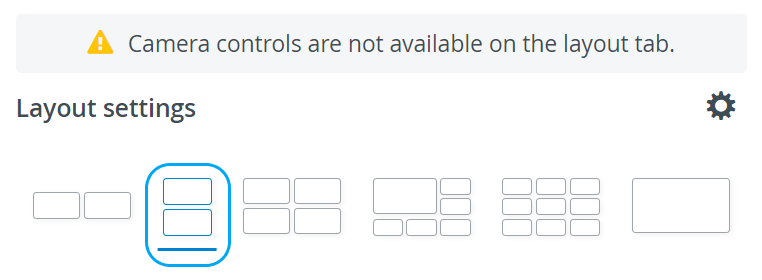
In the latest versions of LearningSpace, the utilization of the space available in the Single Room View panels can be maximized, and the panels on the right side (Annotations tab, Layout tab, etc.) or additional windows can be displayed in a larger size with the help of the Vertical double layout feature:

See our Practical Recording and Recording - FAQ pages and related Training Videos.