What should be included in the Post-Event part of the SCE Scheduling
Post-Sim Checklist
A checklist is prepared for examination purposes, and a questionnaire is provided for learners to fill out after the simulation experience. The checklist can elicit knowledge and understanding of the simulation or aim to test further academic competence. Responses for the items of this part constitute the basis of the learner's score.
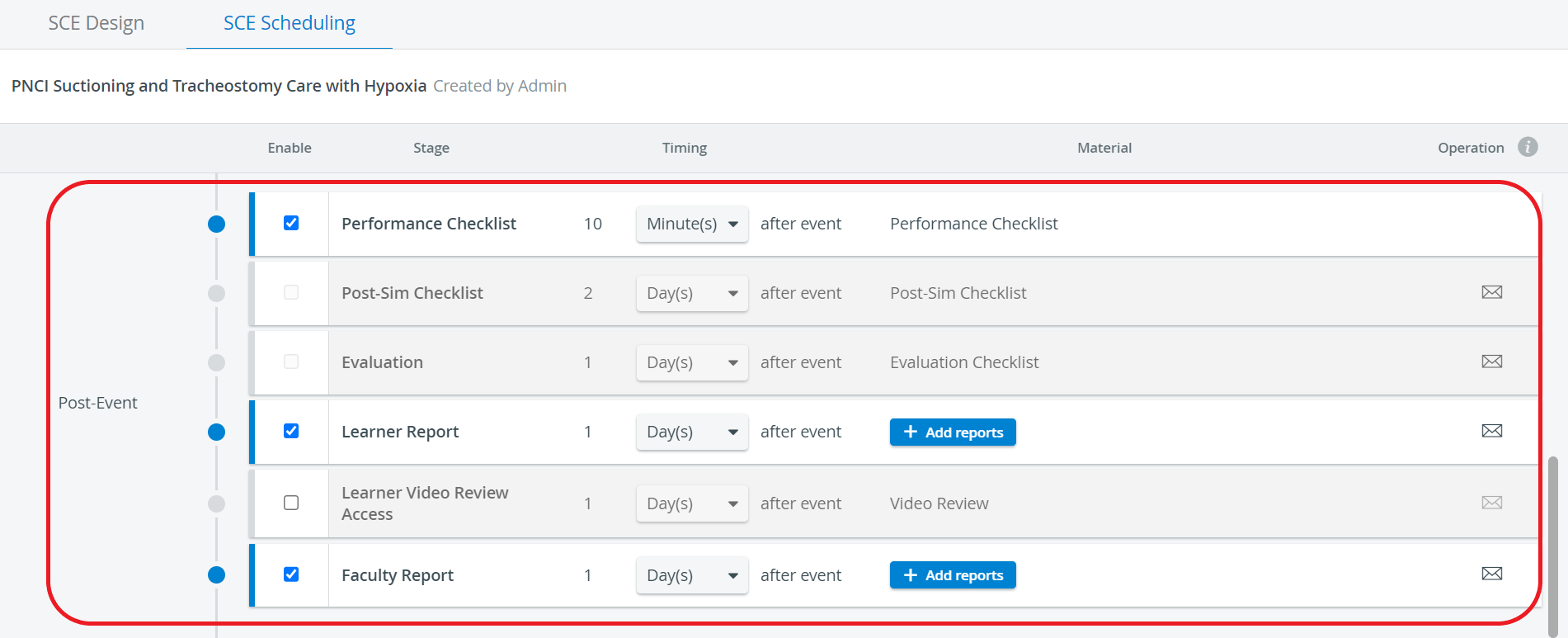
Evaluation
This part provides a way to collect student feedback on the simulation. Learners' opinions can be collected and utilized in course and SCE management. Responses for the Evaluation part do not count in learner scores; they are for quality assurance purposes.
Learner Report
Reports on the learner's scores, calculated from the results of the Pre- and Post-Sim Checklists (if applicable), and the faculty evaluation of the Simulation checklist can be made accessible to learners.
In the Timing column, the start of availability can be set relative to the end of the simulation event, while the end of access can be set using the Available till selector.

Learn more here: Report Access for Learners
Availability lasts until midnight on the specified date.

Modifications to an SCE - including changes to the text of the included Emails - do not affect previously created Events. This means that modifications only take effect once the Event has been updated with the modified SCE, i.e., once the SCE has been re-added to the Event.
The reports can be specified via the +Add reports button: learners can be allowed to access the Responses page and also their Grade Report.
NOTE: If an email is set up in the system, the learner receives a notification email about their report being available. For more details, see What is the difference between the SCE Scheduling in the SCE Management and the Calendar modules?
Learner Video Review Access
Video review access can be granted to Learners by assigning their names to the video recordings they have participated in the Recording Setup. To limit Learners' access to Video review, you can
remove the Learner's name from the video (but in this case, evaluators will not be able to evaluate the learners either)
use the Learner Video Review Access control option within SCE Scheduling to adjust the timing of the access.
In the Timing column, the start of availability can be set relative to the end of the simulation event. In contrast, the end of access can be determined with the Available till selector. Learners will only be able to view their video recordings within the time interval set up here.

NOTE: Availability lasts until midnight on the specified date.
If an email address is set up in the system, the learner receives a notification email when their report is available. For more details, see What is the difference between the SCE Scheduling in the SCE Management and the Calendar modules?
Faculty Report
Reports selected in the Select Available Reports for Faculty pop-up opened by clicking the +Add reports button can be made accessible to faculty with appropriate privileges.
In the Timing column, the start of availability can be set relative to the end of the simulation event, while the end of access can be set using the Available till selector.
NOTE: Availability lasts until midnight on the specified date.
For further information, visit our SCE Management and SCE Management - FAQ pages.