Three-Way Intercom
Preset announcements can be sent to three different targets, also called Intercom endpoints:
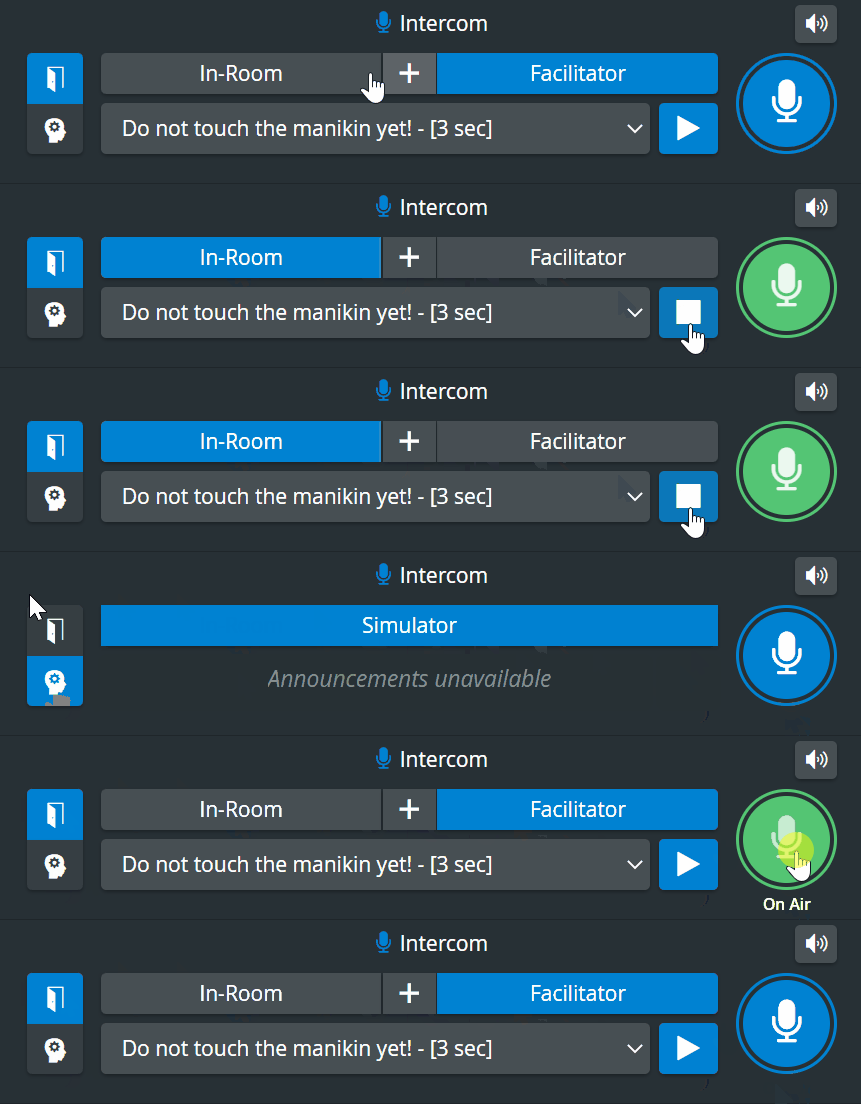
In-Room - announcement directed at the simulation environment. See Separate In-Room Intercom device.
Facilitator - announcement sent to the facilitator's headset. See Separate Facilitator Intercom device.
Simulator - announcement uttered by the manikin. See ("Voice of Patient") Simulator.
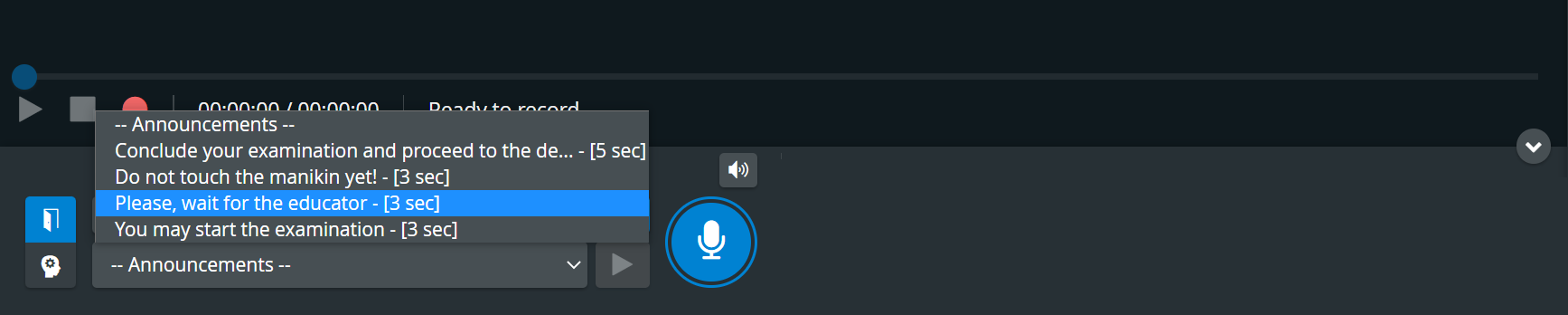
The announcements can be added on the Intercom tab of the System module, then selected via the arrow in the announcement drop-down after having highlighted the desired target (In-Room, Facilitator or both, and Simulator). The hardware assignment has to be completed in the Room Settings pop-up on the Rooms tab.
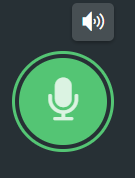
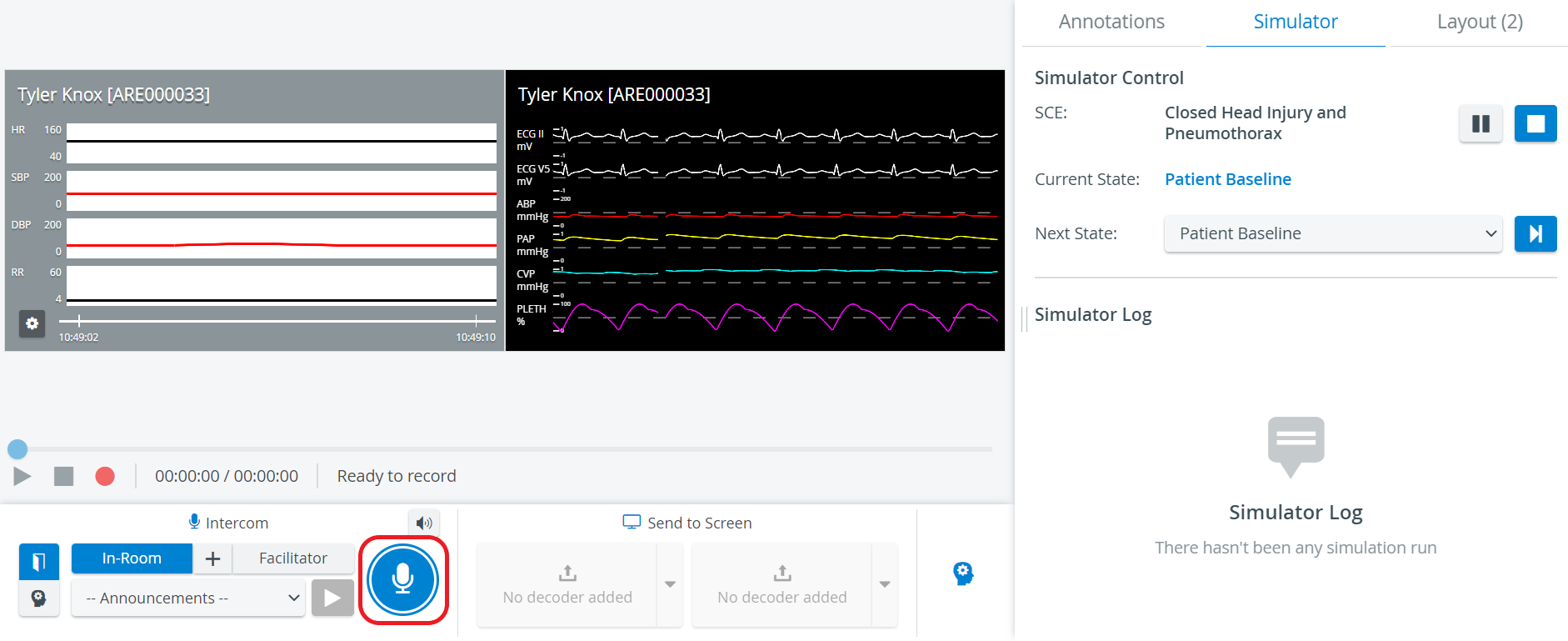
The Push-to-Talk button will turn green while the preset announcement is being sent out:
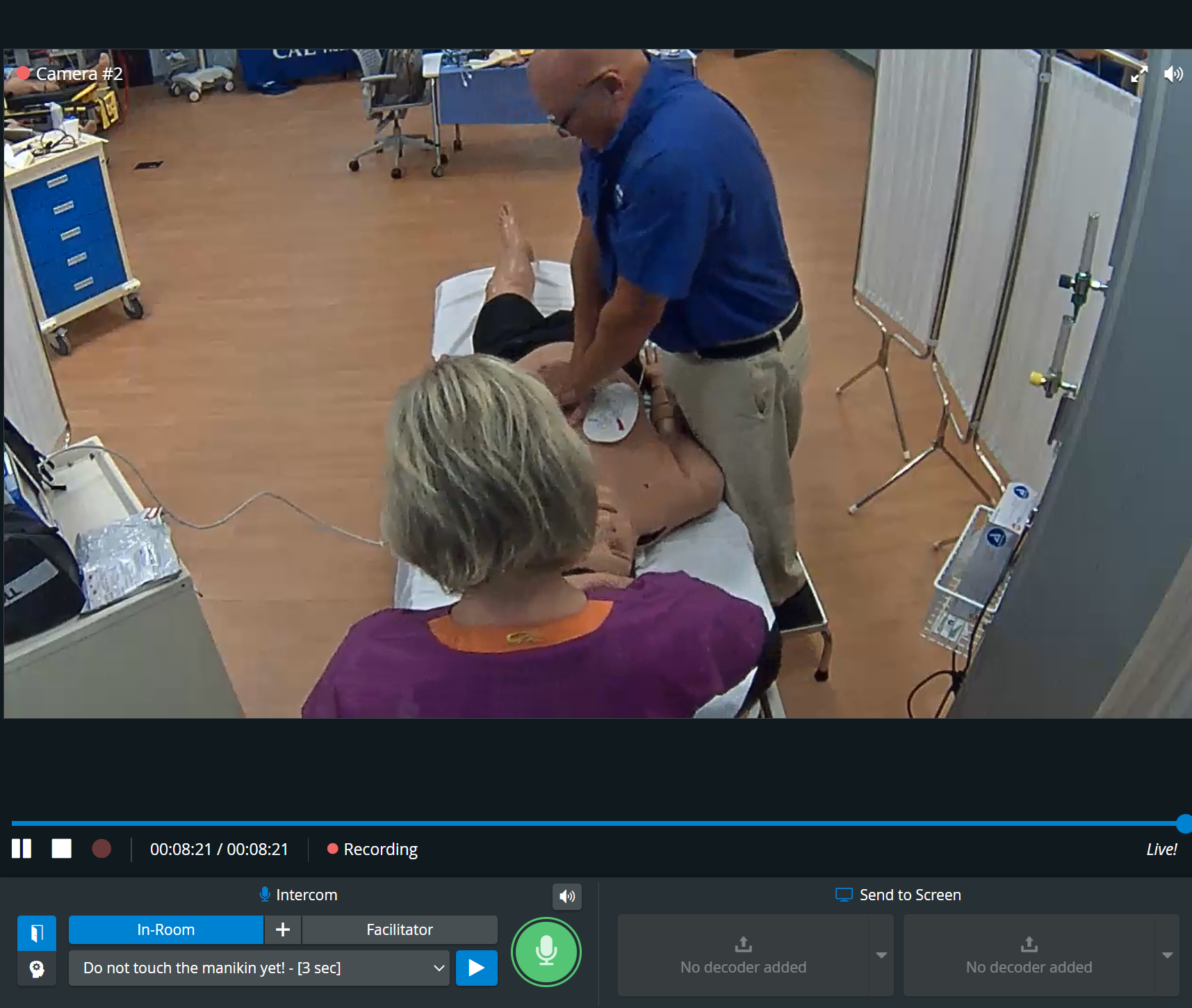
Live announcements can also be sounded via the respective device by selecting a target device (In-Room, Facilitator or Simulator), and then clicking and holding the Push-to-Talk button.
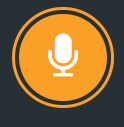
If there is no valid Intercom destination available in the system, the Push-to-talk button is displayed in orange color (when pushing it)

If the Intercom setup is not completed (e.g., a destination station needs to be reconnected), the Push-to-talk button is displayed in red color (when pushing it), and a warning message shows at the top of the page:


See more on the Intercom page.
The microphone needs to be enabled for live announcements in the browser settings.
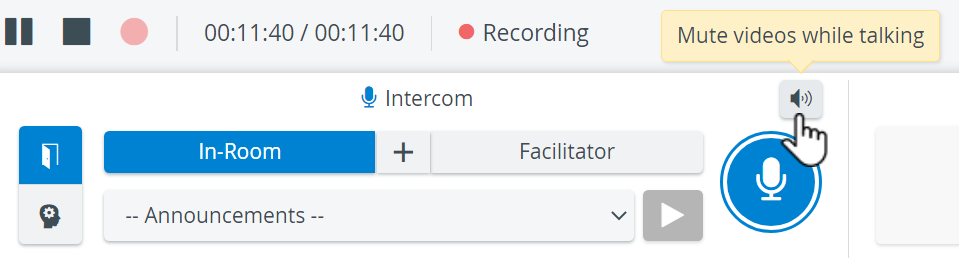
Mute videos while talking
During live announcements (using the Push-to-Talk function), all other camera speakers in the room can be muted by deactivating the Speaker icon:

The Push-to-Talk function of Intercom is not supported on iPads in LearningSpace.
The Intercom via Simulator function is only available for our own Simulators, not for third-party simulators.
IMPORTANT: The Intercom functionality of LearningSpace requires the web browser to have access to the microphone of the client PC, which in turn requires a secure HTTPS connection to the LearningSpace server.
That is, the client computer's microphone can only be used with a valid SSL certificate. (This restriction stems from the Chrome browser security regulations.)
In the case of previous versions of LearningSpace, learn about Why are some of the buttons in the Intercom panel inactive?
See also our Practical Recording and Recording - FAQ pages.