SRV Screen Layout
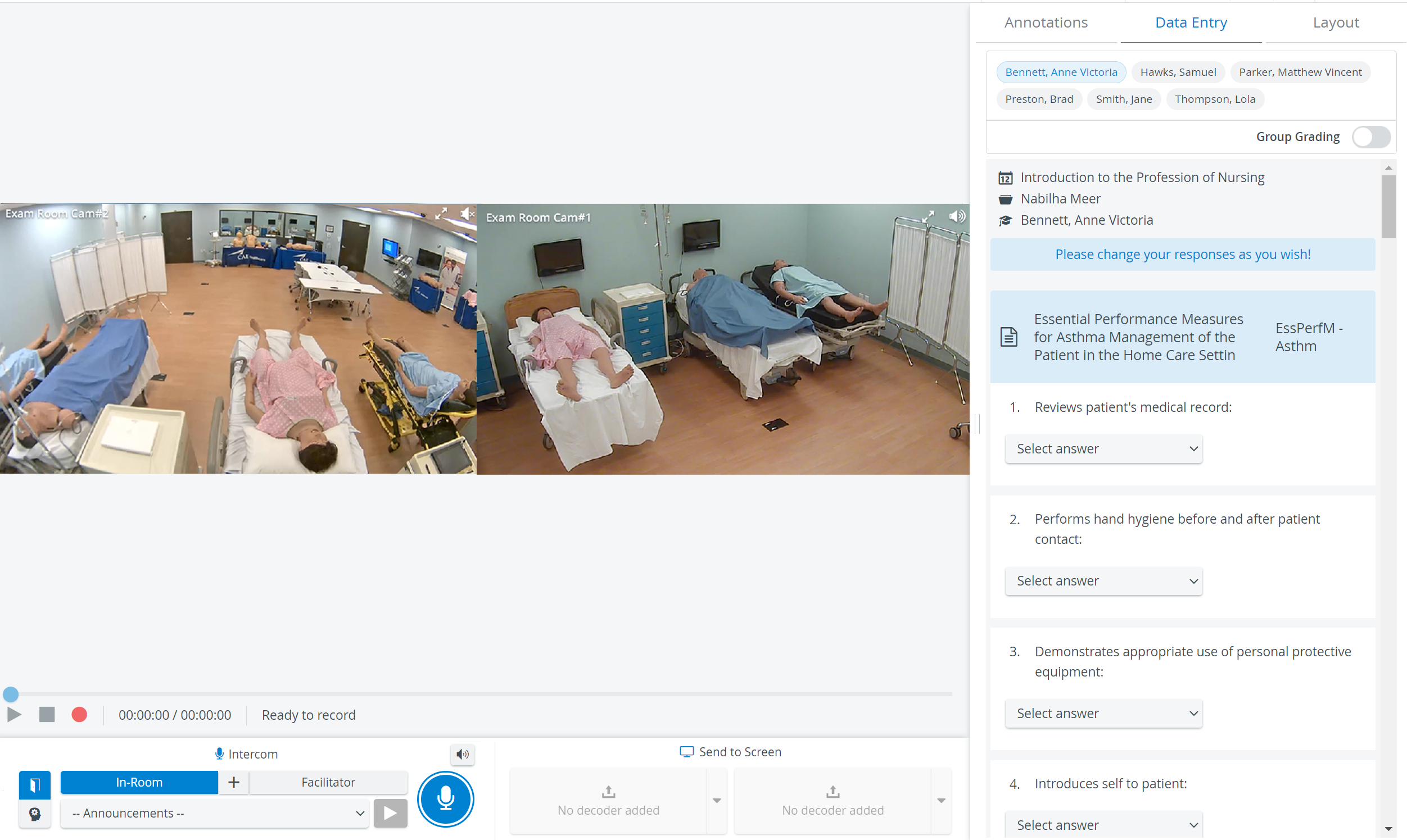
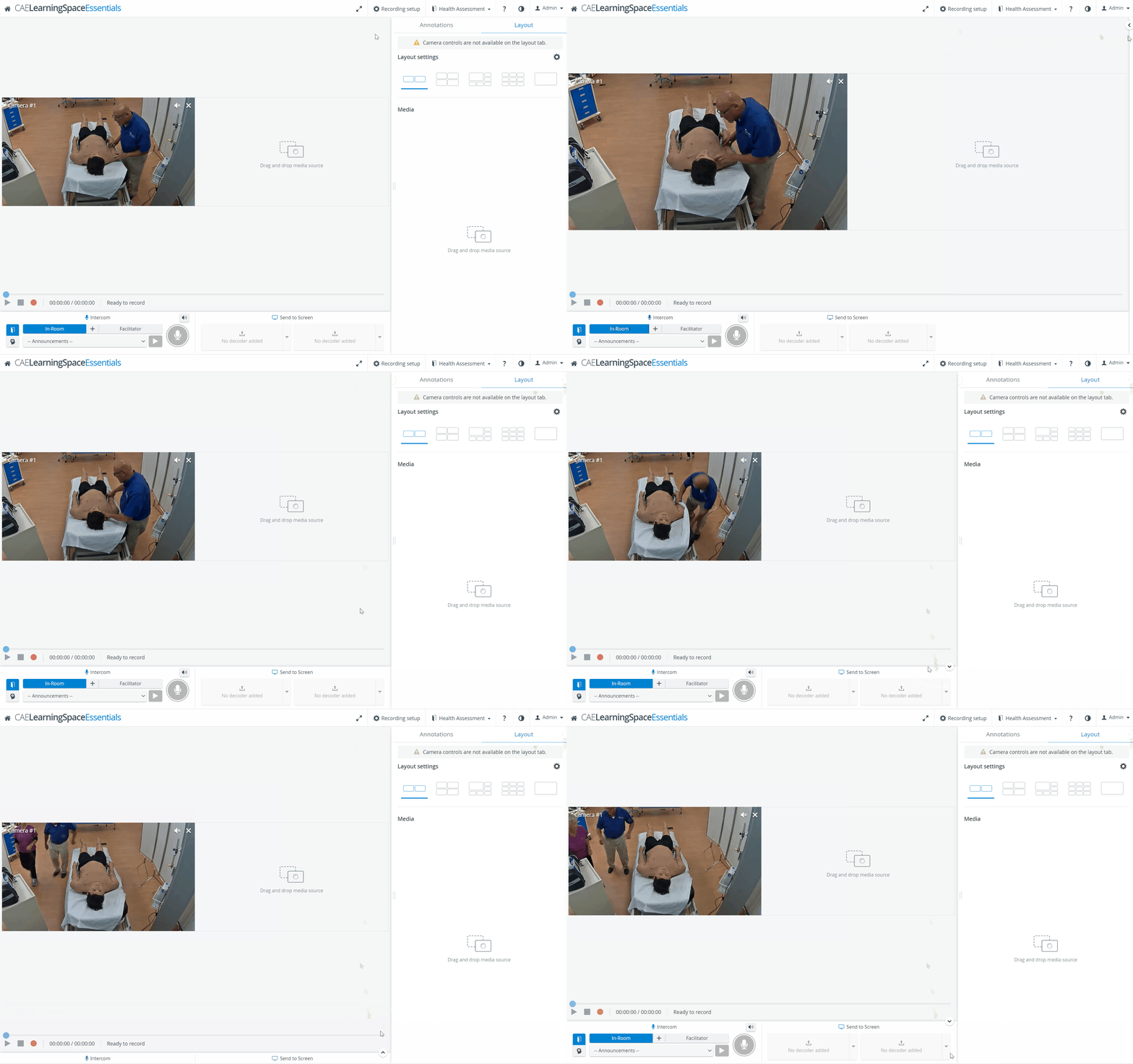
Full-screen mode
Clicking the full-screen icon in the header displays all the camera feeds in full-screen mode. Clicking the full-screen icon in a single camera panel displays the single camera feed in full-screen mode.
The Slider component at the bottom is available in full-screen mode.
The entire camera layout can be set to full-screen mode, not just a single media stream.
To exit full-screen mode
click the following icon in the lower left corner,

double-click anywhere in the camera image,
hover to the middle upper part of the camera image and click on the X that reveals this action,
use the Esc button.
Camera panel
Camera settings can be adjusted by clicking on the icons in the right upper corner of the camera panel:


Only one camera in a room can have its audio turned on at a time.
The recommended video size (aspect ratio) is 16:9 (e.g., 1280x720), which can be set in the System Module's Camera settings window on the Cameras page.
The sizing of camera streams might not be optimal with a 4:3 video size (an additional black bar/stripe might be visible at the upper and lower edges of the screen).

PTZ functionalities
The following pan-tilt-zoom (PTZ) functionalities are available during recording to improve camera movements:
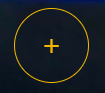
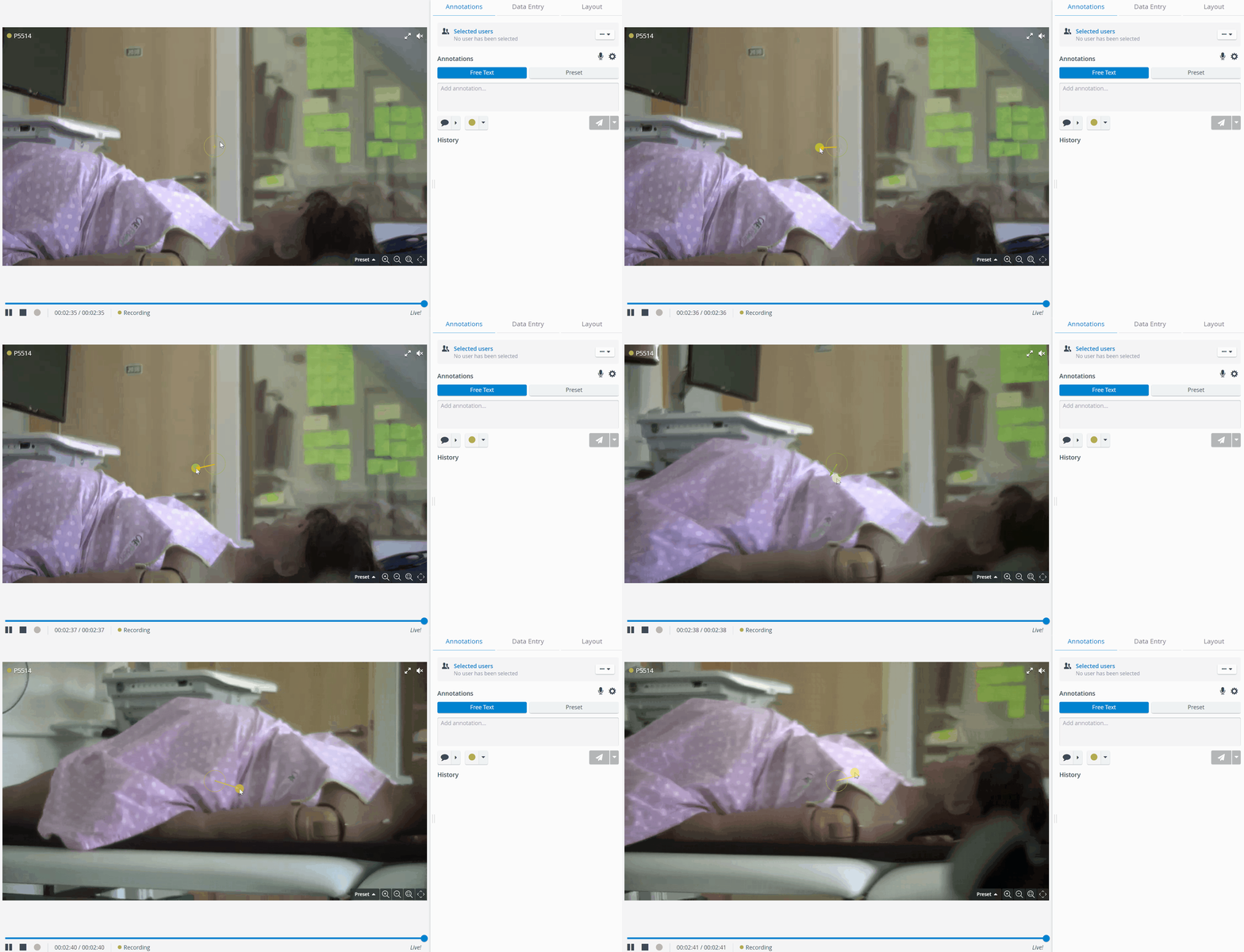
On-Screen PTZ: Click in the center of the video then drag the crosshair and pull the camera into the desired direction. The movement of the camera will stop by releasing the mouse.
IMPORTANT
The On-Screen PTZ is focused on the middle of the screen; thus, it cannot be used in the footer and header of the SRV camera feeds.
Scroll-To-Zoom: zoom-in and zoom out by scrolling on the mouse.
Pan-Tilt-Move: The camera moves in a direction after clicking into the desired area of the camera feed.
Area Zoom: the camera zooms into the area drawn by the user.
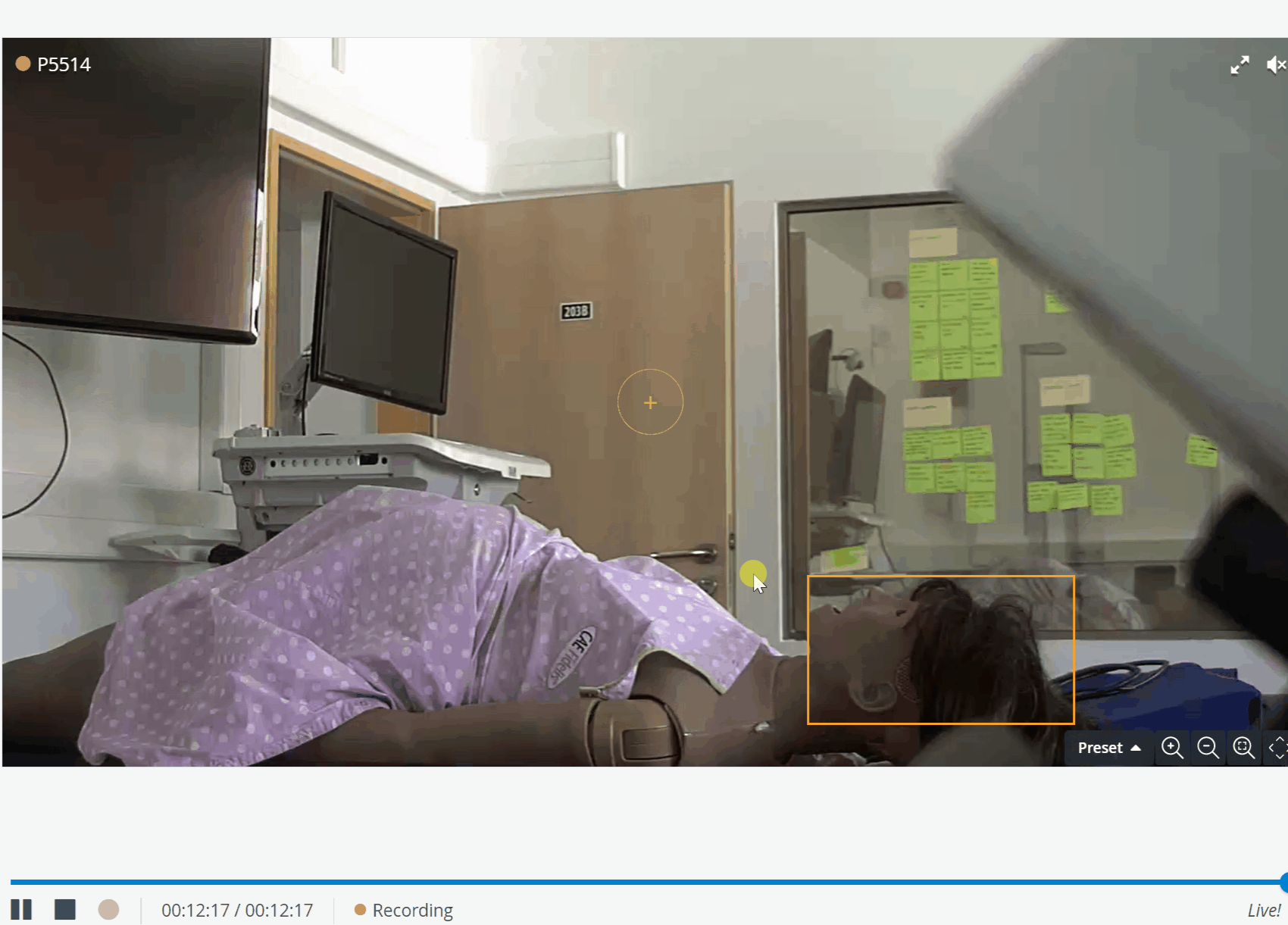
Move and reset buttons: camera movement can be controlled by the arrows and the magnifying glass icons in the lower right corner of the camera feed.
The zoom level can be reset to the default value with the Reset Zoom icon.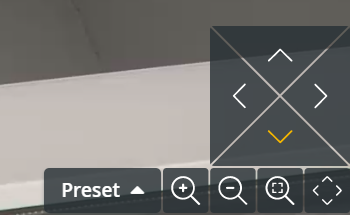

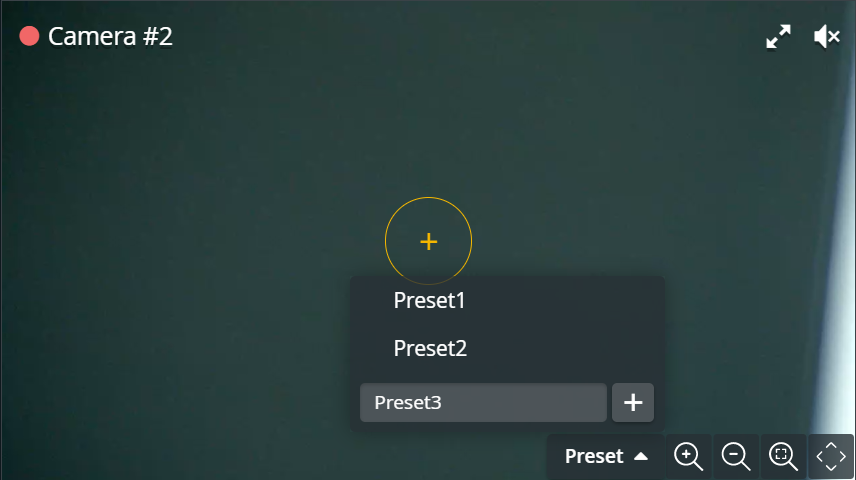
PTZ preset: To save a particular view of a PTZ camera, click the Presets drop-down, type the desired title in the Add new preset field, and click the plus button. To select an already added view, click its title in the drop-down.
Recording setup
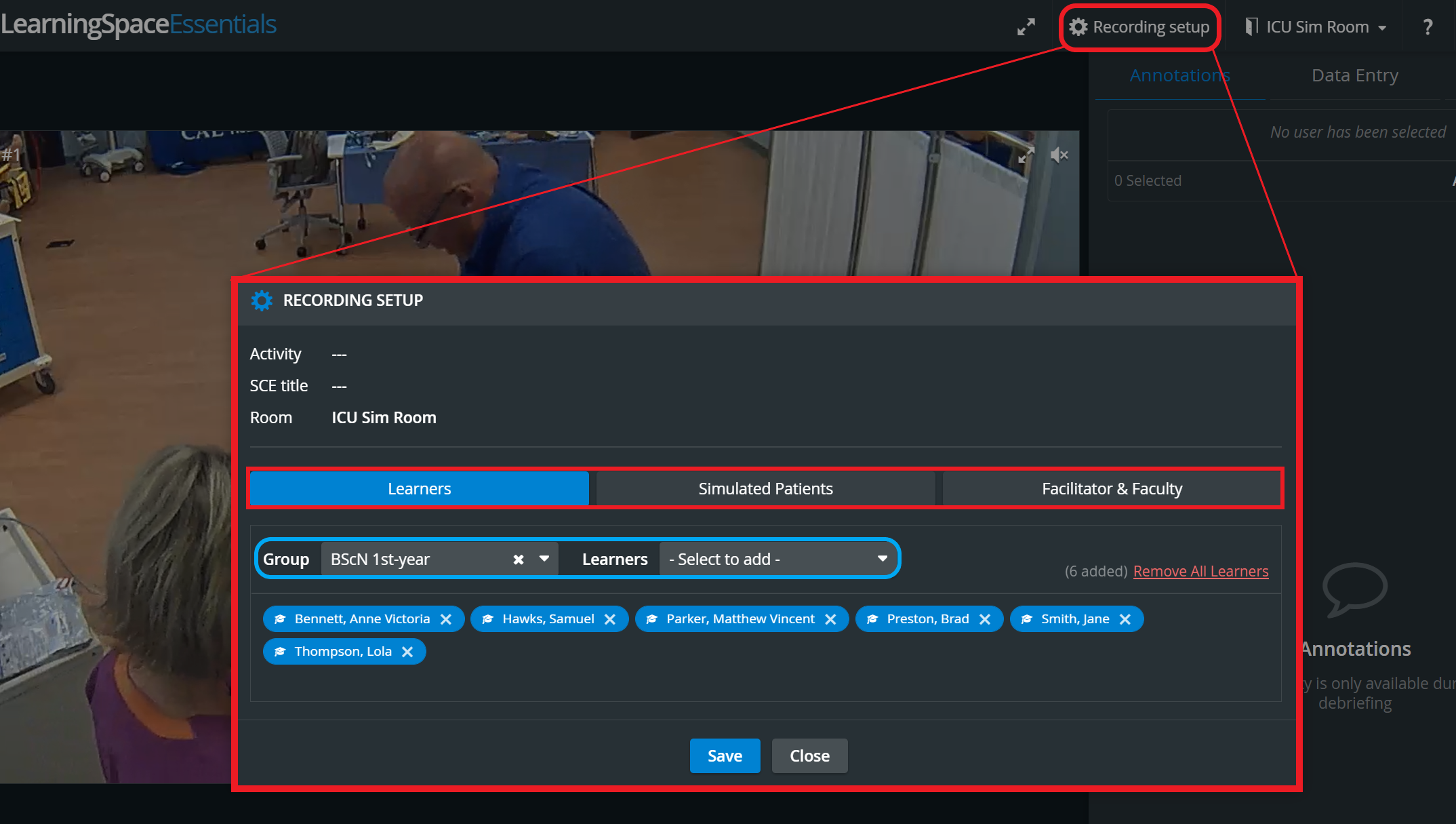
Clicking the Recording Setup in the header prompts the Recording Setup pop-up window to appear where the
Learners,
Simulated Patients (SP)
and Facilitator & Faculty (Staff)
user groups and individual users can be added to a recording that has not been scheduled within an event.
💡 The same setup can be accessed and modified on the Recording starting page.
The Learners, SPs, and Staff dropdowns only get active once the respective Groups have already been selected.
⚠️ In case of scheduled events, the Recording setup cannot be modified here; the dropdowns stay inactive.
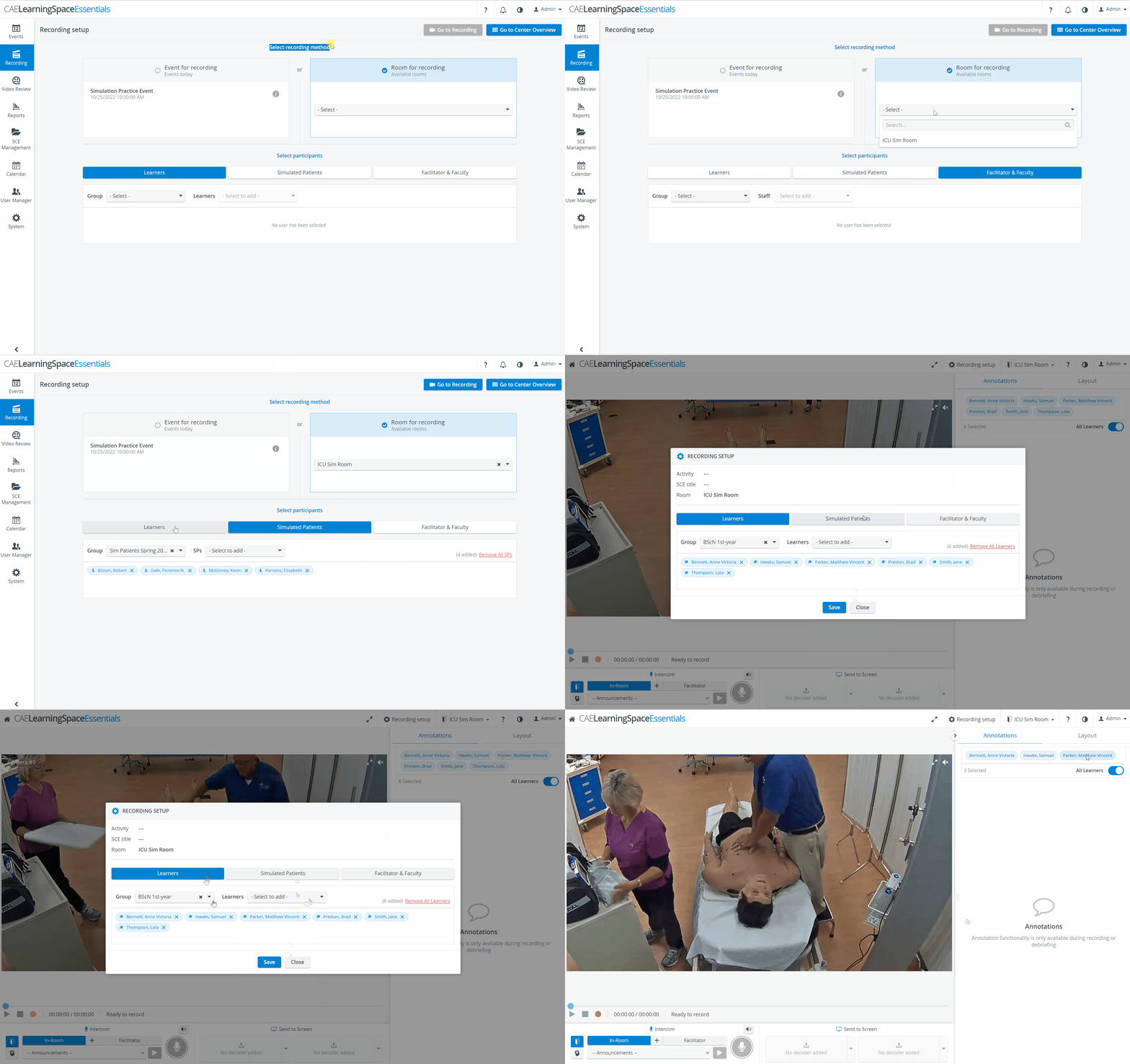
Selected participants appear 'disabled' (greyed out) in the Learners/SPs/Staff dropdowns. Participants who have not been selected are active in the dropdown and thus can be selected.
Mute/Unmute functionality
The mute/unmute functionality during Live Recording in the Single Room View operates as follows:
General rule: the system only unmutes a camera when the user clicks on the unmute button OR if the user enters the Single Room View (live or review).
3-state click functionality for mute/unmute:
The First click: (on the icon when it is in a muted state) unmutes the given camera stream, and other unmuted streams stay unmuted, too.
The icon on all unmuted streams changes to an icon showing that multiple streams are unmuted.Second click: mutes all other cameras (even the unmuted ones), and only the selected camera stream stays unmuted.
Third click: mutes the selected camera stream as well.

Toggle Panel Width and Height
With this functionality, the bottom and side panels can be minimized in order to maximize the displayed camera- or media view.
The toggle reveals itself by hovering over the bottom or side panel or on the panel border lines. When activated (i.e., when the camera view is maximized), the toggle arrows are displayed constantly.
Vertical Double Layout
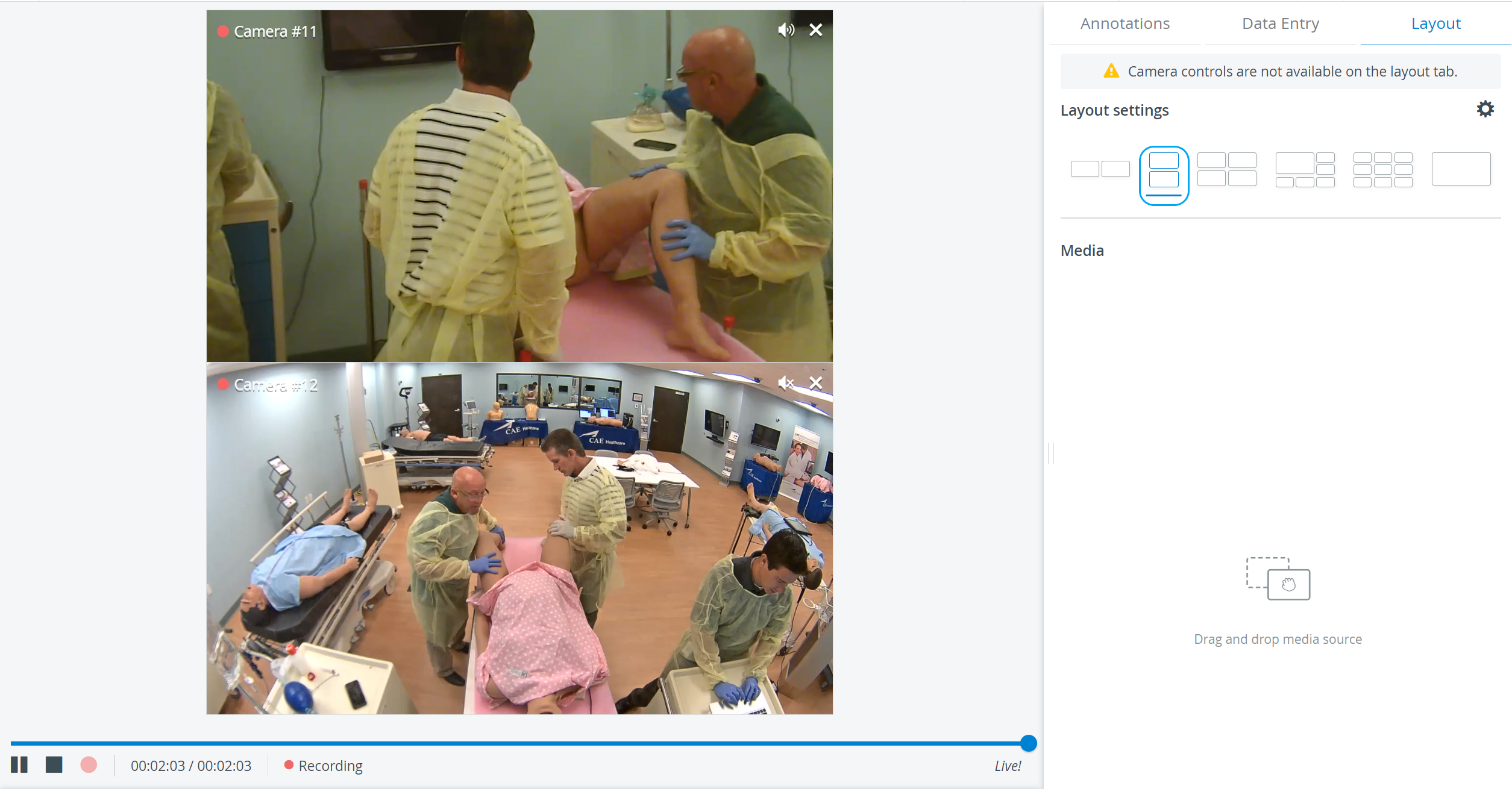
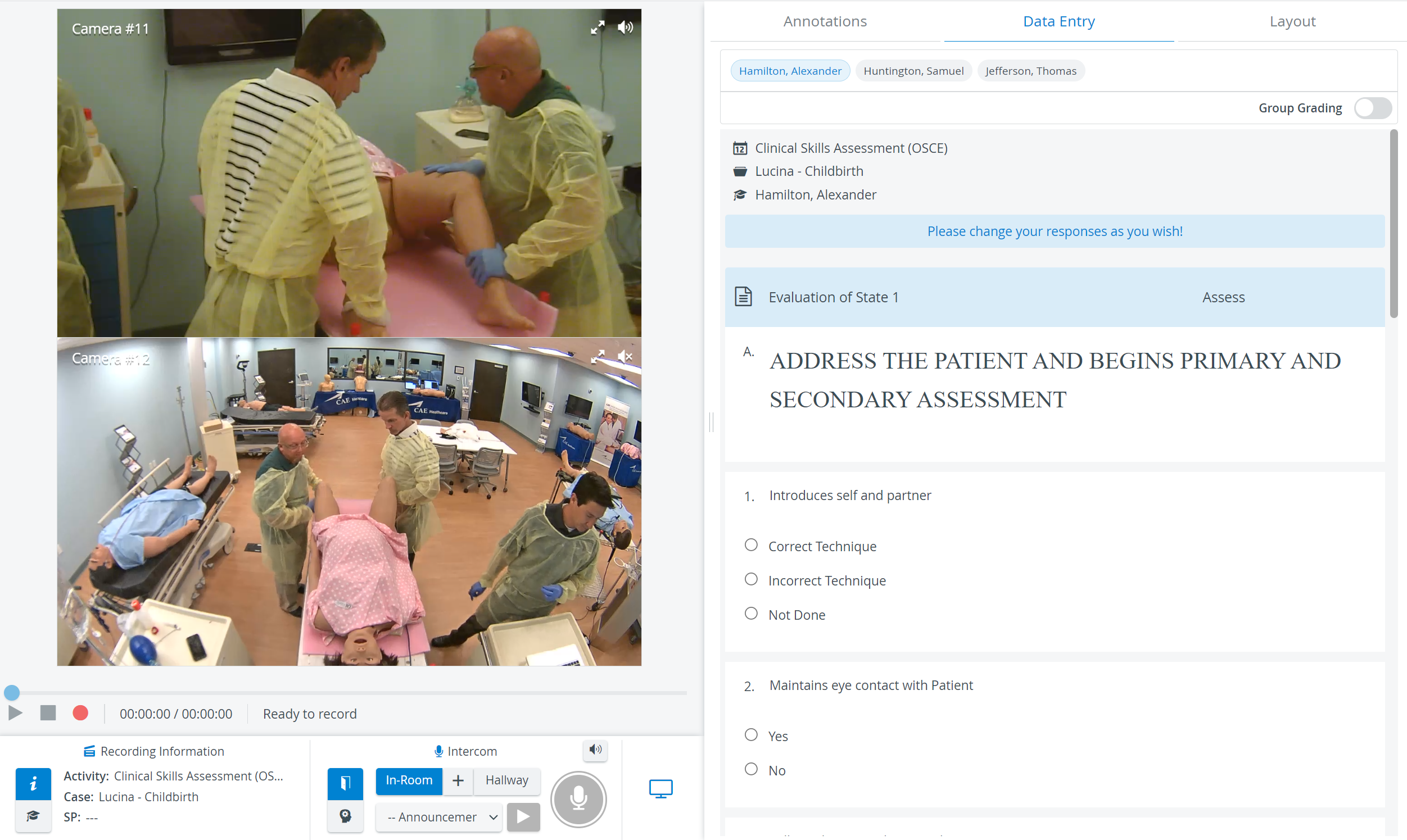
In some cases, two camera views must be displayed on top of each other (i.e., in a single column) during recording.
In the latest versions of LearningSpace, the utilization of the space available in the Single Room View panels can be maximized, and the panels on the right side (Annotations tab, Data Entry tab, etc.) or additional windows can be displayed in a larger size with the help of the Vertical double layout feature:
9-camera feed
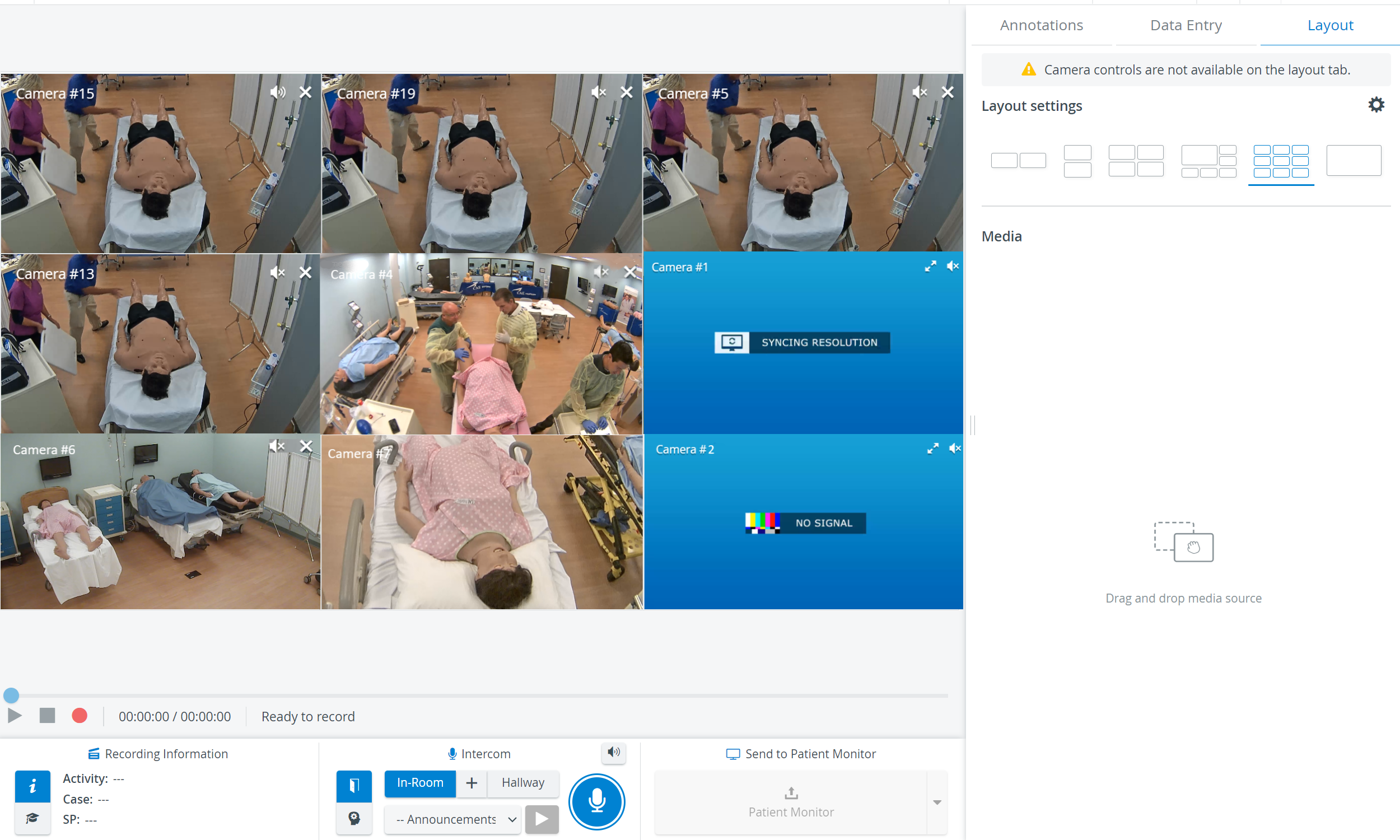
In the newest release of LearningSpace, #6, #7, #8, and #9 optional camera selector dropdowns have been added to the Room editor of the System module.
It only allows the Single Room View's (SRV) 3x3 layout to be used with camera feeds.

See also our Practical Recording and Recording - FAQ pages.