Send to Screen
Send to Screen functionality during Recording
The Send to Screen function is only available for Elevate Health Simulators (Maestro-based), not for third-party simulators.
Picture files can be sent to different display monitors by clicking the corresponding button. There are two kinds of output for the Send to Screen function:
Display monitor
TouchPro Patient Monitor of the JUNO simulator (or other Maestro-based simulator)

No Decoder or Patient Monitor added to Room

Decoder and Patient Monitor added to Room
The Send to Screen option requires the following technical setup to be completed:
monitor/ decoder and/or simulator connected and assigned to the room (within the System Module)
Media content uploaded ( SCE Design or Maestro - run on the simulator itself. See Maestro User Guides here.)
Event scheduled in the room with a specific SCE assigned (if other than TouchPro)

Decoder added in Room Settings

Patient Monitor added in Room Settings

See the process description under How to use the Send to Screen function
IMPORTANT: Media content can only be uploaded
within an SCE (for the display monitor). The SCE, including that content, must be assigned to the recording.

or via the Maestro application (for the JUNO/ simulator). If a simulator is connected, content uploaded via Maestro will be available for sending.
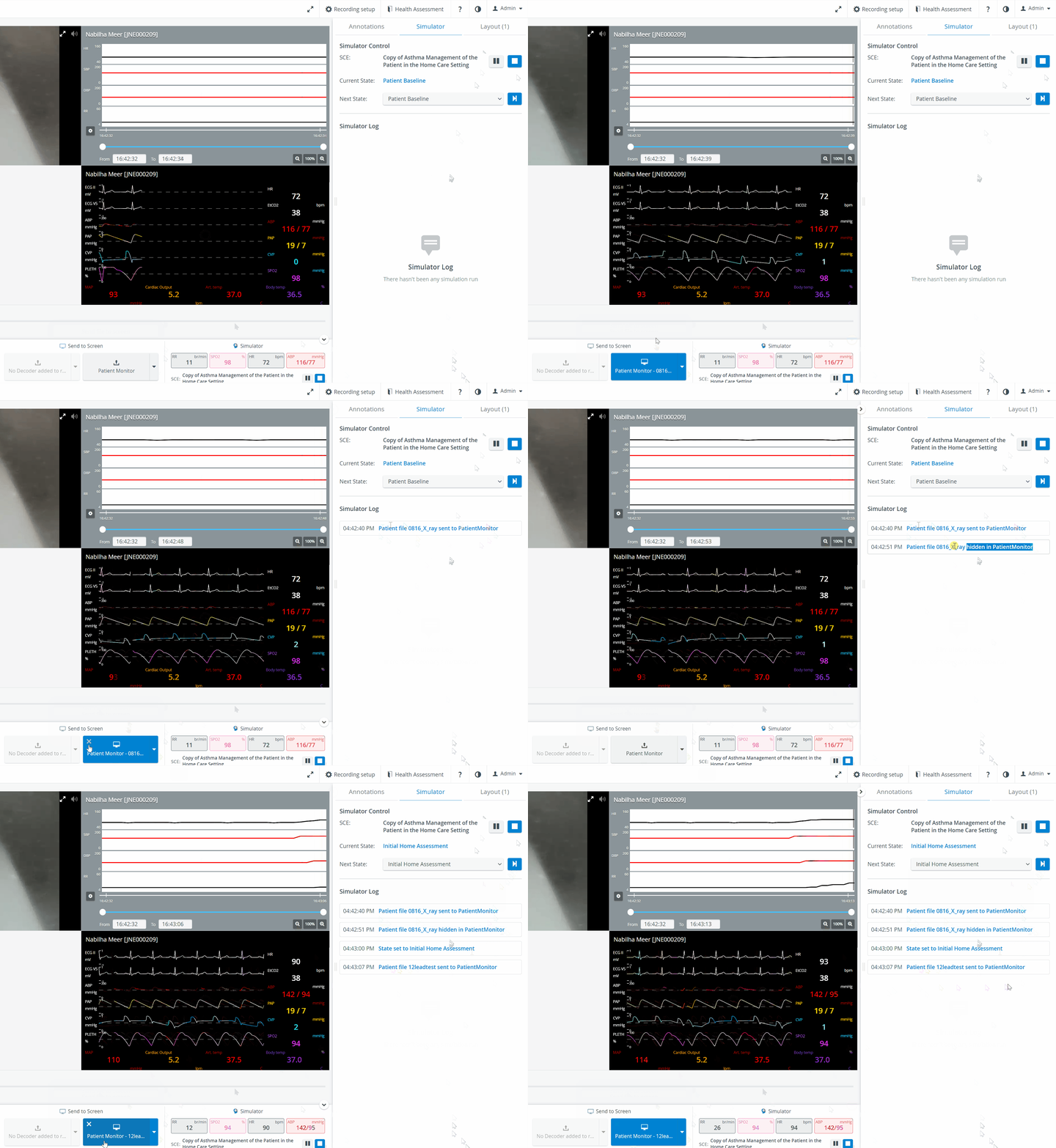
Send to Screen - Patient monitor (with Simulator log)
An SCE can only be linked to a recording through scheduling an event. Consequently, the Send to Screen feature is only possible via an Event for recording.
Send to Screen in Video Review
In the Video Review, media files uploaded to SCEs can be previewed using the SCE media content option under the Send to Screen field, but images cannot be sent to the decoder.


Send to Screen on LearningSpace types of equipment
Widget | Server Based LearningSpace | OneBox | Standalone UP | Sattelite UP (formerly called GO Unit) |
|---|---|---|---|---|
Send to Screen (Maestro Patient Monitor) |
✅ | ✅ | ✅ | ✅ |
Send to Screen (Decoder) |
✅ |
✅ |
⛔ (cannot detect decoder) | ⛔ (cannot detect decoder) |
See also our Practical Recording and Recording - FAQ pages.