Scores tab
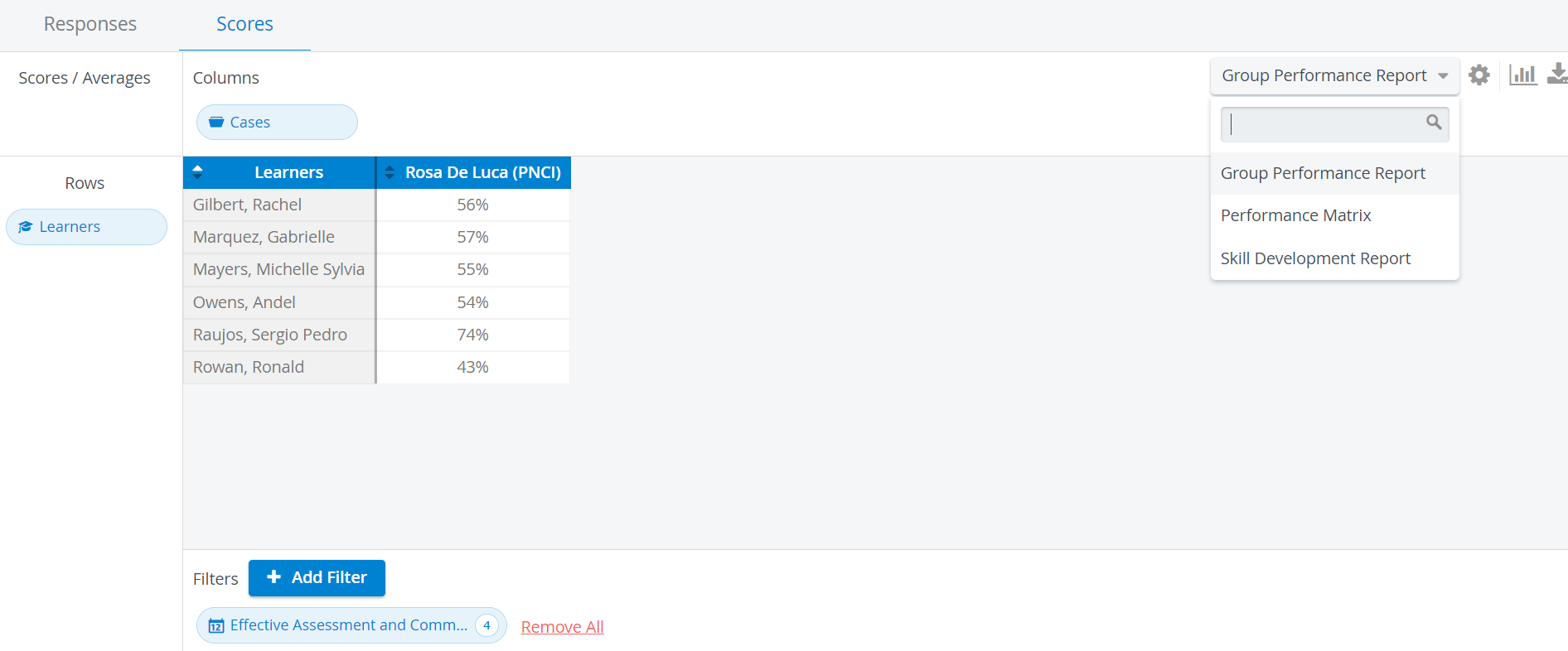
On the Scores tab, three preset (system-set) reports can be retrieved, to be selected via the drop-down in the top right corner of the screen:
Group Performance Report
Performance Matrix
Skill Development Report
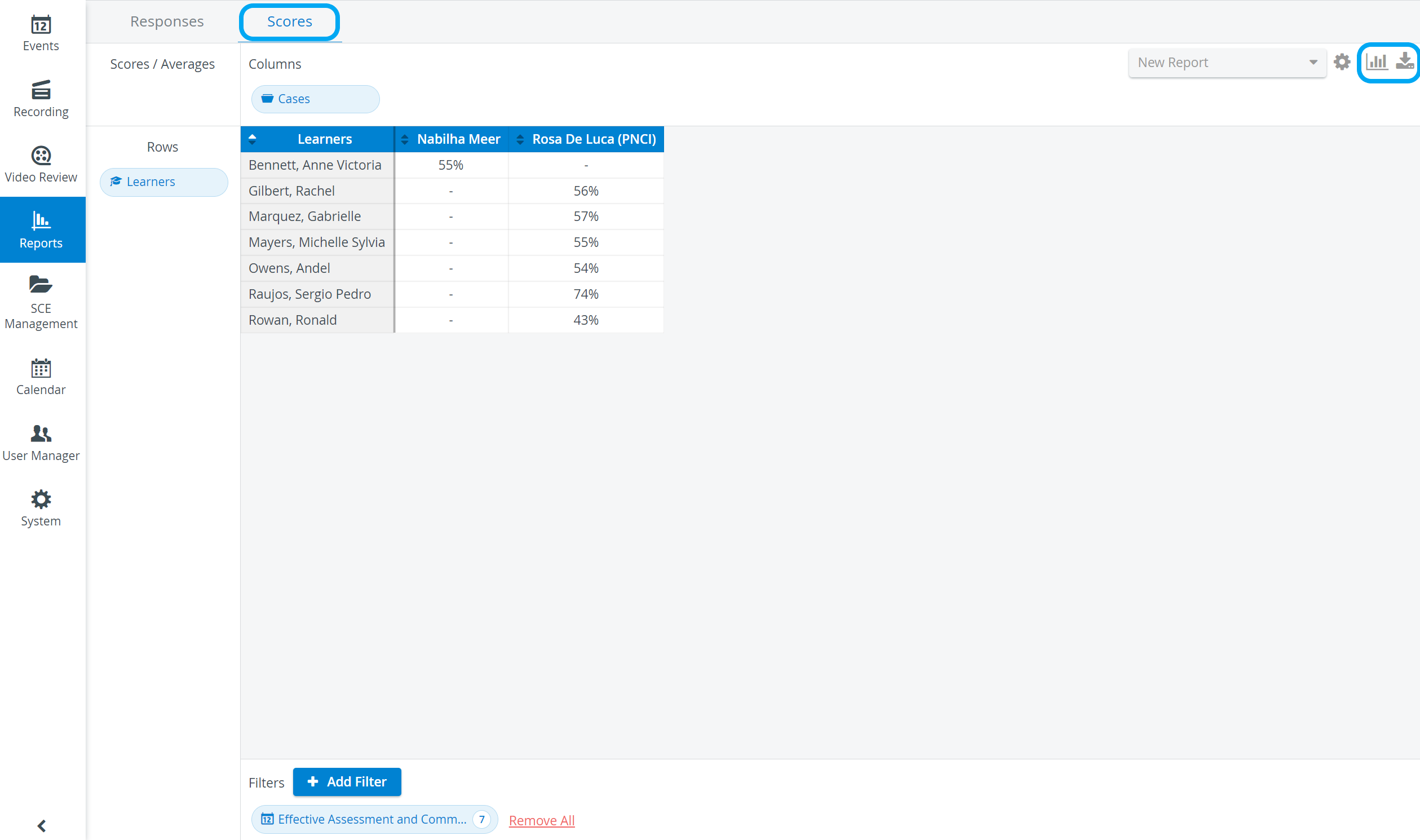
The queried report can then be displayed in a chart format (and printed) or saved as an Excel file by clicking the


icons next to the report selector and the Scores setting cogwheel

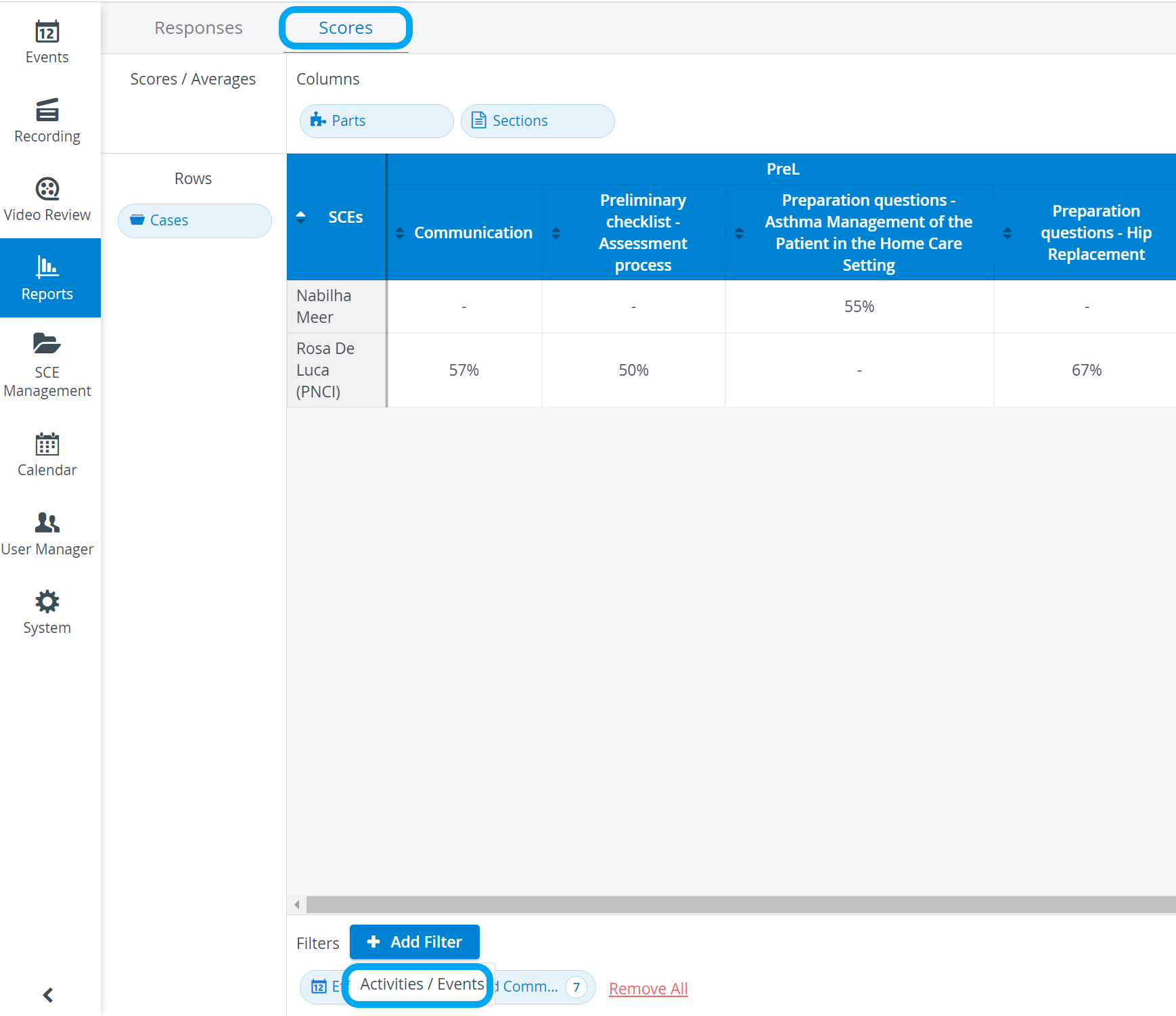
The reports can be filtered for specific events/activities by selecting the desired Events/Activities via the Add Filter button.
Results may exceed 100% if bonus points are included when creating the checklists.
Group Performance Report
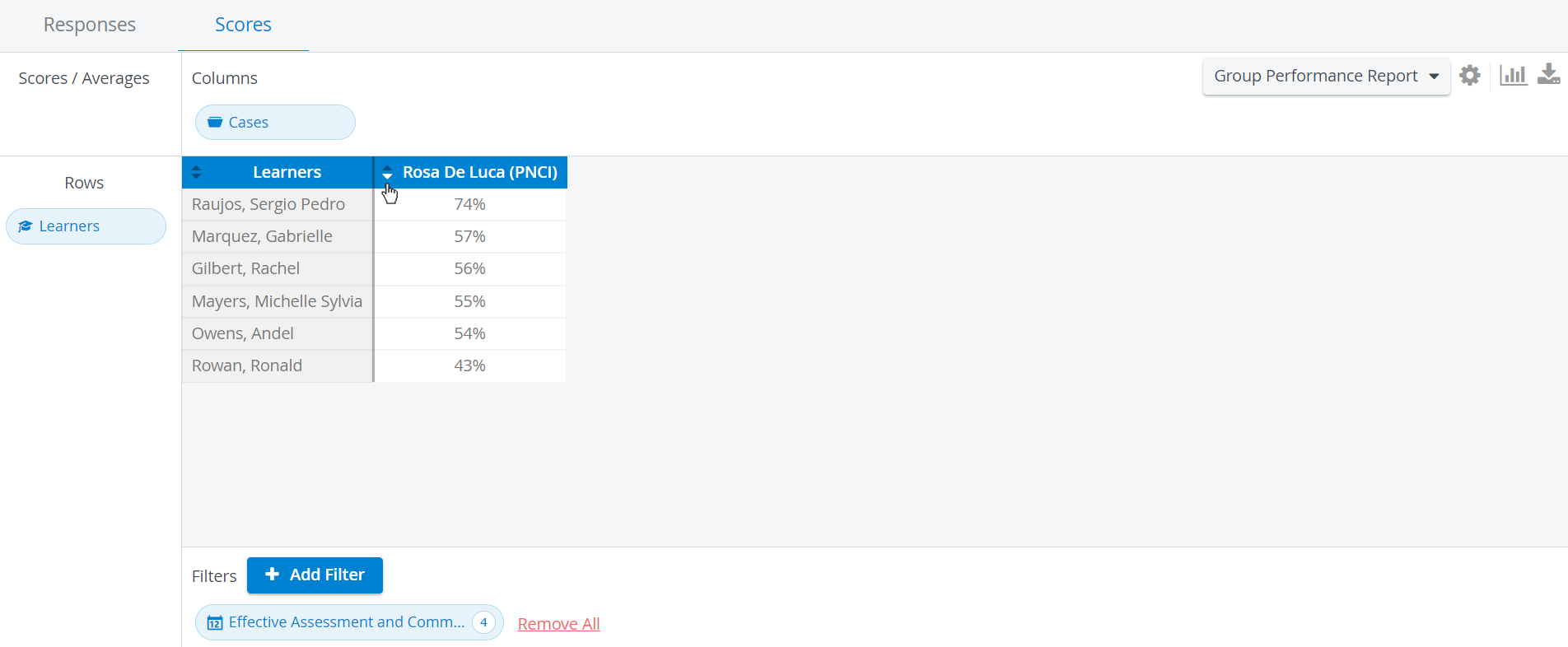
The report reviews learners' performance in the events/activities scheduled and completed in the system. Consequently, SCEs are displayed as columns, while learners are listed in the rows.
By default, the learners are listed by name in alphabetical order.
Click the arrow in any SCE header to display the results according to learner results in that specific SCE.
Performance Matrix
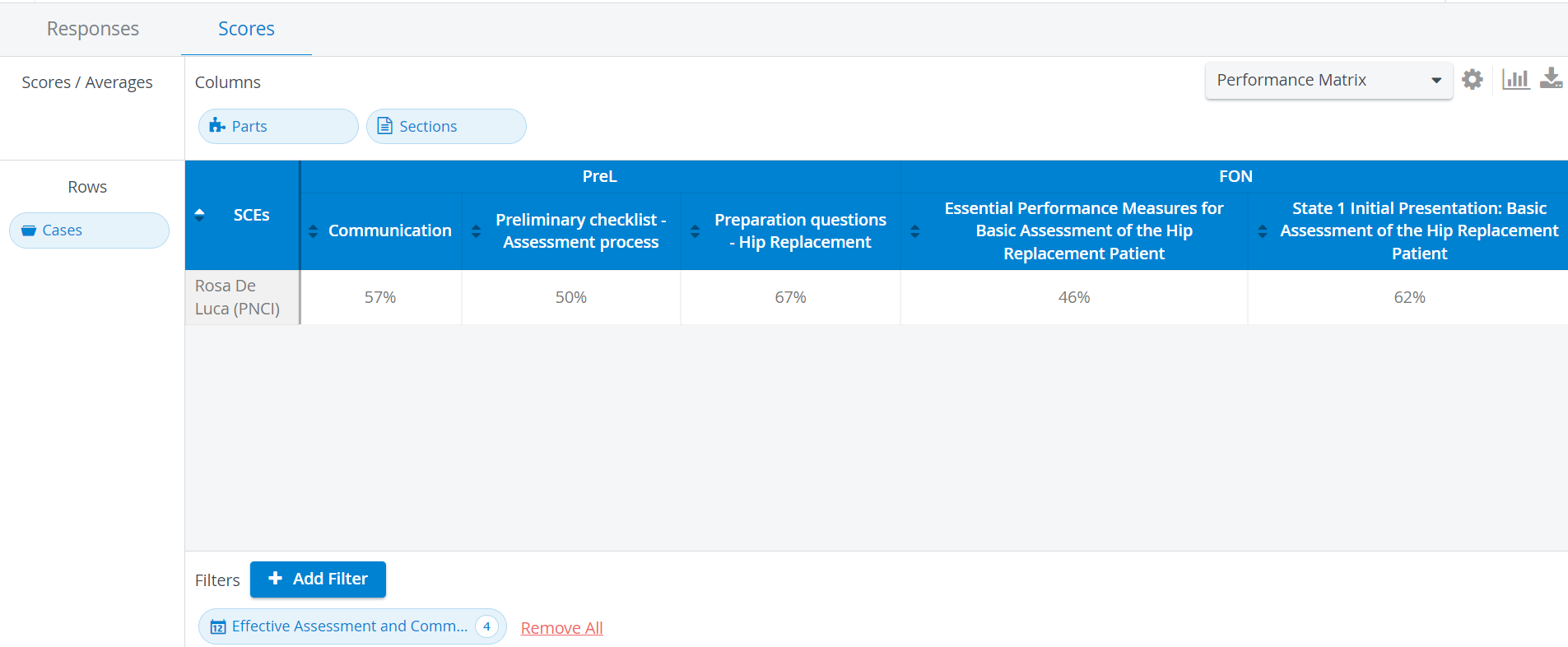
The Performance Matrix provides an overview of cumulative learner results in the different parts and sections of the SCEs.
Accordingly, SCEs are listed in rows, and columns correspond to the different sections within a checklist, grouped by checklist.
Skill Development Report
This report reflects on the learners' performance in the different skill areas.
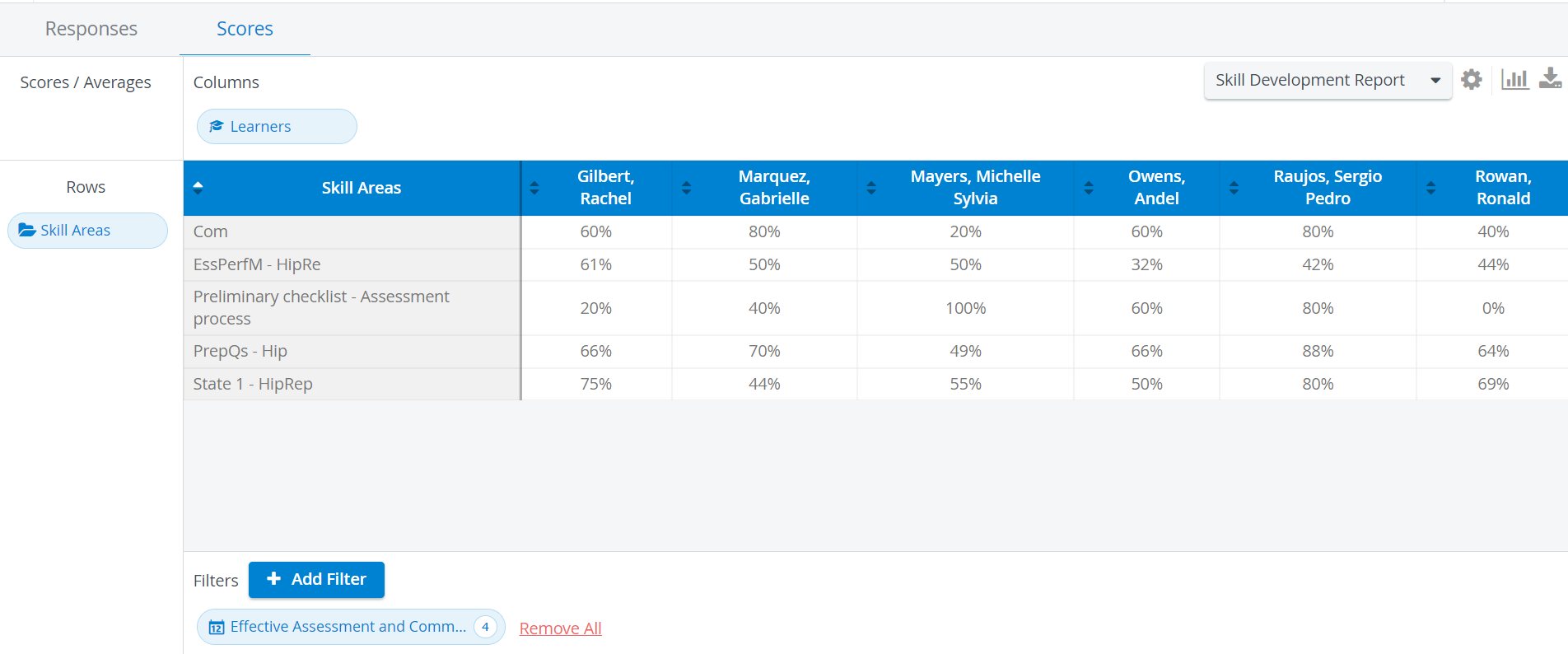
Skill areas are determined by the section abbreviations created within a checklist. Sections consist of items (questions) grouped by what kind of skill they reflect.
This report lists learners in columns, while skill areas are displayed in rows.
As skill areas are specified for sections and one can be used for several different sets of questions through several different SCEs, the Skill Development Report does not reflect on learners' performance within an event or SCE but rather their overall performance within the realm of a certain skill determined by questions linked to that skill.
Scores Settings 
By clicking the cogwheel in the upper right corner of the page, the Scores Settings pop-up window opens. Here, you can select from the following options:
Show Row Category Average at the bottom
Show Column Category Average at the right
Show natural score (Achieved score / Achievable score)
Decimals
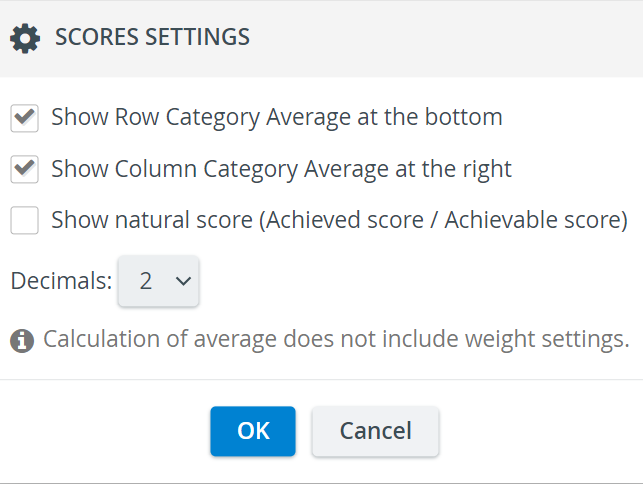
Chart display 
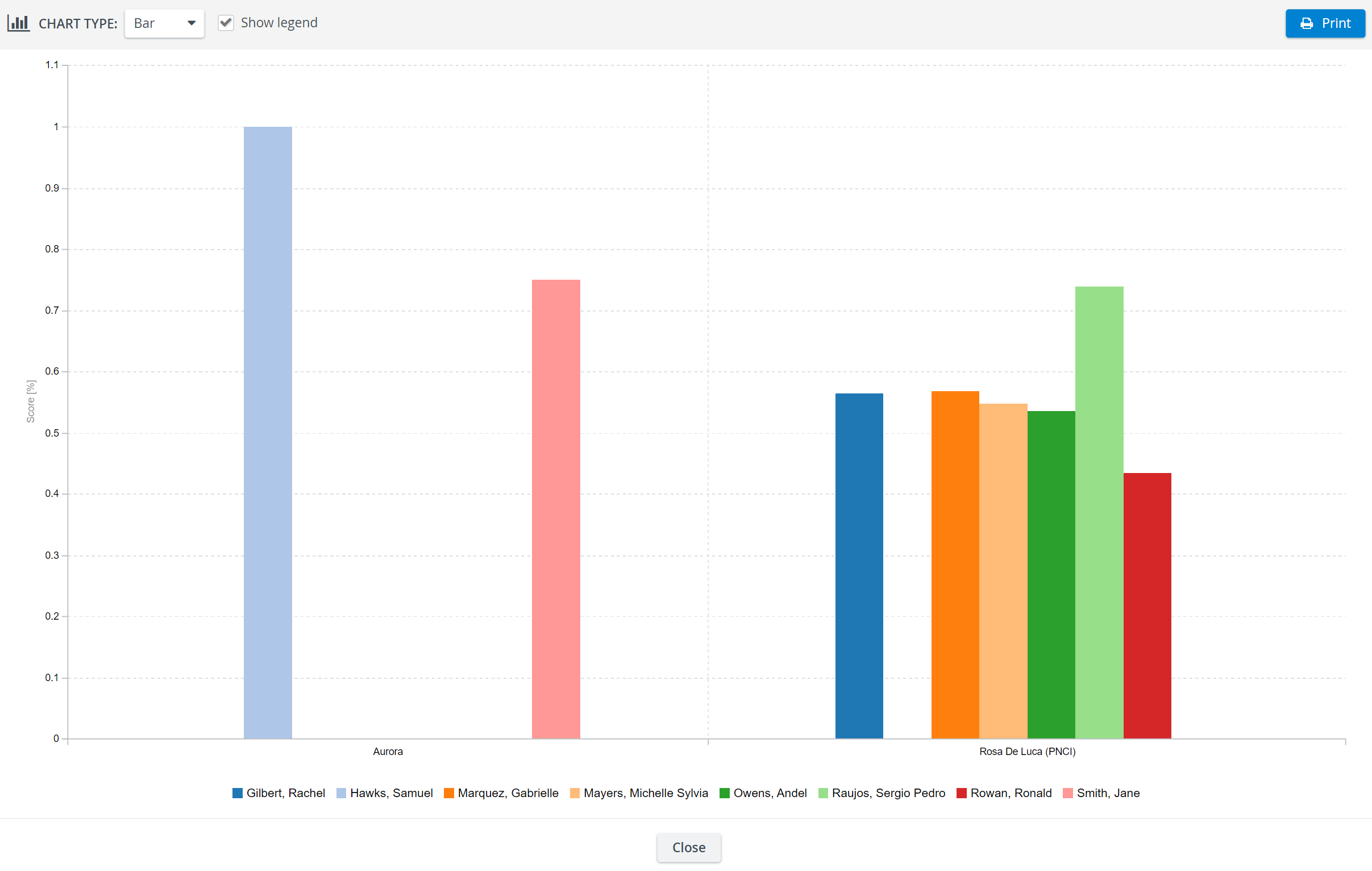
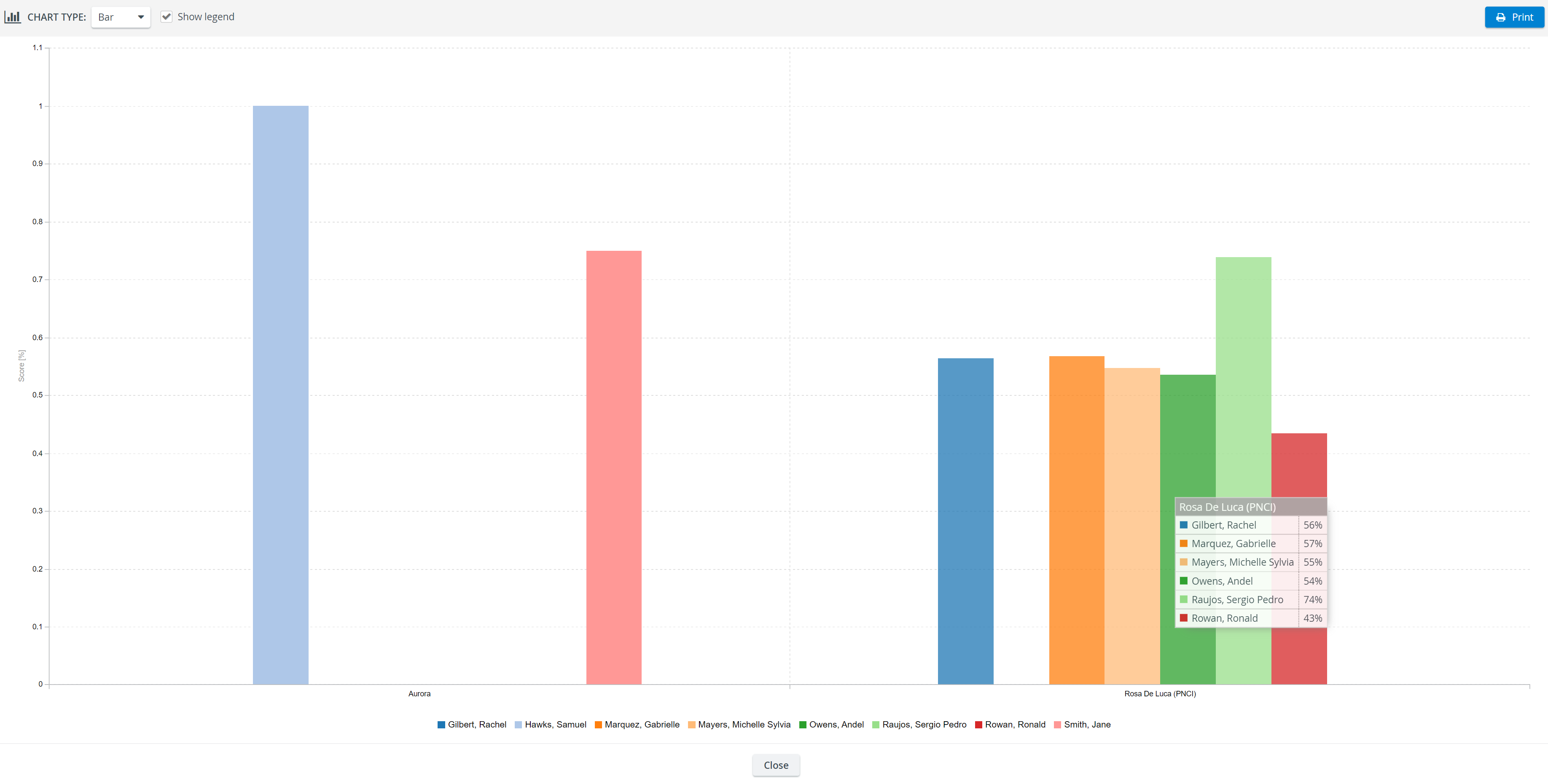
Reports can be displayed in Bar, Line, Spline, and Scatter chart formats and printed using the Print button.
Show legend option
With this option enabled (next to the Chart Type drop-down menu), further information can be displayed by hovering over the different parts of the chart. Learner names along with scores (in percentages) are displayed in accordance with the bar colors.
For more information, visit our Reports Module and Reports - FAQ helpsite pages.