Scheduling a Stand-Alone Event
IMPORTANT: The Calendar module is accessible to users with the following roles:
Admin
Facilitator
Scheduler
Scheduling an event essentially determines a specific time interval for a group of learners to complete a simulation as described in detail within a specific SCE.

Scheduling an event is possible in the Room, Day, Week, or Month views of the Calendar module.
Preliminary Setup
User Manager: The participant groups desired to be scheduled, including the intended users, are set up.
SCE Management: The simulation content, that is, the SCE intended for the scenario, is built up, with special attention to the SCE Scheduling part of the SCE.
IMPORTANT: Automatic recording can be set up for a scheduled event's Briefing, Simulation, and Debriefing parts. For the recording to start, the camera icon has to be activated within the SCE Scheduling part of the SCE Management.
Process Flow
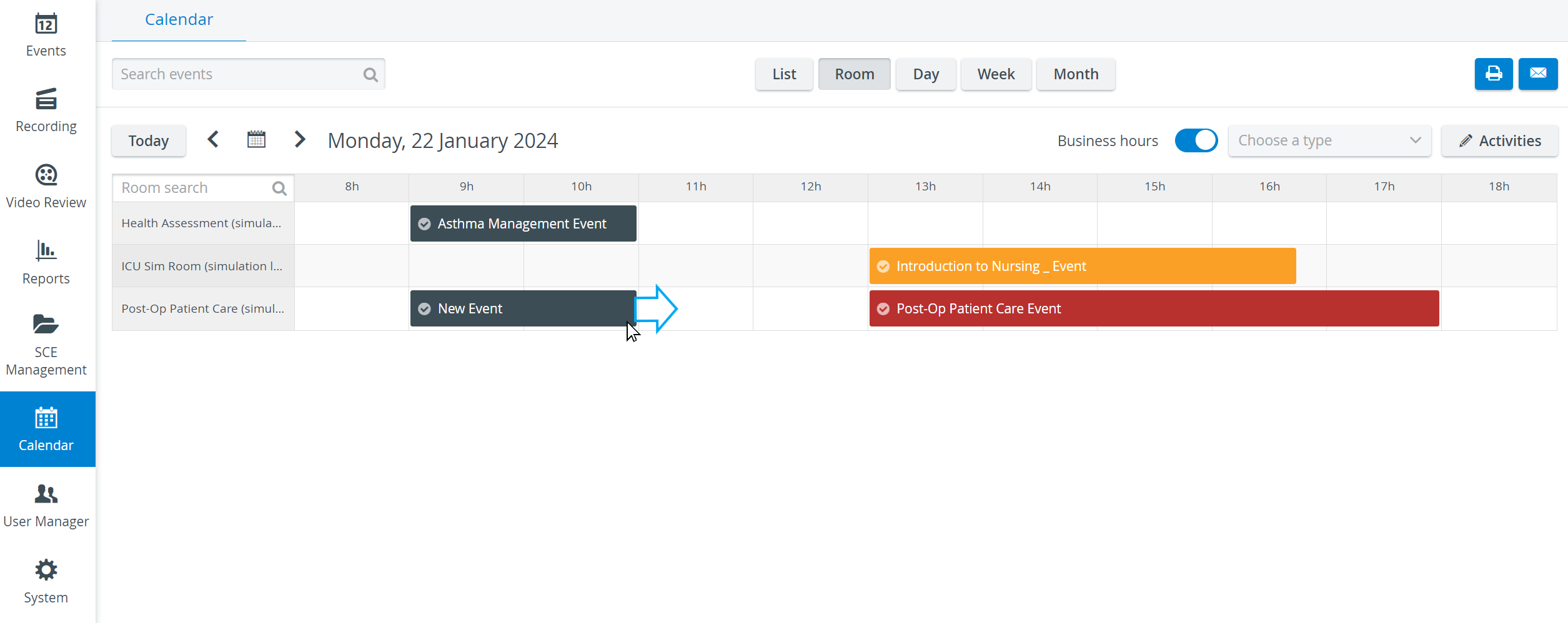
In the selected calendar view, display the day, that is, the date of the event.
Click and drag the cursor through the time interval you intend to schedule for the event.
NOTE: When scheduling in Room view, ensure the time interval is determined in the line of the desired room. When scheduling in Week view, the room can be selected via the Room drop-down at the top of the pop-up window.
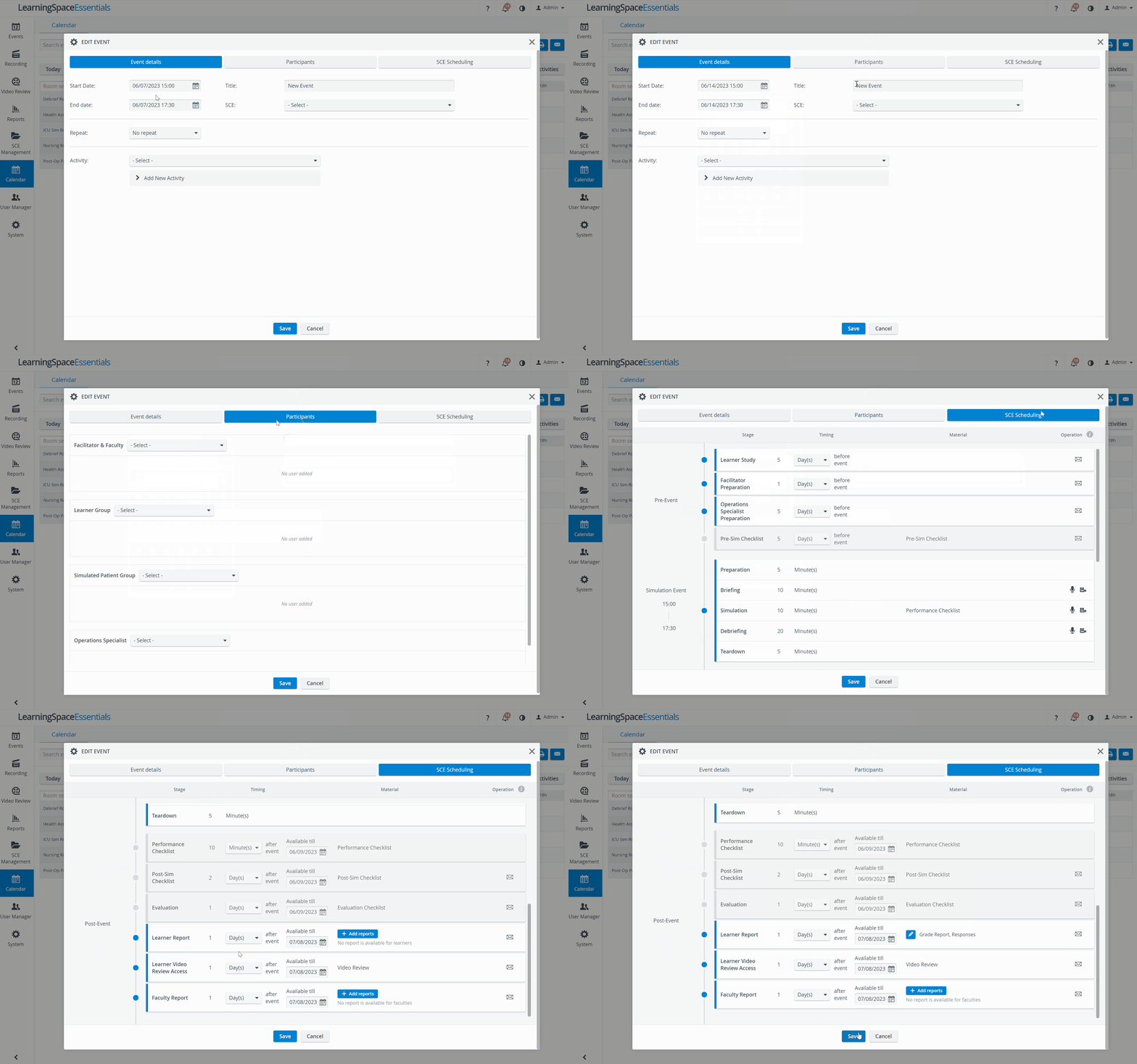
The Edit Event pop-up window opens where all specifications can be given for the event.
By default, a newly added event is entitled "New Event."
Enter a specific title for your event to avoid confusion and ensure proper distinction.Select the SCE intended to be performed.
Events can be set to be repeated by using the ‘Repeat’ functionality: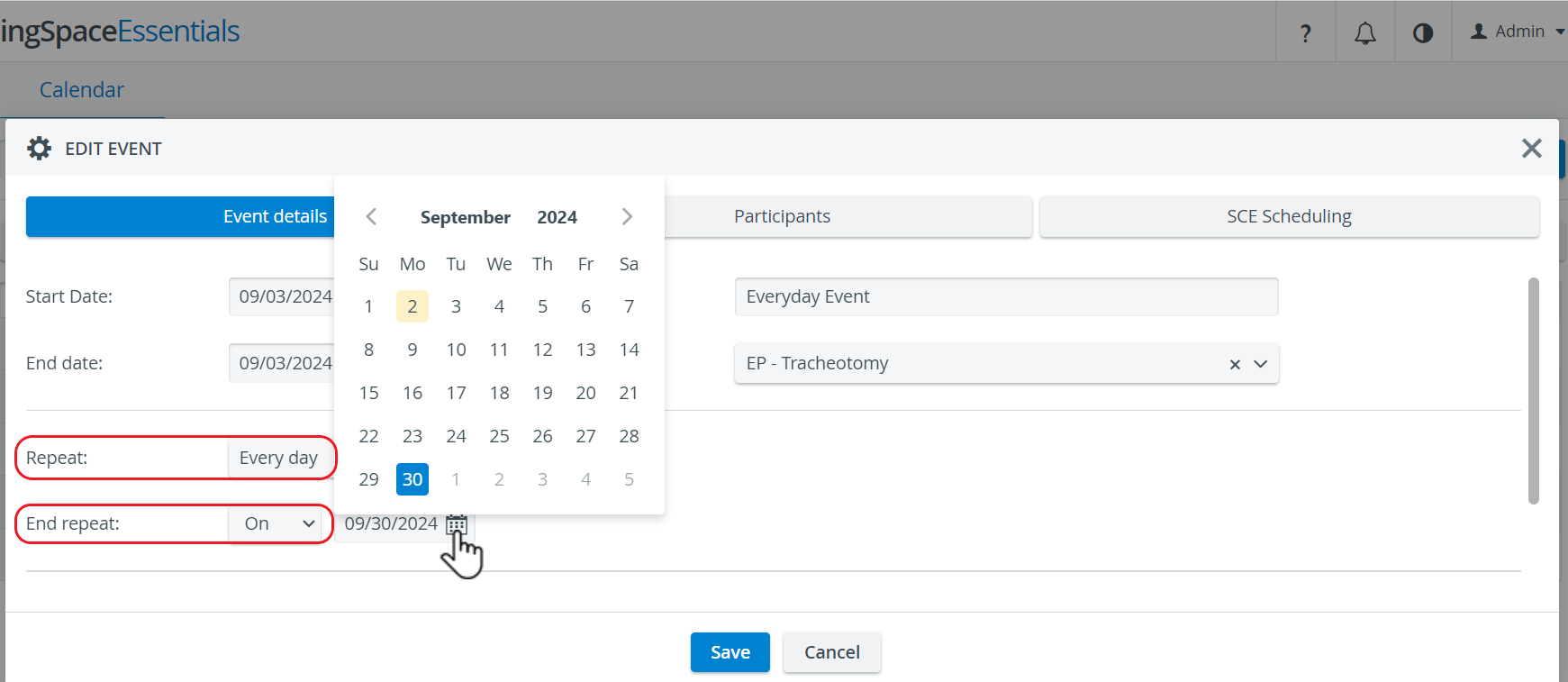
For more information, go to Recurring (repeated) Events.
Switch to the Participants tab of the pop-up and add the desired participant groups using the corresponding tabs and drop-downs.
On the SCE Scheduling tab, modify the Pre- and Post-Simulation stages if necessary or adjust the Simulation duration.
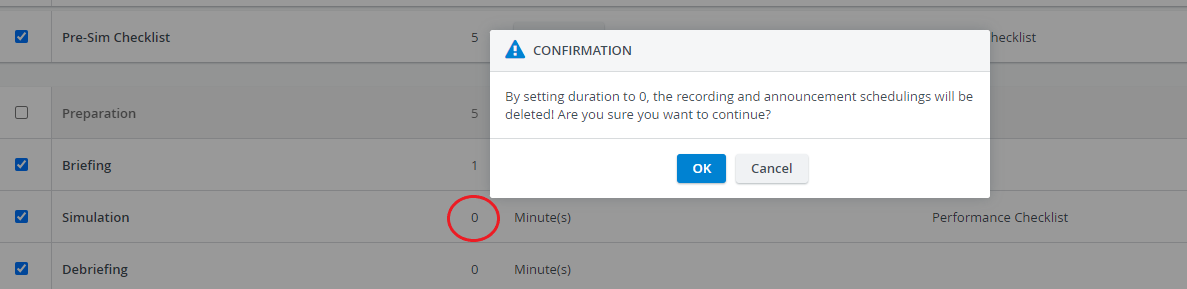
IMPORTANT: When setting the duration of a stage to zero (‘0 Minute(s)’), the system warns that recording will not be started and announcements will not be sent for that stage - even if any of those options are enabled.
Click Save to conclude the event schedule.
Modifications on an SCE do not affect previously created Events. This means that modifications only come into force once the Event has been updated with the modified SCE, meaning that the SCE has been re-added to the Event.
For further information, visit our Calendar Module and Calendar - FAQ pages.