Responses tab
On the Responses tab, submitted checklists can be accessed and filtered for by SCE, Activity and event. This tab offers the possibility of cross-event results as more events can be selected.
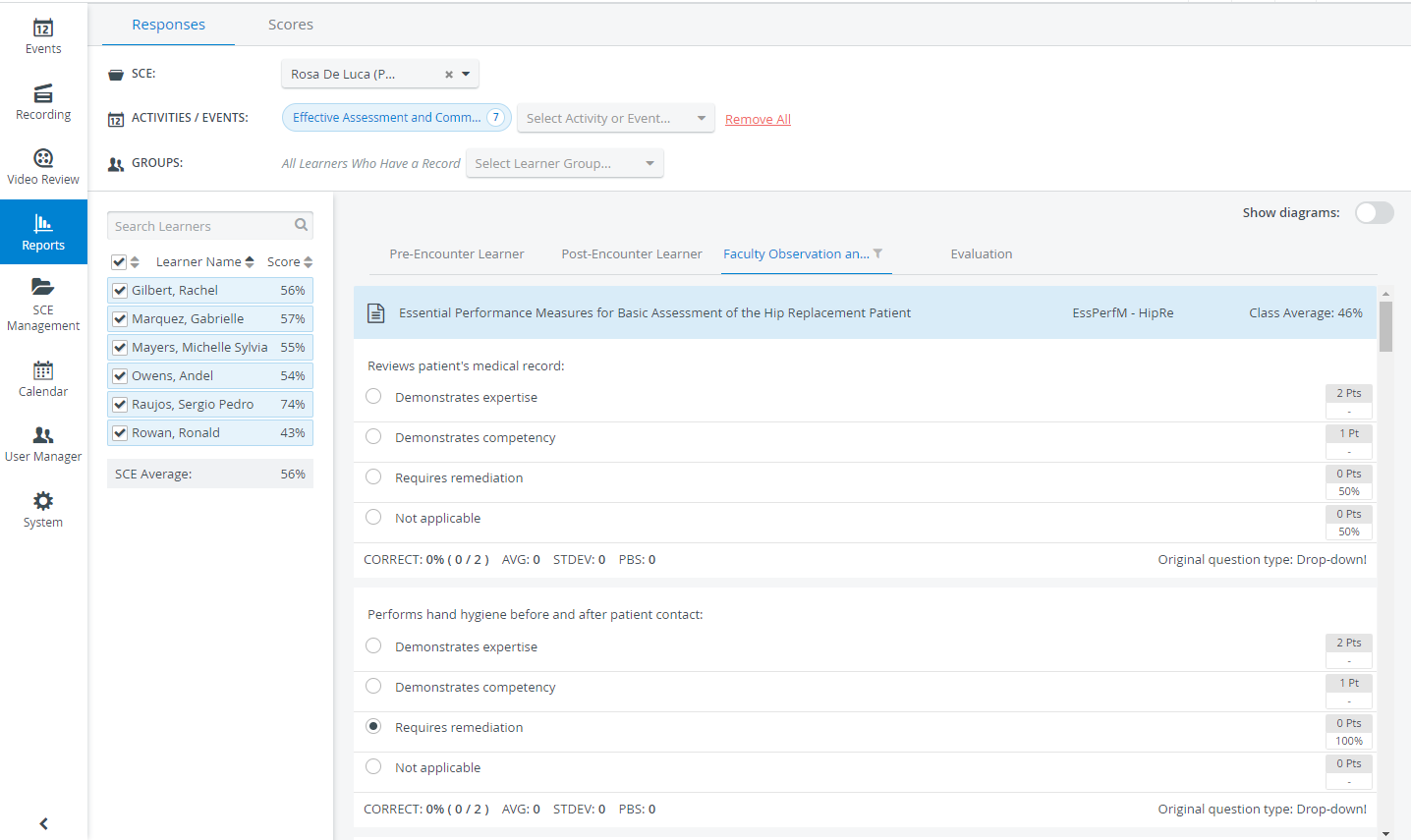
If more than one events are added, the union of all submitted checklists for the selected SCE is displayed. Therefore, if a learner submitted the same checklist within several different events (that is, completed the same SCE within different events), their name will be listed that many times.
Selecting an SCE (Simulated Clinical Experience) generates a list of learners who have already received submits for the selected SCE, i.e., have filled out checklists for their account. The checkboxes next to the names provide further possibilities for filtering.
Scores are indicated in percentage in the Score column next to the learners' names.
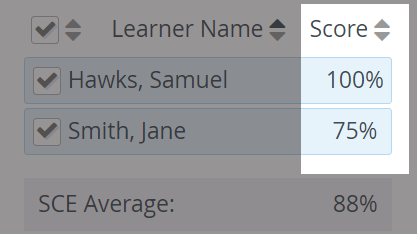
Scores are displayed in brackets when a relevant checklist includes any open-ended question that has not yet been scored. If no score is displayed (but a dash) next to a learner's name, the learner has opened the checklist but has made no submission. (Learners who have not opened the checklist are not listed.)
Statistical data
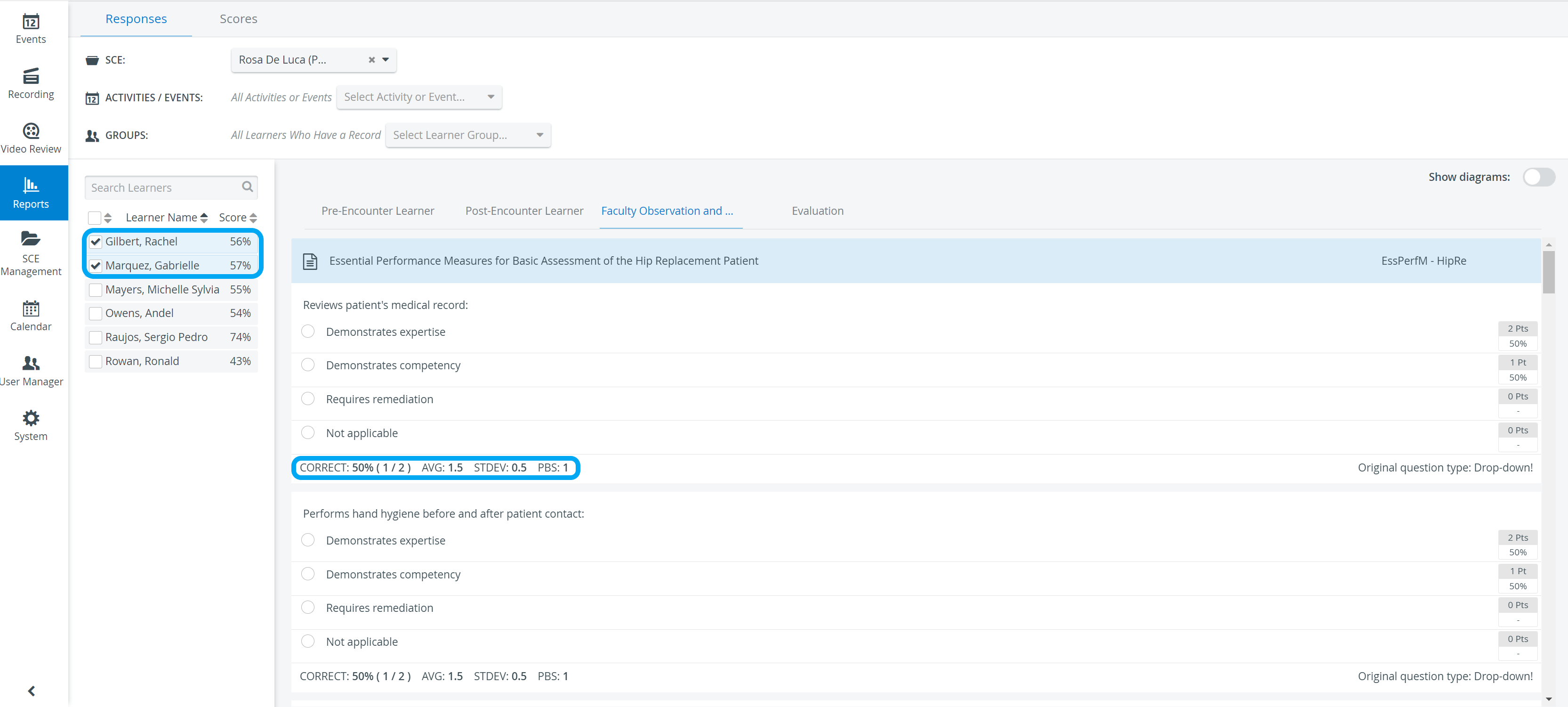
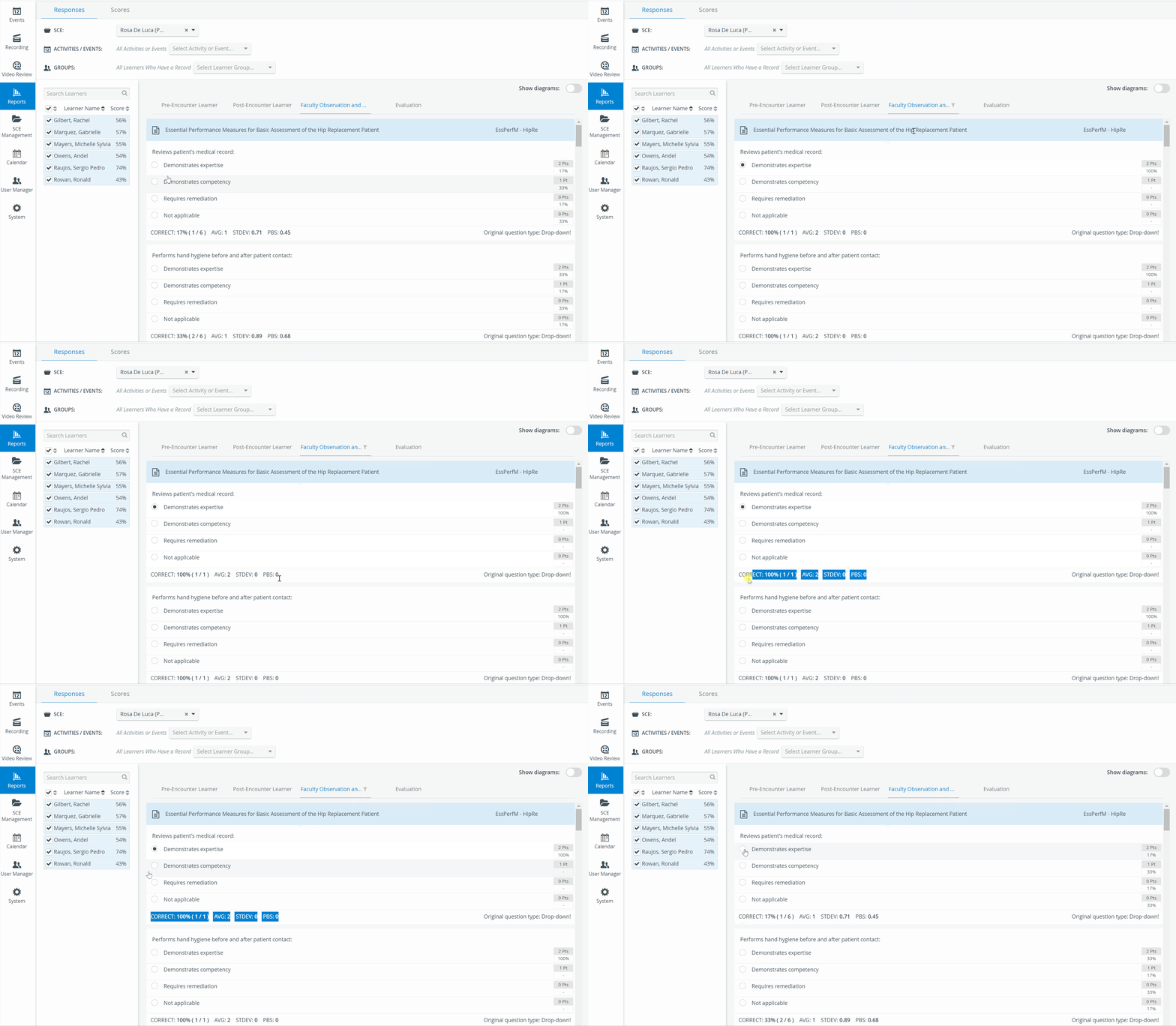
Responses can be compared statistically by selecting the radio buttons next to the answers. As radio buttons can be selected for multiple items, multiple filtering can be applied.
The statistical data includes the percentage of correct answers, the average, the standard deviation, and the point biserial value. The last one helps evaluate the pertinence and efficiency of a question (i.e., an item on a checklist).

Statistical data is only displayed if all or multiple Learners are selected from the Learners' list.
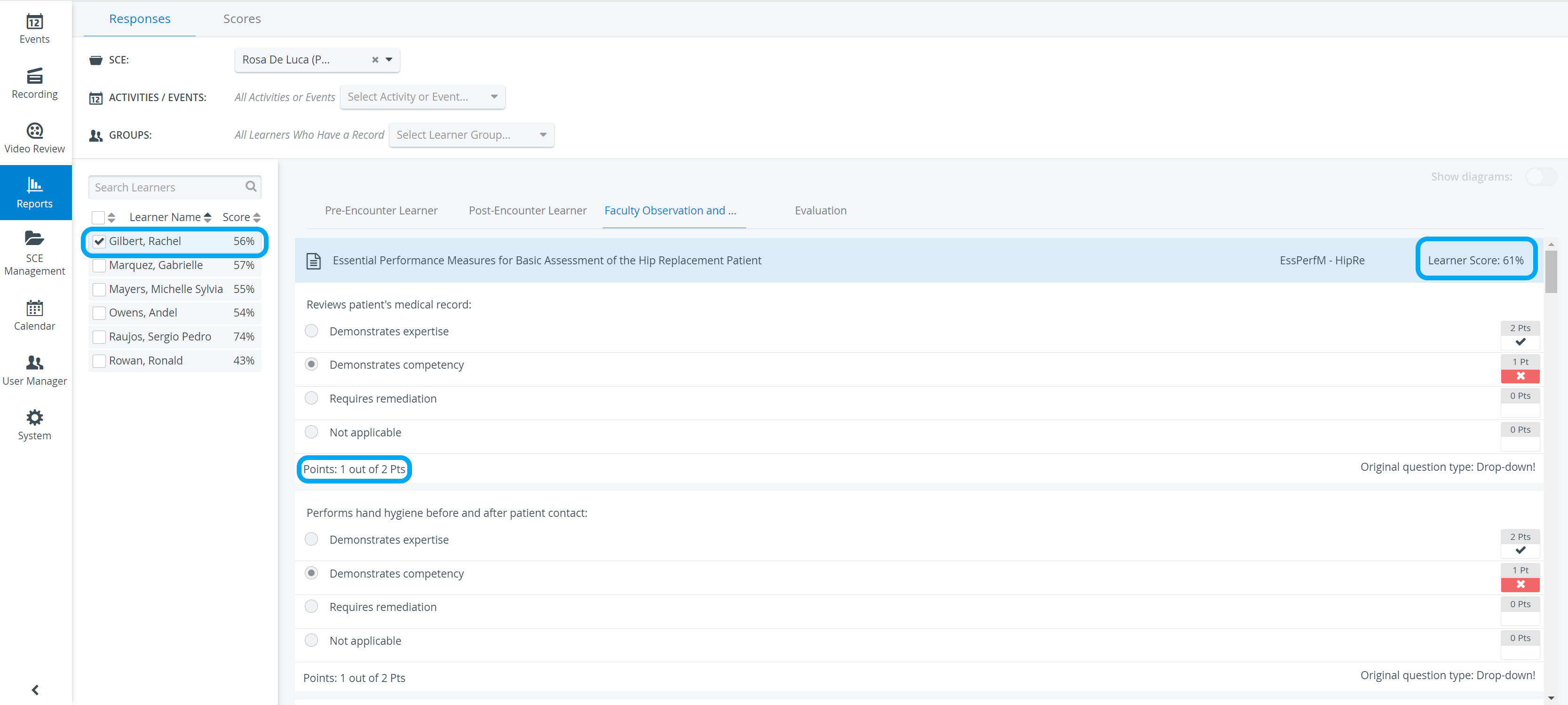
In case only one individual Learner is selected, the following information is displayed under Responses:
selected versus correct answers,
points (achieved/achievable),
Learner Score.
Dynamic subgroups
Using dynamic subgroups provides you with another filtering option. With their help, you can compare the performance of the subgroups of learners who have similar results for a particular item.
To filter results according to dynamic subgroups:
Select the radio button in the line of the item from the answers of which you want to choose a subgroup.
The system will then display responses only for those with the same answer for the selected item. This will provide information about how these respondents answered all the other items of the checklist and thus enable further comparison or statistical analysis of the data.
A Filter icon


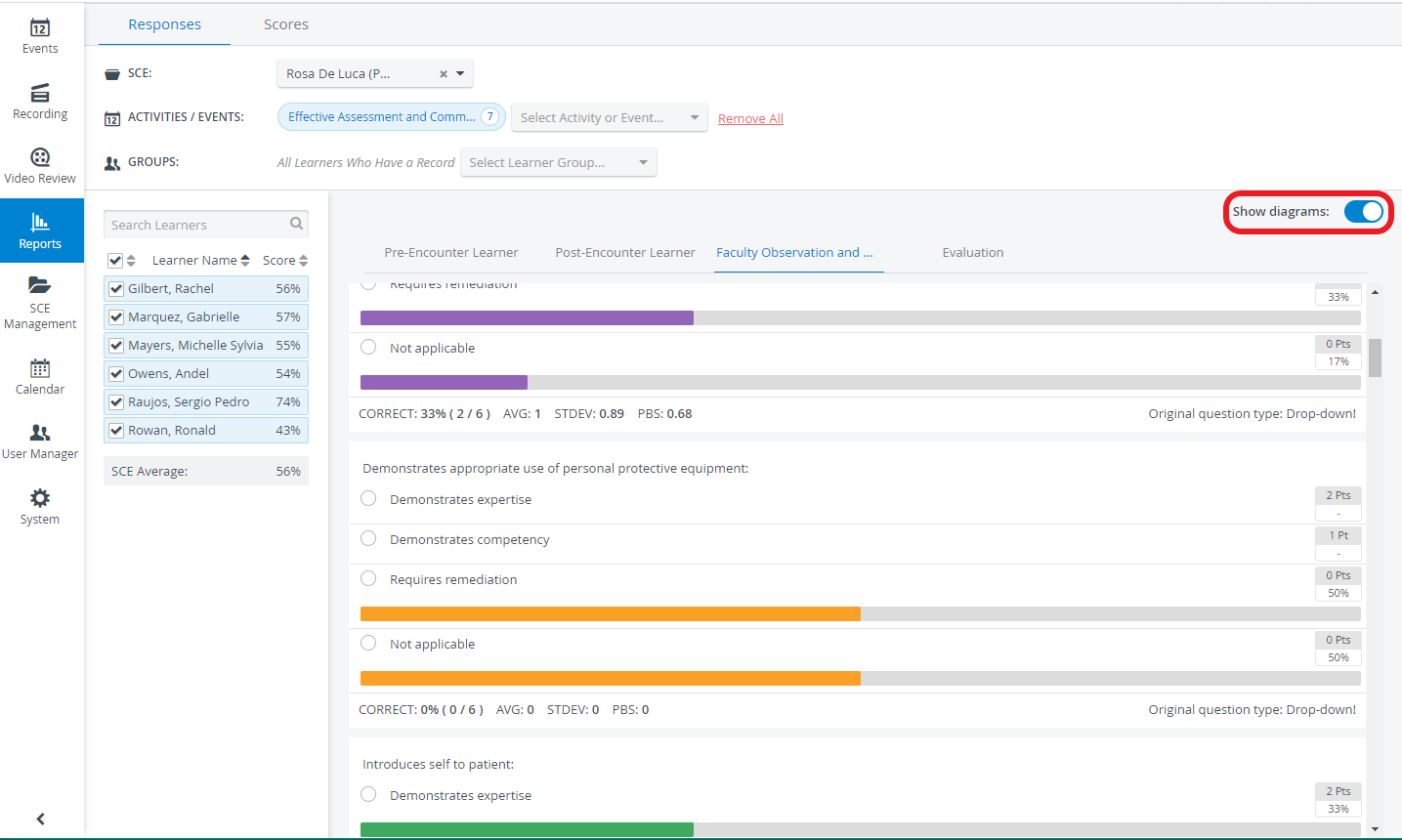
Show diagrams
With the Show Diagrams option enabled, statistical data can be displayed in a more visualized way:
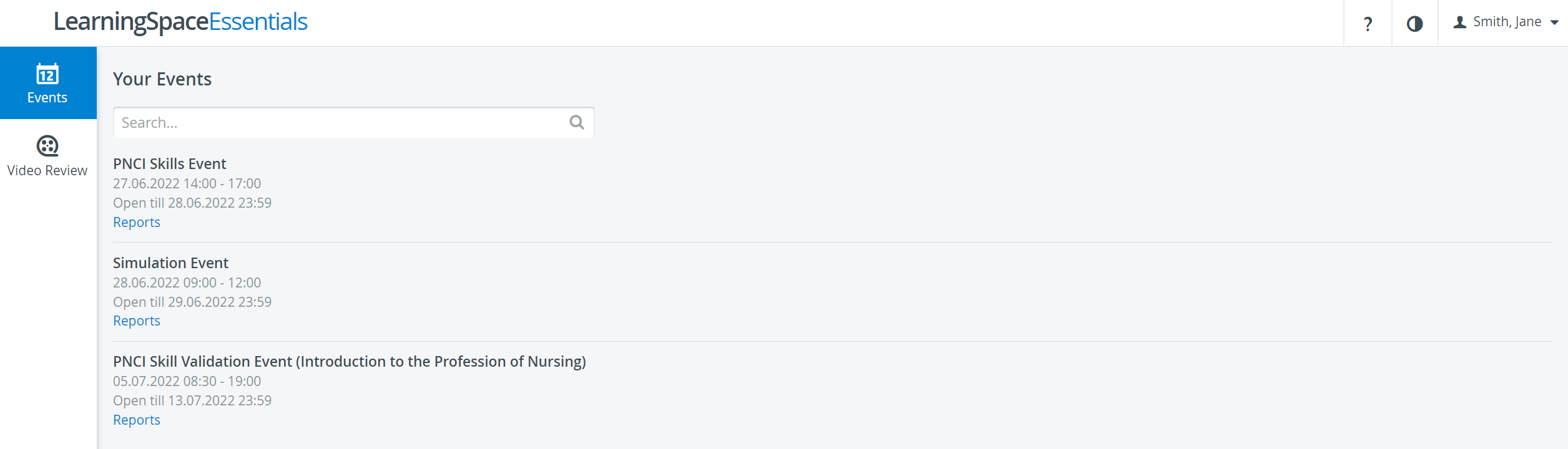
In case the Report is not available any longer (Available till date has expired), the Learners will not have the Event displayed in the Your Event window on the Dashboard:
Learners and Faculty members only have access to the reports in case the event the SCE is added to
is a standalone Event (not associated with an Activity)
is not standalone (i.e., associated with an Activity), AND reports are available to ALL Events within that Activity in the given time interval.
Otherwise, they get the following message:

For more information, see: