Recording Setup
The Recording Setup assigns users (Learners, Simulated Patients, and Facilitators) to a recording. This function is available for users with access to start and stop recording, that is, for users with Admin, Operation Specialist, and Facilitator roles.
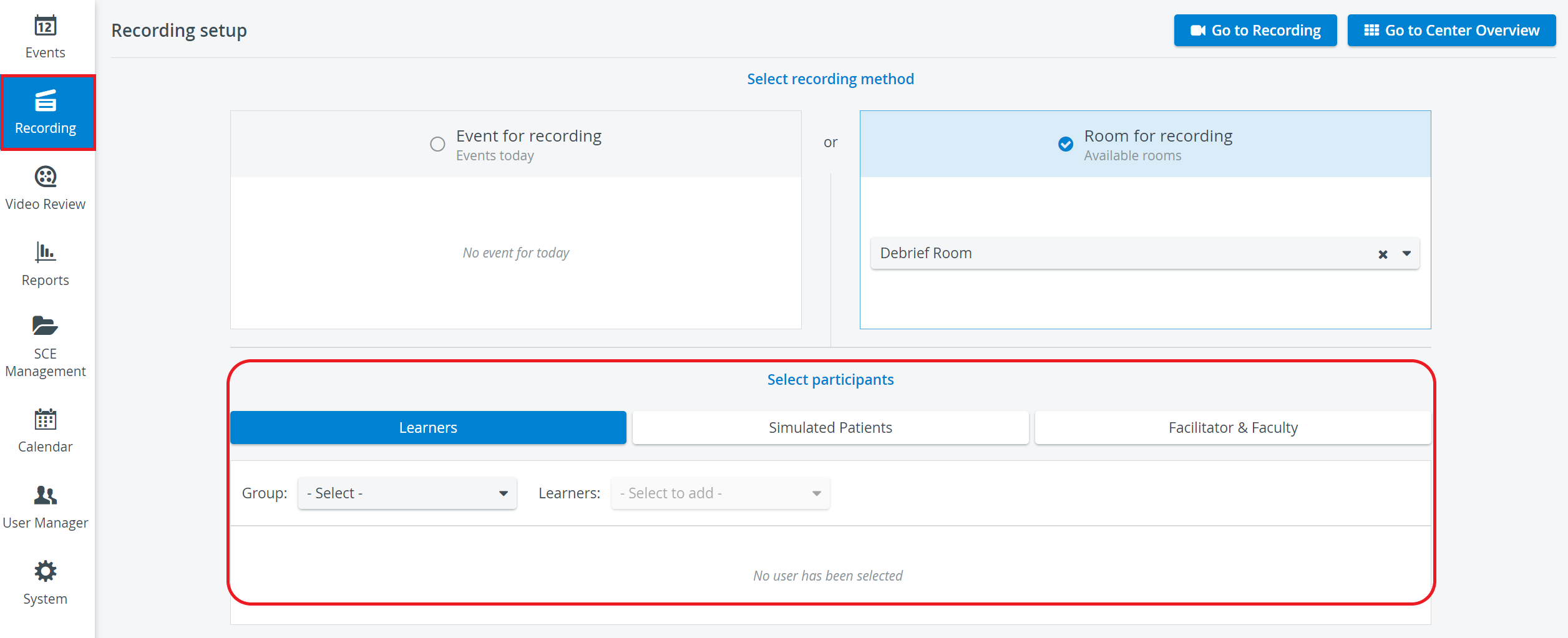
User groups can also be assigned to a recording before it is started on the respective tabs of the Select Participants panel.
There are two ways to access the Recording Setup pop-up:
1. when accessed from the Dashboard by clicking the Recording tile, it also serves as a short-cut to get directly to a specific Single Room View (SRV)
Once opened, it allows you to enter a Single Room View (SRV) by selecting either a scheduled event or a specific room.
2. when already in SRV, the Recording setup button on the right side of the header also opens the pop-up:
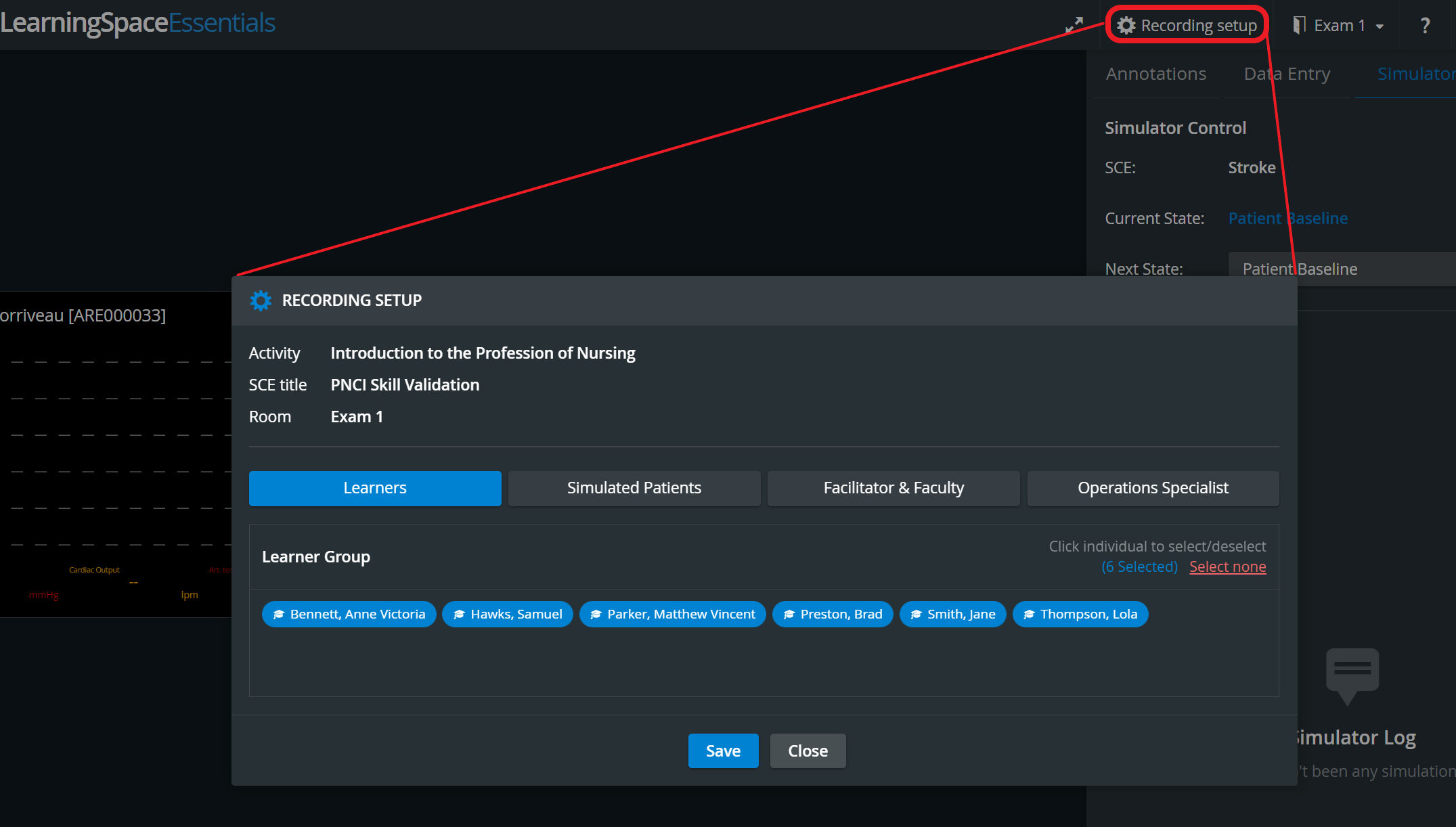
IMPORTANT: If accessed via the SRV, the Activity/Event and the room cannot be modified logically.
When selecting a user group from the respective drop-down, all members of the group are automatically selected (displayed in light blue). Using the Select None option, all members can be de-selected (displayed in grey), and users can be re-added individually.
See also our Practical Recording and Recording - FAQ pages.