OEQS Scoring Page
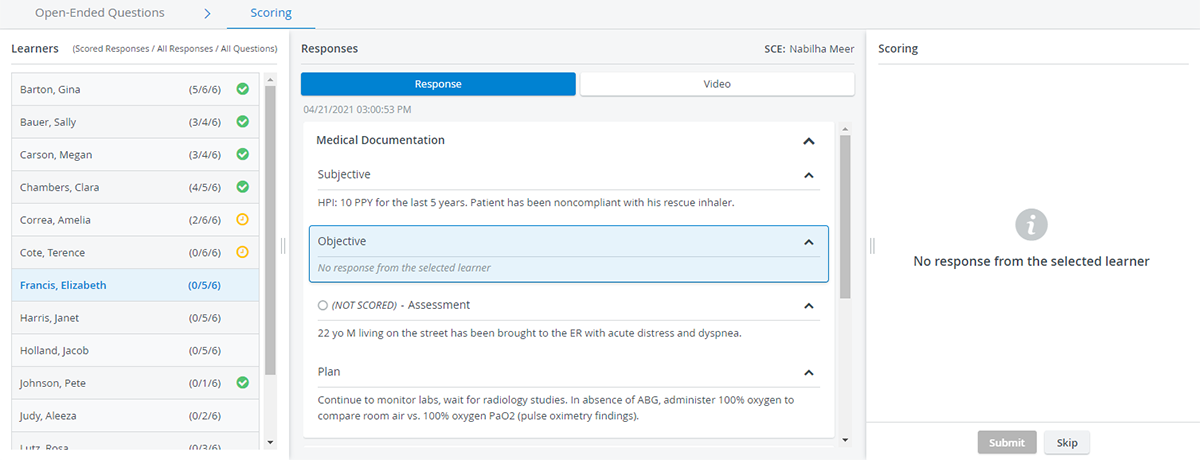
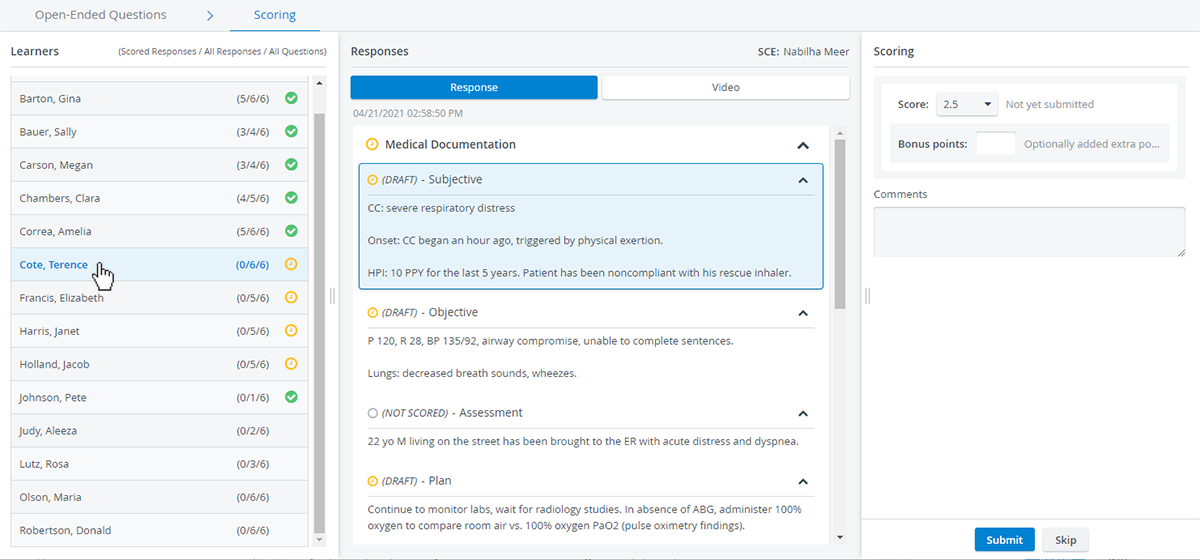
The Open-Ended Questions Scoring module's Scoring tab allows graders to view questions and responses concisely while evaluating data entry in the same workspace.
Resizeable Panels
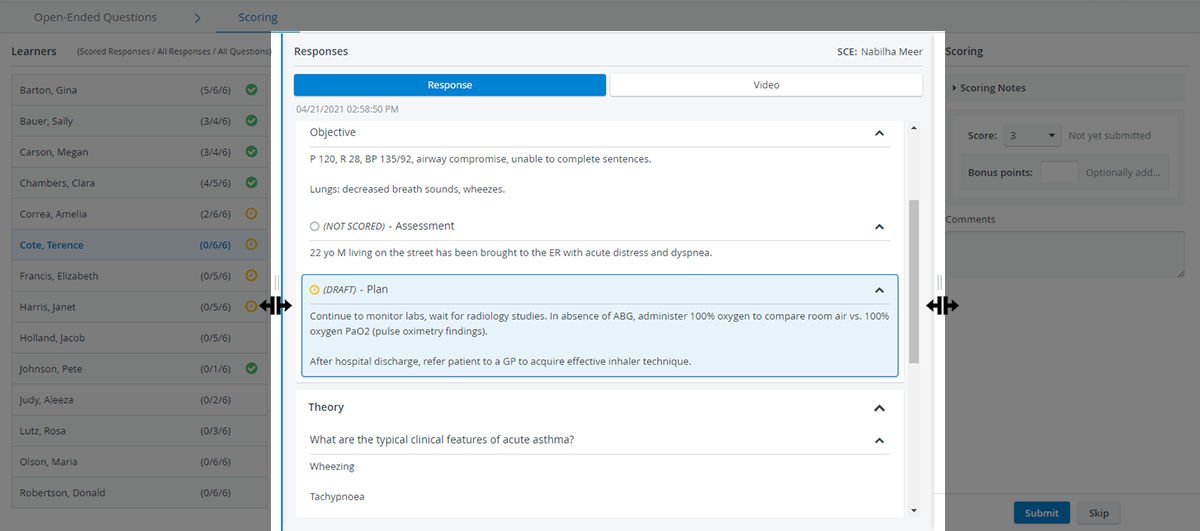
OEQS graders can resize panels according to their preferences by dragging panel borders:
Note
Panel size settings are saved while OEQS graders switch between the OEQS Dashboard and the Scoring page. Panel settings are discarded once users exit the entire module, i.e., go to their Dashboard.
Learners Panel
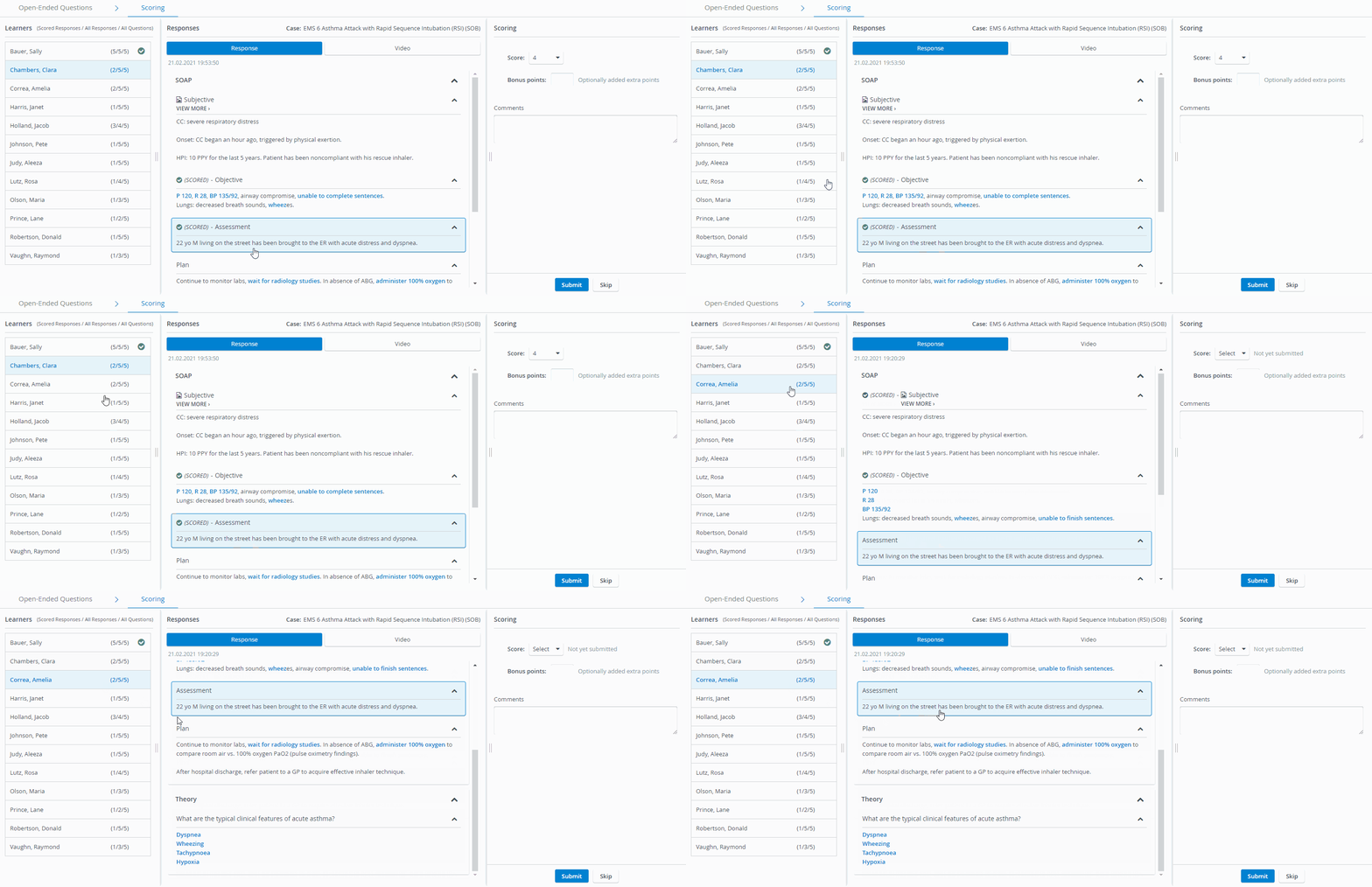
The OEQS graders can click any learner on the left to score; the Responses panel in the middle adjusts accordingly.
When switching between learners, the Responses tab remains on the same selected question.
Responses Panel
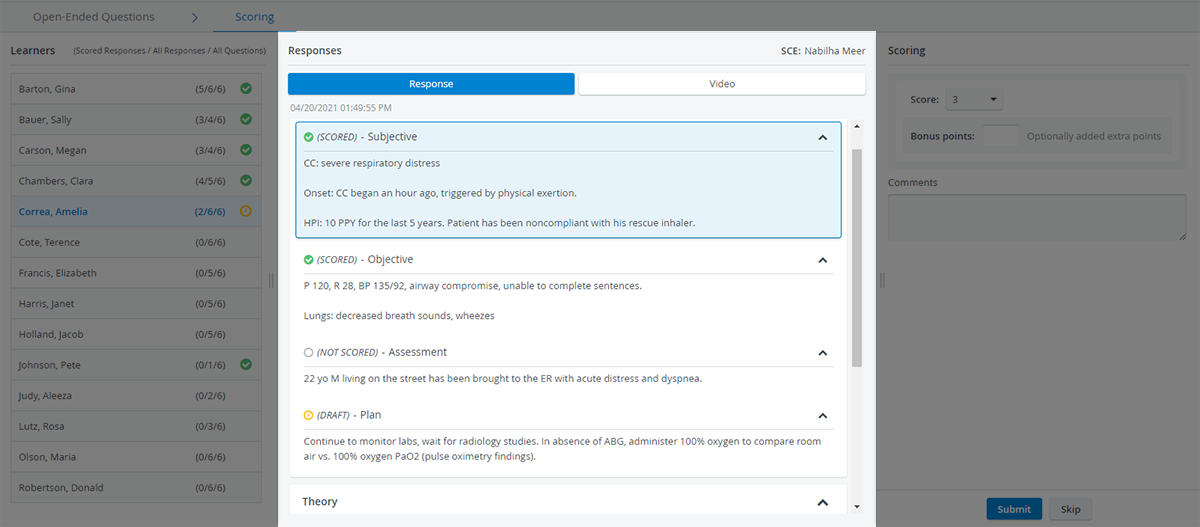
The Responses panel in the middle contains all the questions from the selected checklist. Questions are also arranged into sections, following the checklist's sectioning.
Learner responses appear embedded inside each question:
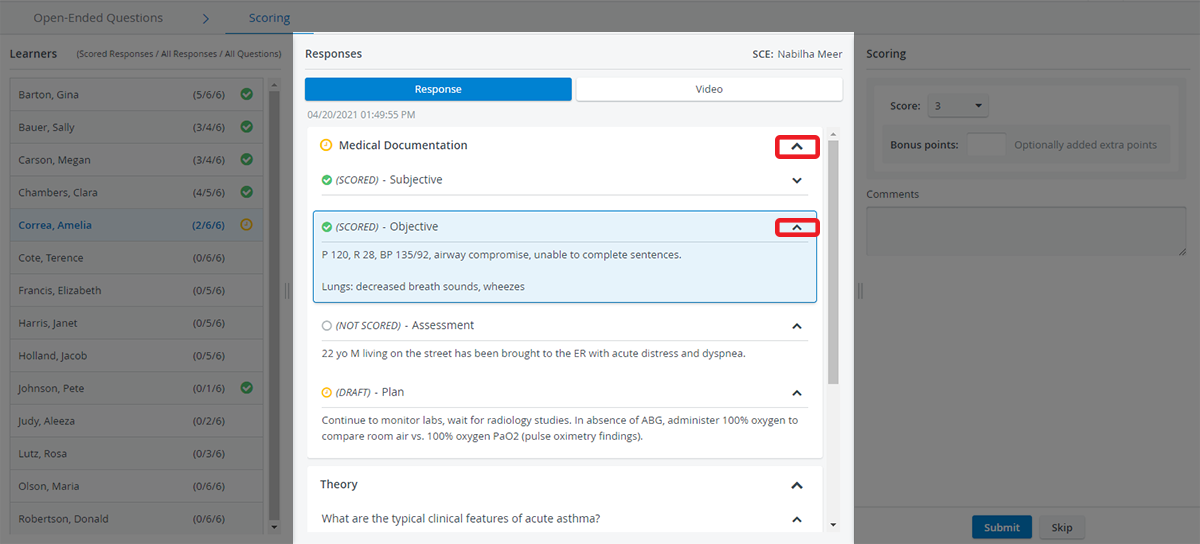
Responses or entire sections can be minimized per preference using the drop-down arrows included for each question and section:
OEQS graders can keep track of incomplete checklist submissions: every question included in the selected checklist is featured inside Responses, even if there is no response submitted for a question.
Scoring Panel
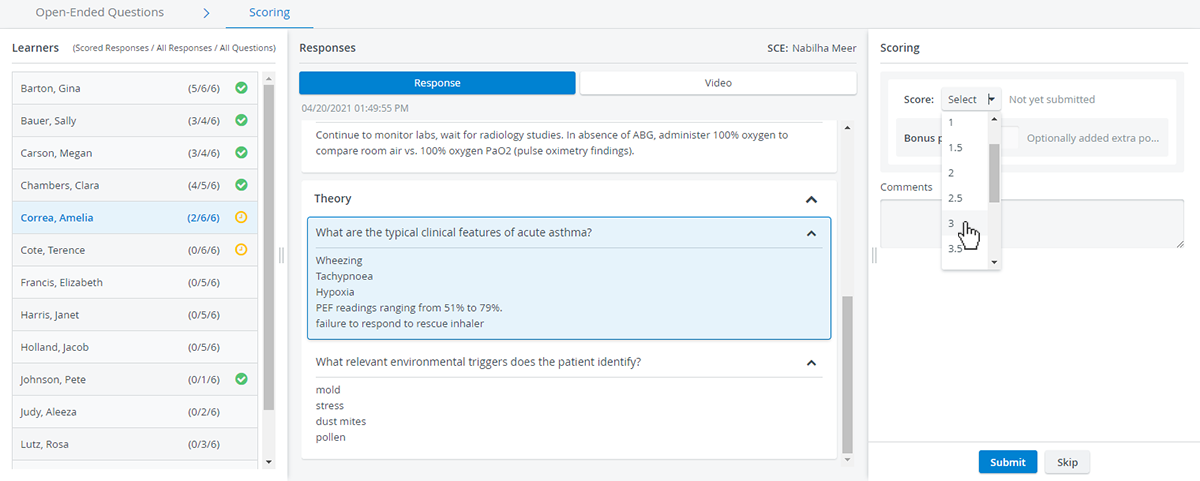
OEQS graders can submit scores and leave additional notes using the Scoring panel:
To learn about the scoring process in more detail, visit this page.
Already Scored Responses
When a faculty member clicks “Submit” on an already scored response, a pop-up shows the following text:
“This response has already been scored. Are you certain you want to apply a new score?”
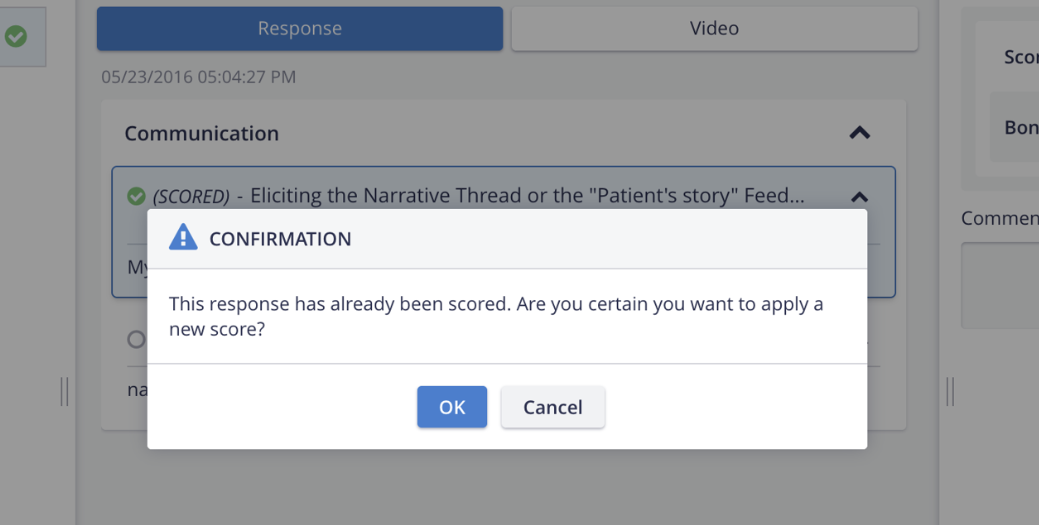
Proceed with either the “OK” or “Cancel” option.
NOTE: The function is available for direct / keyword / checklist-scored questions.
Next Learner Option
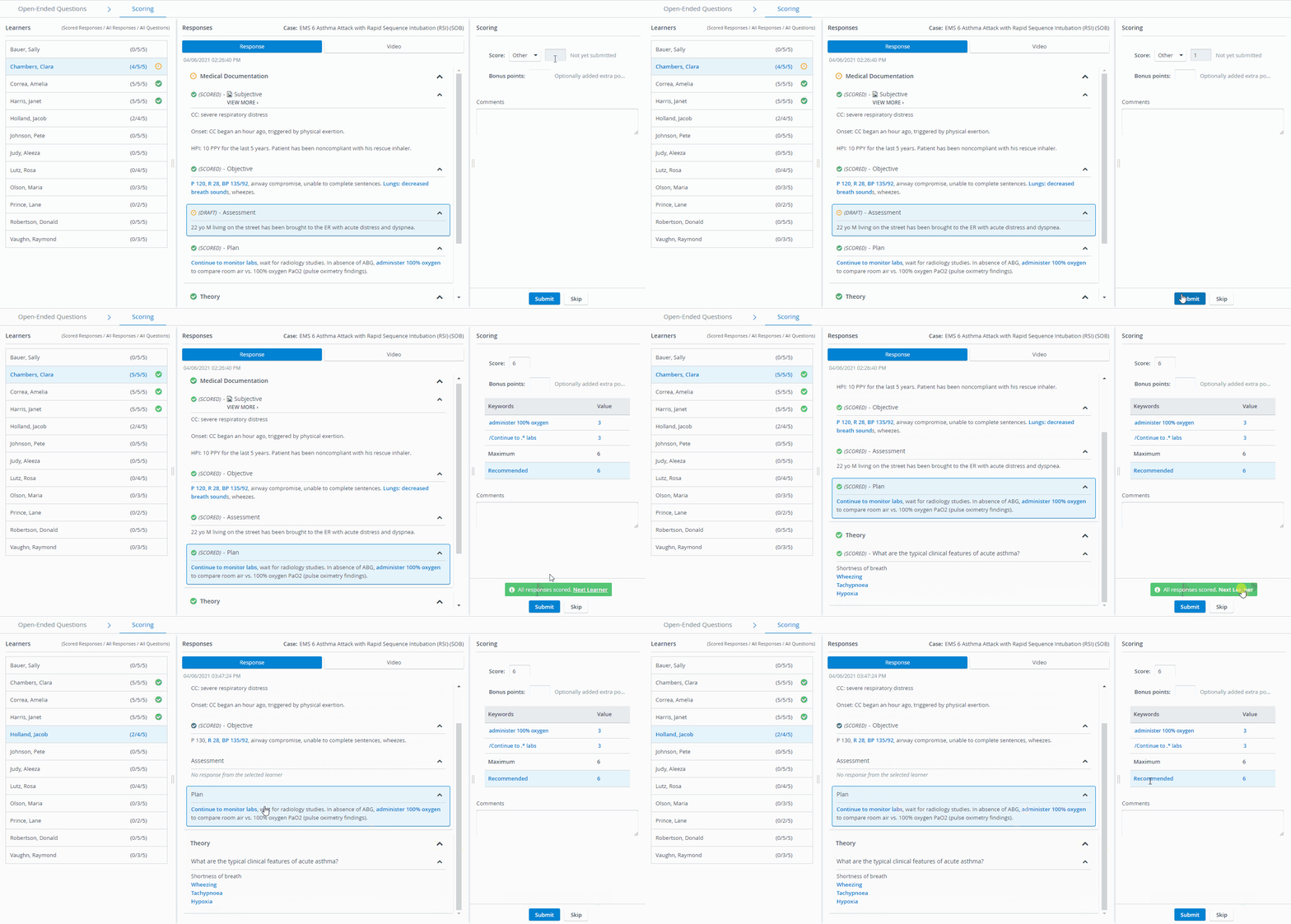
Once all scorable responses have been scored on a learner's checklist, the Next Learner option will appear at the bottom of the Scoring panel.
By clicking Next Learner, the OEQS user will be forwarded to the next learner who has unscored responses:
Scoring Drafts
The Scoring page automatically retains unsubmitted scores as drafts, so OEQS users will not lose progress while navigating away from a question or learner inside the OEQS module.
As soon as OEQS graders enter scores or notes in the Scoring panel on the right, a yellow draft status is added to the question, section, and selected learner, indicating that grading is in progress but not submitted yet:
Drafts are available if the OEQS grader does not leave the module. If users return to their Dashboards, their scoring drafts will be discarded. Scores are saved permanently only by submission.
Scoring Page Statuses
 |  |  | |
Questions | A score has been submitted for the response. | A score or note has been added for the response, but has not been submitted yet. | The response cannot be scored because the question item is set up as 'Not Scored'. |
Sections | Scores have been submitted for every scorable response inside the section. | At least one scorable response inside the section has an unsubmitted score or note added. | - |
Learners | Scores have been submitted for every scorable response in the learner's checklist. | At least one scorable response in the learner's checklist has an unsubmitted score or note added. | - |