Managing Users
It is recommended that a new LearningSpace system be started by creating groups via the Batch User Create function or using LDAP authentication or LDAP synchronization.
Save the template that can be downloaded on the Batch User Create tab.
Use the template for creating several groups of users, and save the excel files by group names.
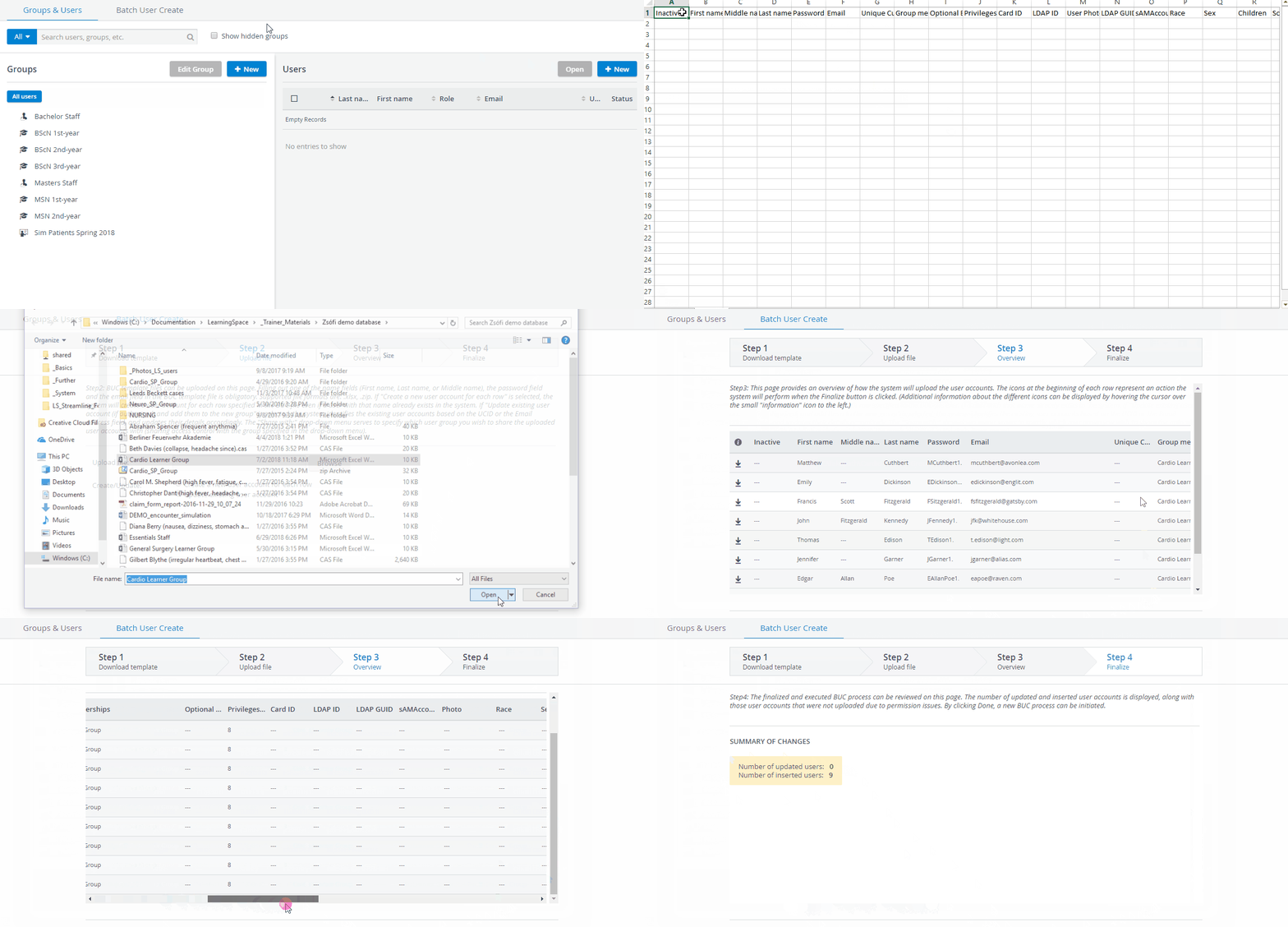
NOTE: The J column in the Excel template determines the user's role. In learner and Simulated Patient groups, the role is the same for each member; therefore, it is recommended that column J be filled out.
Codes to be used in the BUC file for specific roles:
Role
Code in Excel (column J)
Admin
1
Simulated Patient
4
Learner
8
Faculty
40960
Simulation Designer
134217984
Scheduler
134217984
Operations Specialist
1074266112
Facilitator
1208541568
Upload your groups via the Batch User Create (BUC) function.
Role is a parameter that can easily be set to the same value for multiple users; see the relevant part about editing multiple users.
NOTE: The Batch User Create function can also be used to edit and modify members of the same user group in a batch. For more information, see How can user accounts be edited in batch.
For further information, visit our User Manager and User Manager - FAQ pages.