How to Save a Camera Position in System
Privileges
For Admins only.
Save PTZ Preset Positions with System Manager Privilege
Click the Controls cogwheel in the row of your selected PTZ camera (the cogwheel on the right-hand side).
The Camera Settings window opens with the video feed on the left and setting options on the right.
Steer the camera by clicking in any direction inside the video feed.
Zoom in or out using the scroll wheel on your mouse.
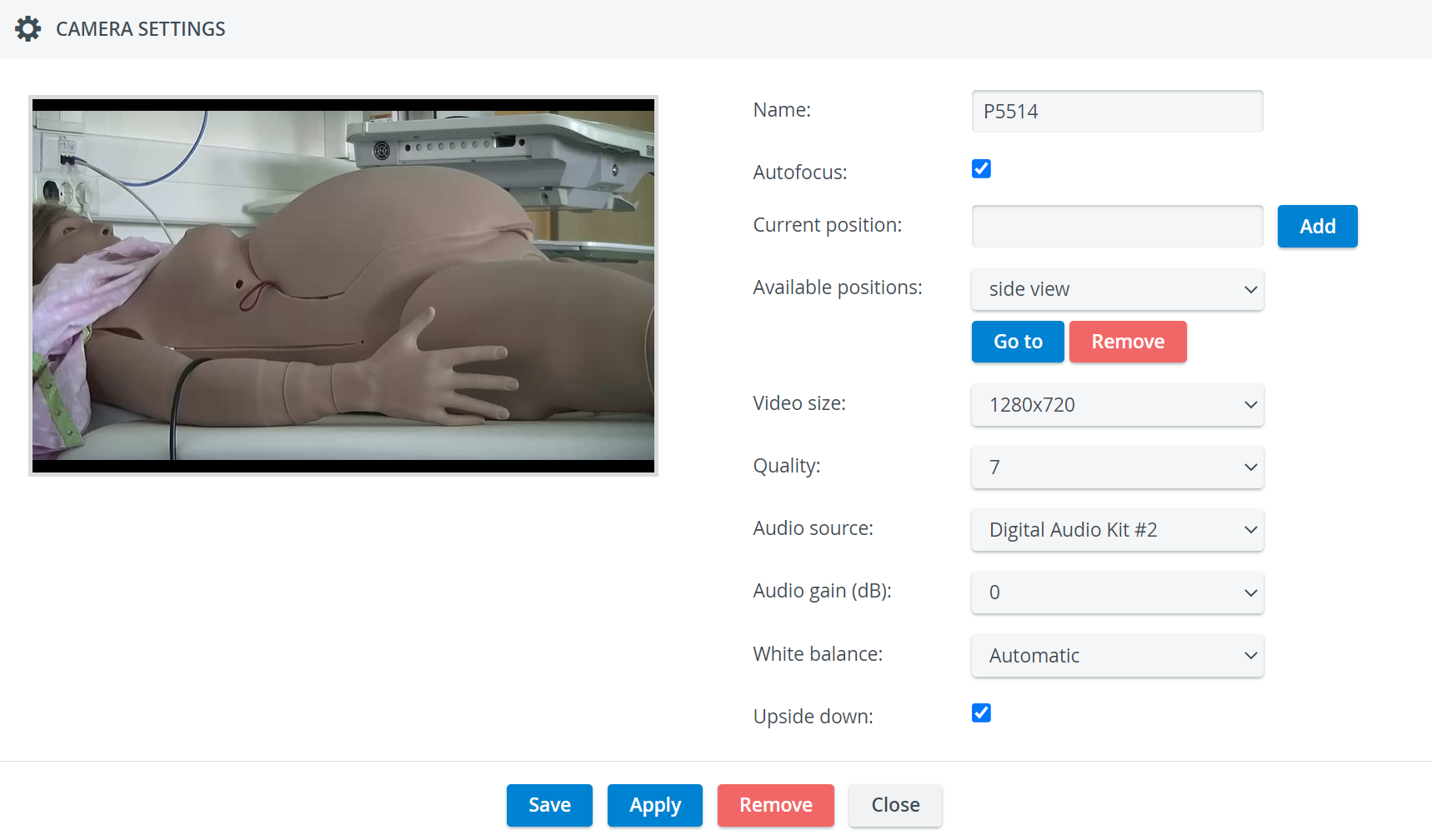
Once you have set up the desired camera position, name it in the Current Position field.
Click Add on the right to save your position under the name you have just entered.
The new preset position will be available to users with access to Recording.
Tip
You can check if your position was saved by clicking the Available Positions drop-down.
Apply saved PTZ Preset Positions on Center Overview (CO) or Single Room View (SRV).
For more information, visit our Recording Module pages.