How to Access the Open-Ended Questions Scoring (OEQS) Module
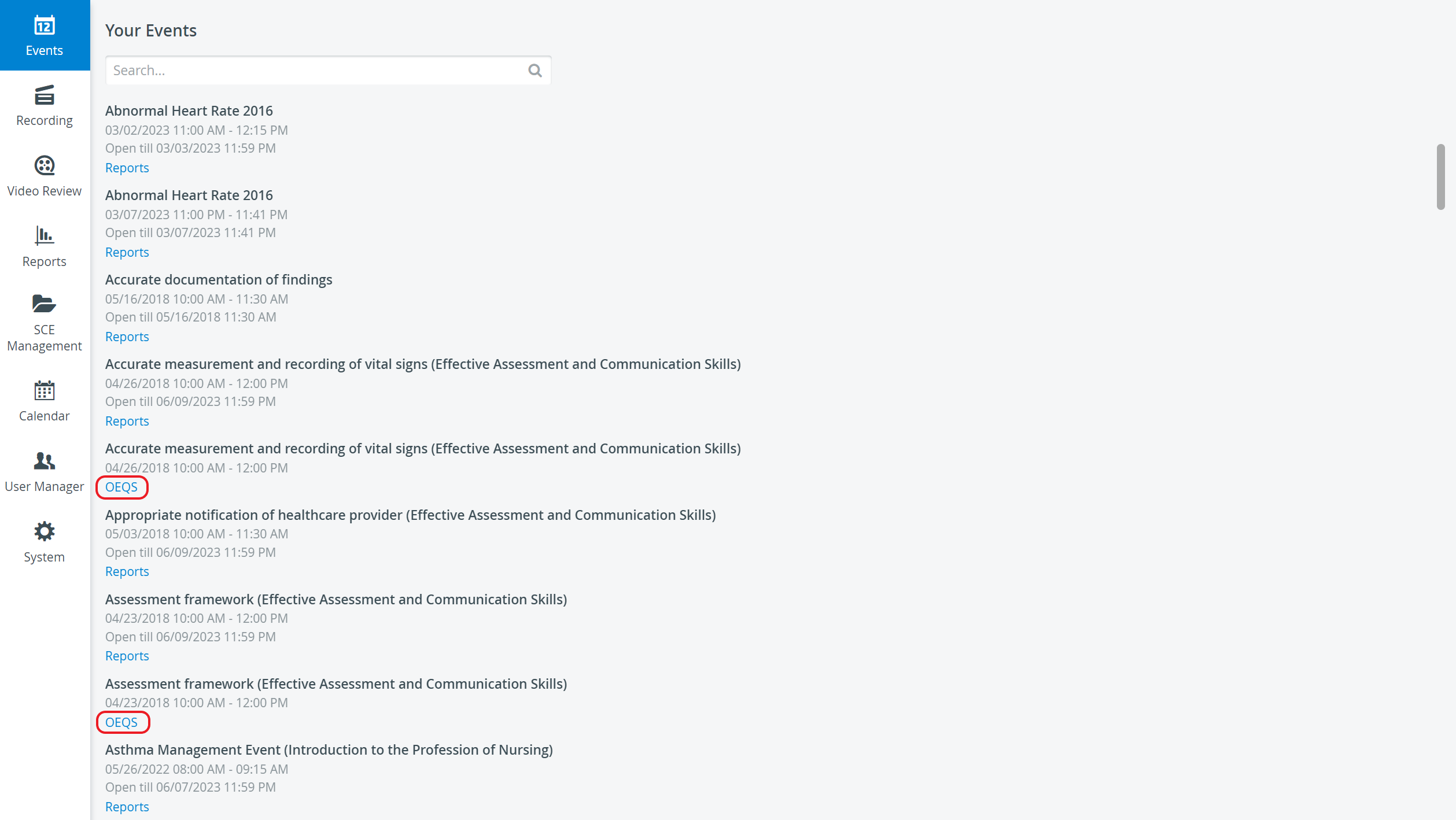
Find your event inside the Your Events panel on your Dashboard and click on the OEQS label.
The OEQS option is available at every event where at least one response is submitted to a scorable text item of any checklist of the SCE assigned to the event.
You will be redirected to the main page of the Open-Ended Questions Scoring (OEQS) module.Use the drop-downs to select from the available Activities, SCEs, and Parts:

View options become active and questions load on the page once each drop-down is filled out.
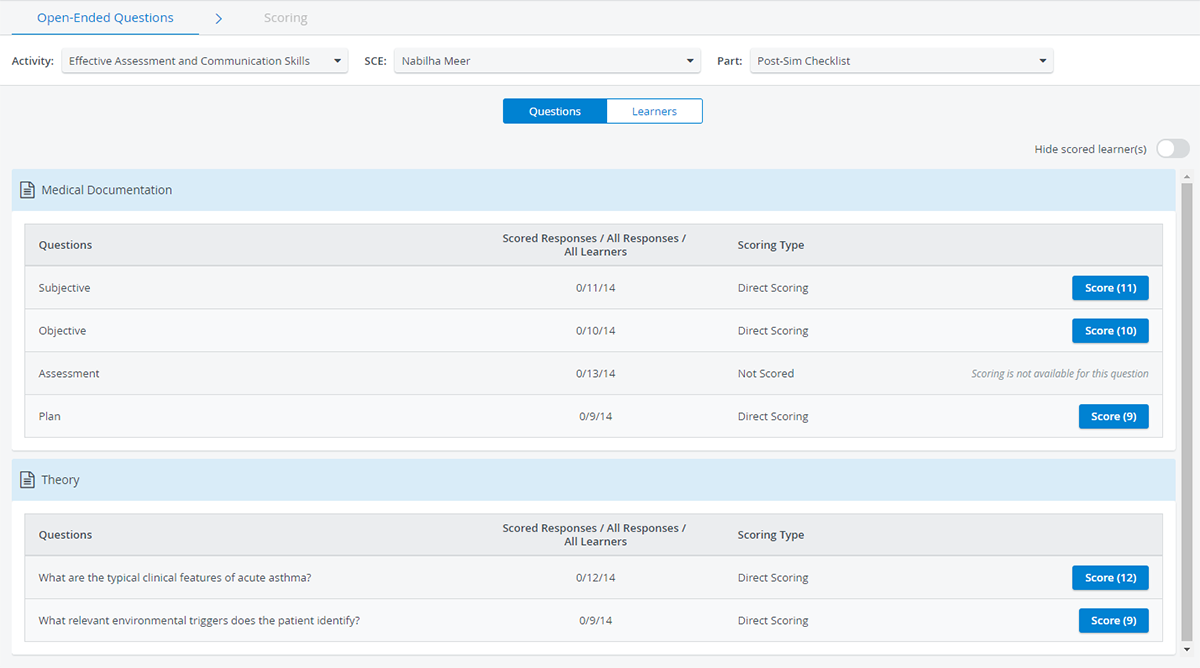
The Activity you have entered on the Dashboard for OEQS grading is always pre-filled in the Activity drop-down.
You can search for a different Activity by opening the drop-down:Every Activity listed in the Activities drop-down is assigned to an event where the assigned SCE contains a scorable text item.

If only one SCE and/or checklist is available for Open-ended question scoring within the Activity, the SCE and Part drop-downs are auto-filled upon arriving at the main page.
You can select between the Questions or Learners view options to display checklist information in different arrangements:
Find more information about the available view options on this page.