How can reports be released to learners
Learners can be granted access to their Responses report about a simulation event they have participated in. The access is to be set up when scheduling the event (that is, determining the details of how the simulation exercise would take place) in the Calendar module or on the SCE Scheduling tab of SCE Management.
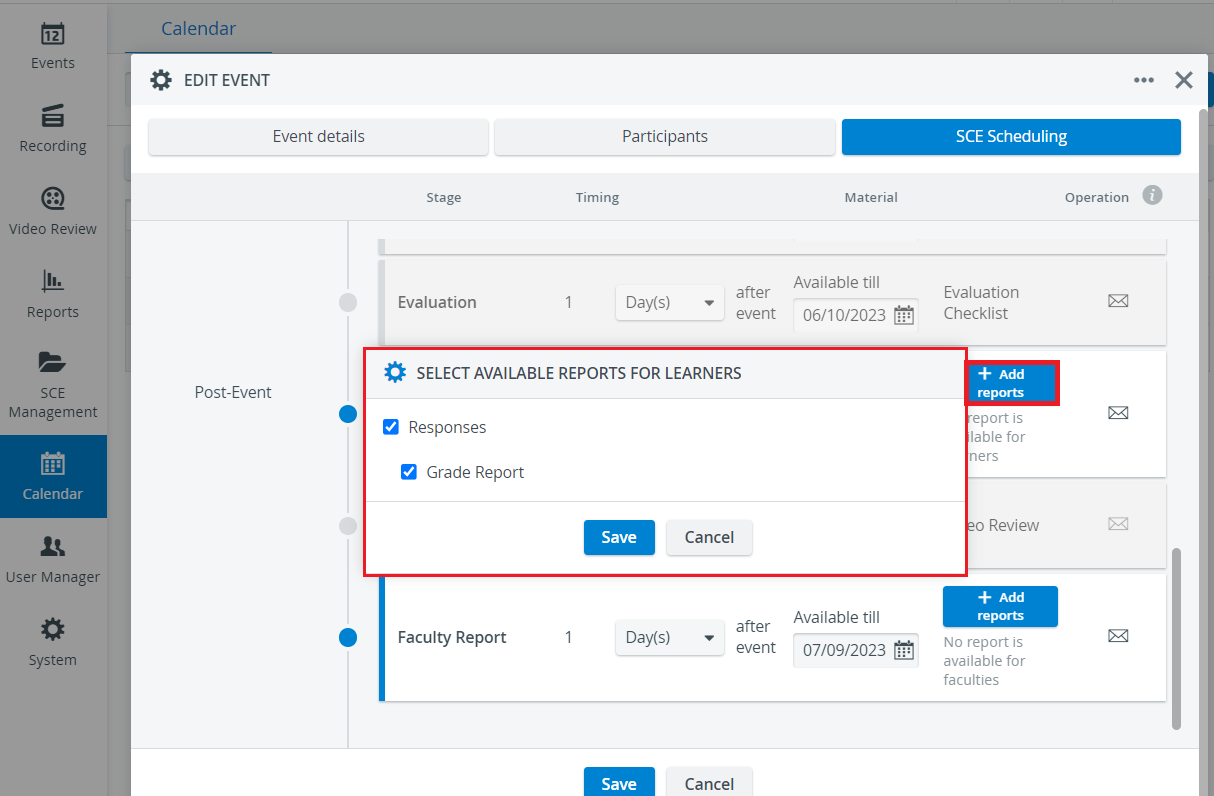
As the report refers to a specific event, the time limit and the reports that the learner can access can be determined in the Calendar on the SCE Scheduling tab of the Edit Event pop-up.
Schedule an event as described here.
Once an SCE is selected for an event, the SCE Scheduling tab gets populated with the agenda set up within the SCE module.At the Post-Event stages, next to the Learner Report, the following data have to be determined:
how many minutes/ days after the event the access would be allowed,
till what date the reports would be available,
if the learner would have access to the Responses, Grade Report (Add Reports button)
Learner report access can be determined before the event when creating the SCE on the SCE Scheduling tab of SCE Management - and can be modified in the Calendar if necessary.
Learners will only have access to their reports in case
the event the SCE is added to is a standalone Event (not associated with an Activity) OR
the event the SCE is added to is not standalone (i.e., it is associated with an Activity), AND reports are available to ALL Events within that Activity in the given time interval,
and the appropriate reports are selected for Learners on the SCE Scheduling tab of the SCE Management or the Calendar.
Suppose an email message is prepared at the same point (Learner Report of the Post-Event stage) within the SCE Manager module. In that case, the email can be activated for send-out by clicking the envelope icon in the Operation column.

For further explanation, see What is the difference between the SCE Scheduling in the SCE Management and the Calendar modules?
For more information, see our Reports Module and Reports - FAQ pages.