How can Open-Ended Questions be scored
Text item types require learners to provide freely worded textual answers, which the system cannot automatically score.
Such answers have to be evaluated by faculty members with the necessary competence.
Within LearningSpace Essentials, users dedicated to this task have to have OEQS access, which is associated with the Admin, Facilitator, and Faculty roles. With the necessary role, users can conclude Open-Ended Question Scoring (OEQS) as follows.
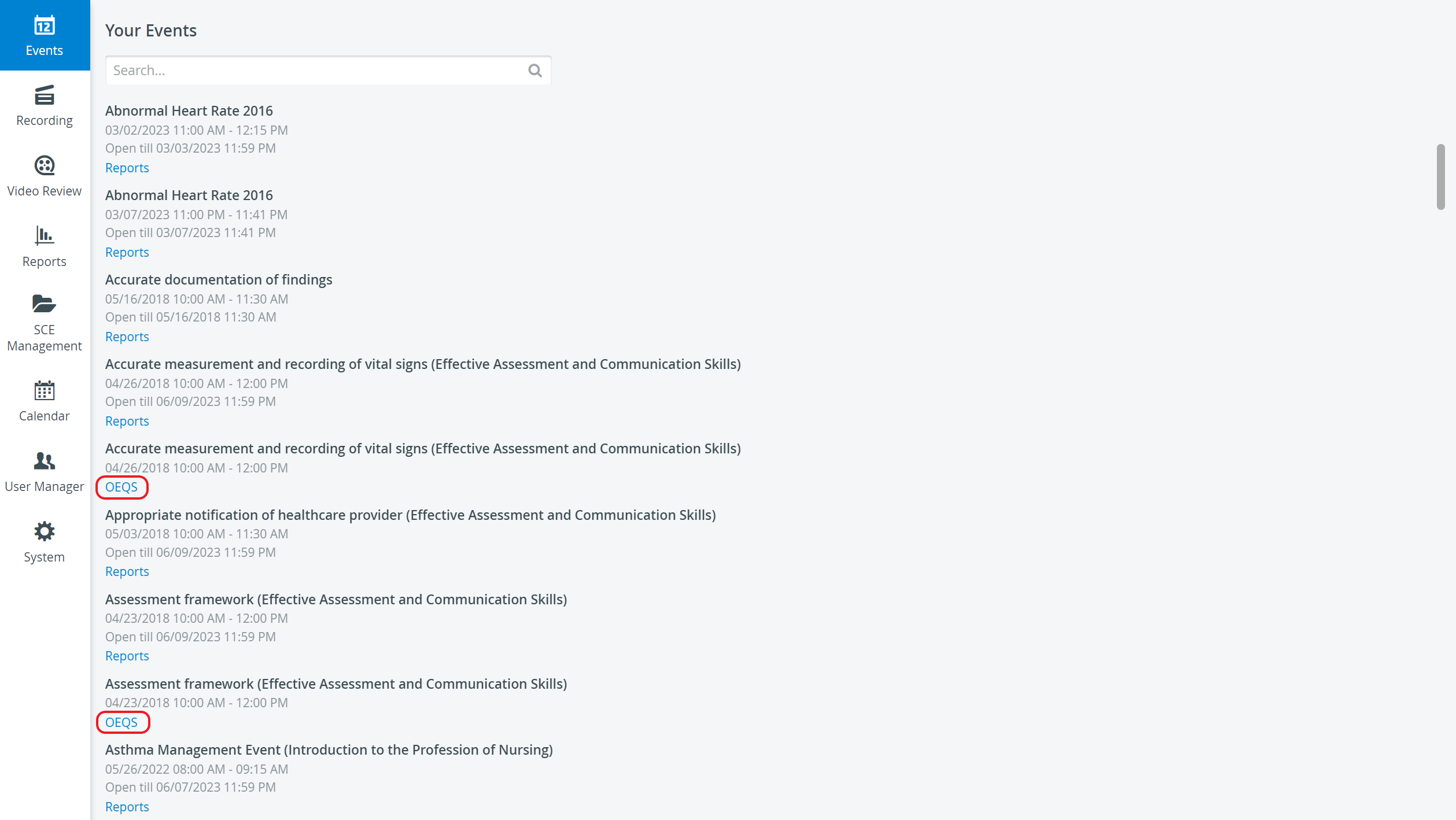
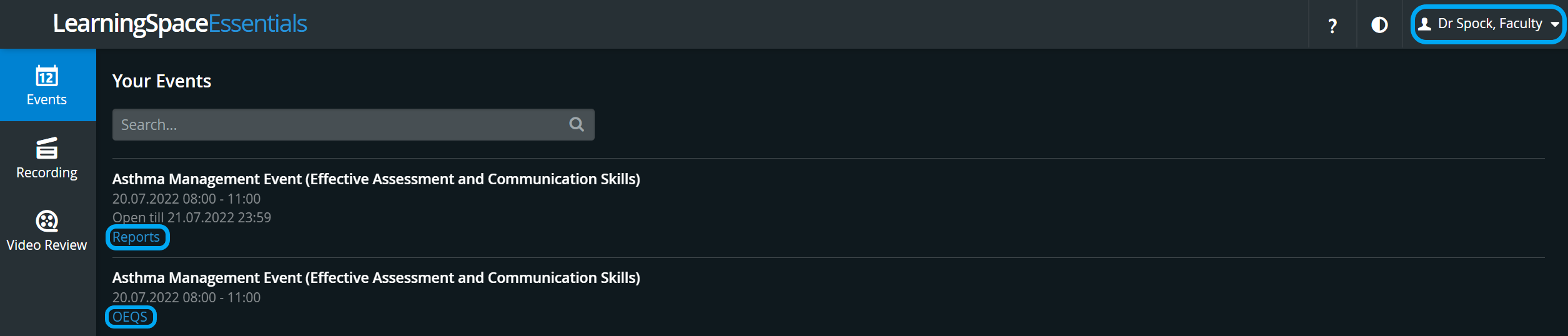
When either of the OEQS-responsible users enters their LearningSpace account, the Your Events panel lists all the events for which textual answers are to be scored.
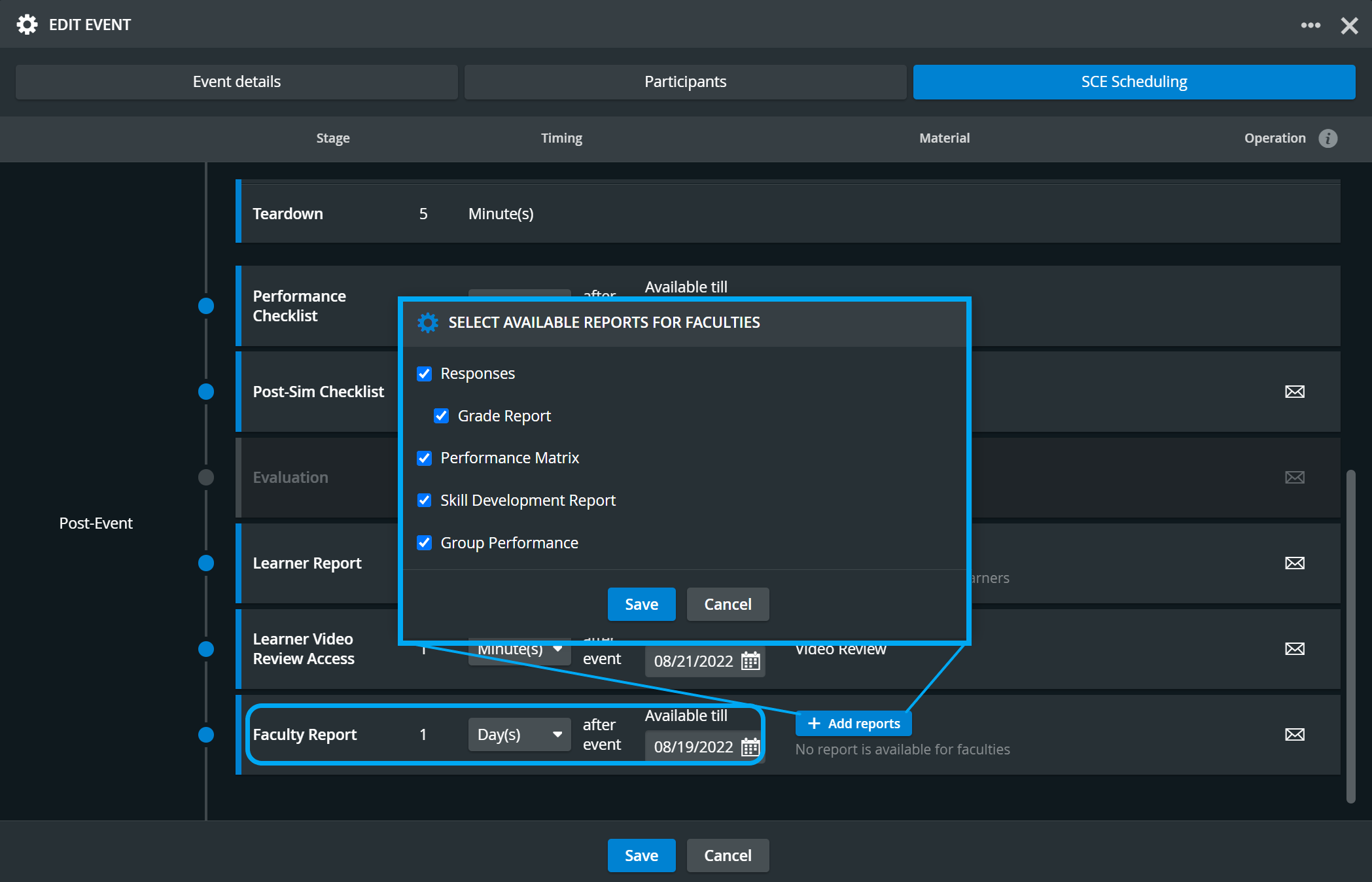
Faculty users can only access OEQS during the Report availability interval specified on the SCE Scheduling tab of the Edit Event pop-up of the Calendar or SCE Management. Consequently, only users with access to the Calendar module or SCE Management, namely users with Admin, Facilitator, or Scheduler roles, can determine when Faculty users have access to the Reports of events they have been assigned to.
For the OEQS button to be displayed, the following criteria have to be met:
Text items have to be added to a Pre-Sim or Post-Sim Checklist (it cannot be added to the Performance checklist)
Even though Evaluation checklists may also include text items, the checklist should not require any OEQS activity and therefore its Scoring Method (accessible via the Points button) should be set on 'Not scored'.
The SCE containing the relevant checklist has to be assigned to an event, which can only be done when scheduling in the Calendar module.
Data Entry has to be submitted; that is, learners (in case of Pre- or Post-Sim Checklist) or responsible faculty members (in case of Performance Checklist) have to fill out the relevant text items
When clicking the OEQS link at the activity on the Your Events panel, the user is taken to the Open-Ended Question Scoring page, where the Simulated Clinical Experience (SCE) and the part can be selected.
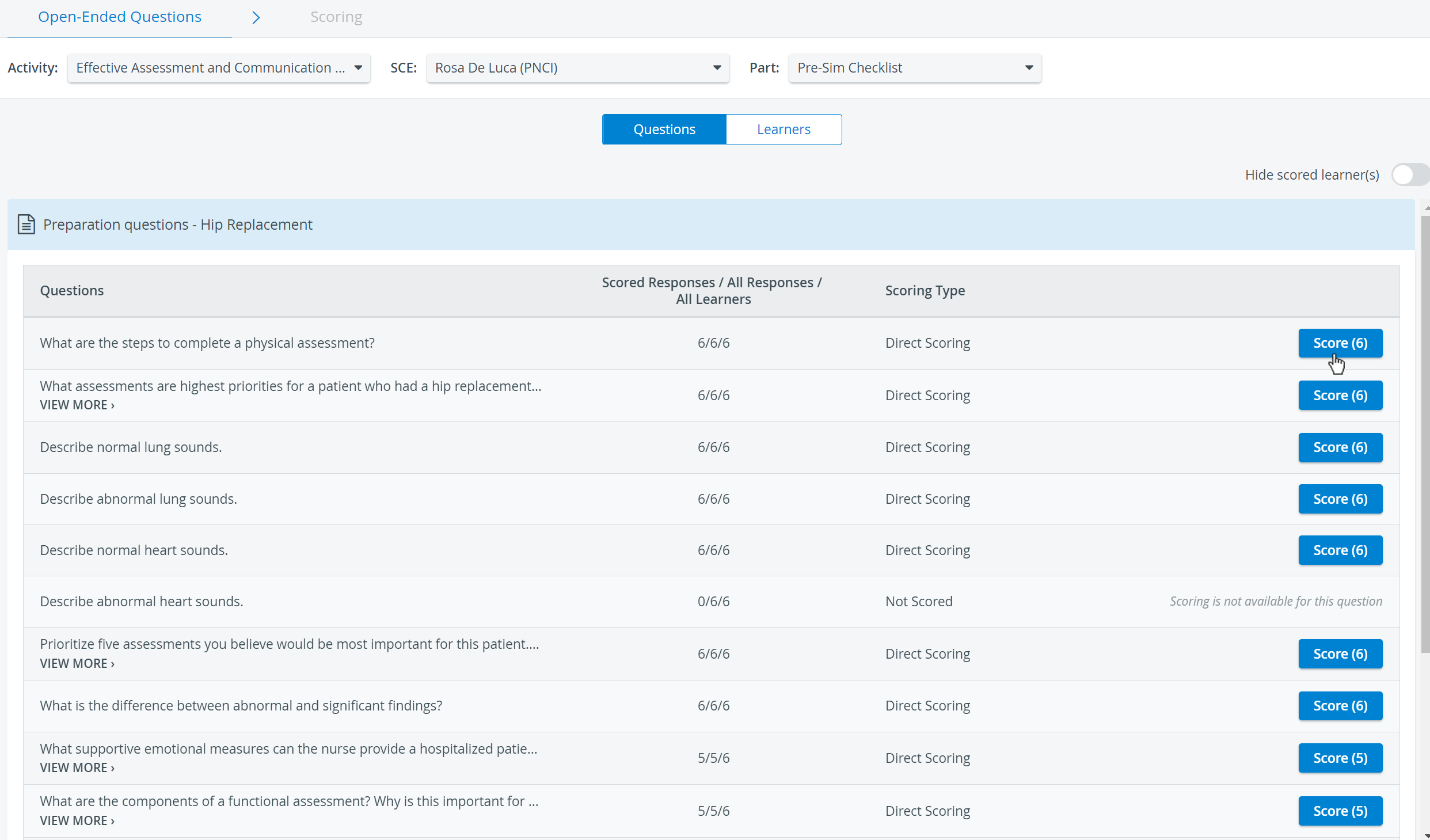
NOTE: The SCE and Part drop-downs only contain available options. The former only contains the SCEs assigned to the particular activity/ event, while the latter only offers the parts that include text item types.
Once the desired SCE part is selected, all the text items included get listed. Clicking the Score button next to a specific question takes the user to the Scoring (Learner response) page, where scoring can be done for all the participating learners' responses to that selected question.
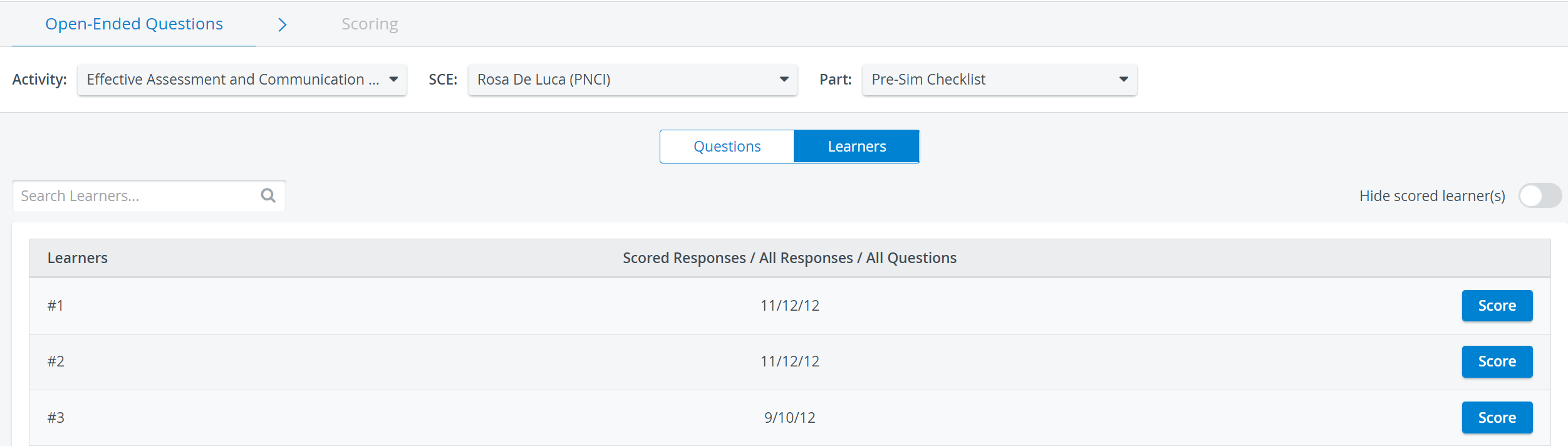
By selecting the Learners button, a list of the participating learners (indicated by numbers to increase objectivity) is displayed. The scoring can be completed by the learner, that is, by scoring all the answers the selected learner has submitted to the open-ended questions.
See more on our Scoring Open-Ended Textual Answers - OEQS Practical page, and visit our Reports - FAQ pages.