How can multiple users without group connection be managed?
IMPORTANT: When editing multiple users not members of the same group, a maximum of five settings can be modified. All the selected users will have the same modifications within those settings.
The Edit Multiple Users pop-up can also be opened for the members of a group by highlighting the desired group in the Groups panel (left side) and then ticking the checkbox in the header of the Users panel, thereby selecting the members of that group. The settings listed below can then be modified for the selected users.
The editable settings are the following:
Role
Group membership (assignment and withdrawal)
Language
Authentication method (if LDAP authentication is set up)
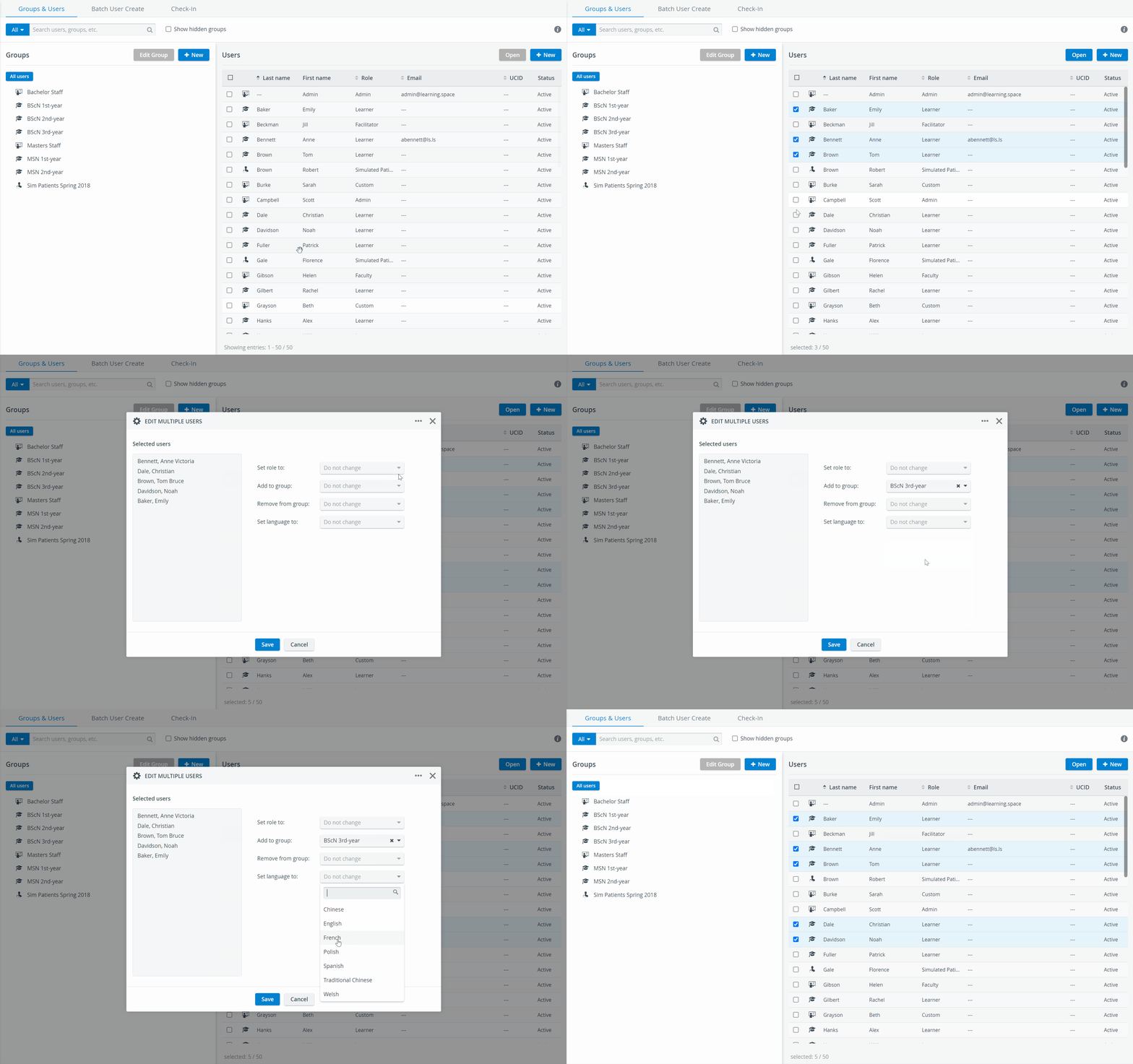
On the Groups & Users tab, select the users you want to edit by checking the box before their names.
Click the Open button (grayed and inactive until at least one user is selected), which prompts the Edit Multiple Users pop-up window to appear.
NOTE: The selected users are listed on the left side of the pop-up.
Using the drop-down menus, change the desired settings.
When finished, click the Save button at the bottom of the pop-up or click Cancel to close the pop-up without saving any change.
NOTE: To delete all the selected users, click the three-dot icon, then click Delete.