How can I assign Learners to a Recording?
Learners can be assigned to a live recording before recording begins using one of the following methods:
Click the gear wheel on the Recording tile to open the Recording Setup panel. Then select an Event to record. The learners assigned to the event are displayed.
Clicking the gear wheel on the Recording tile to open the Recording Setup panel, select a Room for recording, and select the appropriate learner group.
Or from the Single Room View by opening the Recording Setup panel and selecting the appropriate learner group.
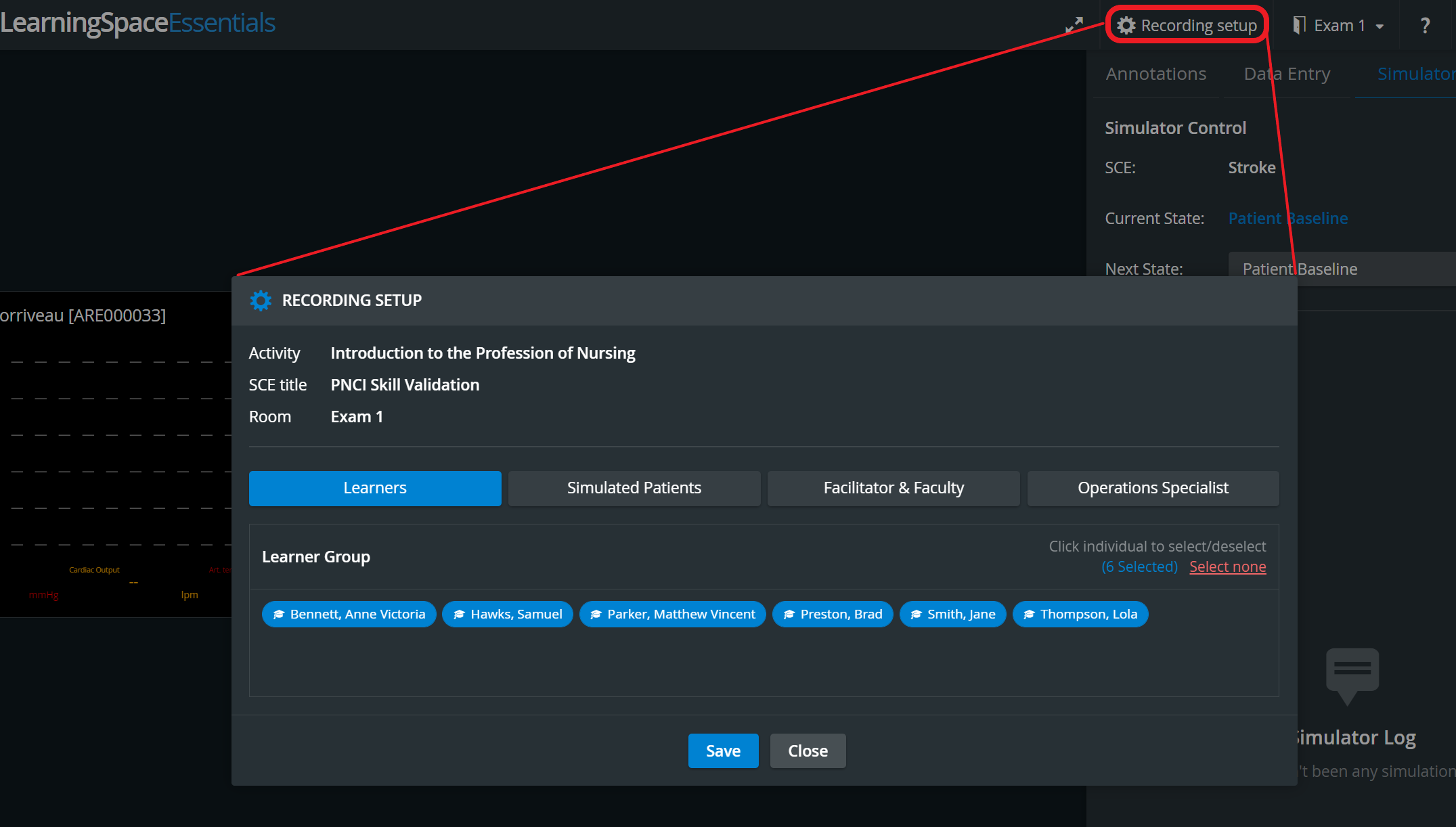
All learners in the selected group are added to the Recording Setup panel by default. To select specific learners:
Click the Select None link on the right. All names will become grey, indicating that they are no longer selected.
Now click the name of the learner(s) to assign to the recording. The name(s) will become blue, indicating their selection.
Learners cannot be assigned to the video once recording has begun. They can, however, be assigned to the recorded video in the Video Review module. For information about how to assign learners to a recorded video, visit the Video Review FAQ pages
Advantages of assigning learners to a recording include:
Identifying the recorded video by learner name in the Video Review module
Making the recorded video available to the assigned learner(s)
Making the learner(s) available for evaluation and annotation
For more information, visit our Recording Module, Recording - FAQ, and Practical Recording pages.