How can filled-out checklists be accessed
Checklists filled out by the designated user can be reviewed by Facilitators, Faculty users or Admins in the Reports module.
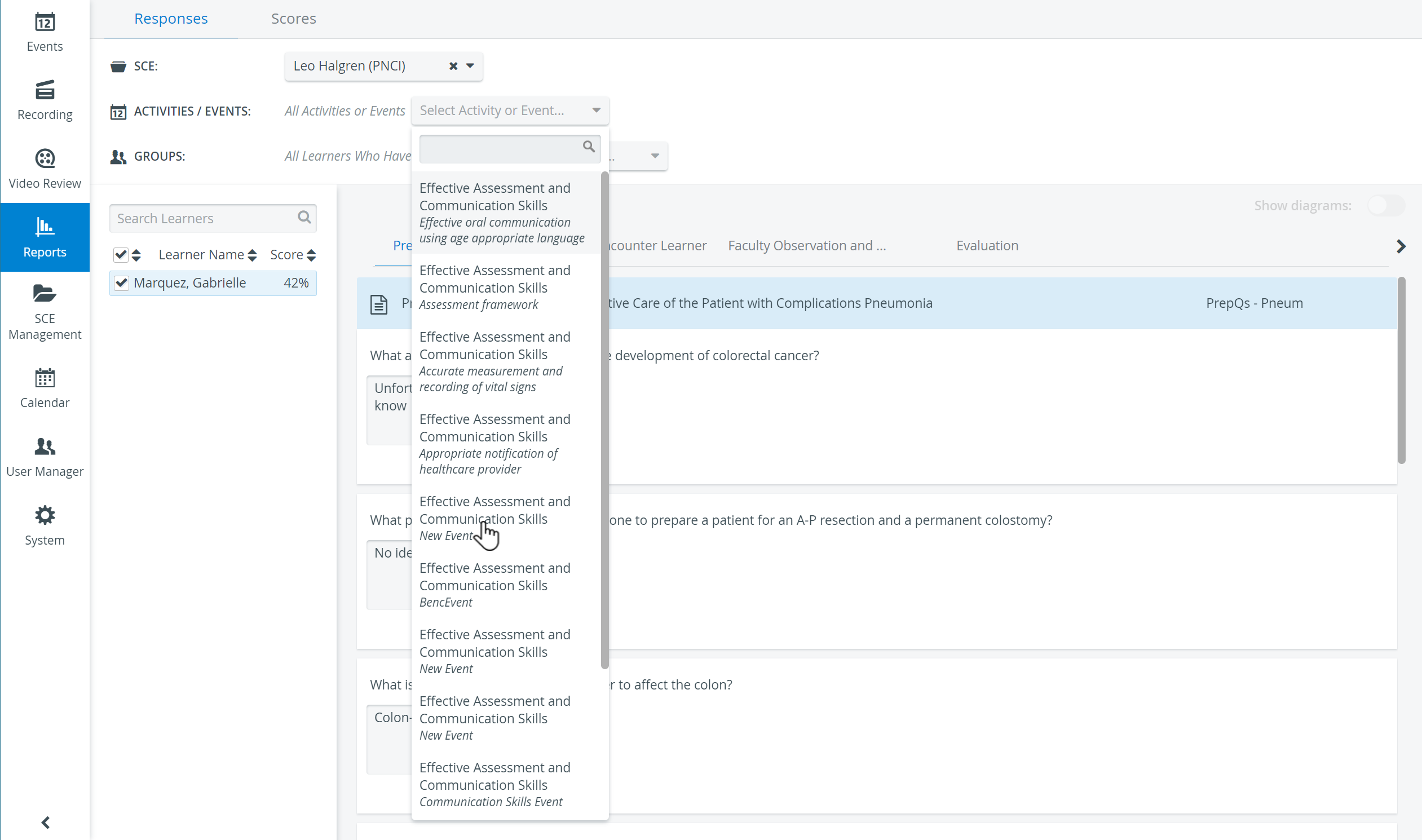
Facilitators have the same level of access to reports as Admins, with no restrictions.
Faculty users only have access to the reports in case the event the SCE is added to
is a standalone Event (not associated with an Activity)
is not standalone (i.e., it is associated with an Activity), AND reports are available to ALL Events within that Activity in the given time interval,
and the appropriate reports are selected for Faculty on the SCE Scheduling tab of SCE Management or the Calendar.
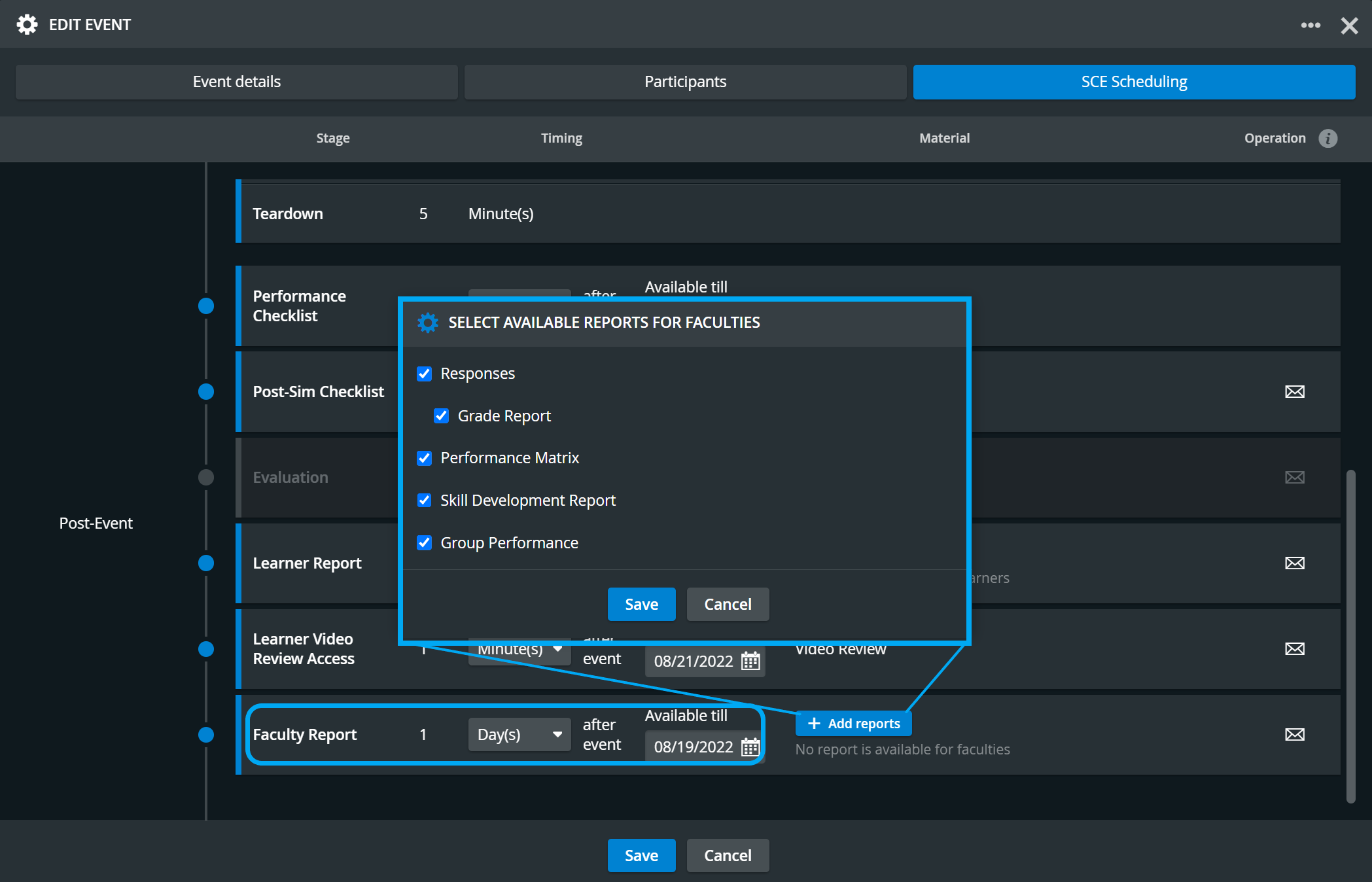
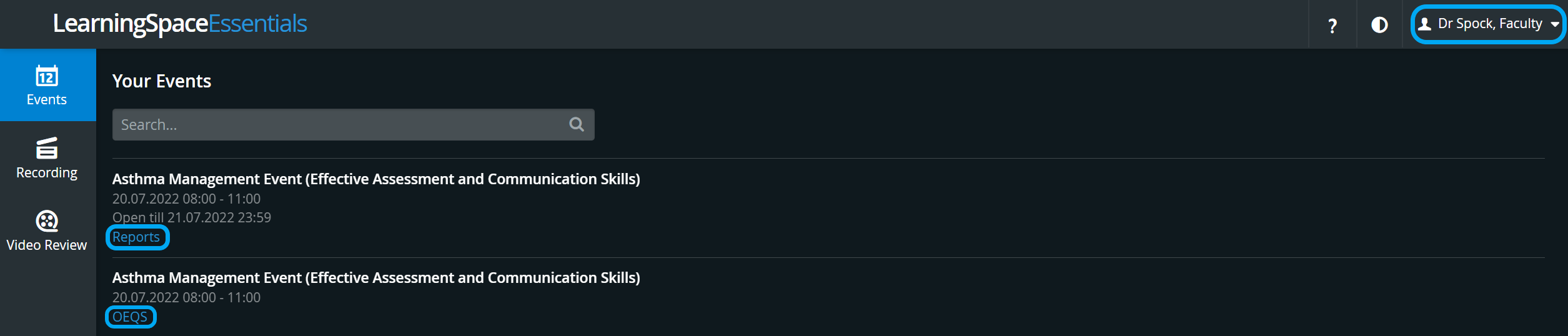
Faculty users' links to Reports and OEQS are displayed on the Your Events tab according to the Faculty Report availability period set in SCE Scheduling.
As the access is determined when scheduling the event, only Admin, Facilitator and Scheduler users can do so.
When entering the Reports module, the Responses tab opens by default.
Select Simulated Clinical Experience (SCE)
IMPORTANT! In the SCE dropdown, the patient names associated with the SCE are displayed.
After selecting an SCE, all learners that have any checklist within that SCE submitted to their name (i.e., they have a submission for either one of the Pre-Sim, Post-Sim, or Evaluation Checklists or a faculty member has filled out a Performance Checklist for their name) will be listed on the left side of the tab.
As checklists are created within an SCE and for a specific learner, no report is displayed as long as an SCE and at least one learner is not selected.
The drop-downs at the top of the tab allow filtering for specific checklists.
Select Activity/Event - to narrow down search results.
Select Group - to narrow down search results to specific Learner groups.
NOTE: If multiple activities are selected, the union of all submitted checklists for the selected SCE is displayed. Therefore, if a learner submits the same checklist within several different activities, his or her name will be listed that many times.
Hover over an Activity/Event title to display the list of Events associated with the same Activity.
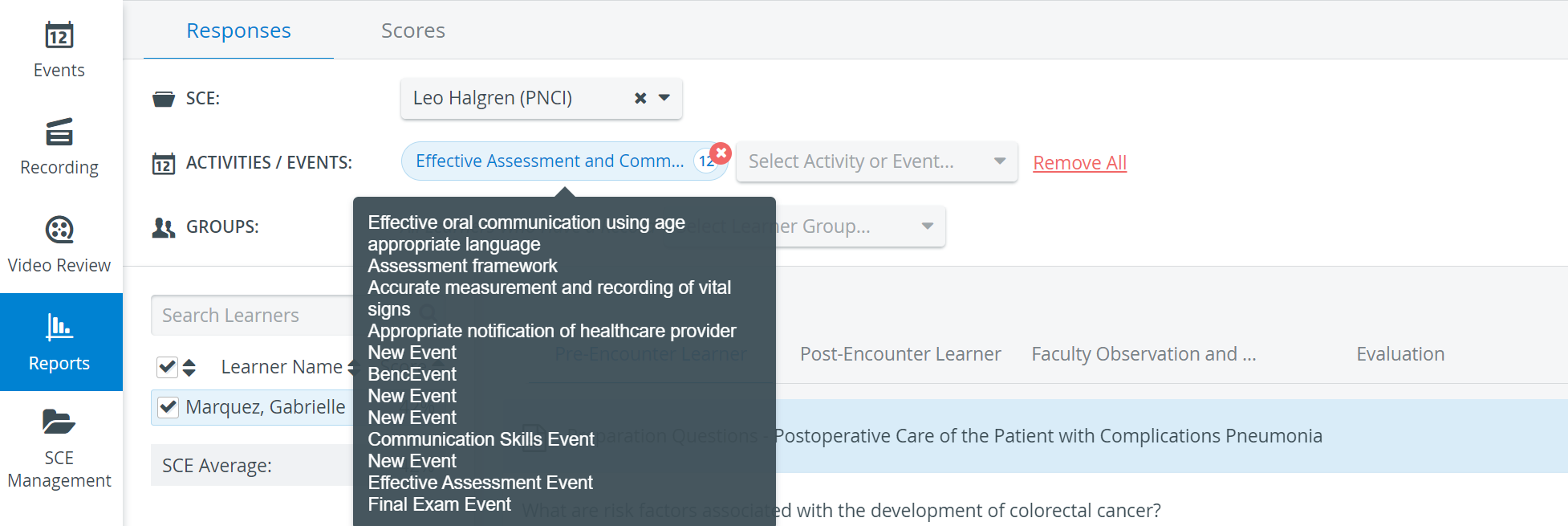
Statistical Data
The item panels on the checklist(s) contain statistical data on the results of all learners whose boxes are checked. By default, all listed learners' boxes are checked.
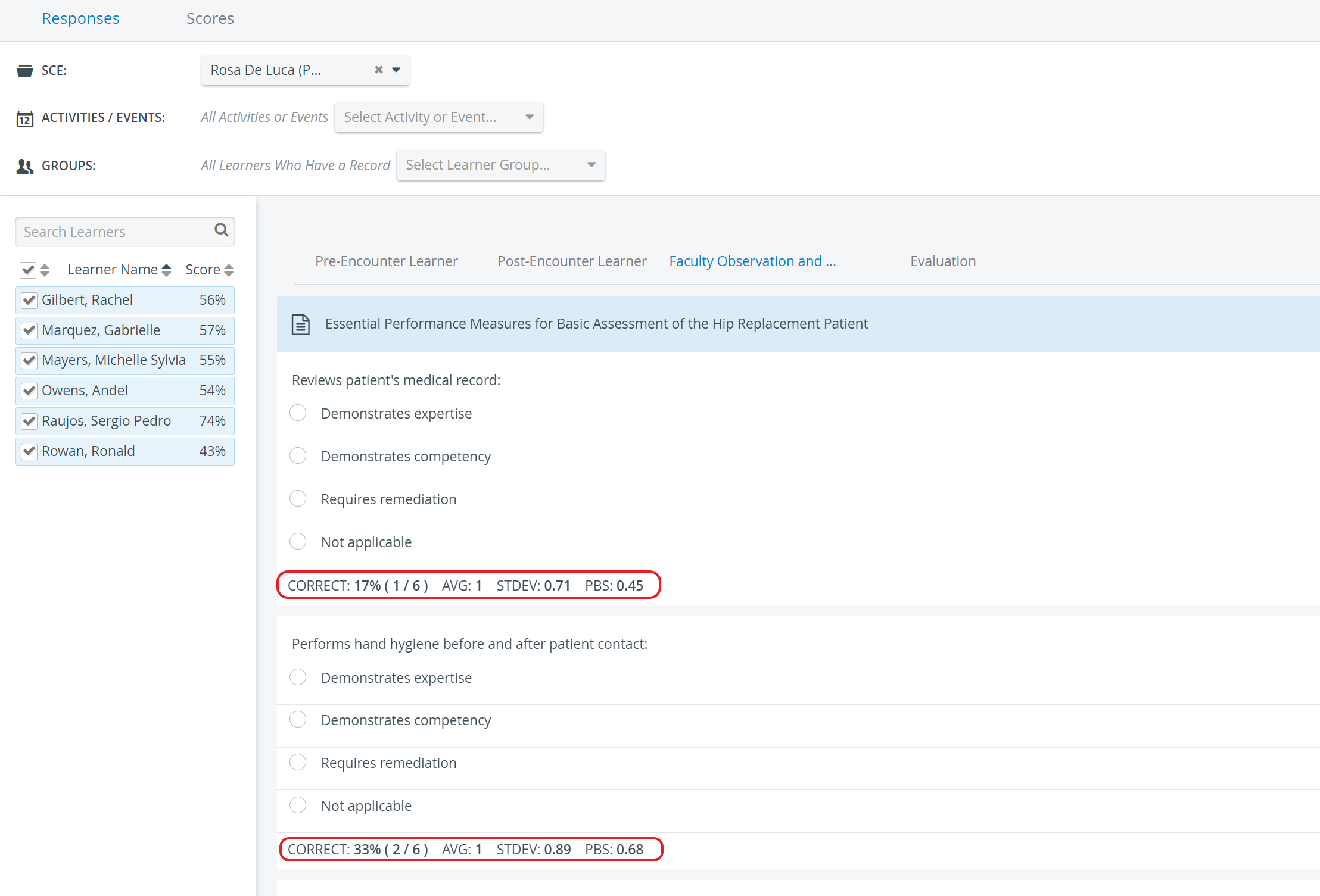
In case of more activities, filter for groups of learners using the Groups drop-down. Select specific learner(s) by unchecking all learners and then checking the boxes only next to those intended to be reviewed and considered in the statistical data.
The learners who have been filtered for are listed on the left.
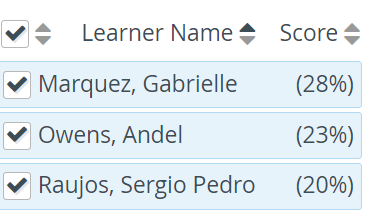
Their scores are displayed in brackets when a relevant checklist includes any open-ended question that has not yet been scored.
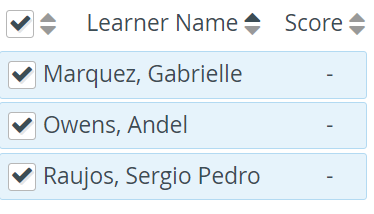
If no score is displayed (but a dash) next to a learner's name, the learner has opened the checklist but has not submitted it.
Learners who have not opened the checklist at all are not listed.
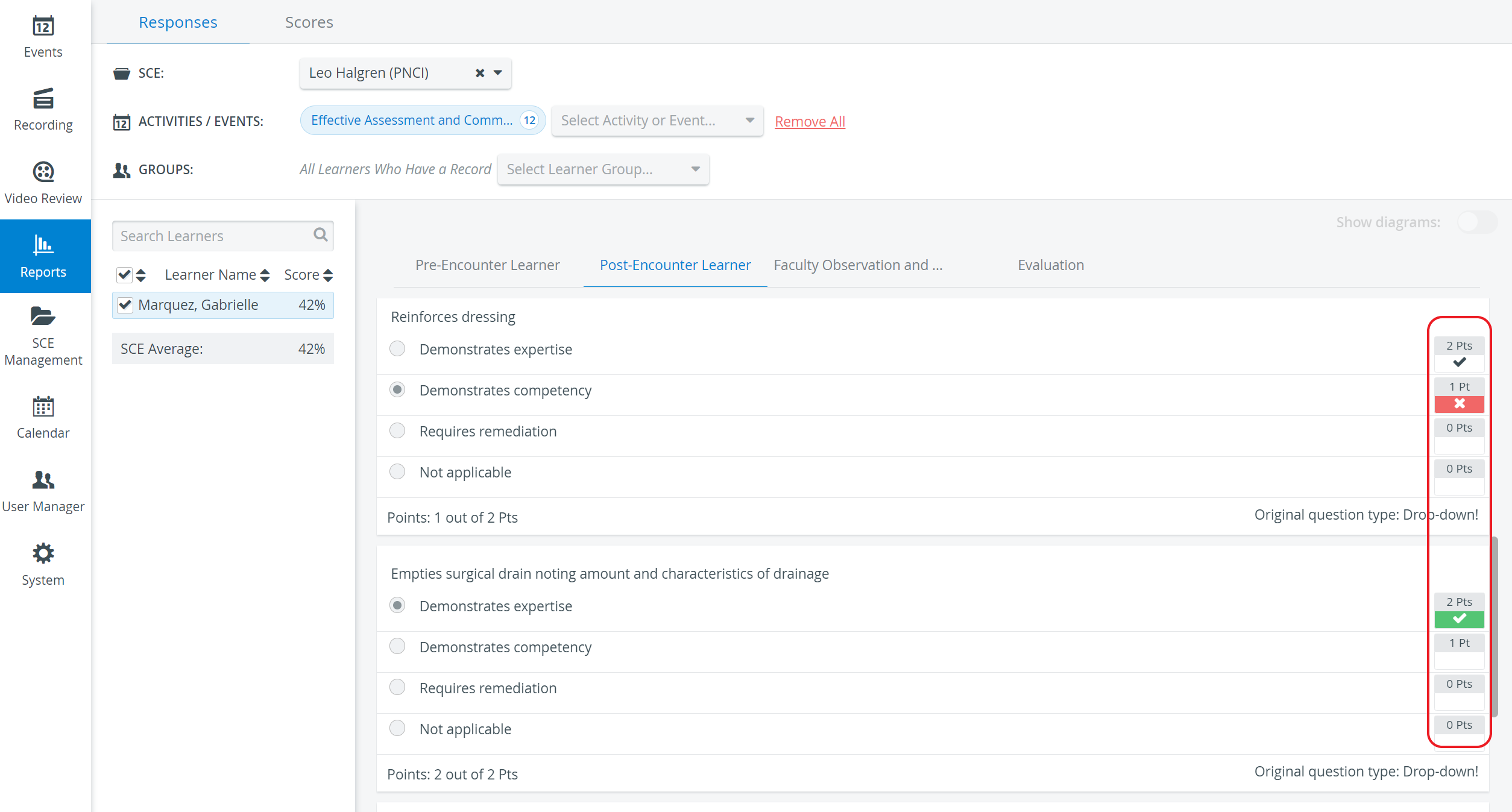
If only one learner is selected, that learner's score for the specific answer is displayed instead of the statistical data, along with visual feedback (green checkmark or red X) on whether the answers were correct.


See further information on the Responses tab page.