How can annotations be added to a live recording?
Users with Admin, Facilitator, and Faculty roles can add annotations to a video during live recording and in the Video Review module.
Annotations can be added to videos without any learners assigned to the video.
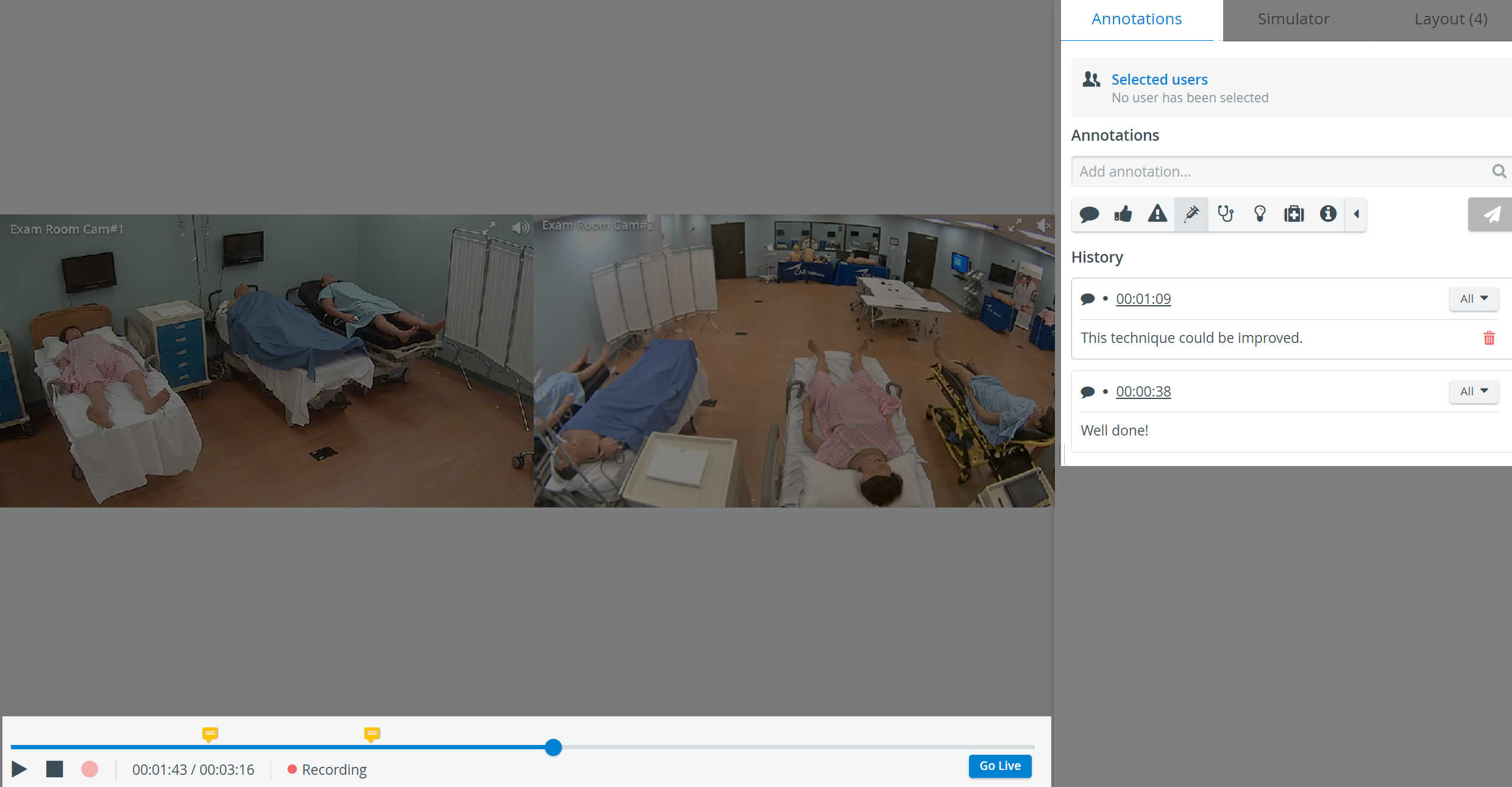
When recording has been started, the Annotation panel becomes active. Type the annotation or comment in the Add annotation field, then press Enter on your keyboard.
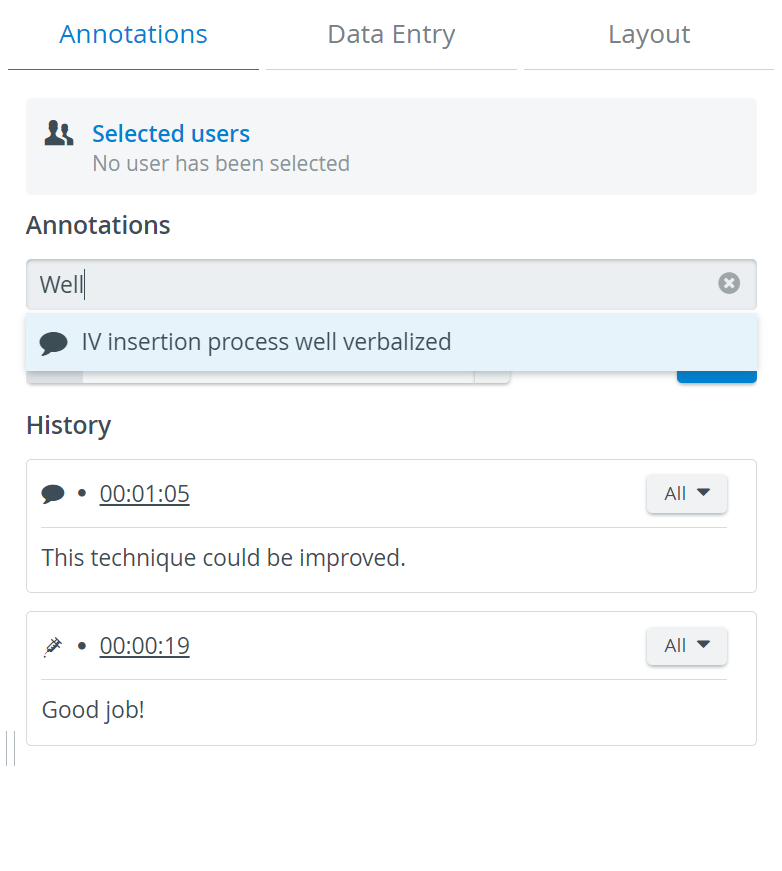
LearningSpace will display matches as you type if an annotation has already been used. Select the appropriate match from the list.
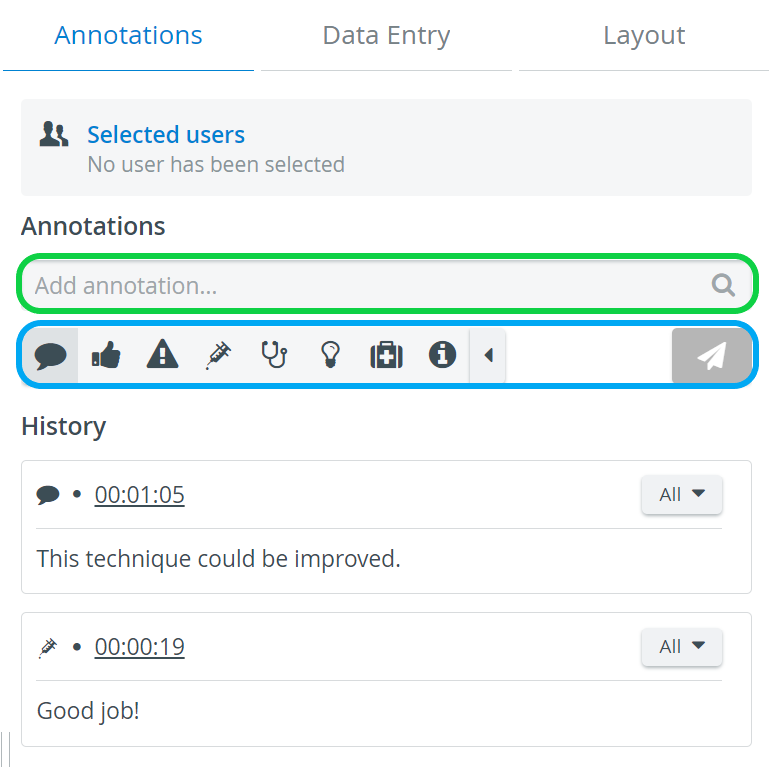
The annotation will be displayed in the Annotation panel with the time when it was added.
An annotation can be categorized by selecting the desired category icon before typing the annotation.
 The default category is Comment, and since the category cannot be changed after an added annotation is made, it should be changed in advance if desired.
When learners are assigned to the recording, the annotation is, by default, tagged with each learner's name.
To deselect learners before adding an annotation, click the All button in the Selected Users panel and click the names to be excluded.
To deselect learners after adding an annotation, click the All button for the annotation and click the names to be excluded.
Learners can also be deselected or added to an annotation in the Video Review module.
Users with the Learner role can add annotations to their videos in the Video Review module.
For more information, visit our Recording Module, Recording - FAQ, and Practical Recording pages.