CO Screen Layout
The Center Overview (CO) may consist of more than one room tab—displayed on the right side of the header—including one or more room panels. The number of rooms on each tab is indicated in parentheses. Rooms can be relocated from one tab to another but cannot be copied.
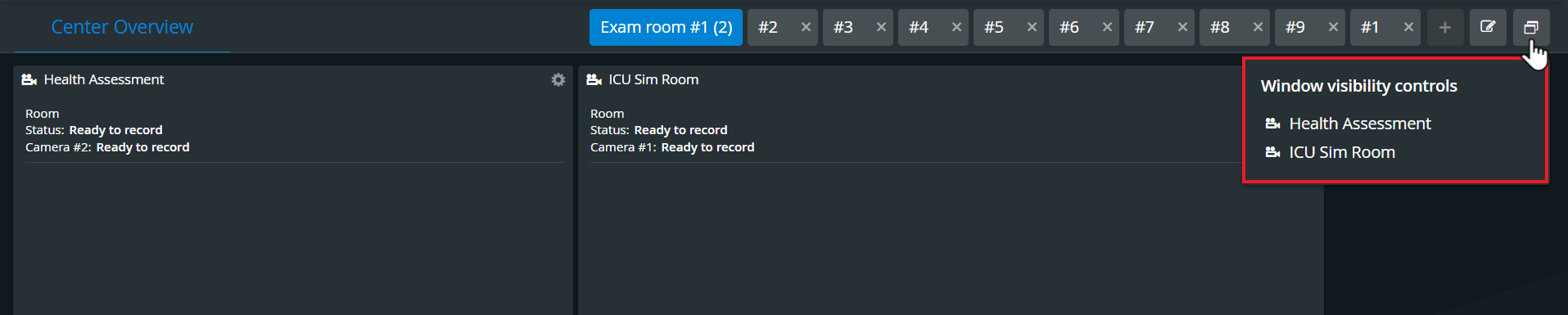
Room tabs can be added by clicking the + icon or deleted by clicking the X of the given tab.
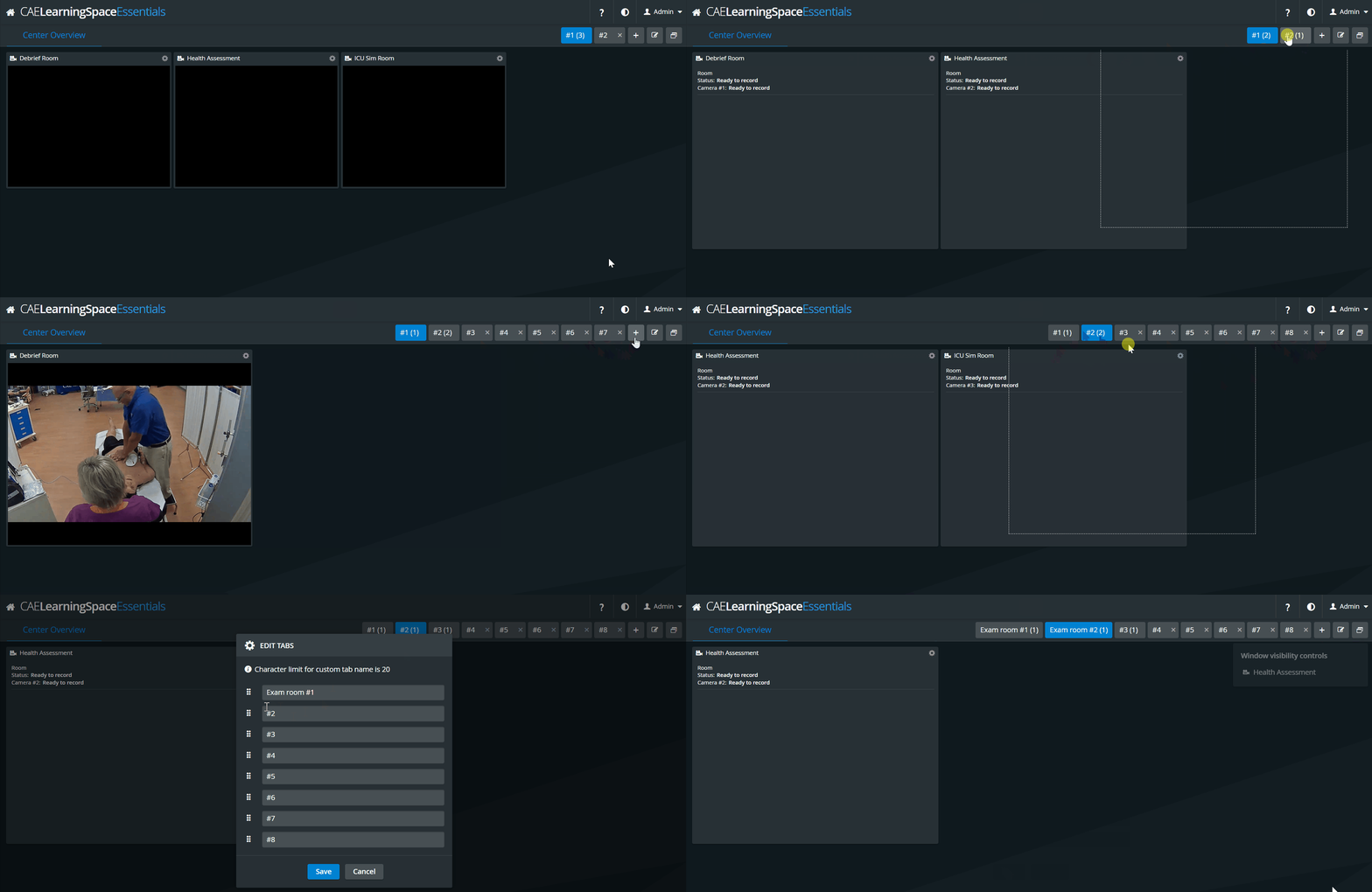
To create custom tabs, use + on the right side of the header and drag & drop the rooms to your new tab.
Users can create and customize multiple tabs in Center Overview (CO). Each newly created layout will be saved in the user profile for next time, so users can return to any of their custom tabs at any time. If not needed anymore, a custom tab can be deleted.
IMPORTANT: Only room tabs containing no room panel can be deleted.
Custom tabs can be deleted after they are emptied. To empty a custom tab, drag & drop every room to another tab.
Window visibility controls
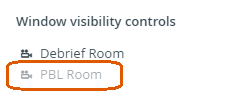
In the Window visibility drop-down, rooms can be selected to be displayed (active state) and de-selected (greyed out) to be hidden on the Center Overview page.
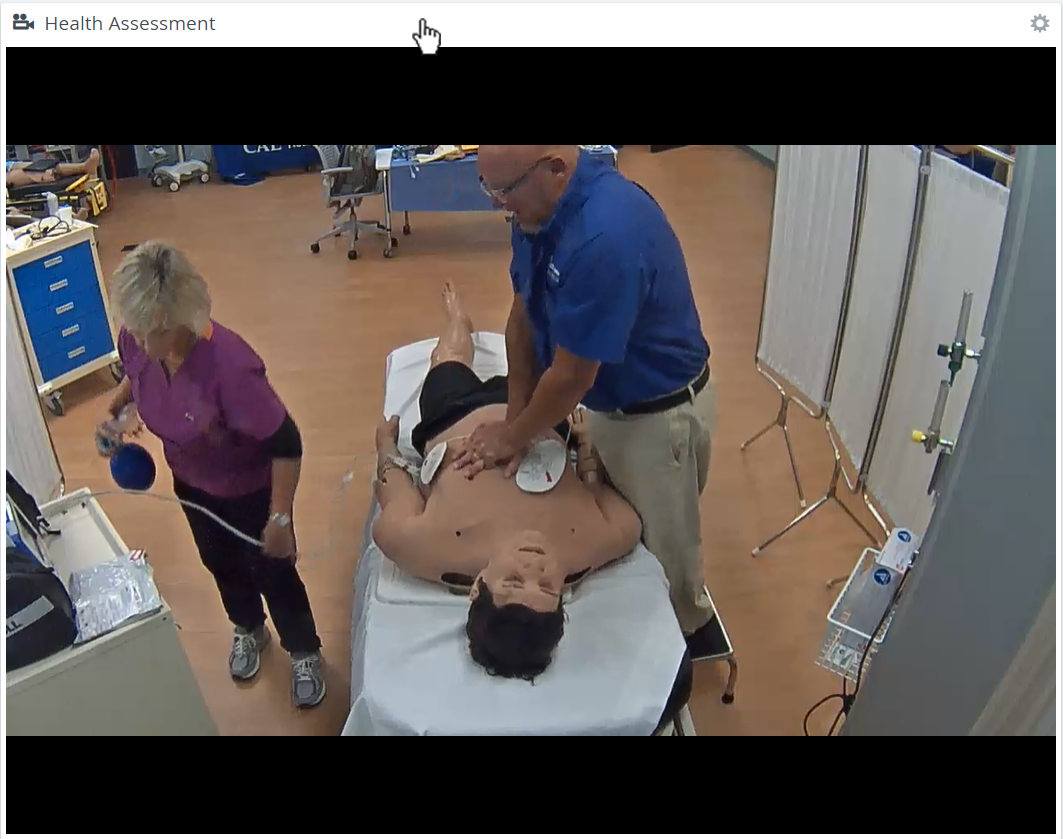
The CO can be customized by hiding or sending desired room panels to full screen by clicking the cogwheel in the top right corner of any room panel and then clicking the respective icons.
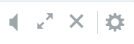

 off by clicking the audio icon in the top right corner of the camera panel.

 Room and Camera status: Clicking the Camera icon in the upper left corner of a camera panel displays the Room and Camera status window: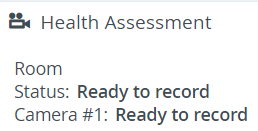
Audio can only be turned on for one room at a time. All the other rooms are muted simultaneously.
A PTZ camera's pan and tilt functions can be adjusted by dragging the crosshair in the desired direction.
You can control the zoom function by clicking the plus or minus signs on the right side of the camera panel.
The movement/adjustment of the camera to the right or left can be controlled by clicking the arrows at the bottom of the camera panel (next to "Select PTZ Preset").
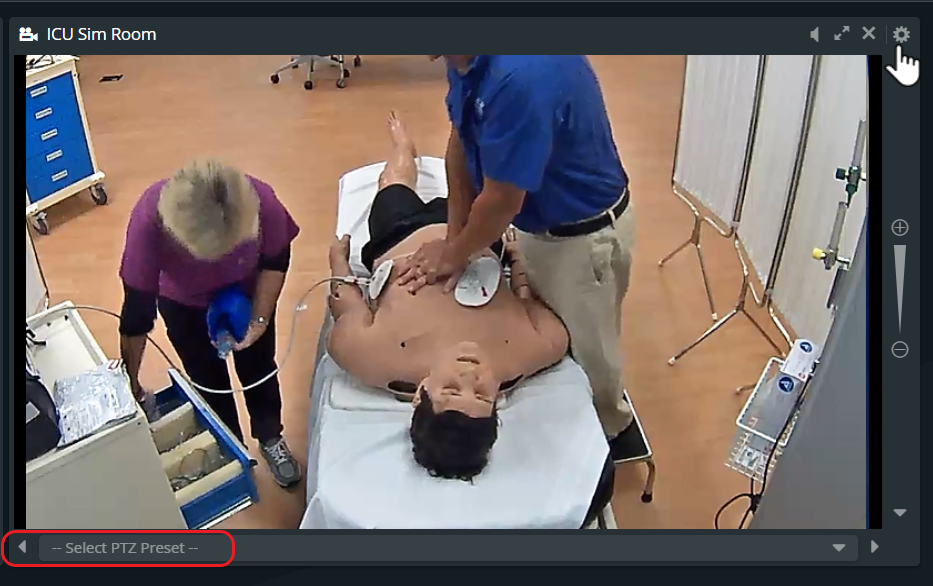
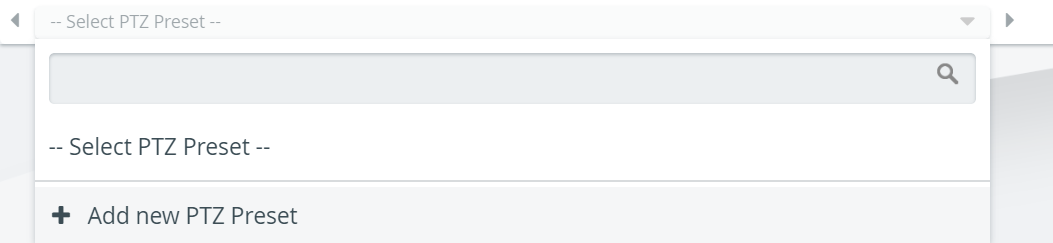
PTZ preset: To save a particular view of a PTZ camera, click the Presets drop-down, type the desired title in the Add new preset field, and click the plus button. To select an already added view, click its title in the drop-down.
Opening Single Room View (SRV)
By clicking anywhere in the camera panel's header, the Single room view will open.
For more information, see our Practical Recording and Recording - FAQ pages.