Center Overview - CO
Center Overview (CO)
Center Overview (CO) - The screen appears when entering the Recording module.
It accommodates all the rooms of the system that contain cameras. The room panels of the CO display the feed of the first camera of each room.
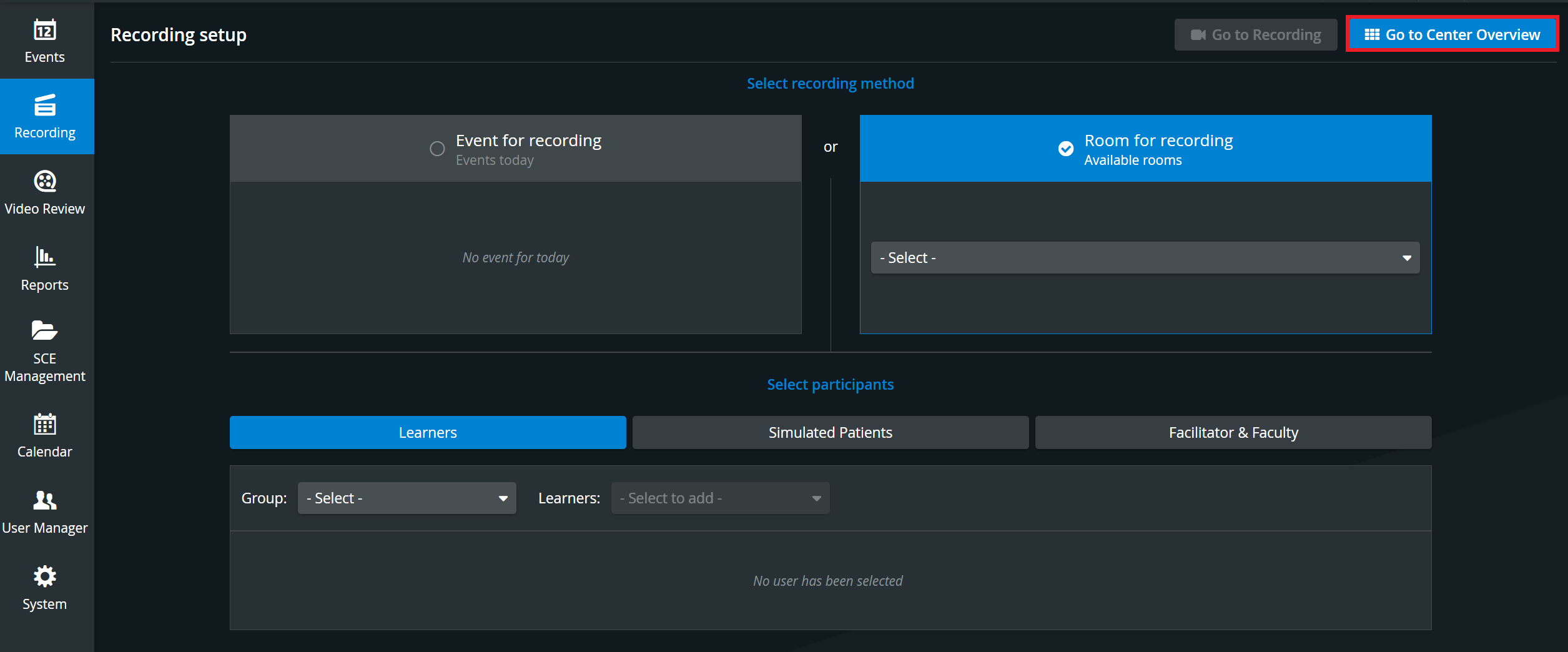
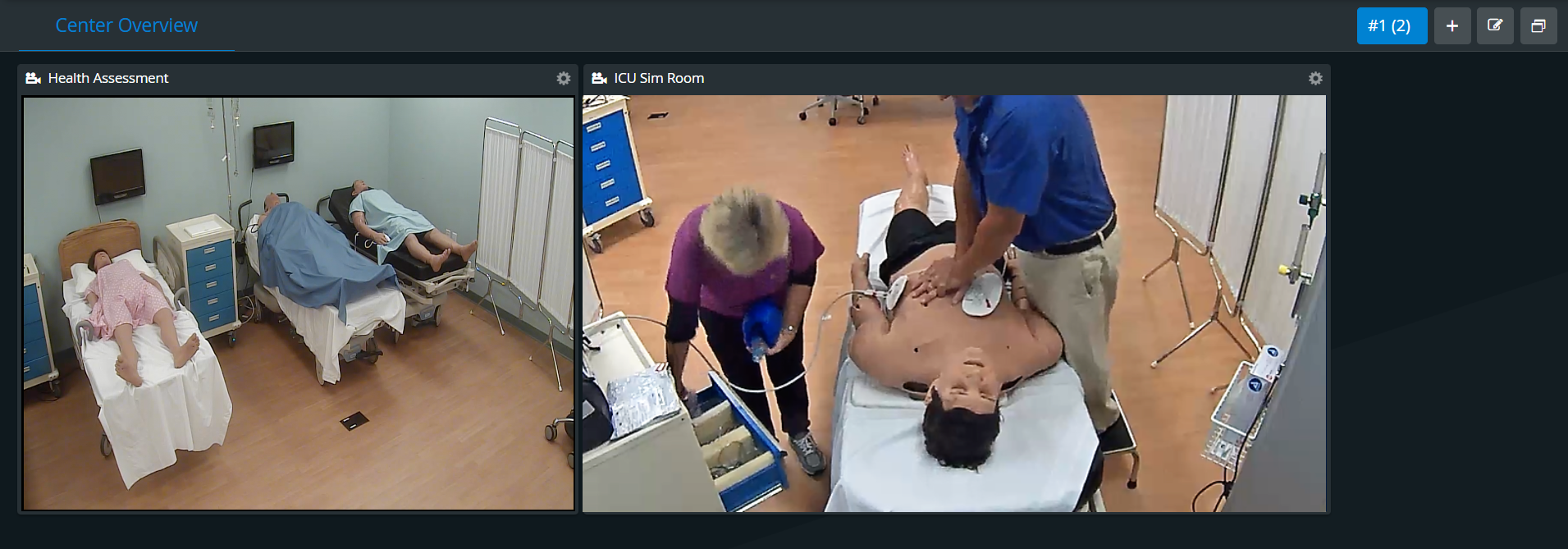
The default number of rooms for a tab is 12, but this number can be increased to 30 by dragging and dropping rooms onto the tabs.
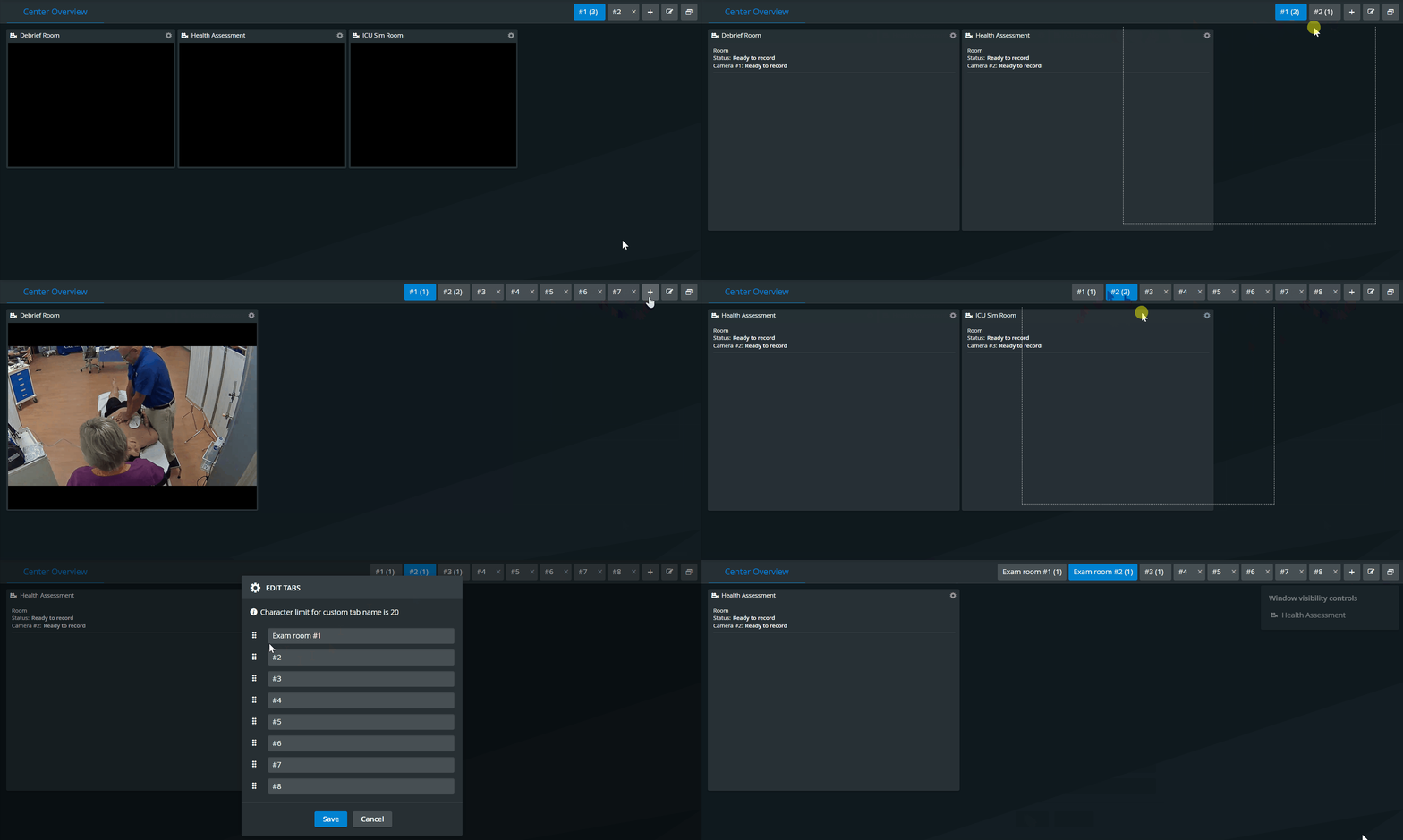
Once you have added some tabs, you can change their names by clicking on the Edit Tabs icon and performing the necessary changes within the Edit Tabs pop-up.

⚠️ Tab names are saved per user - just like the Center Overview layout.


- Right-pointing arrow: switching between camera feeds assigned to the room

This icon is only displayed when multiple cameras are assigned to the room.
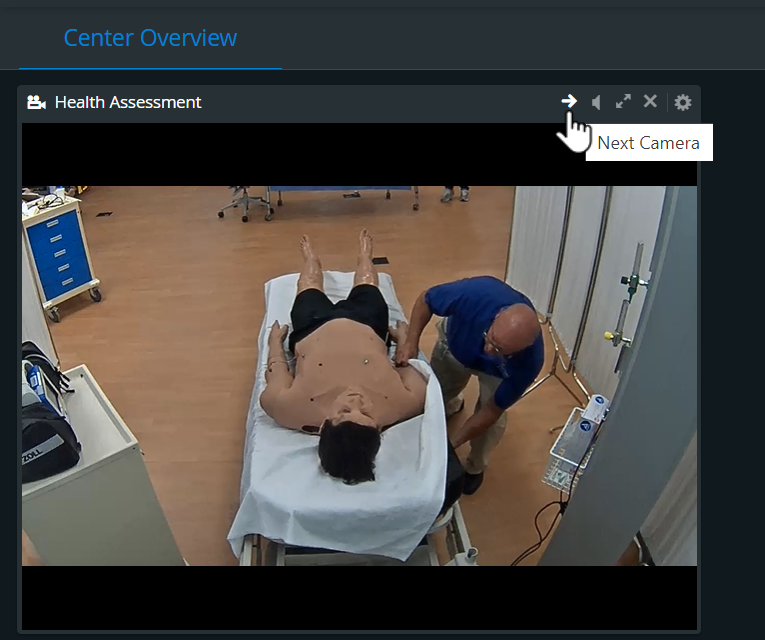
- loudspeaker: toggling audio feed of a specific room on/off

 diagonal arrows: sending the displayed camera feed to full screen
 closing the specific room panel
Once closed, the room panel can be displayed again by activating its name in the Room visibility controls.
PTZ functions
PTZ functions: if the displayed camera of the room is a PTZ camera, then the cogwheel prompts the arrows for the pan-tilt-zoom directions as well

Clicking any room panel opens the Single Room View (SRV) for that room.
IMPORTANT: LearningSpace ONE Box or Ultraportable units have no CO, as they are single-room constructions. That is, when entering the Recording module, the SRV is displayed.
Clicking the plus icon in the header creates an additional tab that helps arrange the rooms, thereby customizing the CO.
Privacy Mode Visual Indicator
When Privacy Mode is enabled (i.e., cameras are turned off using the Push button within a certain room), the Privacy Mode indicator appears in the camera stream window, indicating that no stream is available from the room.

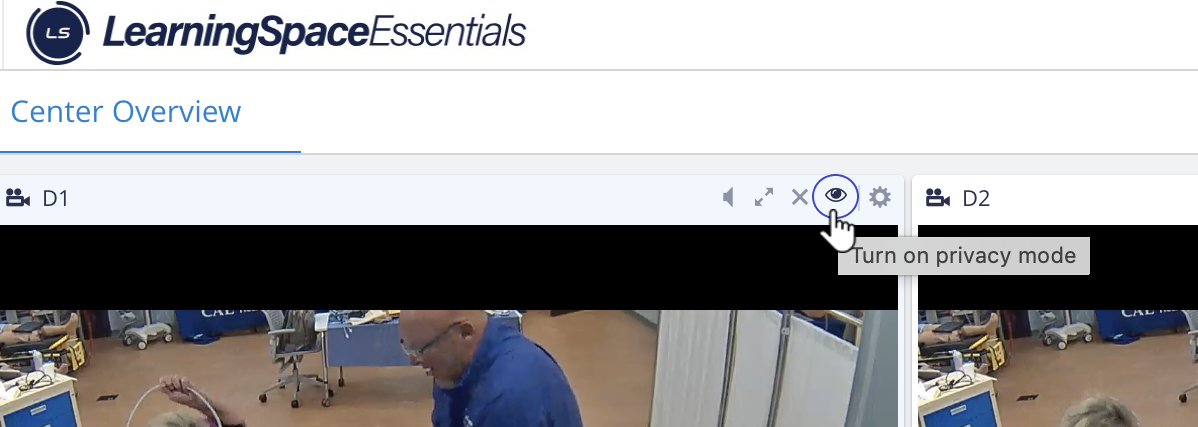
Click the privacy control: the room goes to privacy on.
Click again: it returns to privacy off.
Privacy mode is currently not supported for mobile cameras. See Mobile Recording Feature
For further information, visit our Recording Module and Recording - FAQ pages.