Annotations during Video Review
Annotations are notes and remarks added to specific moments of the recording.
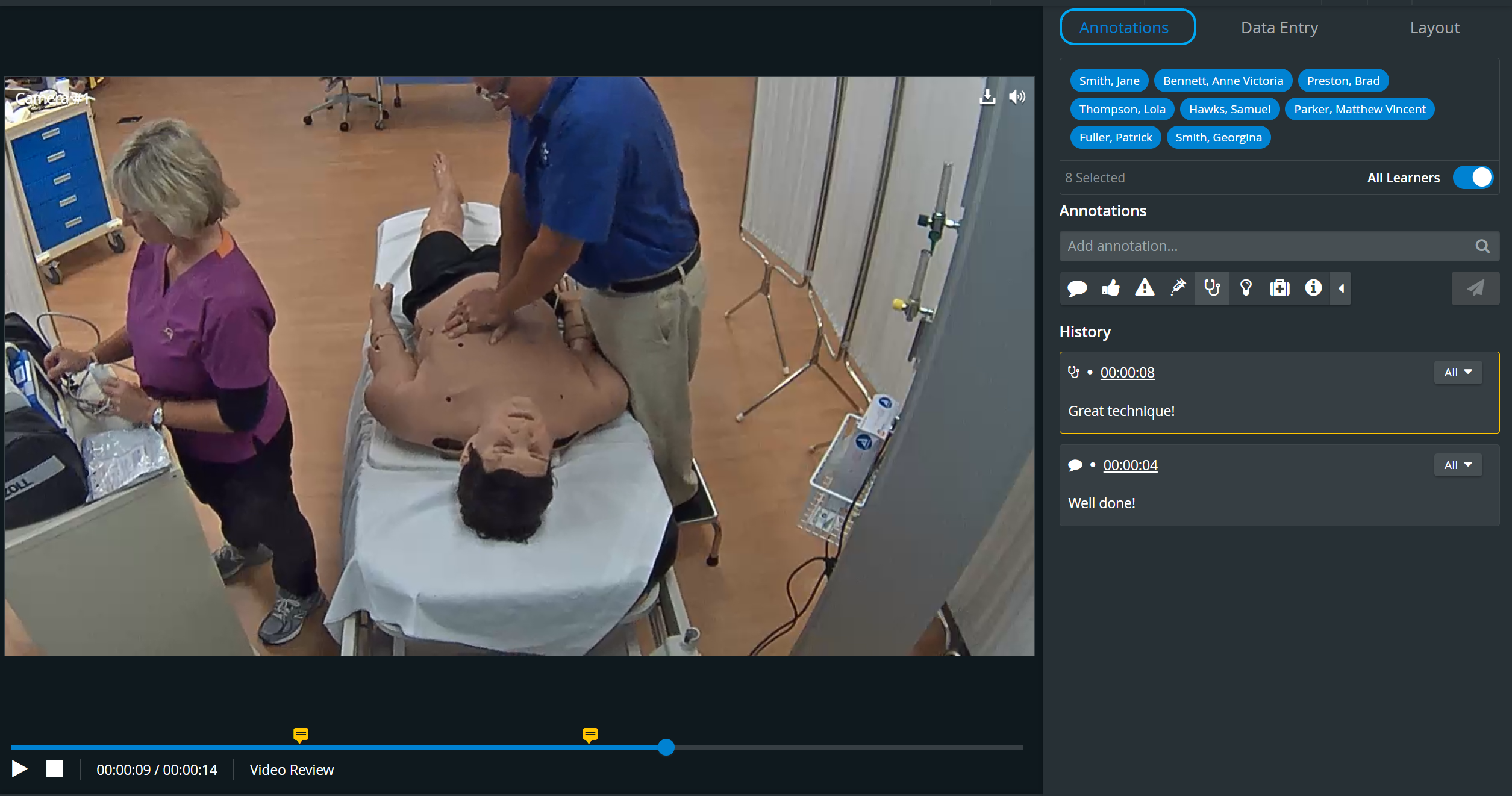
The Annotations tab is displayed on the right side of the screen. It is active regardless of whether a learner group has been assigned to the recording.
Annotations can be added by category by typing the required remark in the Add annotation field.
Once an annotation is added, it is reusable. Therefore, the Add annotation field also functions as a search field for previously added annotations. When typing anything in the field, the system yields all results that have the typed character combination.


Click a speech bubble to navigate to that point in the video and to display the annotation.


When hovering over the added annotation, annotations can be deleted by clicking the red trash icon.

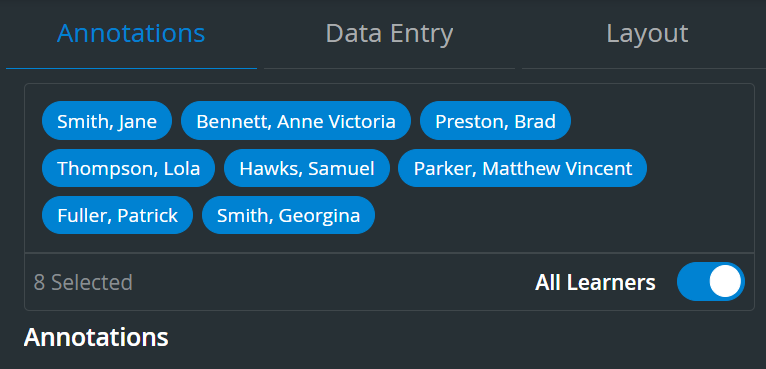
When a learner group is assigned to the recording, by default, all the learners of the assigned group are added to an annotation. Still, members can be de-selected via the All button on the right side of the Selected Users field by clicking the names in the prompted pop-up.
An added annotation refers to the most recently selected learner set; that is, any change made to the selected learners will only apply to an annotation added thereafter.
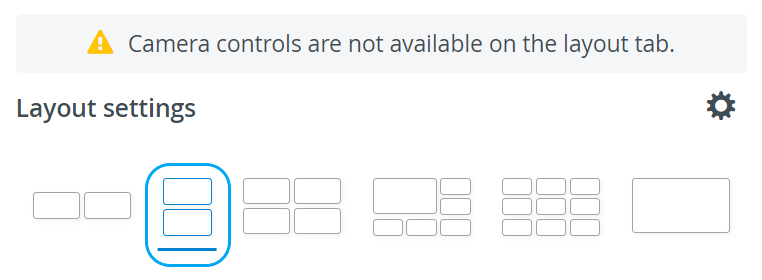
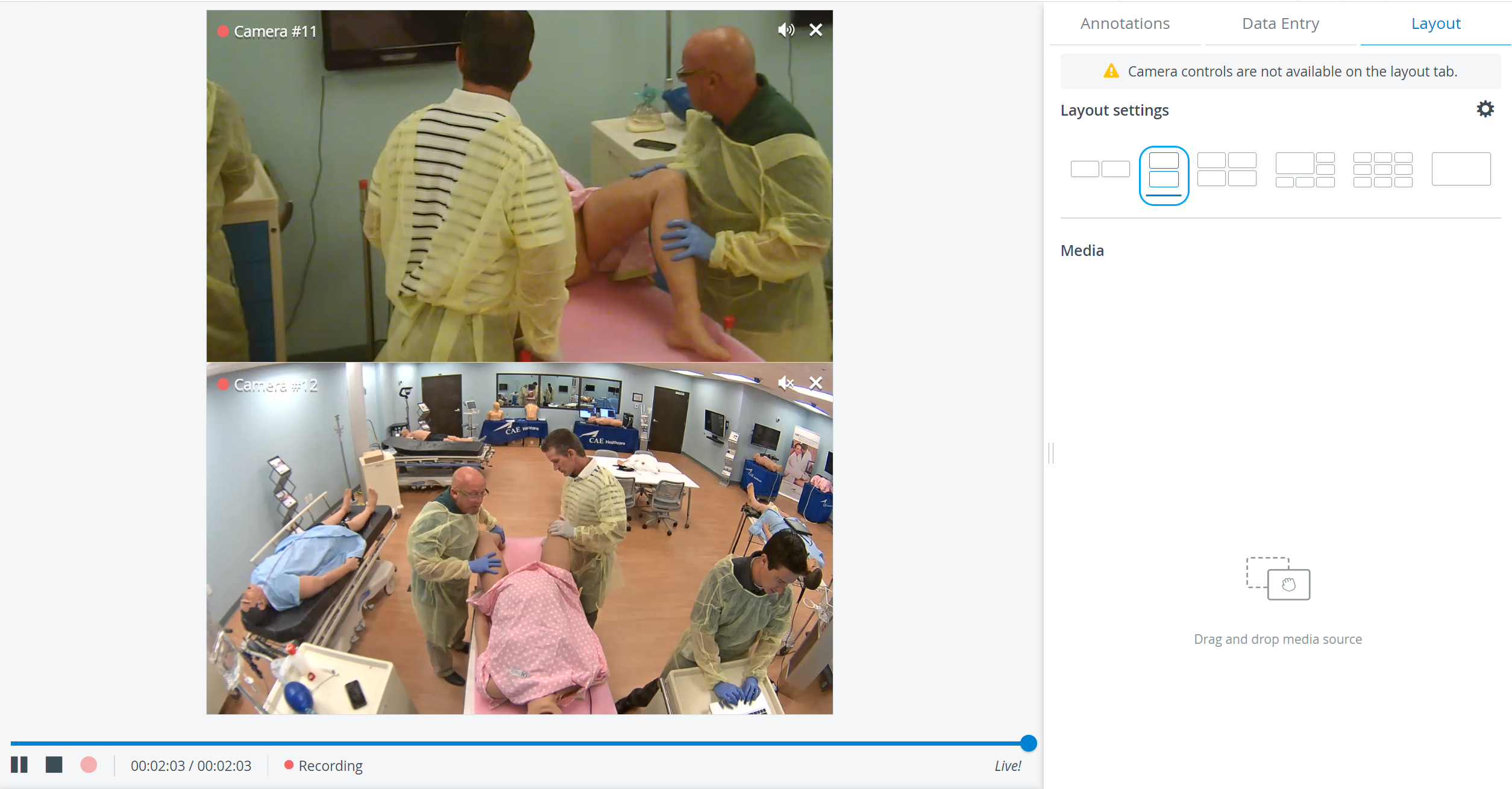
In the latest versions of LearningSpace the utilization of the space available in the Single Room View panels can be maximized and the panels on the right side (or additional windows) can be displayed in a larger size by using the Vertical double layout feature.
Learn more on our Video Review - FAQ pages.