2022 Fall SRV Enhancements - Release Notes
Besides miscellaneous programming modifications, the most important features and enhancements of the Single Room View included in the 2022 Fall Release are the following:
New User Selector Options in the Recording Setup
A revamped Learner, Simulated Patient and Facilitator & Faculty selector user interface in the Recording Setup has been introduced for better usability:
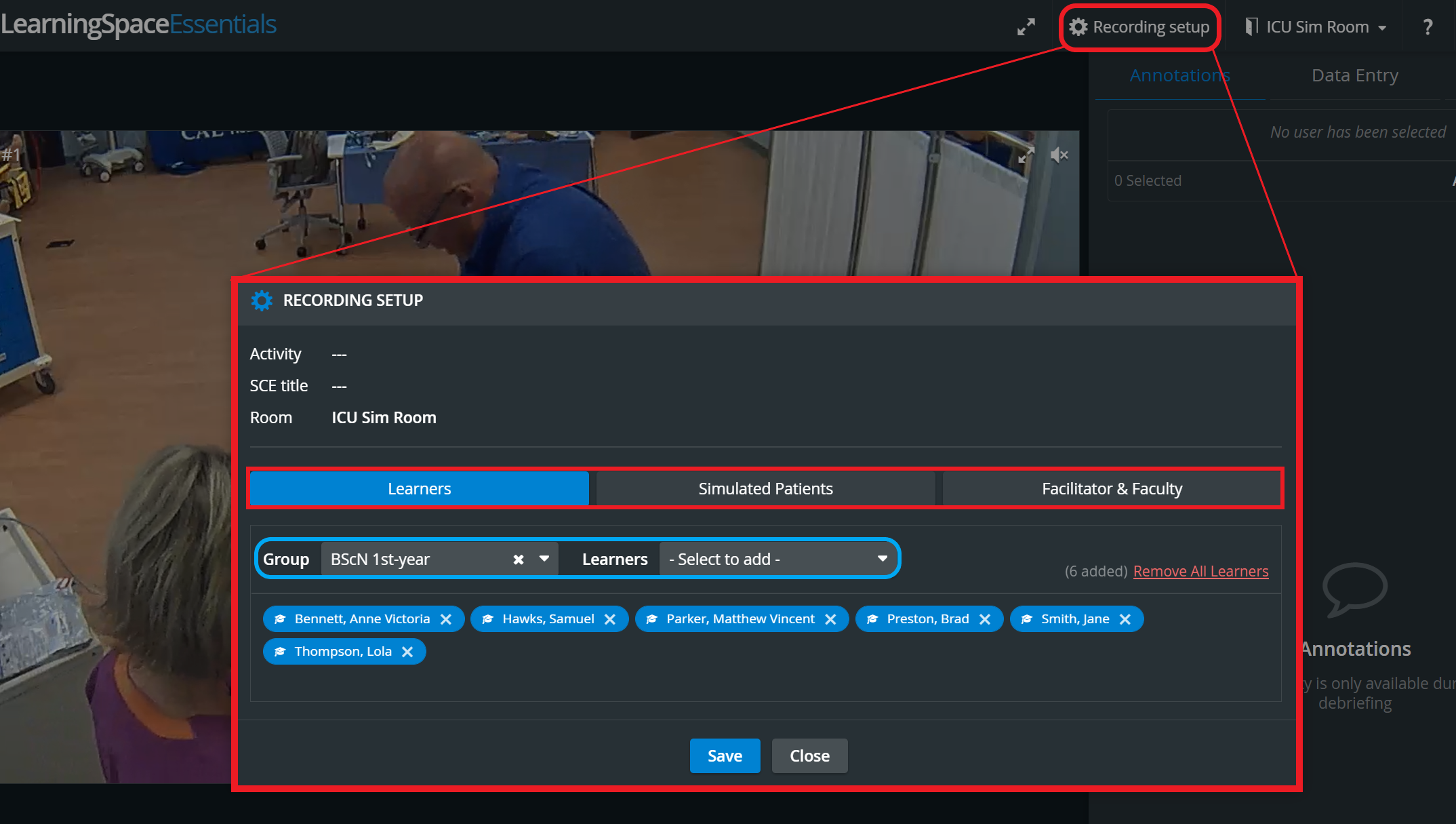
In the case of scheduled events, Participant groups cannot be modified in the Recording setup - the dropdowns stay inactive - only the individual users can be removed or added.
💡 The same setup can be accessed and modified on the Recording starting page.
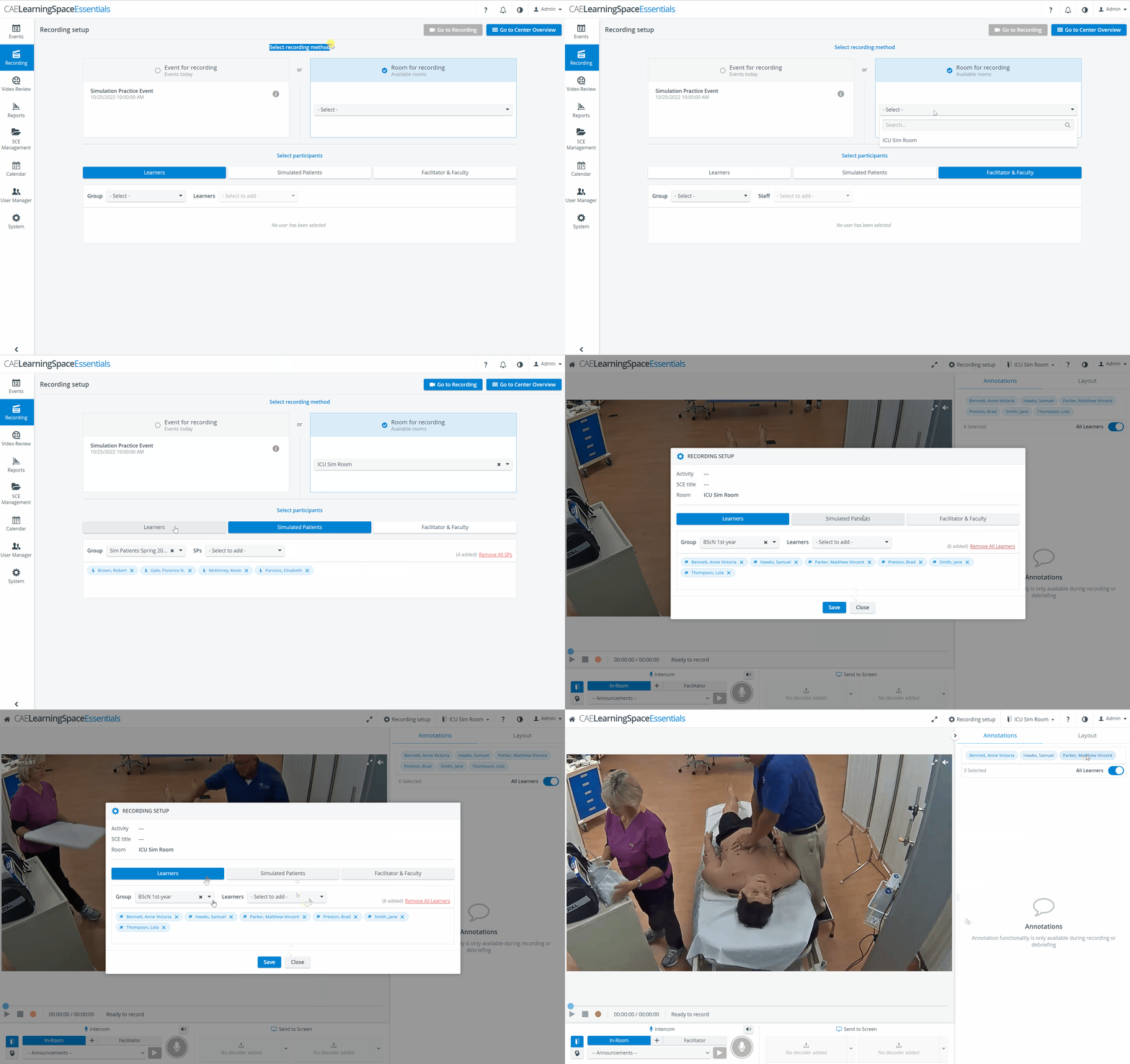
The Learners, SPs, and Staff dropdowns only become active once the respective Groups have been selected.
Selected participants appear 'disabled' (greyed out) in the Learners/SPs/Staff dropdowns. Participants who have not been selected are active in the dropdown and thus can be selected.
New Learner name displayed under Annotations
Learner-name display has changed under the Annotations tab:
By default, all the Learners of the assigned group are added to an annotation, displayed in blue. Members can be deselected by clicking their names (disabling them).
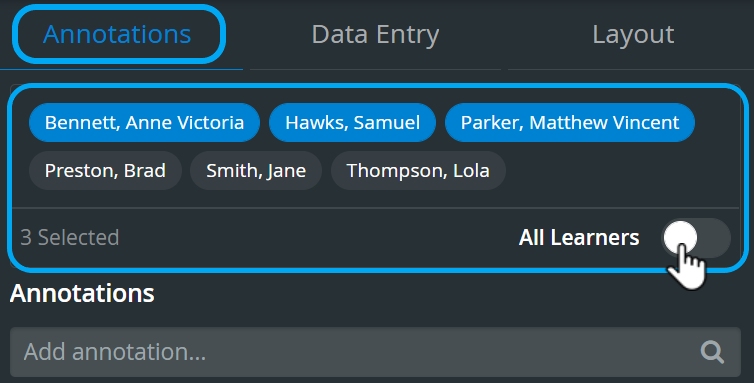
An added annotation refers to the most recently selected learner set; any change made to the selected learners will only apply to an annotation added thereafter.
For more information, go to Annotations.
New Intercom Panel Setup and Functioning
A revamped Intercom widget has been introduced for better usability, with
new button types in the Intercom panel
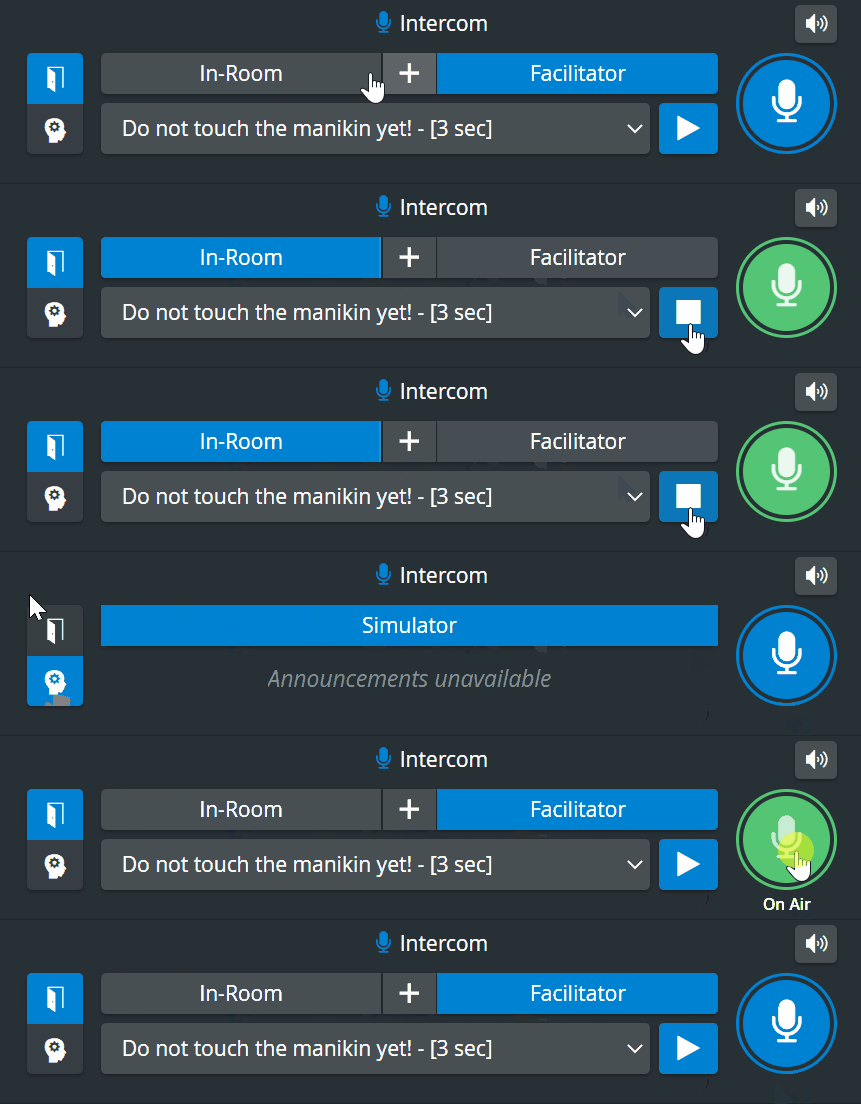
and a new way of functioning:
Intercom announcements can be sent to the simulator's head ("Voice of Patient") by selecting the
Simulator button
turning it into blue

and pushing the Push-to-Talk button in the Intercom area.
Mute videos while talking

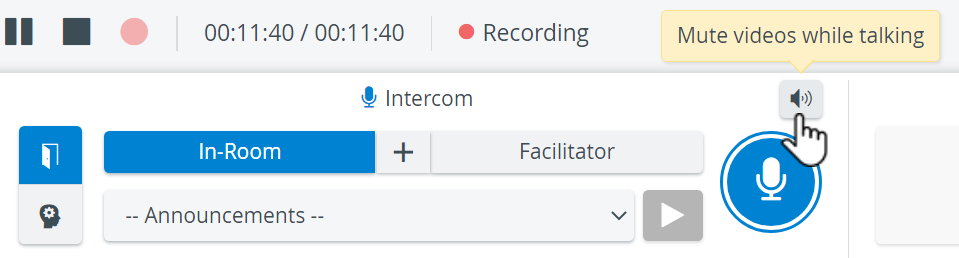
For more information, go to the Three-Way Intercom page.
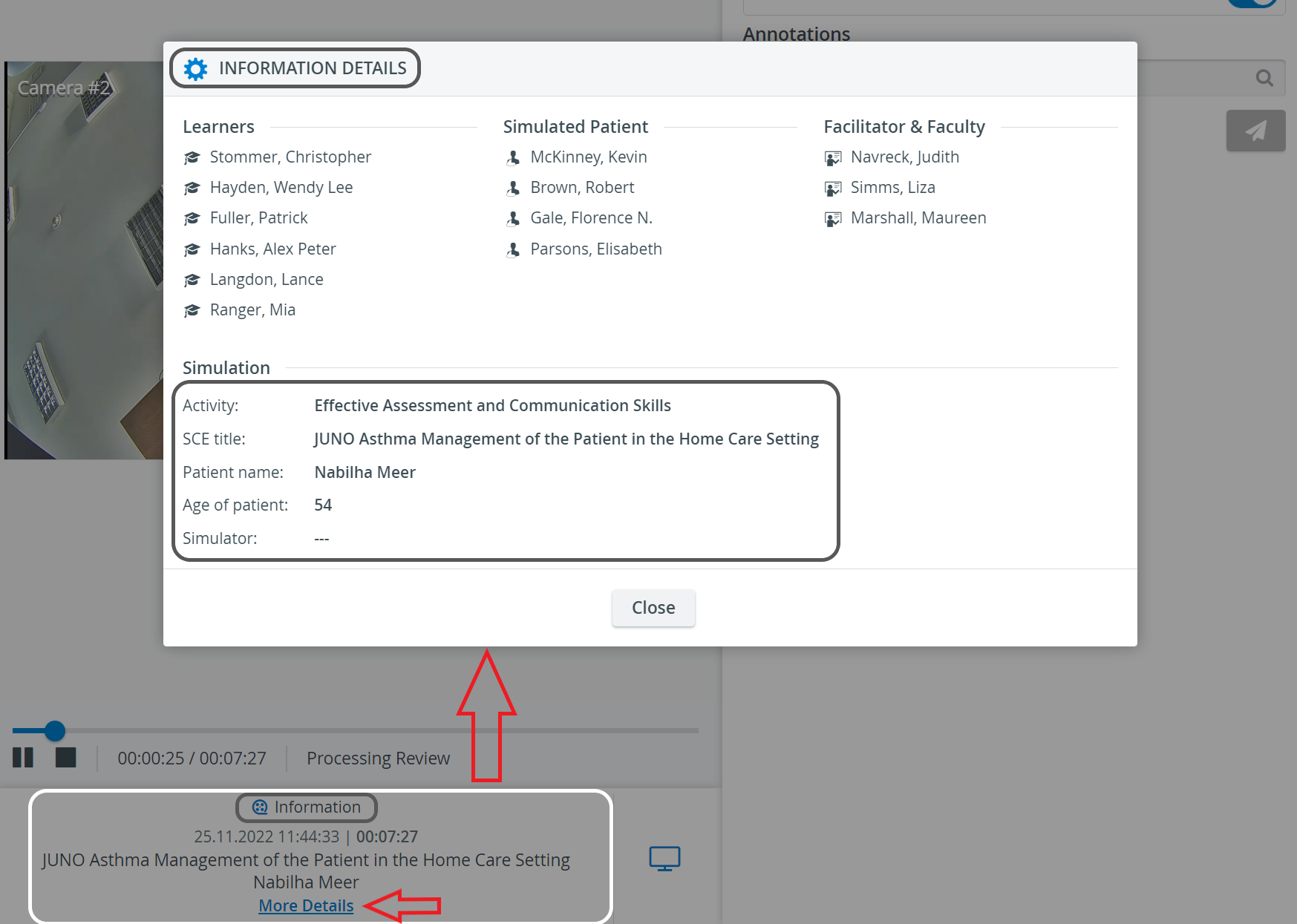
Improvements to the More Details pop-up in Video Review
Improvements have been introduced to the More details pop-up for the Information widget at Video Review as well.
Improvements to the Mute/Unmute functionality during Live Recording
The most important changes for the mute/unmute functionality in the Single Room View include the following:
General rule: the system only unmutes a camera when the user clicks on the unmute button OR if the user enters the Single Room View (live or review).
3-state click functionality for mute/unmute:
First click: (on the icon when it is in muted state) unmutes the given camera stream, and other unmuted streams stay unmuted, too.
The icon on all unmuted streams changes to an icon showing that multiple streams are unmuted.Second click: mutes all other cameras (even the unmuted ones), and only the selected stream stays unmuted.
Third click: mutes the selected camera stream as well.

Toggle Panel Width and Height
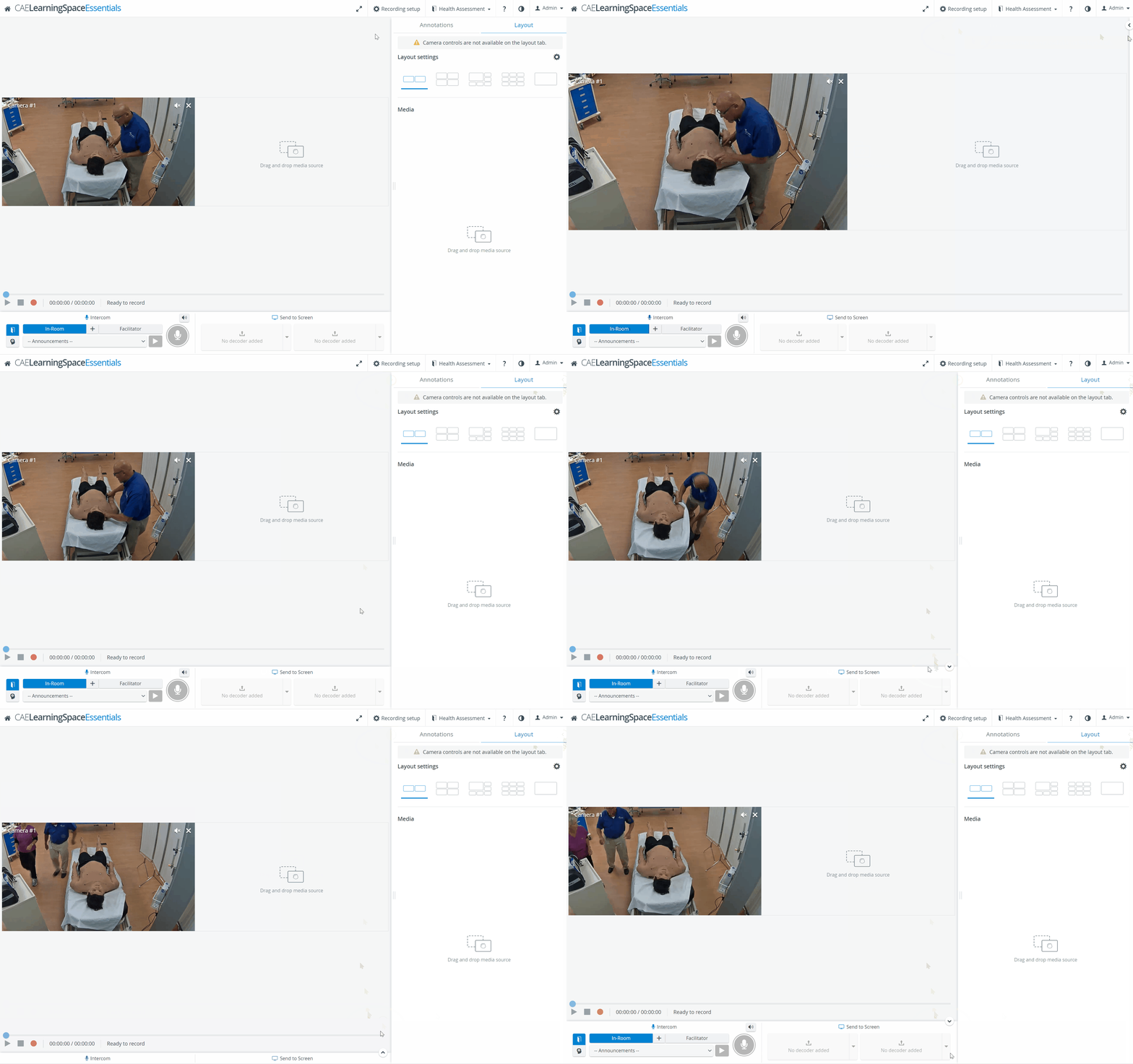
The ability to collapse the panels on the right and at the bottom has also been introduced to the NextGen Room View (SRV) both in Live view and in Video Review mode.
With this functionality, the bottom and side panels can be minimized to maximize the displayed camera or media view.
The toggle reveals itself by hovering over the bottom or side panel or on the panel border lines. When activated (i.e., when the camera view is maximized), the toggle arrows are displayed constantly.
PTZ-related issues fixed
Multiple PTZ-related issues have been fixed within this new release:
10% zoom at one scroll
no PTZ control option limitations when using a PTZ joystick
no automatic switch to the first camera view when using a decoder (with or without PTZ joystick)
warning when trying to use a PTZ joystick with a non-PTZ capable camera
no PTZ control option during paused live recording
"Camera view" of DAK cannot be highlighted when using the PTZ joystick (and proper warning message displayed)
improved Drag-to-PTZ function
saving of Preset position names optimized.
For more information, go to SRV Screen Layout.
Learn more about each Single Room View - SRV page functionality and its subpages. See also our Practical Recording and Recording - FAQ pages.