Zoom Virtual Event Troubleshooting Tips for Standardized Patients (SPs)
1. Difficulty Launching Zoom
If you are a first-time Zoom user, your virtual encounter might not start automatically—the Zoom application does not open—when launching the meeting from LearningSpace, try the following:
Click Download & Run Zoom to install Zoom's desktop client.
Once the installation is complete, Zoom will inform you with a pop-up at the top of your screen.
Disable the pop-up blocker in your browser.
Click Open Zoom to get started.

2. Learner Pre-Selection is not displayed
Computers configured as LearningSpace In-Room/SP (or Hallway) stations cannot display the Zoom learner pre-selection/prefill workflow.
Solution:
Use a device that is not configured as a station, or
Temporarily remove the station configuration, or
Switch the Wi-Fi network to switch the laptop off the static IP address it is assigned under stations.
See also Recommended Virtual Event Settings
3. Disconnected from Your Virtual Encounter
a. Rejoin a Meeting Still In-Progress
If you get disconnected from the internet due to network or computer issues—the meeting application crashes, your device suddenly shuts down, etc.—but participants on the other end remain in the meeting, you can instantly rejoin the session from LearningSpace.
Note
You can rejoin your virtual meeting, but you will not become the host again in the Zoom application after returning. You can still access your Learner-Pre Selection page, where you can end the virtual meeting once you are finished.
Once your technical issues are resolved:
Log in to LearningSpace.
Return to the Learner Pre-Selection page of your current event from your Dashboard.
You will notice that the session you have launched in LearningSpace has not stopped yet: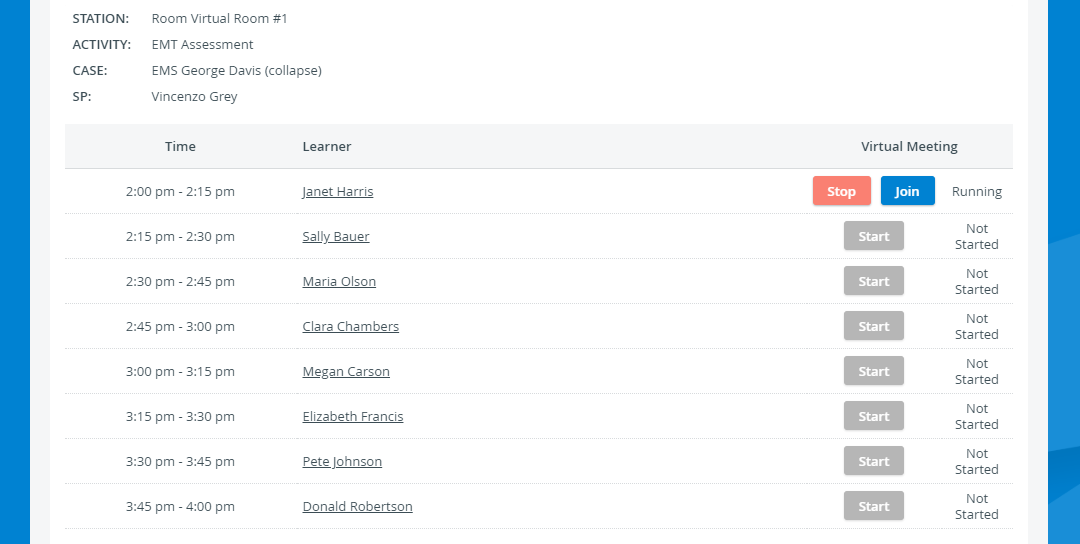
Click on the active Join button to return to the ongoing Zoom session.
If you cannot rejoin your meeting after clicking the Join button, it means the Zoom session has ended due to a lack of participants. Scroll down to find out how to restart your disconnected virtual encounter.
When your meeting is finished, end it using the Stop button in LearningSpace.
If the learner leaves the Zoom meeting without entirely ending it, you will become the host again. In this case, you will get back the End Meeting for All option in the Zoom application.
b. Restart a Disconnected Virtual Encounter
If every meeting participant is affected by network or computer issues—the meeting application crashes, participants get disconnected from the internet, their devices suddenly shut down, etc.—and is dropped from the virtual encounter all at the same time, the Zoom meeting will end due to a lack of participants.
In this case, you cannot resume the virtual encounter; you need to start a new session with your learner and continue from where you left off.
Once technical issues are resolved on everyone's side:
Log in to LearningSpace.
Return to the Learner Pre-Selection page of your current event from your Dashboard.
You will notice that the session you have launched has not stopped yet:Although the Zoom meeting has ended completely, the LearningSpace session is waiting for confirmation to stop running and start video processing.
If you try resuming with the Join button to a Zoom meeting that has ended, meanwhile:
Your page reloads, but you can only stop your disconnected session. Every other virtual encounter will be disabled until you stop the expired session:
Meanwhile, at the other end, your learner's Case Pre-Selection page will display that the meeting has ended:
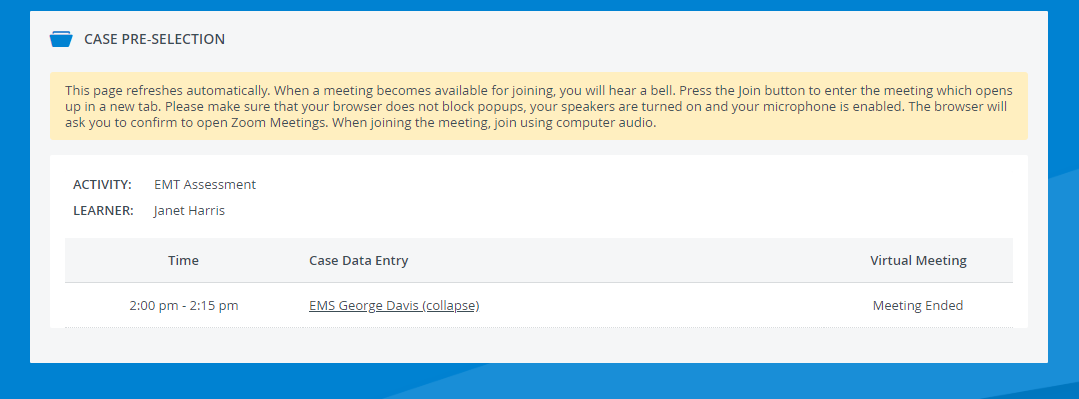
Click Stop to reload your page once more.
You will be confirmed that the session was stopped.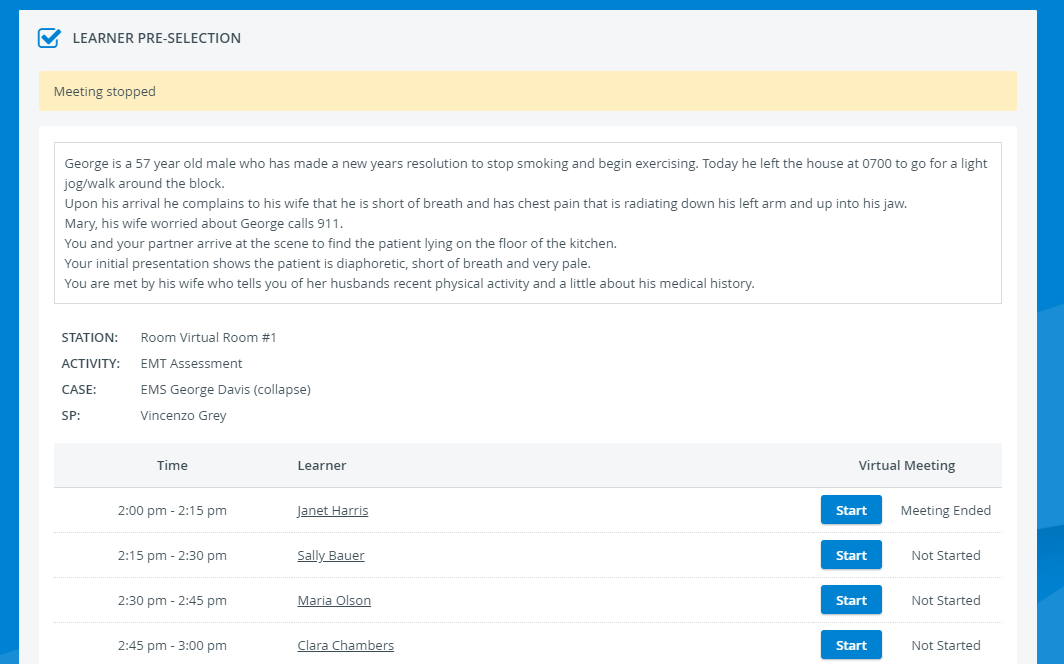
Click Start to relaunch your meeting with the learner you got disconnected from.
The status of your virtual encounter will change to Running: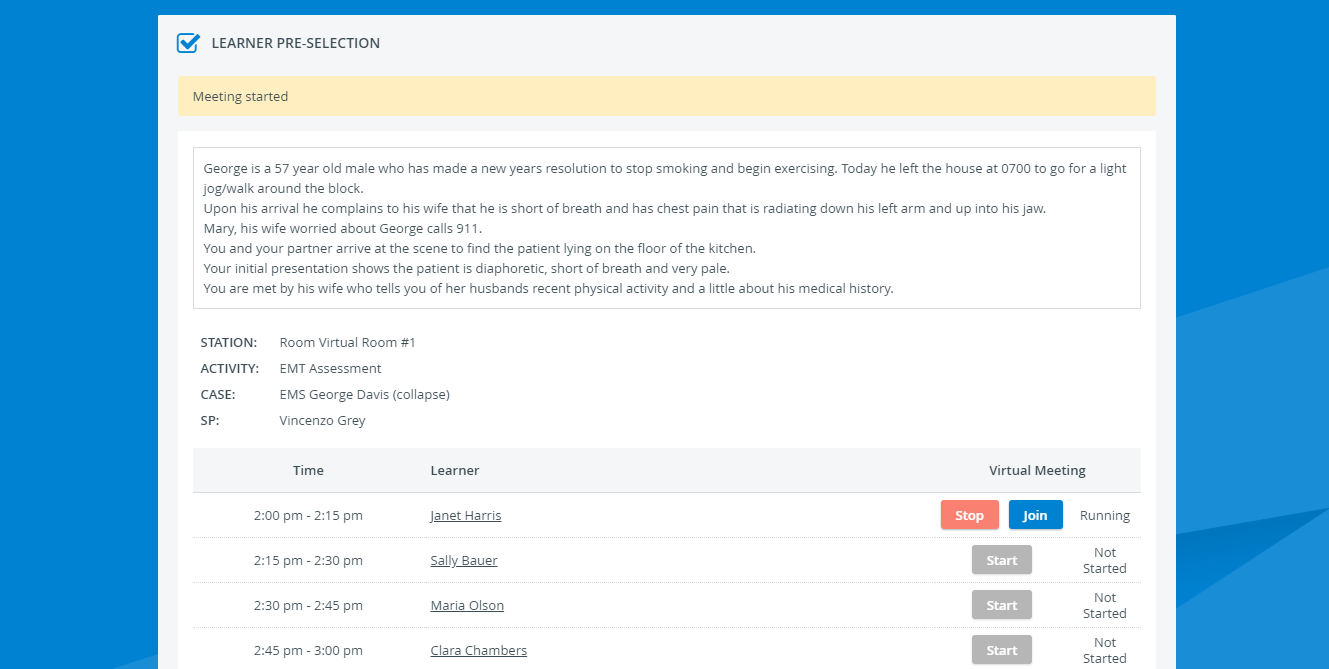
4. I Have Been Informed That There Is a Meeting Currently In-progress
Zoom does not support multiple meetings hosted simultaneously from a single account.
When launching a virtual encounter, you might be presented with the following message from Zoom:
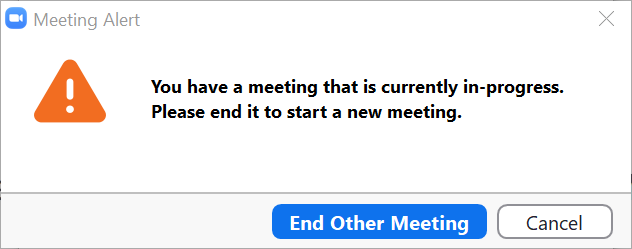
The alert means that someone else is currently running a meeting in the Zoom account that your virtual event is using, unaware that the account has been scheduled in LearningSpace as a virtual room and added to an event.
Solution
You can take back control by ending the other meeting by confirming so in the dialogue, but we recommend contacting an instructor or the person hosting the concurrent meeting to make sure they are aware that the account is being used in a virtual event.
Important
If you simply take over the account, the person on the other end may reclaim hosting: as a general rule, the user who starts the most recent meeting in the account has the right to end the other ongoing session.
5. My Learner Pre-Selection Page Has Disappeared
When conducting your last virtual encounter, you might not finish on time to return to your Learner Pre-Selection page while the virtual event is still running.
If you try to access your Learner Pre-Selection page after a virtual event ends, the virtual meeting controls (Stop and Join buttons) and learner appointments will not be displayed.
Make sure that, before each virtual encounter, a scheduling time threshold is set up in your LearningSpace system.
The scheduling time threshold gives you extra time before and after the virtual event to review your list of virtual encounter appointments, complete checklists, and stop any ongoing virtual encounter sessions.
Solution
If you cannot access your pre-selection page slightly before or after your virtual event, contact your instructors to set up a scheduling time threshold. You will be allowed access to every virtual event before and after an event for the number of minutes of the scheduling time threshold.
6. Post-Encounter Checklist Restriction
A completed virtual encounter is a prerequisite for access to the post-encounter checklist if the post-encounter checklist restriction is set up in the virtual event activity.
If the virtual encounter is not ended properly, learners could be presented with the following message when trying to access their post-encounter checklist:
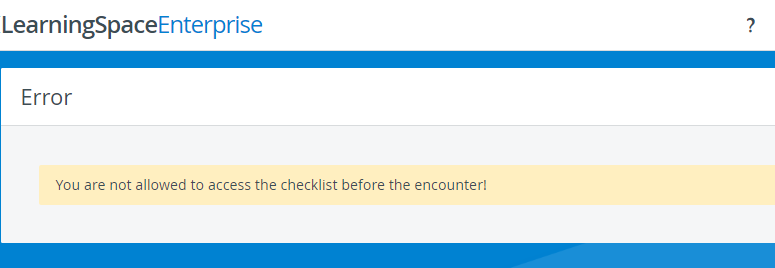
Solution
Check whether you have met at least one prerequisite for access to the post-encounter checklist to resolve your learner's error message.