Zoom Virtual Event Troubleshooting Tips for Medical Students
1. Difficulty Launching Zoom
If you are a first-time Zoom user, your virtual encounter might not start automatically—the Zoom application does not open—when launching the meeting from LearningSpace, try the following:
Click Download & Run Zoom to install Zoom's desktop client.
Once the installation is complete, Zoom will inform you with a pop-up at the top of your screen.
Disable the pop-up blocker in your browser.
Click Open Zoom to get started.

2. Learner Pre-Selection is not displayed
Computers configured as LearningSpace a Hallway (In-Room/SP) stations cannot display the Zoom learner pre-selection/prefill workflow.
Solution:
Use a device that is not configured as a station, or
Temporarily remove the station configuration, or
Switch the Wi-Fi network to switch the laptop off the static IP address it is assigned under stations.
See also Recommended Virtual Event Settings
3. Disconnected from Your Virtual Encounter
a. Rejoin a Meeting Still In-Progress
If the meeting application crashes, you get disconnected from the internet due to any network or computer issues, your device suddenly shuts down, etc., but the host on the other end stays in the meeting, you can instantly rejoin the ongoing session from LearningSpace.
Once your technical issues are resolved:
Log in to LearningSpace.
Return to the Case Pre-Selection page of your current event from your Dashboard.
You will notice that the Join button is still active: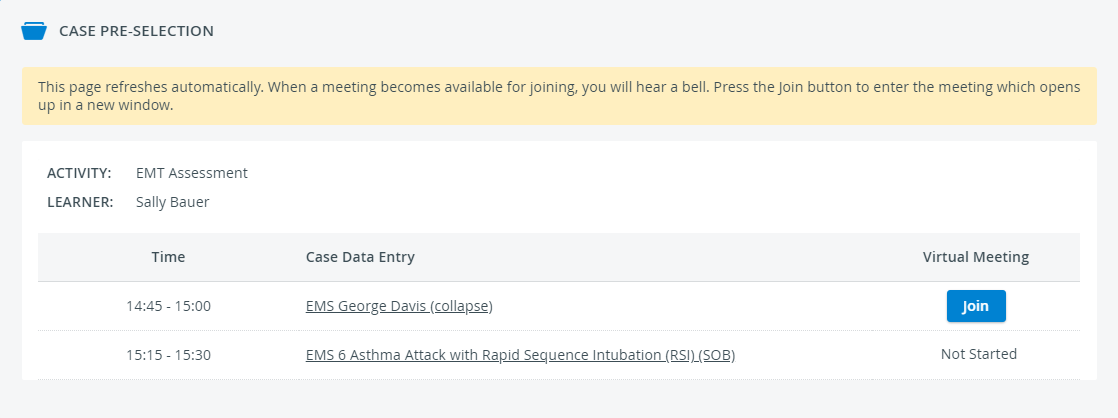
Click Join to return to your ongoing Zoom session.
If you cannot rejoin your meeting after clicking Join, it means the Zoom meeting has ended due to a lack of participants. Scroll down to discover what to do if every party gets disconnected from a virtual encounter.
When your meeting is over, end it as usual, as recommended in the virtual encounter guide for Medical Students.
b. Wait for Your Disconnected Virtual Encounter to Restart
If every meeting participant is affected by network or computer issues—the meeting application crashes, participants get disconnected from the internet, their devices suddenly shut down, etc.—and is dropped from the virtual encounter all at the same time, the Zoom meeting will end due to a lack of participants.
In this case, you cannot resume the virtual encounter; you must wait for your SP to start a new meeting and continue from where you left off.
Once technical issues are resolved on everyone's side:
Log in to LearningSpace.
Return to your Case Pre-Selection from your Dashboard.
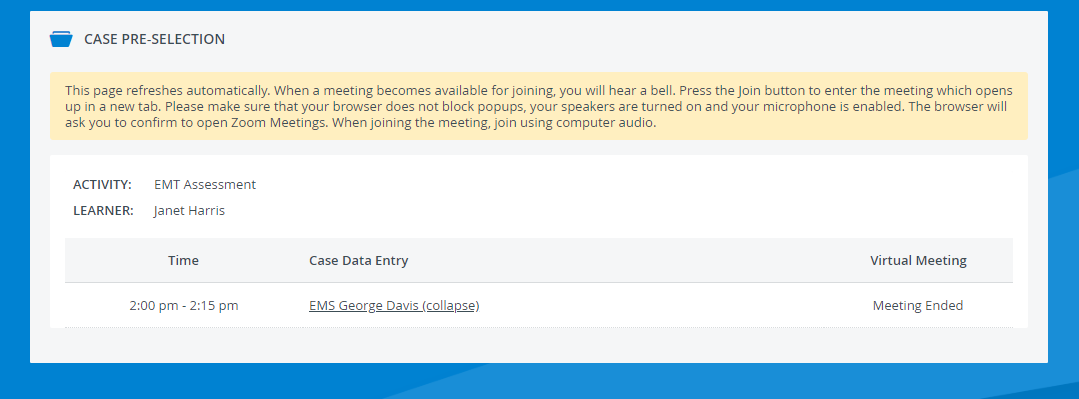
Upon returning after a technical issue, most of the time, your pre-selection page will show you that your meeting has ended:
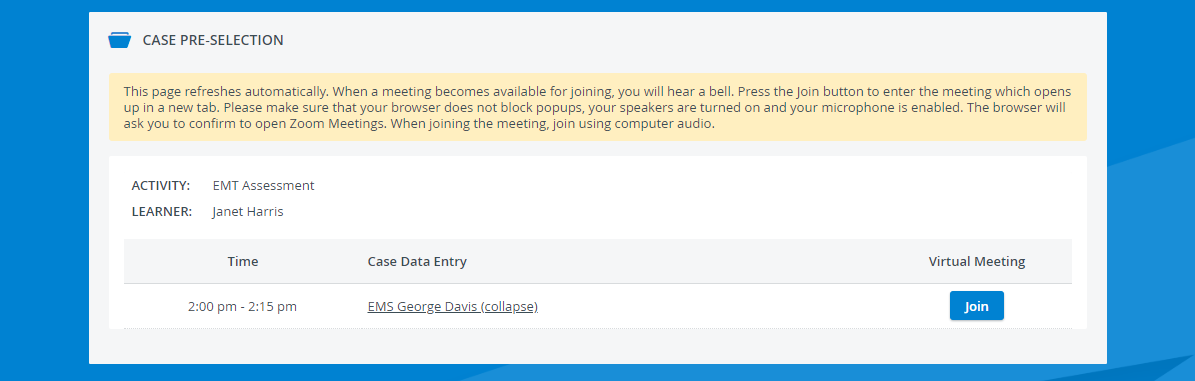
Returning to your pre-selection page, you may find that the Join button is still active on your page:
The button is still displayed because your page was not refreshed after your Zoom meeting got disconnected.
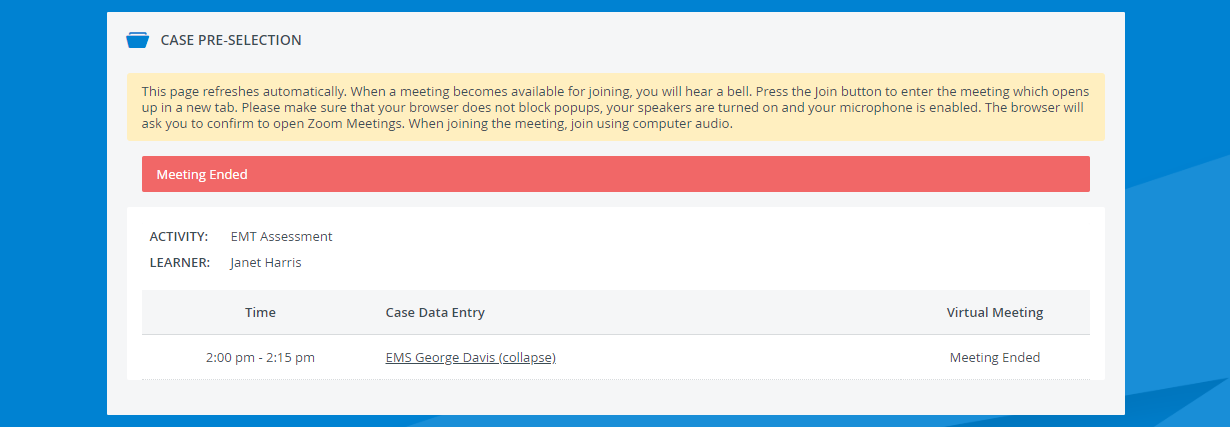
If you try to reconnect with the Join button to a Zoom meeting that has entirely ended, you will receive the following message:
Solution
Wait for your SP to relaunch your meeting. Once your SP resumes your virtual encounter, the Join button will appear automatically on your page.
4. My SP Got Disconnected, and I Became the Host
If there are any network or computer issues on your SP's side—their meeting application crashes, they get disconnected from the internet, their device suddenly shuts down, etc.—you will host the meeting if you stay in the session.
If you become the meeting host, wait for your SP to rejoin the session still in progress.
Otherwise, if you leave the meeting, the SP can no longer rejoin; they will have to launch a new meeting. A separate video file will be created each time a meeting is relaunched, which means your virtual encounter will be split into multiple recordings in the Video Review module.
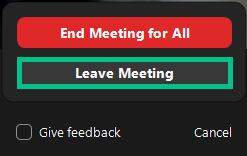
Although you will have the right to end the meeting for every participant, we recommend leaving the meeting (Leave Meeting option) at the end so that your SP can become the host again and can properly stop the virtual encounter.
Important
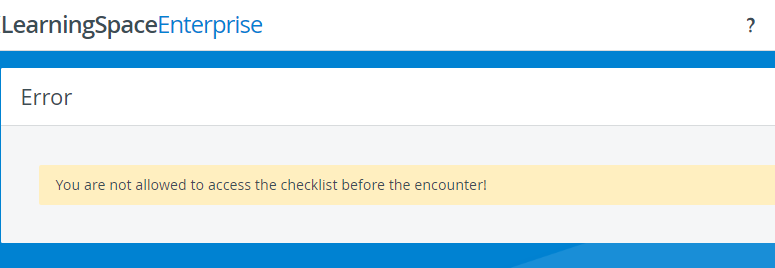
Your SP needs to end the meeting on their side to allow you access to your post-encounter checklist.
In case you are presented with the following message when trying to access your post-encounter checklist, contact your instructors for help:
5. My Case Pre-Selection Page Has Disappeared
If you are scheduled for the last virtual encounter of an event, you might not finish on time to return to your Case Pre-Selection page to fill out your post-encounter checklist.
As a general rule, your Case Pre-Selection page is available only for the duration of the virtual event, but its availability can be extended by meeting the scheduling time threshold.
The scheduling time threshold gives you extra time before and after the virtual event to review your list of virtual encounter appointments and complete the necessary checklists.
You can check the date and time of your virtual event in your notification emails, and ask your instructor whether any scheduling time threshold is set.