Which Reports to Review for Data Collected Using the Matrix Item
Typically, data collected using the Case Evaluation (such as a post-simulation survey or SET) is reviewed as group data. That is, we are not concerned with how an individual learner responded but rather how the group responded.
For this reason, Case Evaluation data is best reviewed in two reports:
The Responses Report displays:
Percentage of learners who selected a response
The point value for each response
The Case Item Analysis
Percentage of learners who selected a response
Number of learners who selected a response

Both reports display the item average and the item standard deviation.
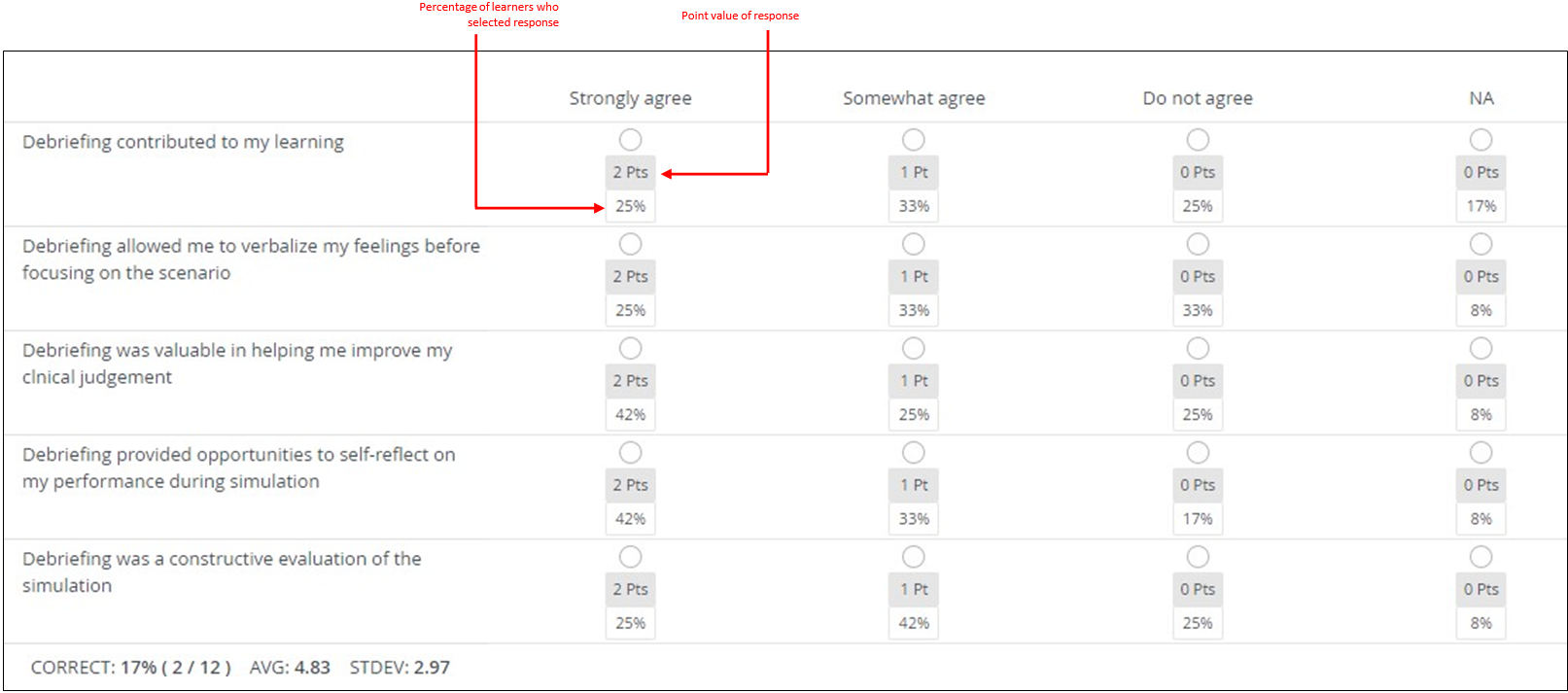
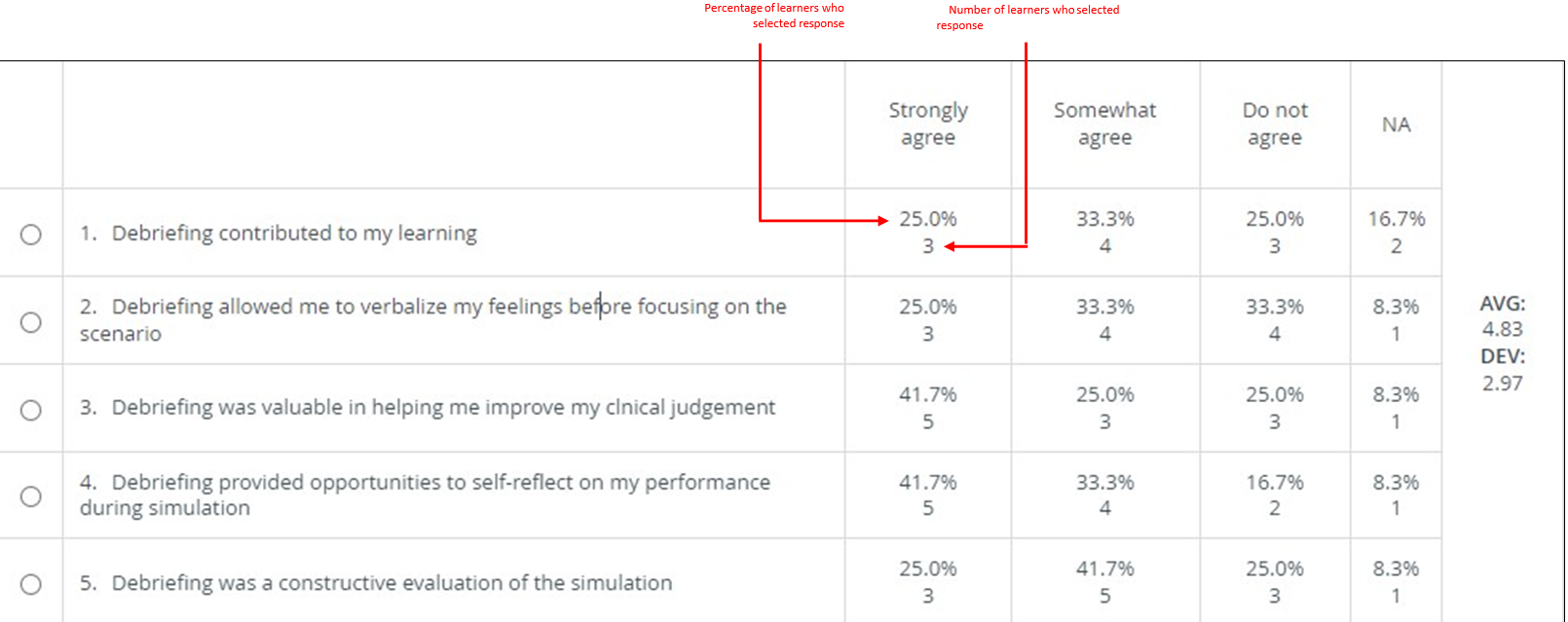
To understand the data in these reports, reviewing the Case Evaluation in the Cases module can be useful.
In this example, both reports are for the same Activity/Case.
The Case evaluation has:
One matrix item with five rows (criteria/questions)
Radio button responses (learner can choose only 1 response per row)
Four response anchors (columns),
Each response has the following point values:
Strongly agree = 2 pts
Somewhat agree = 1 pt
Do not agree = 0 pt
NA = 0 pt

Data Review: Per Response Score


Data Review: Correct Response Explanation
The Responses Report indicates how many learners selected the correct response. But what does “correct response” mean in the context of the matrix item?
LearningSpace treats an evaluation created with the matrix item as a single “question” for scoring purposes.
Therefore, “correct” indicates how many learners selected ALL the responses with the highest point value.
As you can see in the Responses Report below, the Strongly agreed response has the highest point value (2 points). Therefore, LS treats Strongly agree as the correct response.
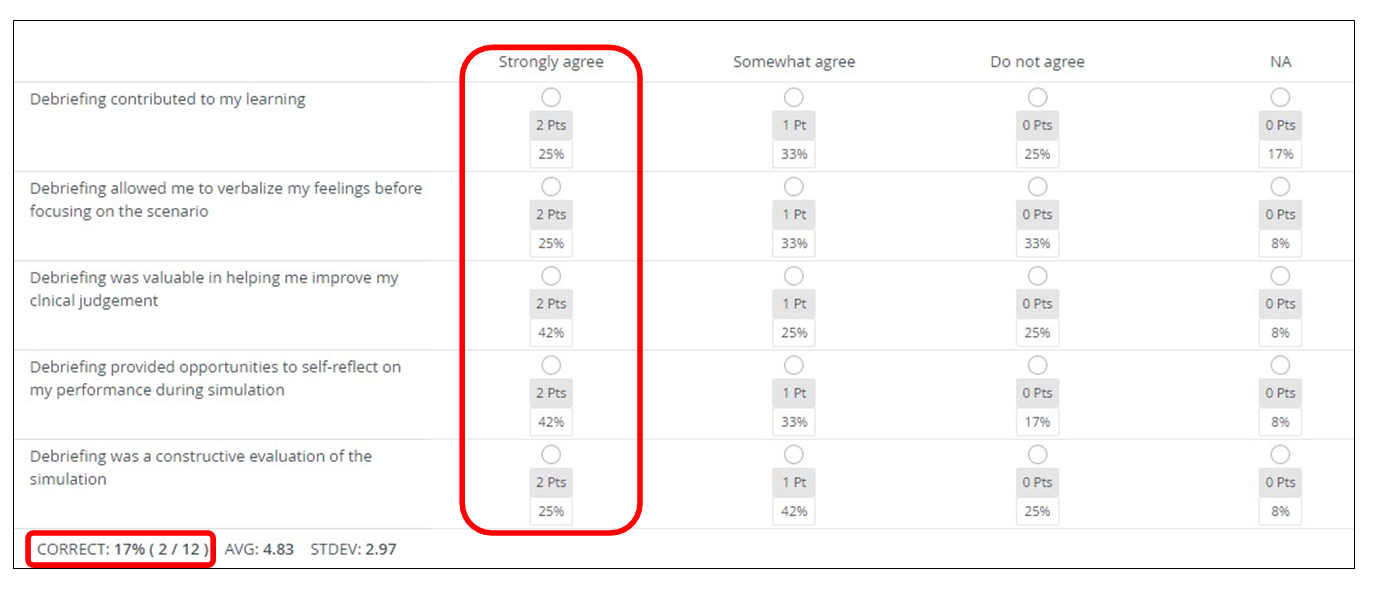
The report shows that only 2 out of 12 learners (17%) responded correctly. That means that two learners responded Strongly agree to each of the criteria.
Data Review: Average
Both reports display the average response score.
The average is the number of points divided by the number of students who responded. The average is calculated based on all the responses with a point value (not just the highest point value).
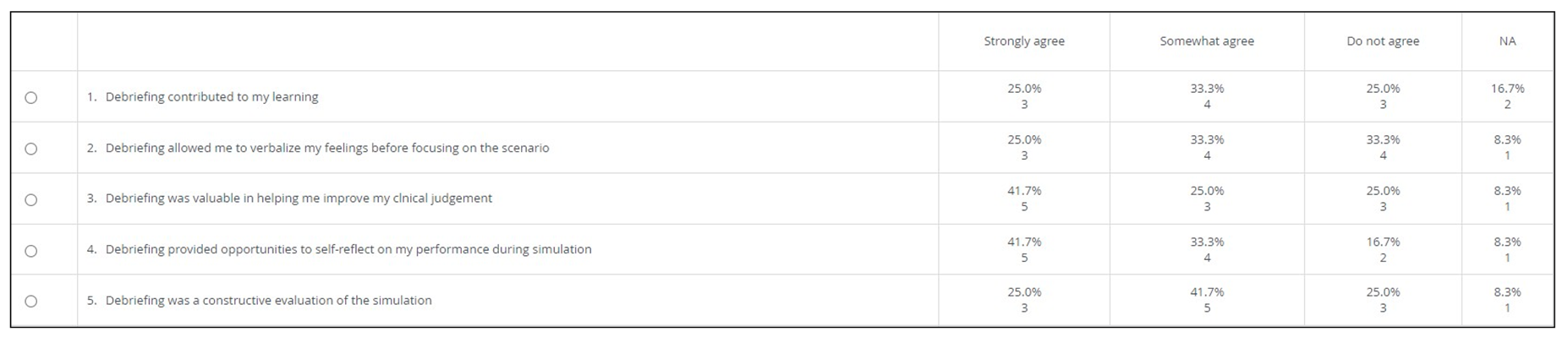
The Case Item Analysis below contains 10 responses with a point value greater than 0.

In this example:
Strongly agree = 2 points
Somewhat agree = 1 point
Do not agree = 0
NA = 0
Therefore, the Strongly Agree and Somewhat Agree scores are included when calculating the average, but the Do Not Agree and NA scores are not.
Strongly agree = 2 points; the total points for this response is
(2 pts x 3 students) + (2 pts x 3 students) + (2 pts x 5 students) + (2 ts x 5 students) + (2 pts x 3 students) = 38 points
6 + 6 + 10 + 10 + 6 = 38 points
Somewhat agree = 1 point; the total points for this response is (add the column)
(1 pt x 4 students) + (1 pt x 4 students) + (1 pt x 3 students) = (1 pt x 4 students) + (1 pt x 5 students) = 20 points
4 + 4 + 3 + 4 + 5 = 20 points
A total of 12 students have completed the SET evaluation (the number of students who submitted responses in each row = 12).
So the average (m or μ) is:

Data Review: Standard Deviation
Both reports display the standard deviation. The standard deviation is calculated.
Based on all the responses, whether they have a point value or not
Based on the number of learners who responded (submitted data)
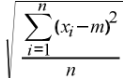
The formula for calculating the standard deviation is
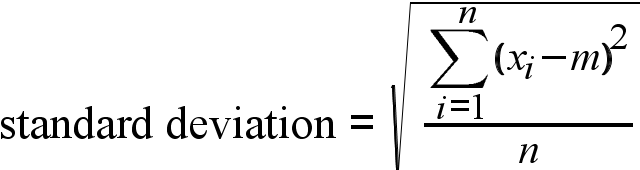
Where
x = learner score for the entire item
m = average (mean) for the entire item
n = number of learners who responded (submitted data)
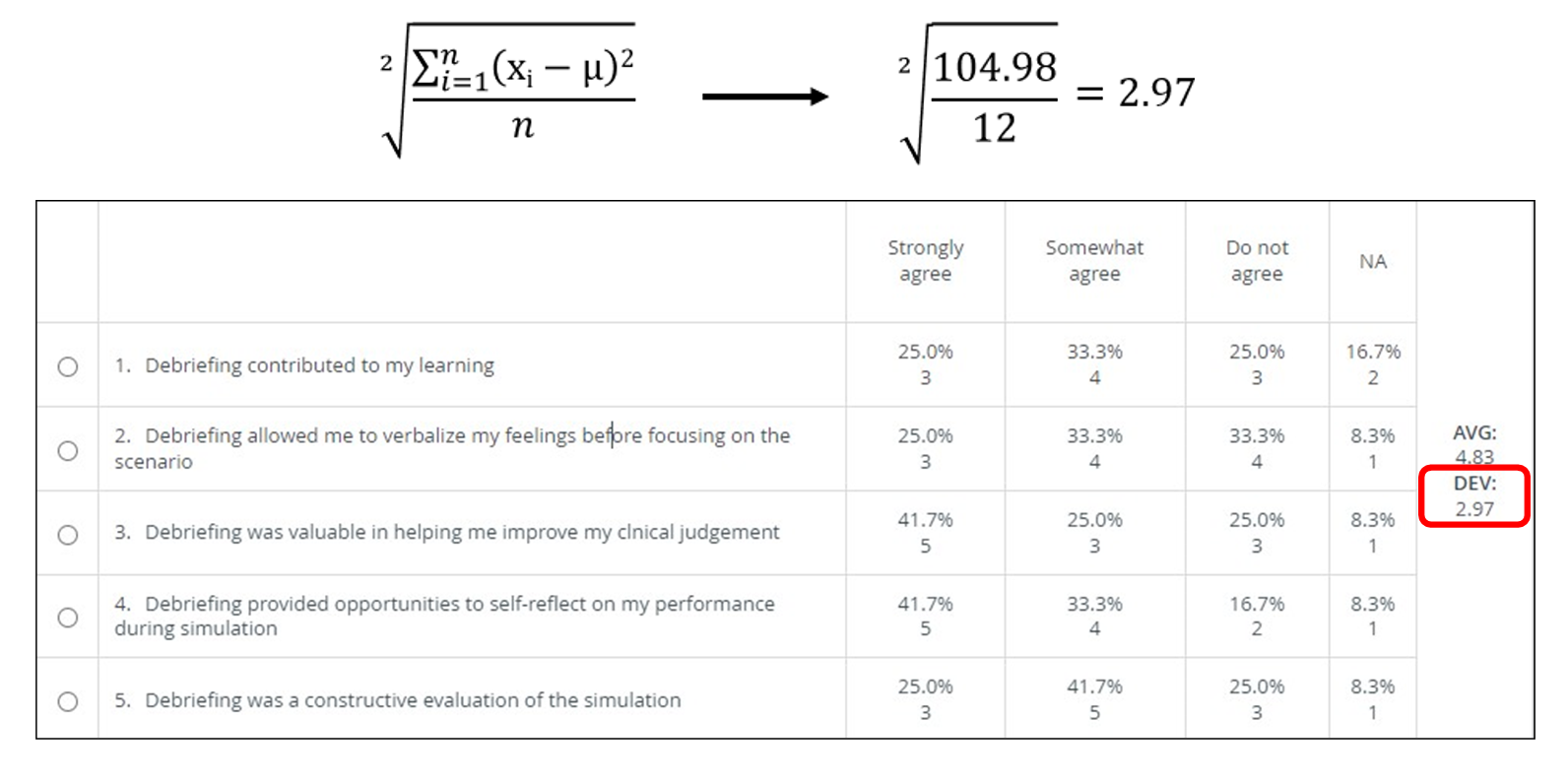
See below a worked example:
The table contains the data we need to calculate the standard deviation for this example.
m = average (mean) = 83
n = number of learners who submitted data = 12


μ = m (mean, average )
Standard Deviation in the Case Item Analysis Report
The standard deviation is based on the number of students who submitted data (completed the SET evaluation).
(See above for calculations.)
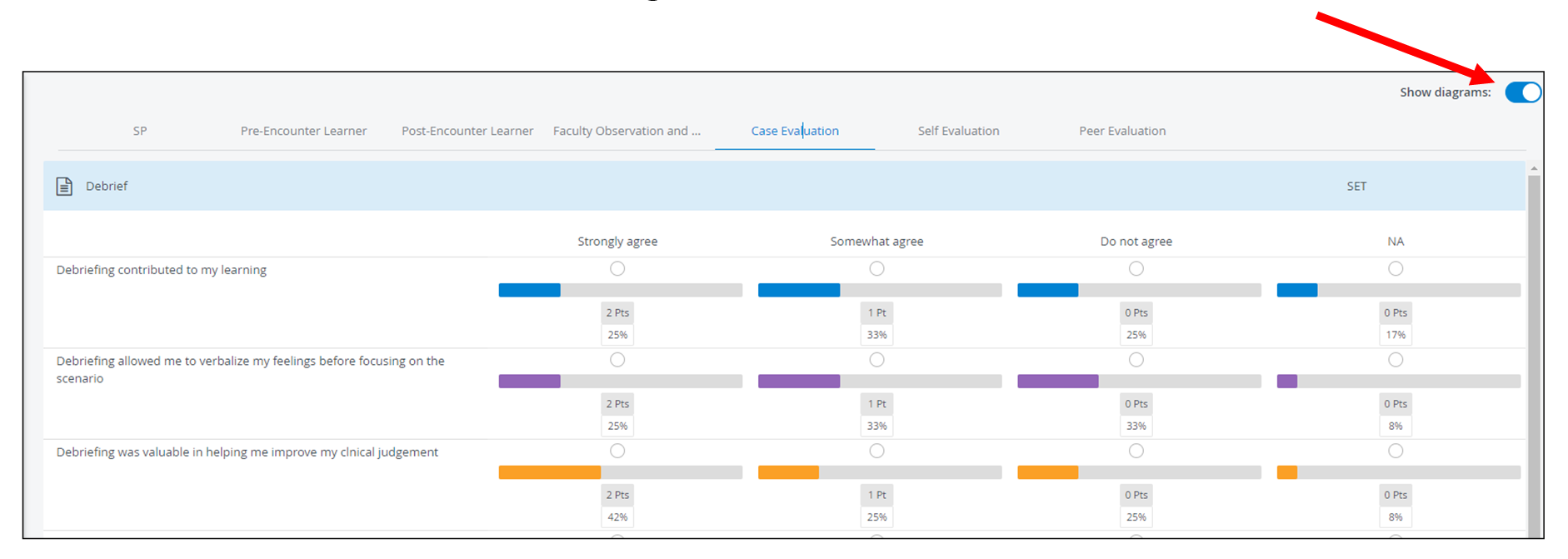
Data review: Histograms
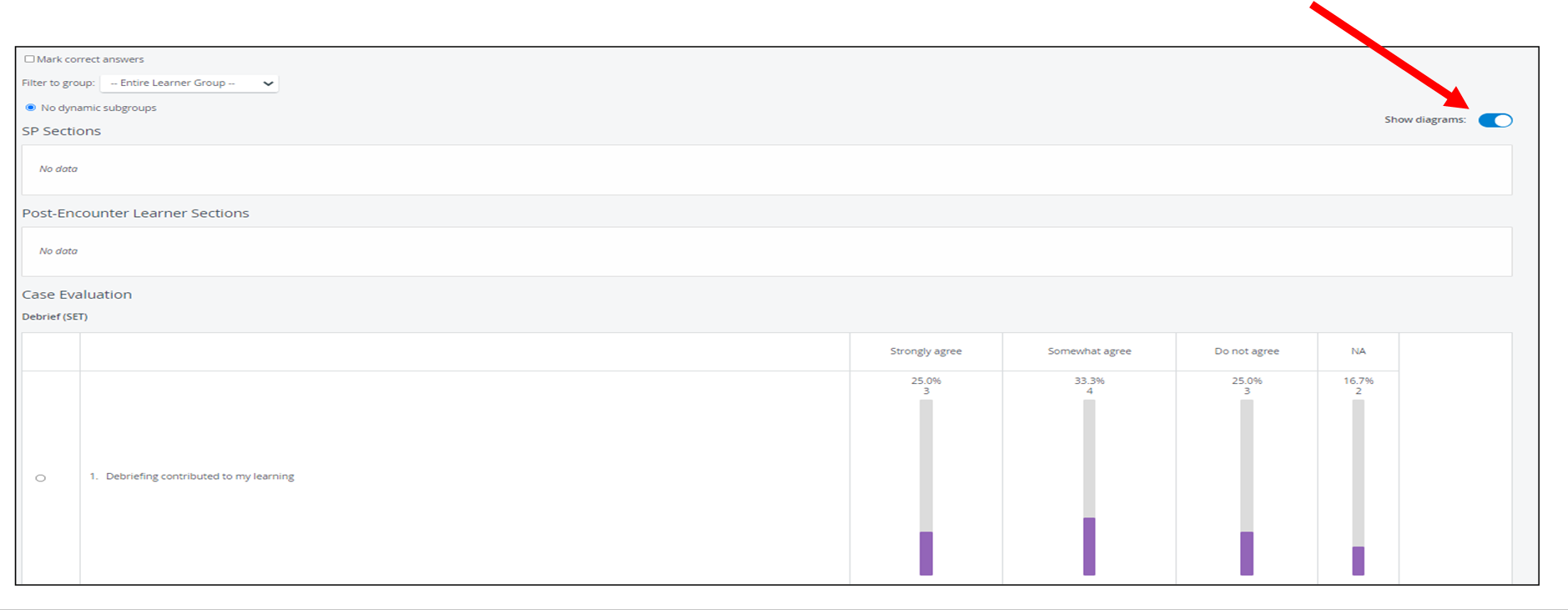
Data can be represented as histograms in the Responses Report by clicking the Show Diagrams toggle switch to the ON position.
Responses Report:
Case item analysis:
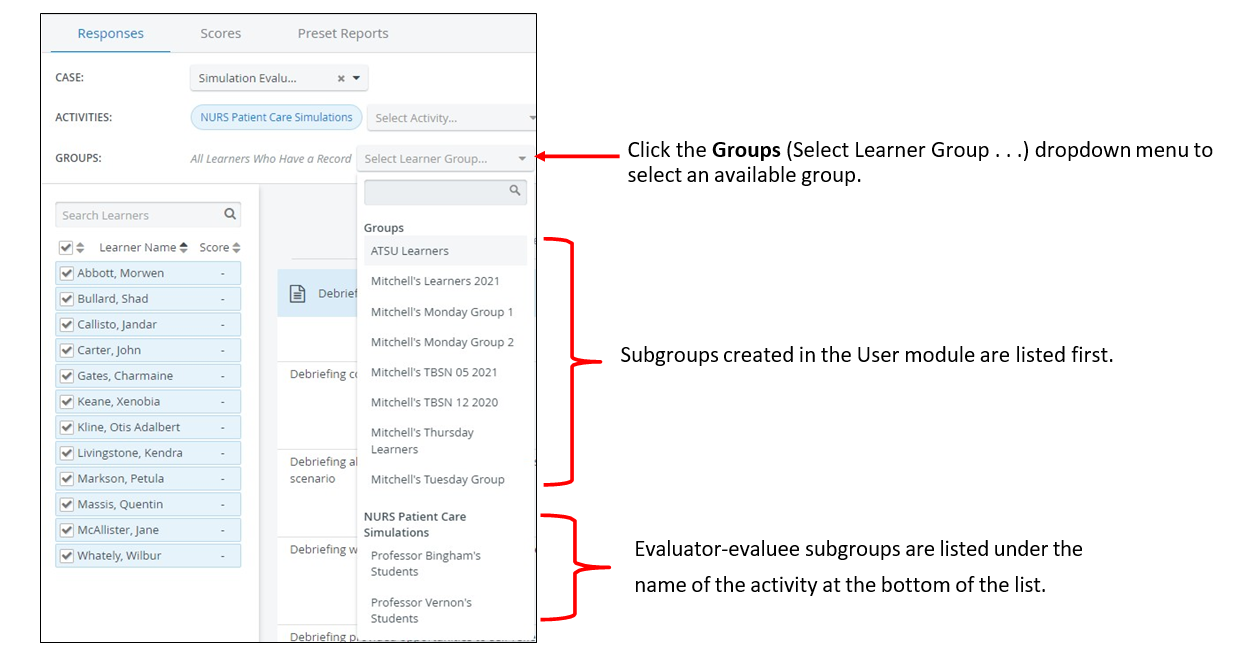
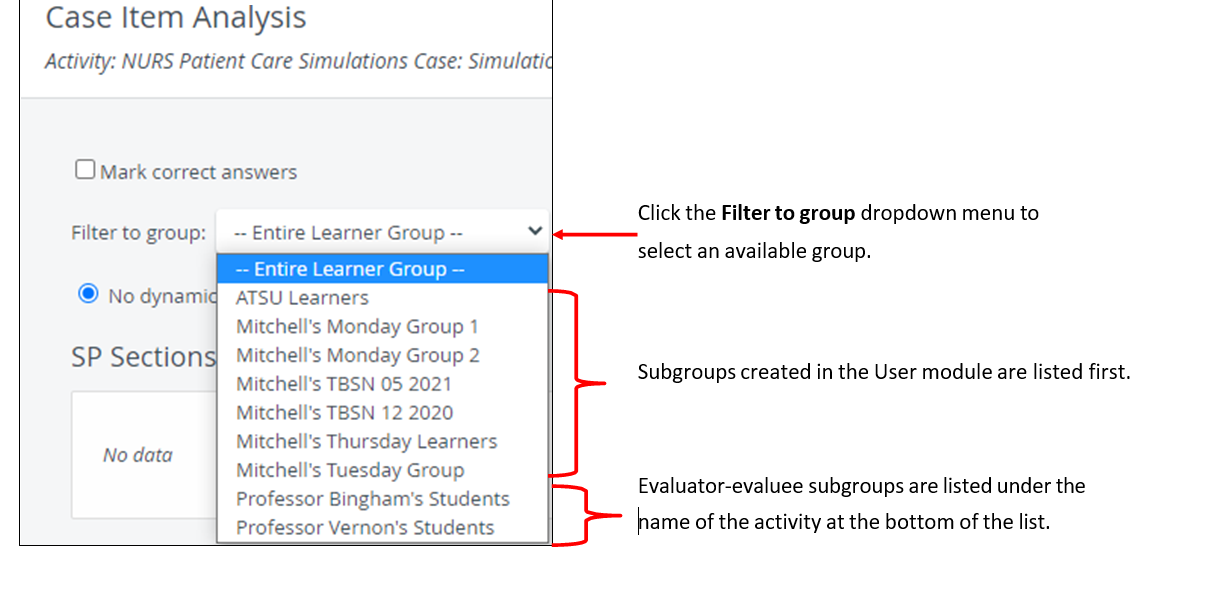
Data Review: Filter by Group
Data in both reports can be filtered by:
User subgroups (created in the User module)
Evaluator-evaluee subgroups (created on the Assignments tab of the Activity – see below)
For information about how to create evaluator-to-evaluee assignments, see: How to Create Evaluator-Evaluee Subgroup Assignments.
Group Filters for Responses Report
Group Filters for Case Item Analysis
Dynamic Subgroup: Case Item Analysis
Select Question/Criterion:
Let’s look at the same data set in the Case Item Analysis: that is, we’d like to see the data only for those learners who selected Strongly Agree for “Debriefing contributed to my learning.”
To select a dynamic subgroup in the Case Item Analysis, first select the question/criterion by clicking the radio button on the left of the item.
Select Response:
When you select the item/criterion, a dropdown menu is added to the top of the report, allowing you to select the response for the learners whose data set you want to review.
Review Data for Dynamic Subgroup:
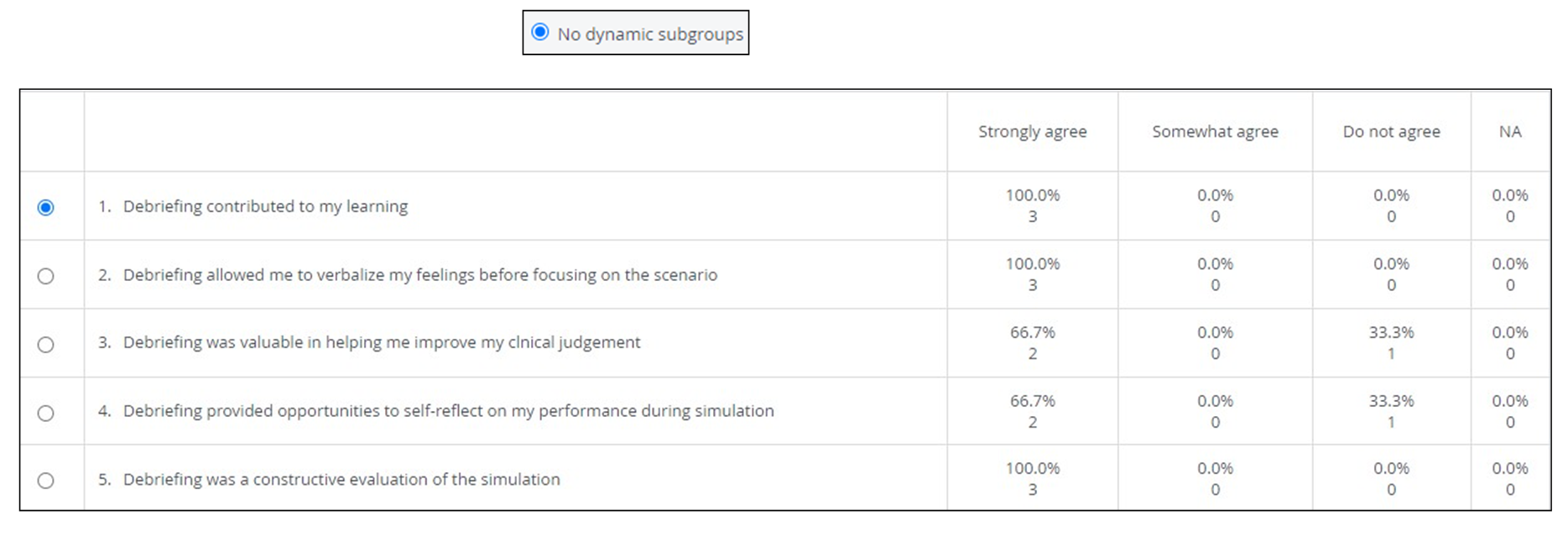
The report updates to display the data only for those learners who selected the Strongly agree response for “Debriefing contributed to my learning".
Select No dynamic subgroups at the report's top to return to the default data set.
For further information, visit our Reports Module and Reports - How to pages and view the Reports Module Training Videos.
Select Question/Criterion:
Let’s look at the same data set in the Case Item Analysis: that is, we’d like to see the data only for those learners who selected Strongly agree for “Debriefing contributed to my learning.”
To select a dynamic subgroup in the Case Item Analysis, first select the question/criterion by clicking the radio button on the left.
Select Response:
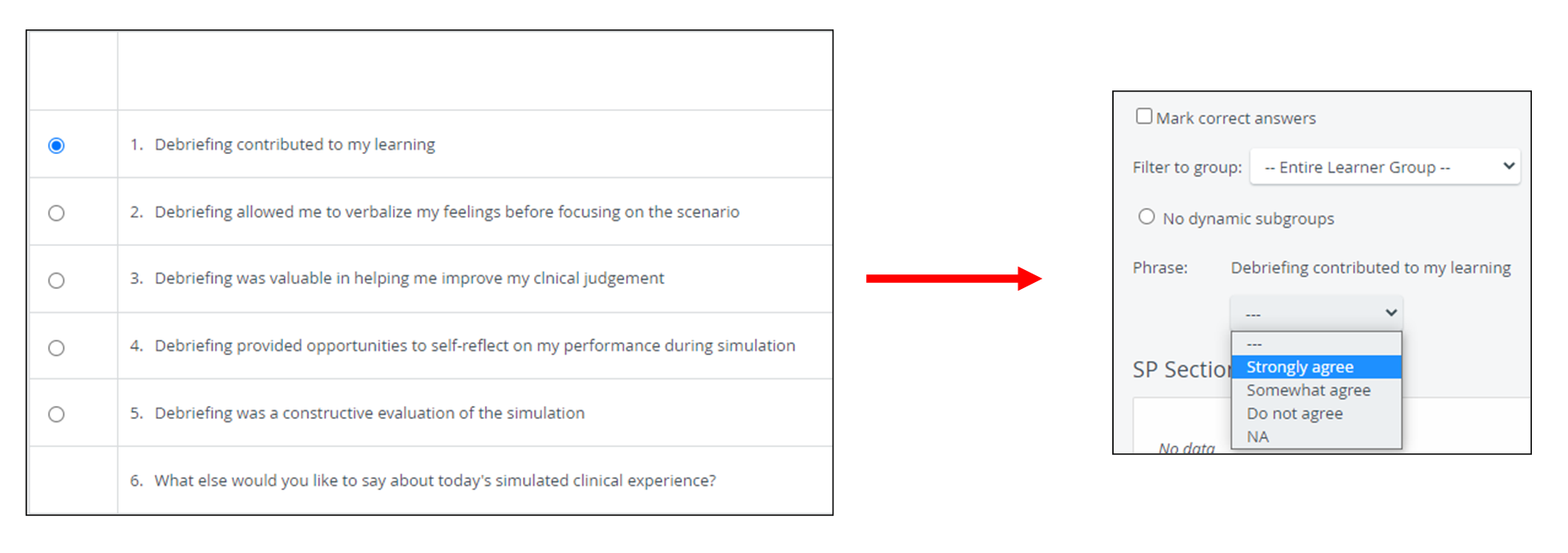
Review Data for Dynamic Subgroup:
The report updates to display the data only for those learners who selected the Strongly agree response for “Debriefing contributed to my learning".
Select No dynamic subgroups at the report's top to return to the default data set.
For further information, visit our Reports Module and Reports - How to pages and view the Reports Module Training Videos.