Virtual Room Configuration (with OAuth)
By creating virtual rooms in LearningSpace, you can organize virtual events:
Assigned SPs will be allowed to start hosting the scenario they are portraying;
Scheduled learners can access the virtual scenario according to their timeslot assignments.
Zoom Scheduled Meetings
When adding a personal Zoom user account as a virtual room to LearningSpace and assigning that room to a virtual event, ensure that no one can host meetings straight from the Zoom user account while the virtual event is in progress.
Virtual events launched by the SP could be unexpectedly cut off when another user logs into the same Zoom account on a different device and launches a meeting from Zoom's interface. Generally, the user who starts the latest meeting from the Zoom interface can end the other ongoing session.
If trying to launch the most recent meeting session, SPs could also be presented with the following alert when launching their virtual encounter in LearningSpace:

To prevent LearningSpace virtual sessions from ending abruptly, make sure no one is logged in to or using the Zoom user account assigned to a virtual event in LearningSpace while the event is running.
Check the dates of scheduled virtual events in the Advanced Scheduling or the Calendar module.
Create virtual rooms in LearningSpace once you have successfully:
prepared your Zoom owner account,
Build and set up an OAuth application within your owner account,
Connected your OAuth application with LearningSpace with the obtained Client ID and secret.
Set Up Virtual Rooms & Authorize LearningSpace to Access the Appointed Zoom User Accounts
Click Add New Room. Then, enter the new room's name and description, which are both required to continue.
Check the new Virtual Room checkbox included under the required fields.

Click Add.
Instead of the usual setting options, only a few fields will appear:New Registration email field: Enter the email address of your virtual room here; it is the address of one of the licensed Zoom user accounts organized under the owner/primary account.
New Status fields: Shows the current status of the room.
The status of a room is "Not Verified" as long as user activation is pending: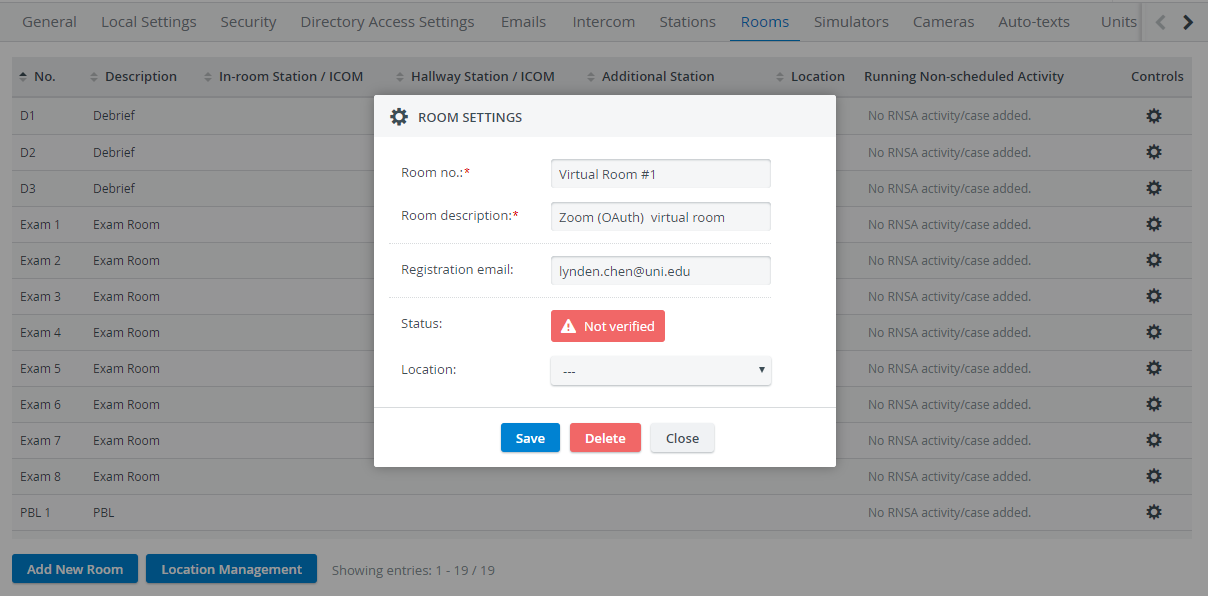
A room will be "Verified" once LearningSpace is authorized to access the Zoom user account associated with the email address provided as the registration email:
The Virtual Room Support module must also be enabled and configured correctly.
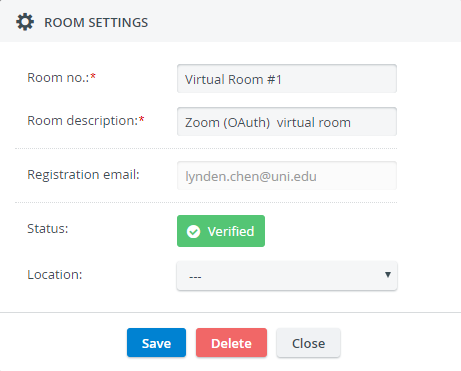
The Location drop-down will also appear as an optional setting if you would like to categorize your virtual room, e.g., by campuses.
Provide your new virtual room's Registration email address (of a licensed Zoom user account).
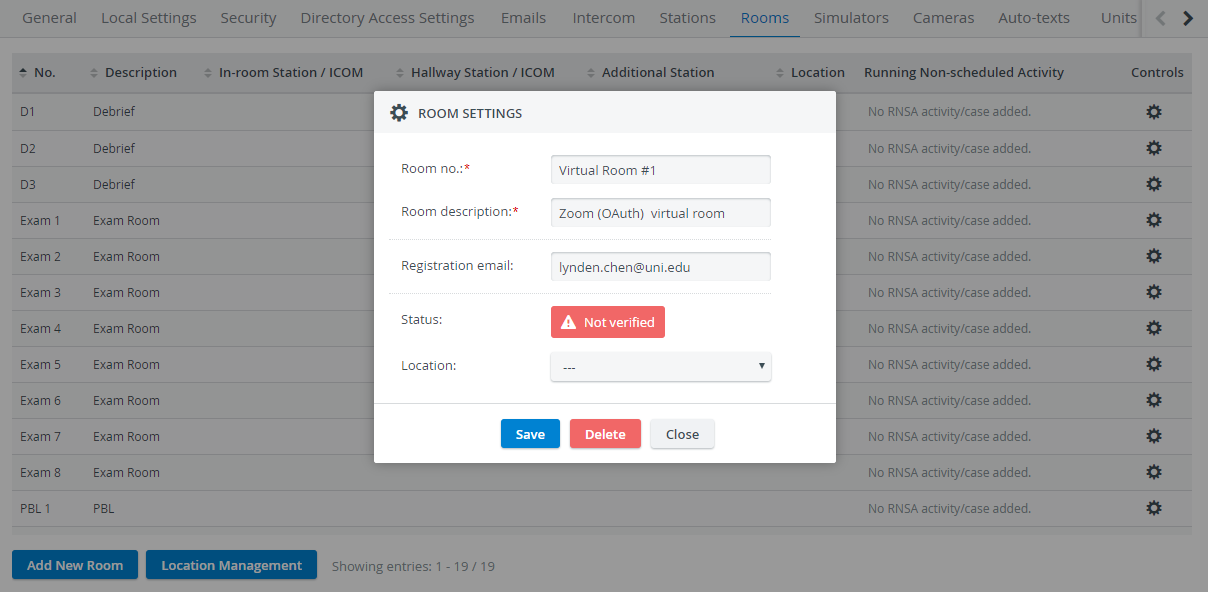
Click Save.
You will be presented with a link where you can authorize LearningSpace to have access to this particular Zoom user account:
Click Copy to Clipboard to copy the authorization link.
Open an incognito window and paste the link.
You will be redirected to the Zoom login page.
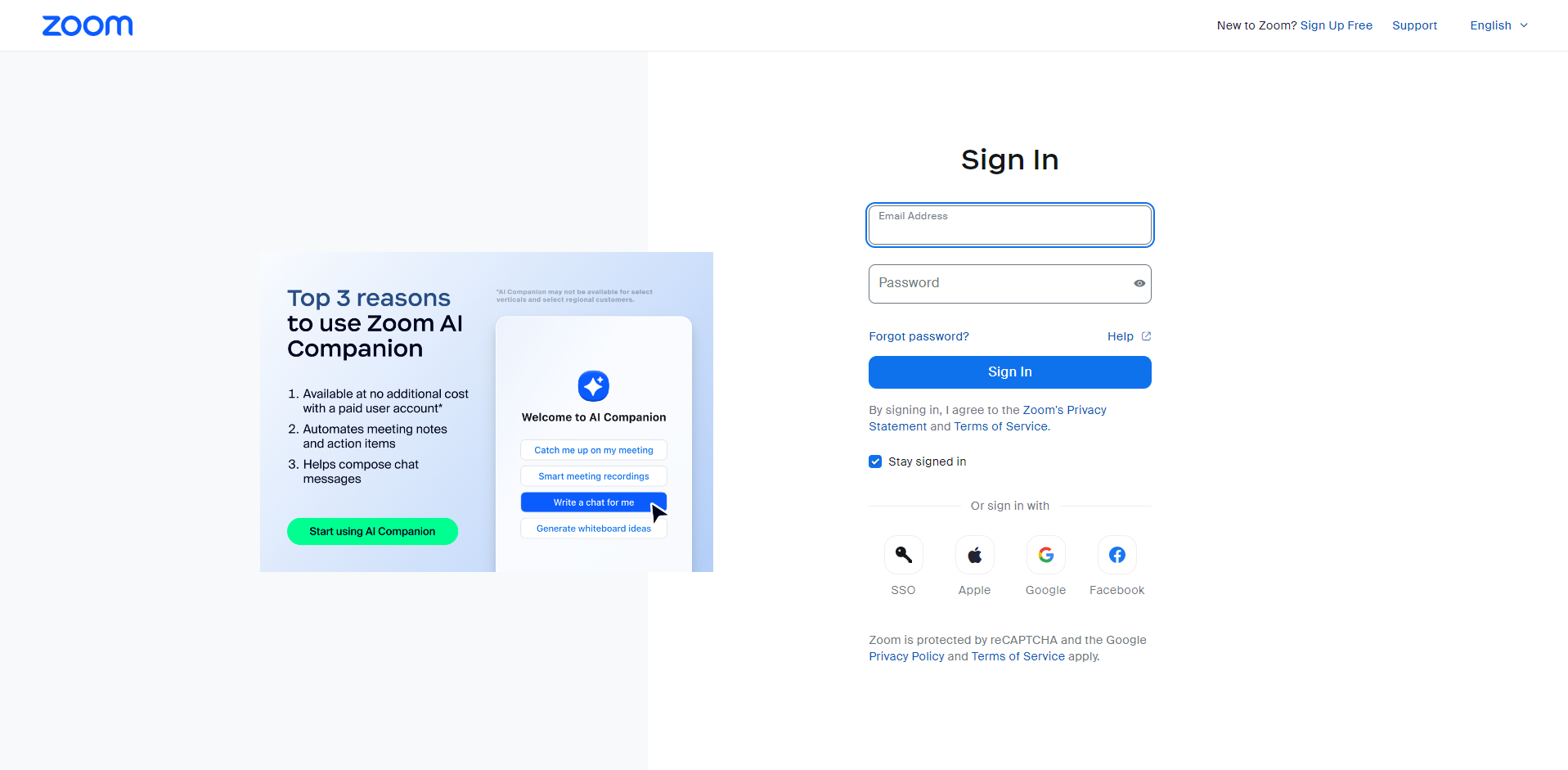
Make sure to log in with the same email address you provided for the virtual room.
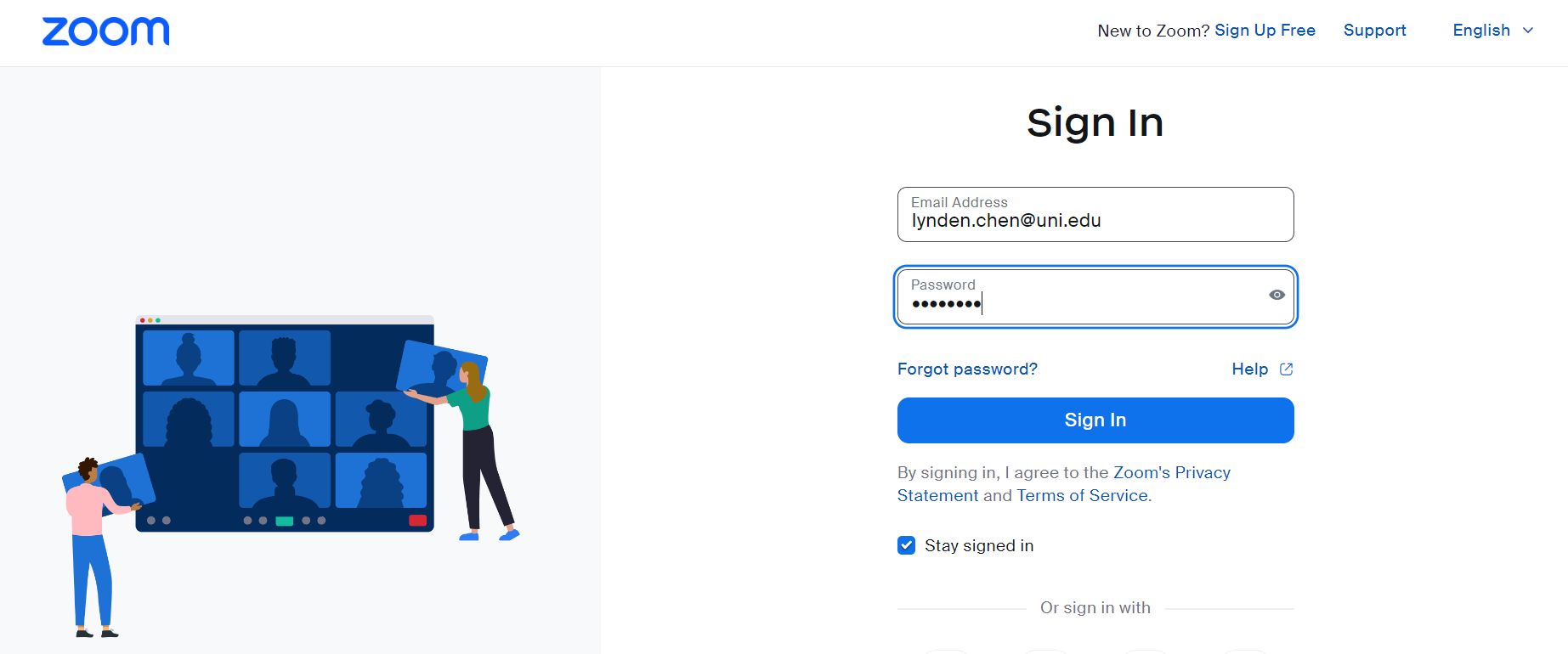
Upon successful login, you will land on the user consent page in Zoom. Here, you are informed about the permissions that LearningSpace will have upon authorization:
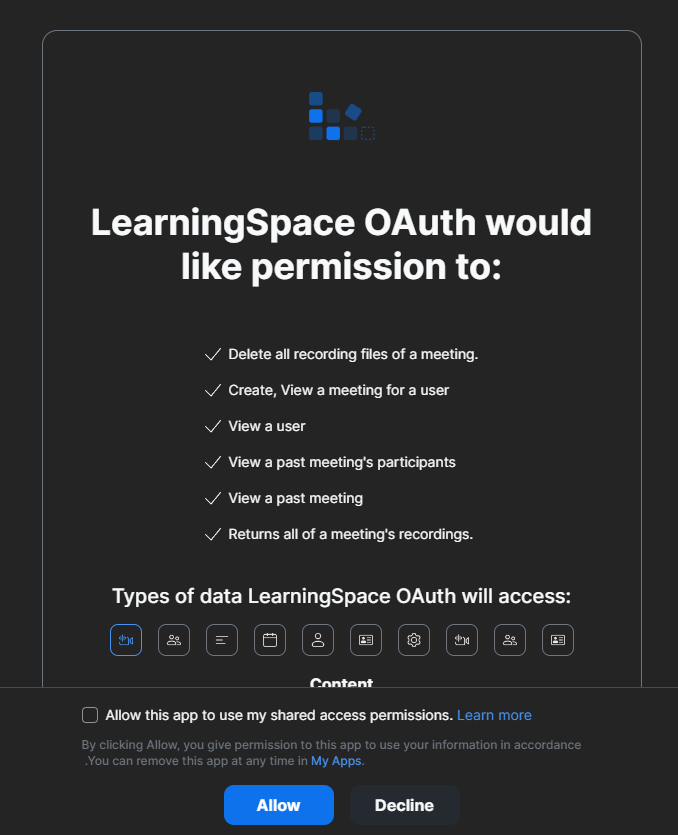
Click Allow to enable LearningSpace access to the current Zoom user account with the specified scope of permissions.
You don't need to check the “Allow this app to use my shared access permissions” checkbox before clicking on Allow.
After authorization, you will be redirected to your institution's LearningSpace platform.
The system will inform you about the successful authorization:
Close the incognito browser.
Always close the incognito window once you are finished with the authorization process.
Return to the Rooms tab and open your virtual room with the Controls cogwheel.
You will see that your virtual room is now verified:
Troubleshooting: Error Message "Invalid redirect url (4,700)"
If you are presented with the following error message after the login page:

Invalid redirect (4700)
...then the URL of your LearningSpace system has not been whitelisted while building your OAuth application.
To resolve this issue:
1. Log in to your Zoom owner account.
2. Go to App Marketplace. (https://marketplace.zoom.us/)
Click on Advanced in the menu on the left.
3. On the App Marketplace page, select Manage.

4. Select your OAuth application:

5. Under Basic Information, scroll a bit down to the OAuth Information box to find the OAuth Allow Lists field:


6. Type your LearningSpace system's URL into the Add Allow List field.
The page automatically saves every change you make (look for the green ✔️ Saved sign next to the application name).
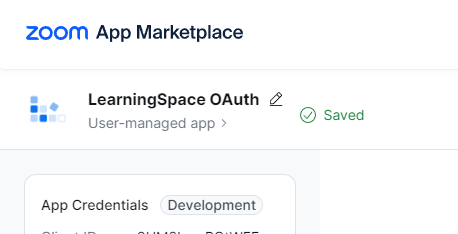
Make sure to whitelist the URL of your LearningSpace system to successfully configure virtual rooms.

If you do not include your system's URL in this field, you will not reach the consent page where you can verify the scope of user data that LearningSpace can access in the chosen user account.Open an incognito window with the URL provided by the virtual room in LearningSpace:

Make sure to log in with the same email address that you have provided for the virtual room.
Upon successful login, you will land on the user consent page in Zoom. Here, you are informed about the permissions that LearningSpace will have upon authorization:
Click Allow to enable LearningSpace access to the current Zoom user account with the specified scope of permissions.
No need to check the “Allow this app to use my shared access permissions” checkbox before clicking on Allow.
After authorization, you will be redirected to your institution's LearningSpace platform.
The system will inform you about the successful authorization:Close the incognito browser.
Always close the incognito window once you are finished with the authorization process.
Go back to the Rooms tab, and open your virtual room with the Controls cogwheel.
You will see that your virtual room is now verified:
Once these settings are complete, your virtual room can be added to events organized with Advanced Scheduling.
Important
Virtual Rooms are only available for events created with Advanced Scheduling.
Set up an event, schedule your learners, and assign SPs to it as you would normally do, but please keep in mind that the virtual room you add to the event will not function as an authorized workstation. You also need to follow some further setting recommendations to conduct your OSCE exam smoothly.
Please visit this page to learn about the recommended virtual event settings.
Find step-by-step guides on our Distance Learning with LearningSpace pages.