Virtual Encounter Guide for SPs
For Users with SP Privilege
This guide explains to Standardized Patients—who have “SP” privilege in LearningSpace Enterprise—how to host virtual OSCE encounters.
Zoom has enabled the Waiting Room feature by default in its May 2020 update. If you do not want to admit each learner when they join your virtual meeting, contact your system administrator to disable waiting rooms in Zoom.
Open your Google Chrome Browser.
In the address bar, enter the LearningSpace address provided by your administrator.
Enter your email address and password in the corresponding fields and click Login:

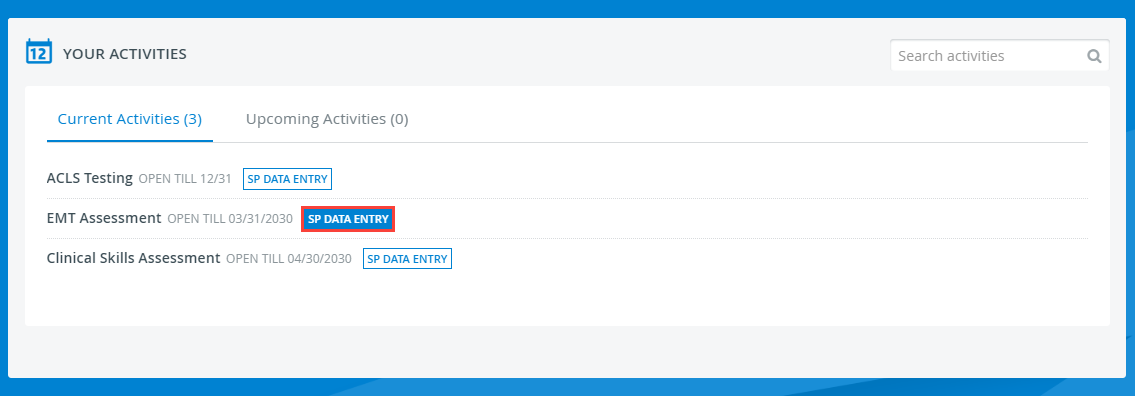
Once you are logged into LearningSpace, select SP Data Entry next to the activity you are currently working on:
Once SP Data Entry is selected, you will now be able to see the Learner Pre-Selection page, which displays the following:
the Station name, the title of the Activity, and the Case
the Learner name(s)
The door note of the Case as entered into the 'Detailed Case description' field of the Case (inside Edit Case)
whether or not a recording is in progress

Click Start to begin the virtual encounter at the specified time and with the required learner.
On your pre-selection page, you can start any scheduled virtual encounter at any time—you are not restricted to the exact appointments of the virtual encounters.
💡 If you deviate from the schedule, learners can still join the virtual encounter they are assigned to once you have launched the meeting—learners cannot join someone else's meeting "by accident".
Important: Computers configured as LearningSpace In-Room/SP (or Hallway) stations cannot display the Zoom learner preselection/prefill workflow. For Zoom-integrated events, either:
Use a device that is not configured as a station, or
Temporarily remove the station configuration, or
Switch the Wi-Fi network to switch the laptop off the static IP address it is assigned under stations.
See also Recommended Virtual Event Settings
Multiple SP Assignment
Event settings allow multiple SP assignments to the same virtual room.
Every assigned SP will display the same Learner Pre-Selection page; everyone can potentially control meetings.
However, virtual rooms allow only one meeting at a time. Only one SP can initiate a meeting; others cannot start another simultaneously.
Once one of the SPs starts a virtual meeting with a learner, all other learner appointments will be disabled:

Same Learner Pre-Selection Page for Every Assigned SP
Every other SP assigned to the same virtual room as you can join your ongoing meeting, but can also stop it since they have the same Learner Pre-Selection page displayed.
When you are in charge of a virtual room, ensure your SP team knows you are the only one who controls Start and Stop.
Pressing the Start button will redirect you to Zoom's Launch Meeting tab inside your browser:
Pop-Up Blocker
Disable the pop-up blocker in your browser.
When starting a Zoom meeting from LearningSpace, you will always be logged out of your personal Zoom account in your browser, even if you are logged into the account the virtual event is currently using.
At the same time, you will stay logged into your personal account in the Zoom desktop application.
Once you are on the new tab, click Open Zoom Meeting to start your virtual encounter.
When your virtual encounter has ended:
Click "End Meeting" in the lower-right corner of your Zoom pop-up.
Important
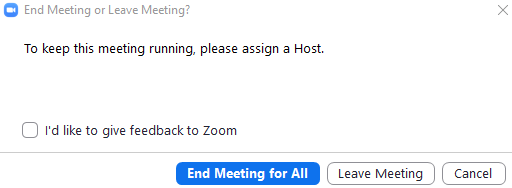
You will be presented with a dialogue with two exit options.
Ensure that you select "End meeting for All." If you select "Leave Meeting," the virtual encounter will continue because Zoom will make the other participant, the learner, the meeting host upon your departure. This will keep the recording running until the learner leaves, which might cause problems with video processing or launching the next virtual meeting.
Click Stop on your Learner Pre-Selection page in LearningSpace to launch video processing:
Has Your Pre-Selection Page Disappeared?
Refer to this troubleshooting guide if you cannot access your Learner Pre-Selection page after your last virtual encounter.
Running Status
"Running" is displayed next to your virtual encounter until you hit Stop in LearningSpace.
This status indicates that, from LearningSpace’s perspective, video processing has not yet started.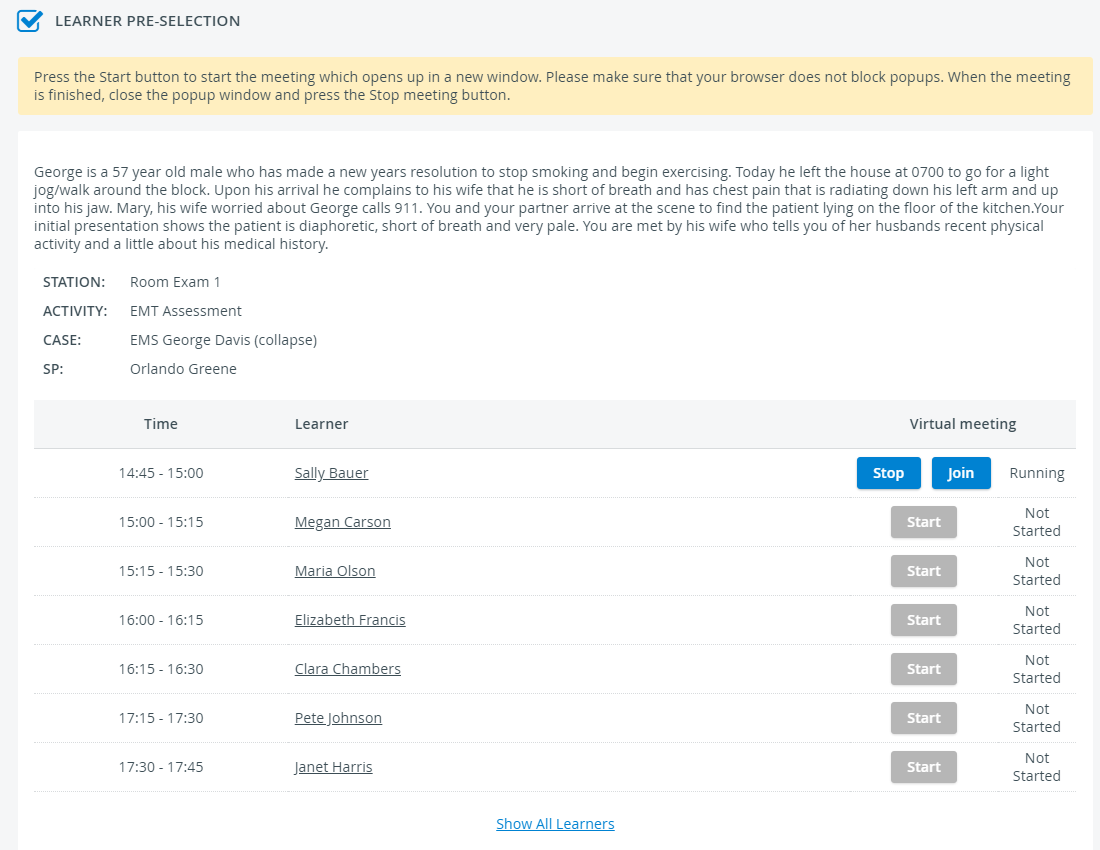
Important: Ending Meetings Properly
As the host, you should end the meeting with the End Meeting for All option in Zoom and the Stop option in LearningSpace to trigger video processing.
If you do not click Stop on your pre-selection page, the virtual encounter will not end properly: LearningSpace will not check to record it in Zoom's cloud, and video processing will not start.
If a virtual encounter is not properly ended, learners may be denied access to their post-encounter checklist if relevant settings are in place. Learn how to resolve the problem in the troubleshooting guide.
Cloud recordings generally take about 2 times the recorded duration to process, but may occasionally take up to 24 hours due to higher processing loads. For example, an hour-long meeting with only 30 minutes recorded would typically take 30-60 minutes to process.
Saving Chat Conversations
Chat conversations are not saved to LearningSpace with virtual encounter recordings.
Have your instructor or system administrator set up automatic chat history saving to Zoom's cloud or your device.
Chat saving solutions with the OAuth 2.0 authorization method.
Save chat conversations manually:
At the end of each virtual encounter, open the menu on the right on the chat panel: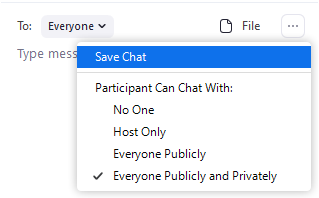
Select Save Chat.
Every message you receive—whether sent directly to you or to everyone in the meeting—will be saved to your device with a timestamp.Jump to the folder in which your chat conversation was placed: Zoom includes a Show in Folder link when confirming that the chat was saved.

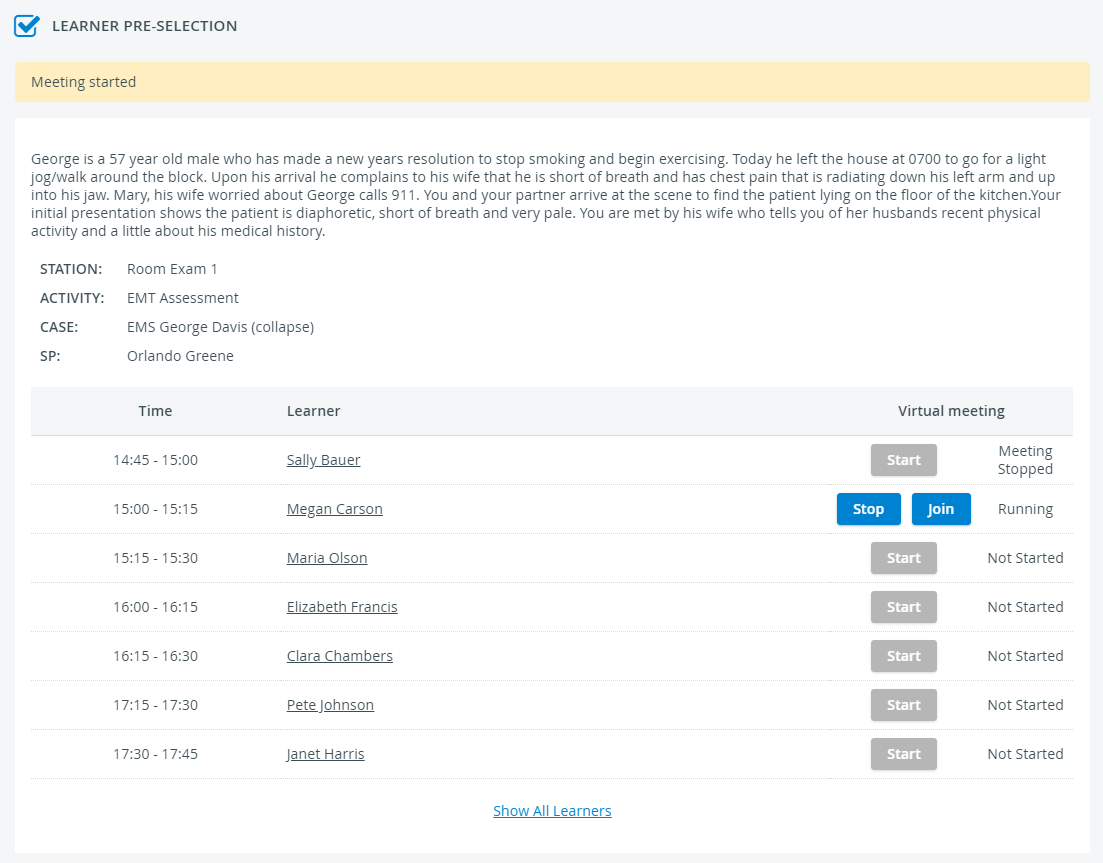
You can check on your Learner Pre-Selection page that the meeting has stopped:
Data Entry
After the virtual encounter, click on the learner's name to start data entry.
Unlike learners, your name will not be assigned to the virtual meeting recording in the Video Review module.
Repeat steps 5 to 9 until you have no virtual encounters to start on your Learner Pre-Selection page.