Video Review Screen - Single Room View
Single Room View
When entering the Room View of the desired recording, the recorded video is automatically played, displaying all the camera feeds and waveforms that were active during the recording.
If your layout differs in the Single Room View, you likely have the Legacy version. For the user guide of Legacy pages, please go here.
The timeline is located directly below the video, with the Pause button on the left and the elapsed time and total length displayed next to it.
The desired part of the recording can be played by sliding (clicking and holding) the progress indicator forward or backward.

The Pause and Play buttons toggle back and forth, with only one visible at a time, depending on the video's status.


Annotations
Click any speech bubble icon over the timeline to move the progress indicator to that specific point.

Vertical Double Layout
The space available in the Single Room View panels can be maximized, and the panels on the right side (or additional windows) can be displayed in a larger size with the help of the Vertical Double Layout feature.


Video Playback Speed


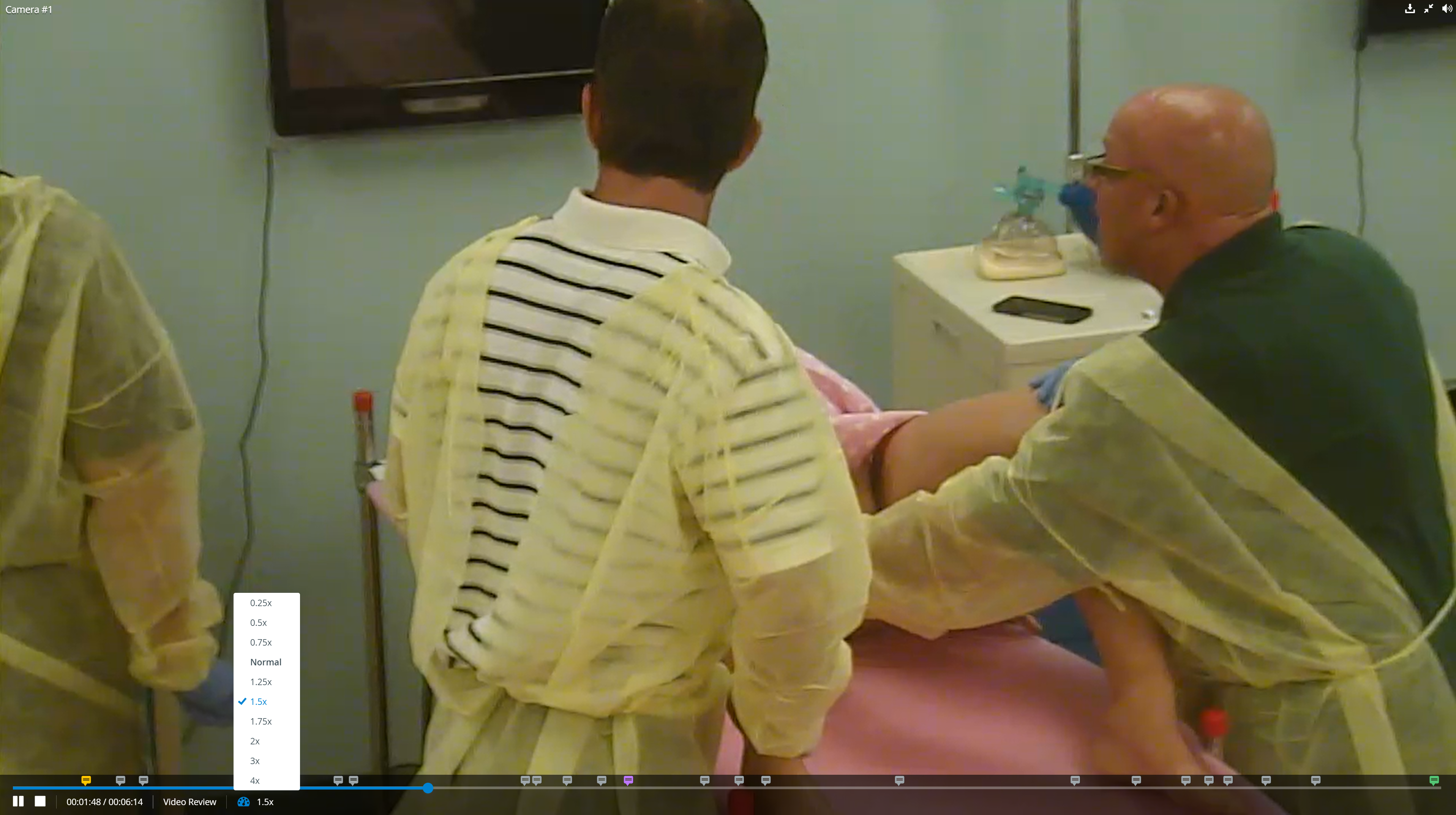
Users can change the playback speed to the following values:
0.25x, 0.5x, 0.75x, Normal, 1.25x, 1.5x, 1.75x, 2x, 3x, 4x

Video Playback Speed
The video playback speed feature is also available in full-screen mode.
For further information, visit our Video review - How to pages.