User Account Settings
For all users
All users can change their email address, password, and language*.
Change Settings
To change your settings:
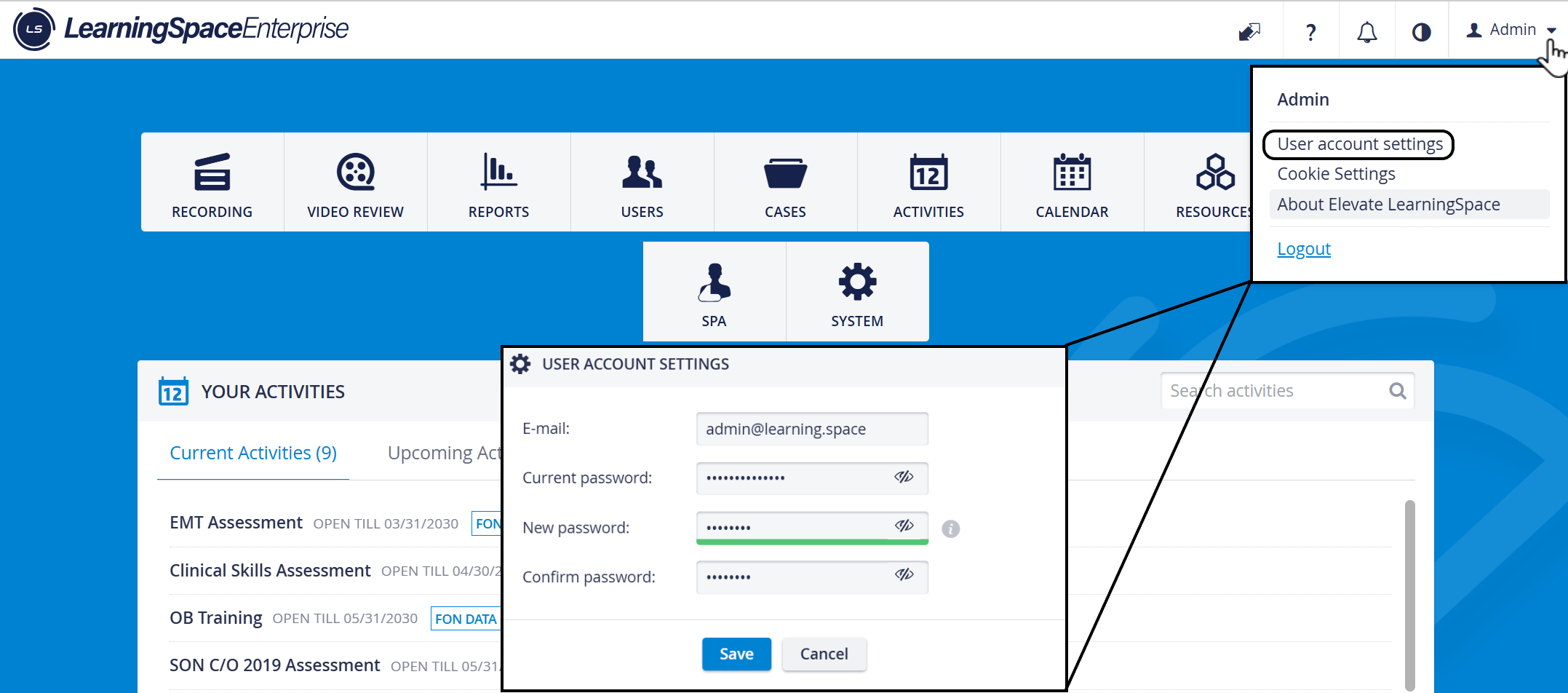
Click your name in the right-hand corner
A drop-down menu opens
Select User account settings
The User Account Settings pop-up will open.
To change your email address:
Edit your email address.
Enter your current password.
Click Save
To change your password:
Enter your current password.
Enter your new password.
Enter the same password again (Confirm password).
Hit Save.
IMPORTANT: A strong password is required. (See requirements below.)

User Account Settings pop-up with password visibility option
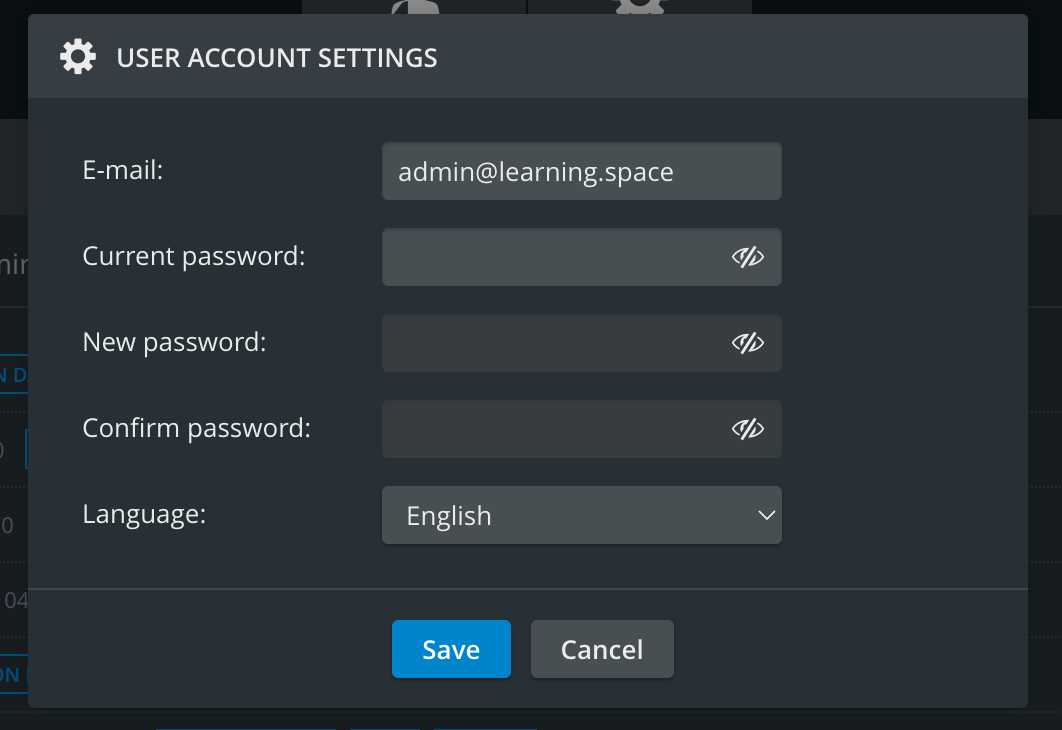
User Account Settings - Dark mode
Error message appears when:
One or more inputs are empty
The two passwords do not match
The password does not meet the strong password requirements
Strong Password
Your new password has to be at least 8-characters long and needs to contain at least one of each of the following character types:
Upper case letters (A-Z)
Lowercase letters (a-z)
Digits (0-9)
Special characters (e.g. ! @ # $ % & * etc.)
Language Settings
To change your LearningSpace system language:
Open the Language drop-down.
Select your preferred language.
Click Save.
Language settings are available only if 'Multiple languages support' is enabled by your institution's Administrator under the System Manager's Local Settings.

You can leave User account settings unchanged at any time using Cancel.
Cookie Settings
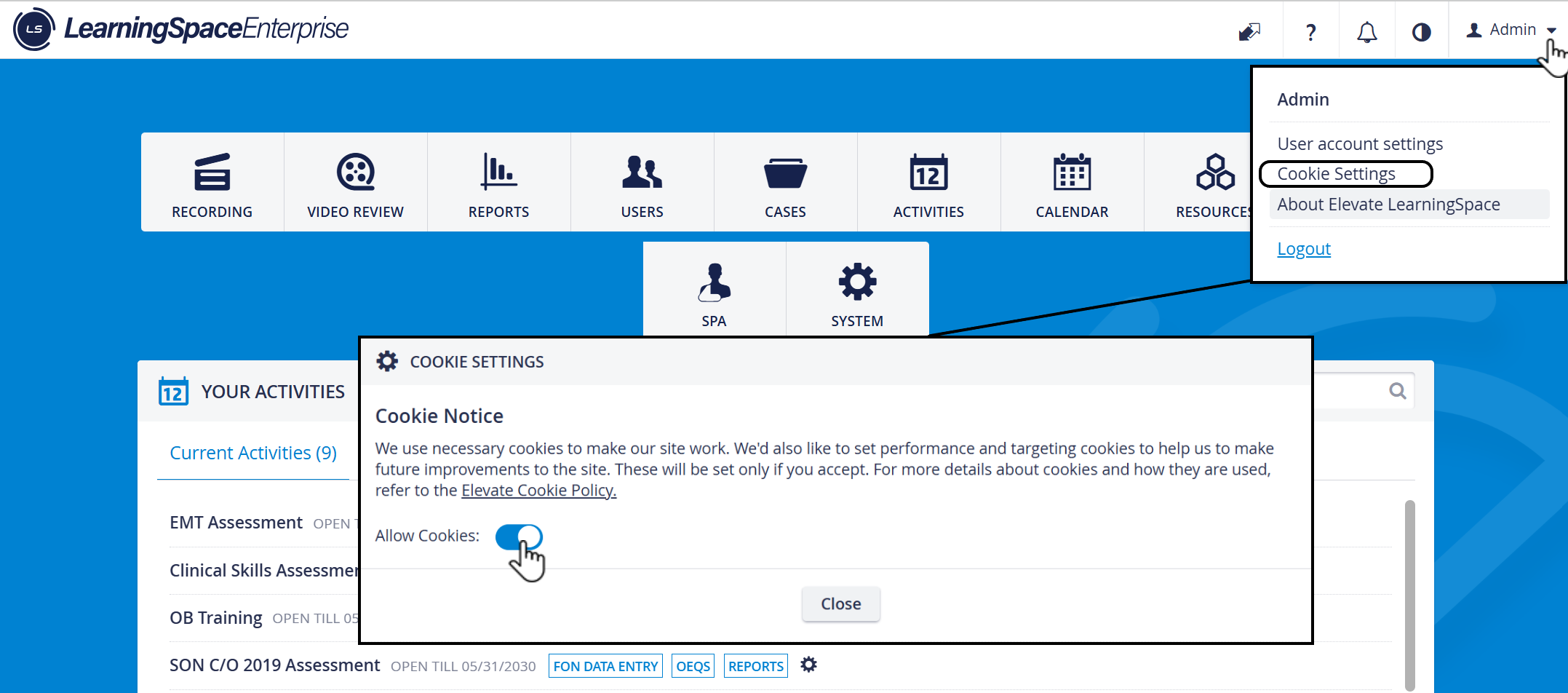
Opening the User options dropdown in the upper-right corner makes the Cookie Settings option accessible.
In the Cookie Settings pop-up window, the necessary cookies can be enabled by using the 'Allow Cookies' toggle.