Transactions
Transaction Types
Within your Inventory, you can perform the following three kinds of Transactions:
Check-In: register new consumables, non-consumables, or assets, or return non-consumables or assets to the selected storage location.
Check-Out: any time someone picks up consumables, available non-consumables, or assets from a storage location, check them out. Tie the transaction to a transaction assignee to keep track of your items on loan.
Reconciliation: in case some of your Non-Consumables or Assets go missing or reach the end of their useful lifespan, you can reconcile the total quantity of these types of items.
Each item category has slightly different check-in and check-out processes. You can learn more about each process on the following pages:
Transaction Options
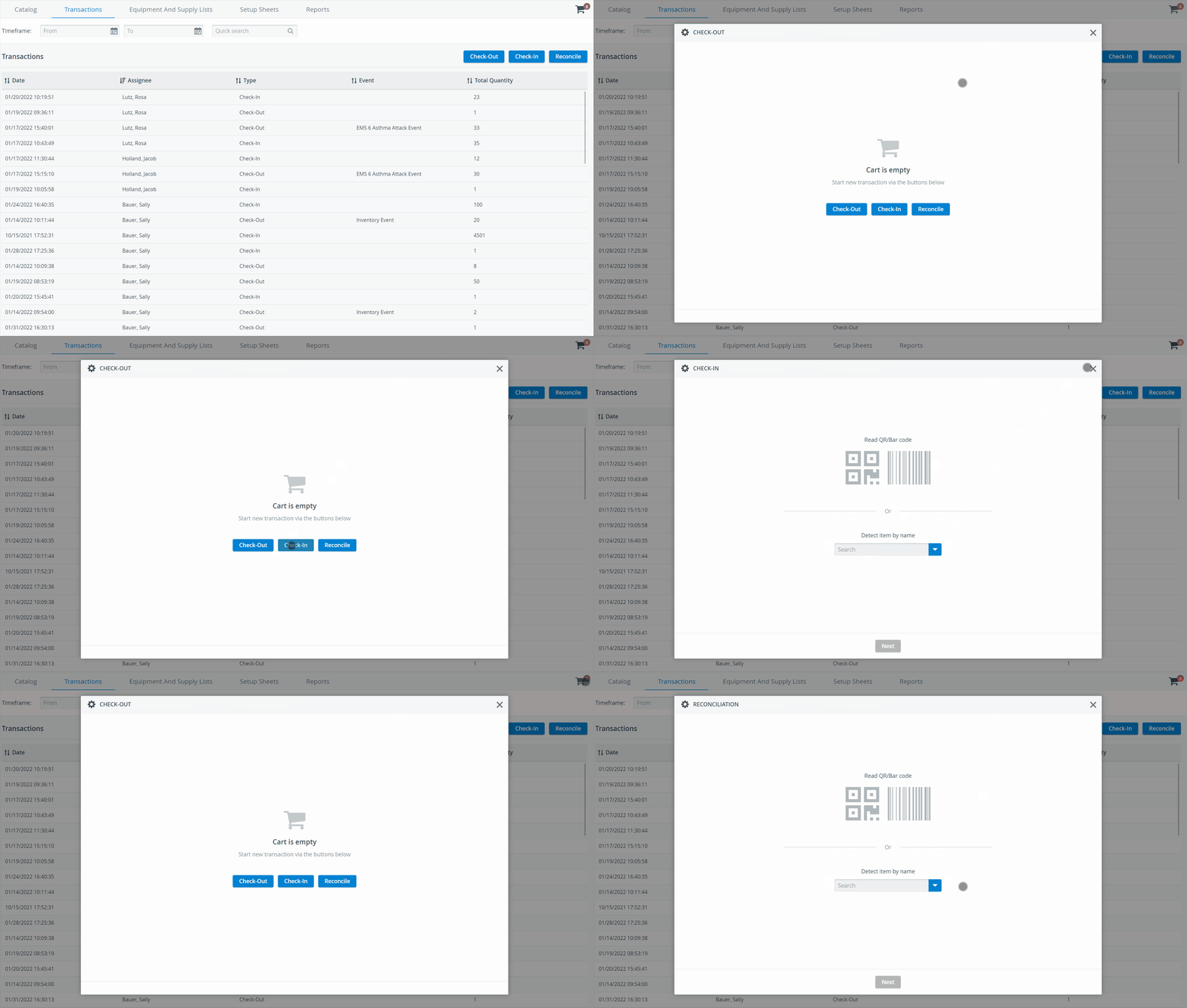
Transactions can be launched from the Transactions tab as well, which will result in a new cart. You can choose from 3 types of transactions on the Transactions tab: Check-Out, Check-In, and Reconcile.

You start a new cart any time you launch a transaction.
If users proceed with a new transaction launched from the Transactions tab, the existing cart with all its contents will be discarded. Users are warned before creating an entirely new cart.
Check-In
Increase the quantities of consumables or return non-consumables or assets from loan
by launching a Check-In transaction from the Transactions tab's header or
by clicking on the cart icon when at any tab and selecting Check-In.
Refer to the Check-In Transactions section for a step-by-step guide about each item category's check-in process.
Home Locations Tab
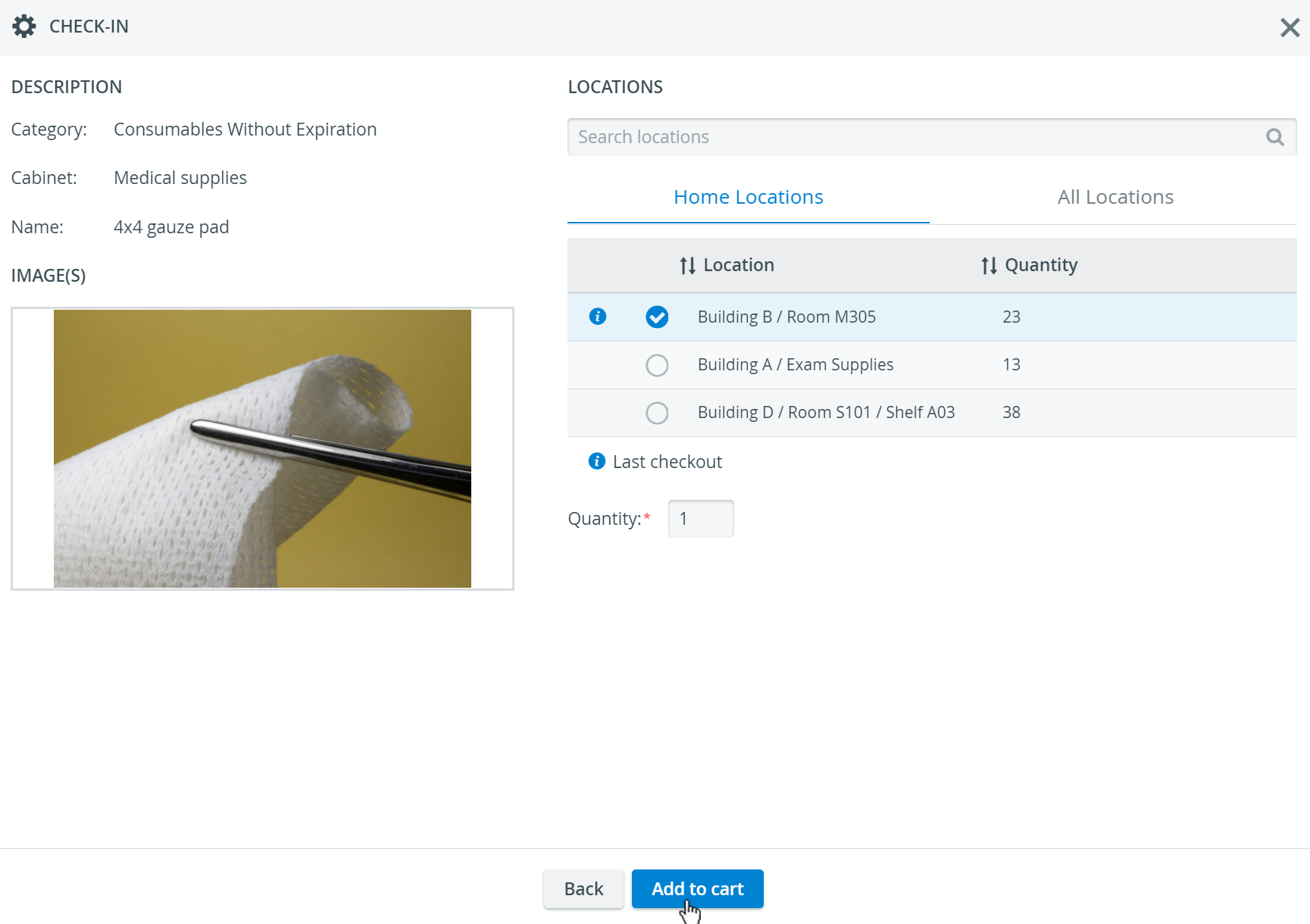
The Home Locations tab contains an item's location history for the past 180 days. It shows where the item was checked out from and where it is currently in stock, helping you select a check-in location more easily.
The Home Locations tab becomes active only after transactions have already been performed with an item. Before that, only the All Locations tab is displayed as active.
An info icon will always mark the item's most recent checkout location.

To identify an item, scan its QR code, enter the partial Item ID, or start typing the name of the item you are checking in. See the How to Detect Items in Your Inventory page.
Check-Out
Decrease the quantities of consumables or lend non-consumables or assets:
by launching a Check-Out transaction from the Transaction tab's header or
by opening a new cart and selecting Check-Out or
Use the Add to Cart option, which is included at every location in an item's Item List.

Add to Cart Option
With the new Add to Cart feature, you can add items directly from the Item List tab to check out.

Reconciliation
Select Reconciliation if you would like to scrap items from your inventory.
You can provide two reasons for scrapping:
dispose of worn-out items or
register them as lost if they went missing.
With the Reconciliation transaction, you decrease the item's total quantity.
Refer to the Reconciliation section for a step-by-step guide on reconciling damaged or lost items.
QR-code identification is supported on the Transaction Summary page of the Cart feature and every Setup Sheet, so you can fill in the Assignee drop-down by simply scanning the Transaction Assignee's QR code.
Select an assignee by scanning their ID card as the finishing step of the transaction workflow:

When opening a Setup Sheet for check-out, select an assignee by scanning their ID card:
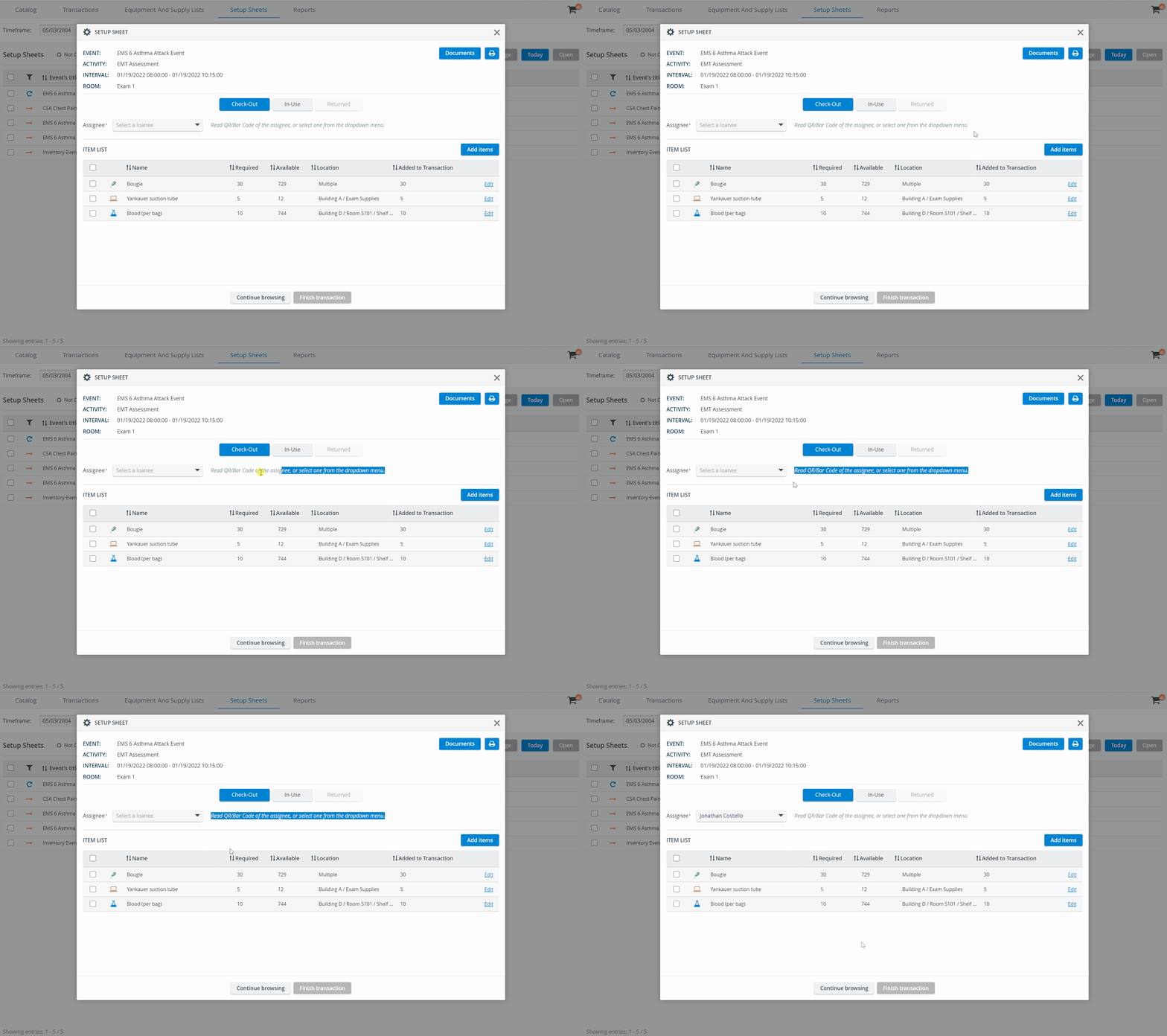
Registered Transaction Assignees can be selected manually by using the Assignee drop-down. If you cannot find an assignee in the list, start typing their name in the quick search bar (a maximum of 50 names can load in the drop-down list).
Instant Transactions
Easy Item Check-In
In the Quantity column for items, the number of items can be increased or transferred between locations without launching a Transaction workflow step by step. However, the system will still create check-in logs to help trace back inventory movements.
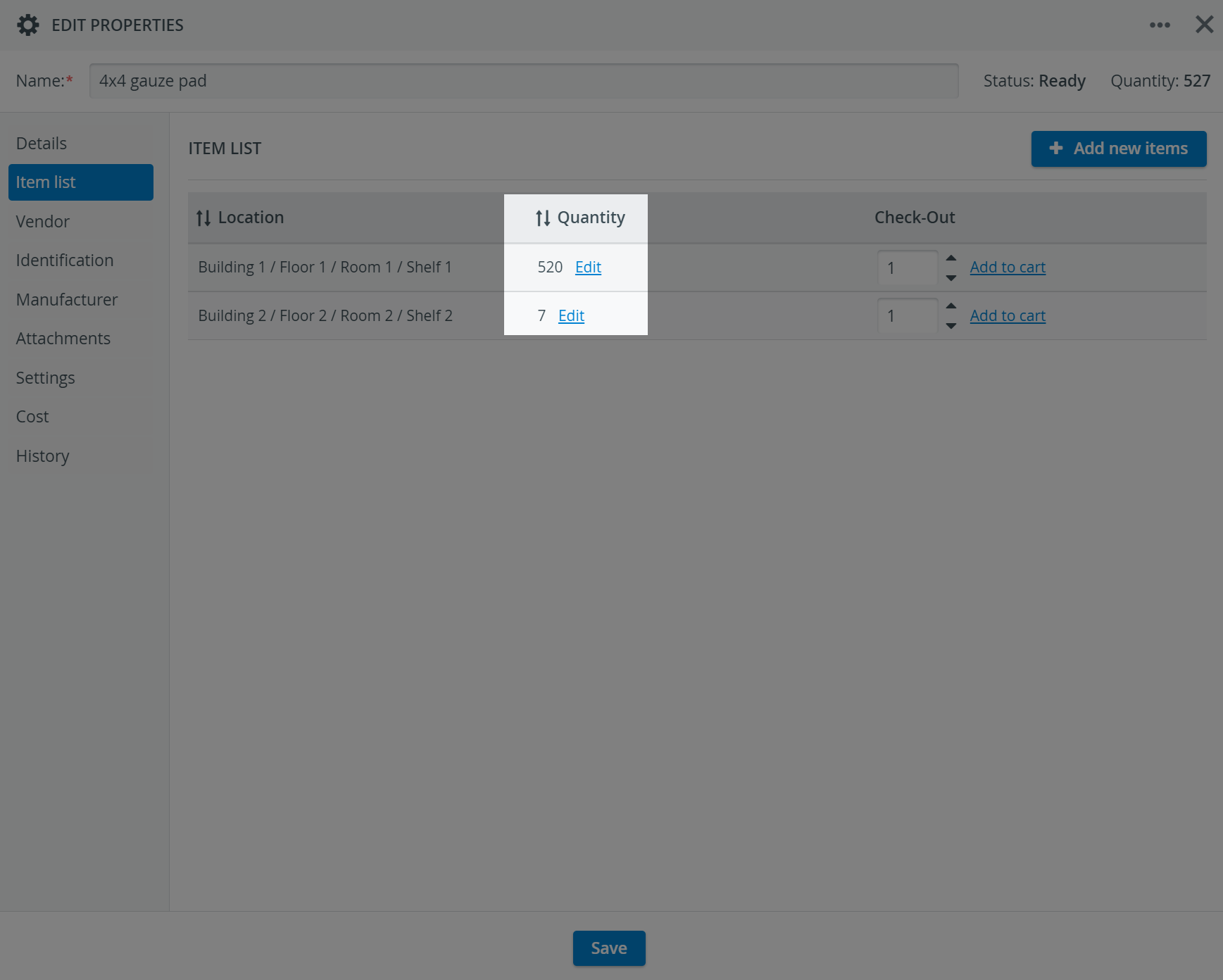
Every item's property editor has an Item list tab where users can check the exact locations of items stored in multiple locations.
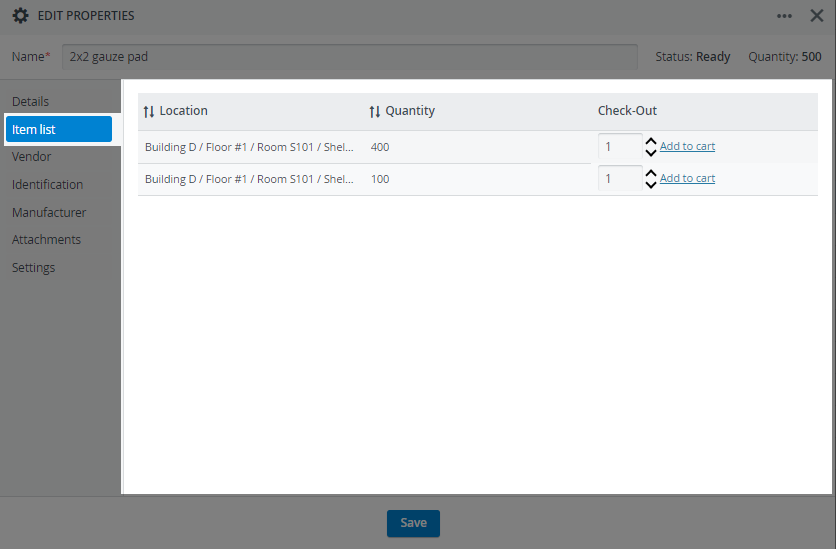
The system will still log transactions to help trace back inventory movements.
Increase Item Quantity Without Check-In
This feature allows you to increase the quantity of consumable and non-consumable items without creating a cart for check-in. This method also allows for checking in assets.
To enter the quantity of an item for any location, use the +Add New Item button in the upper right corner of the Item List tab:
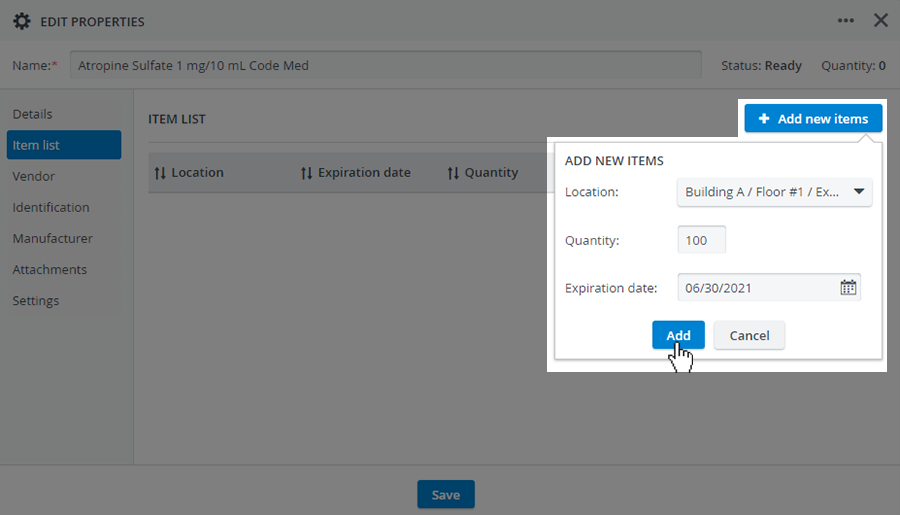
To increment the item quantity for a specific location or batch, access the Add new items option via the Edit button included at each location or batch:

After selecting the option, a pop-up will open where you can put in the quantity you want to add:
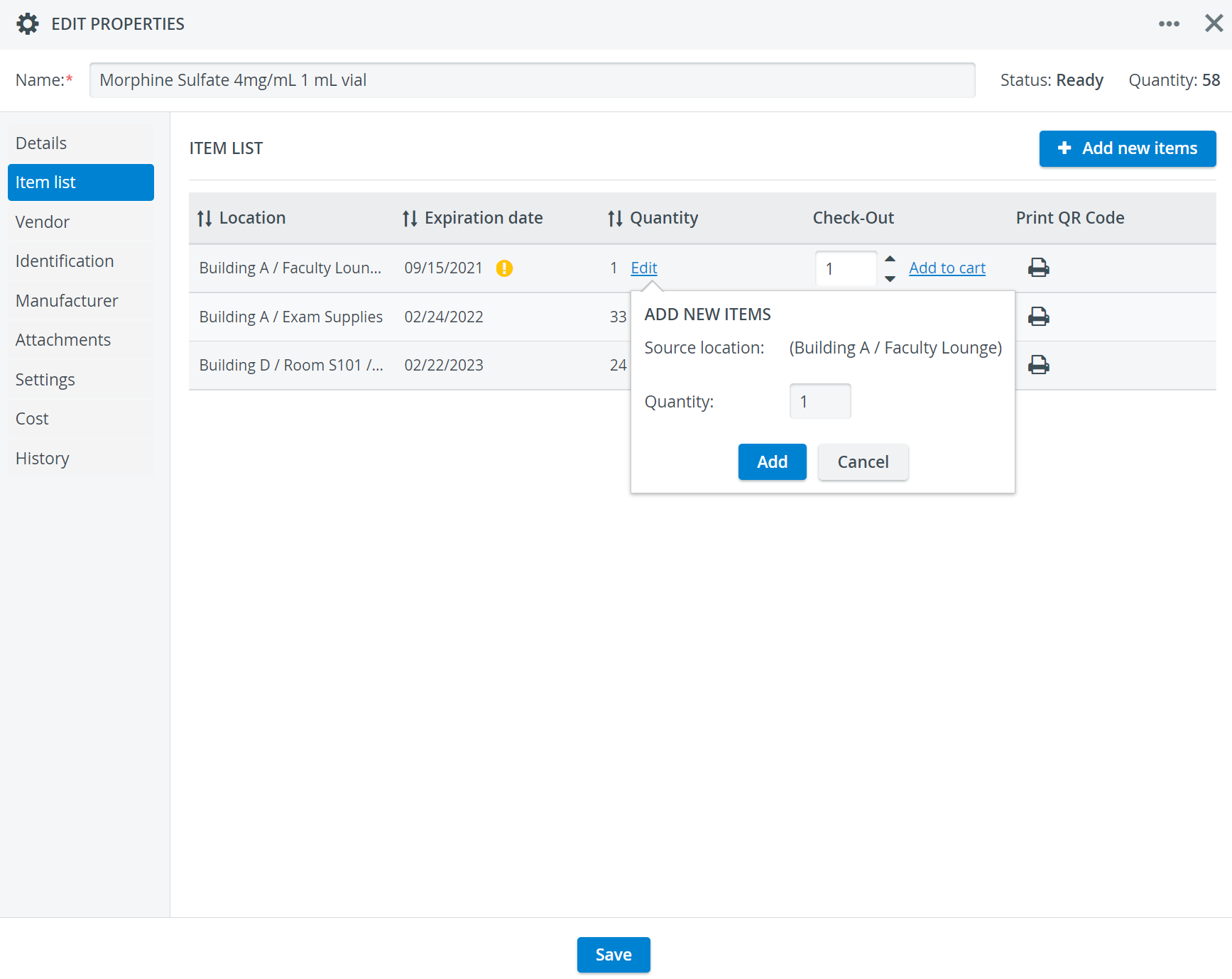
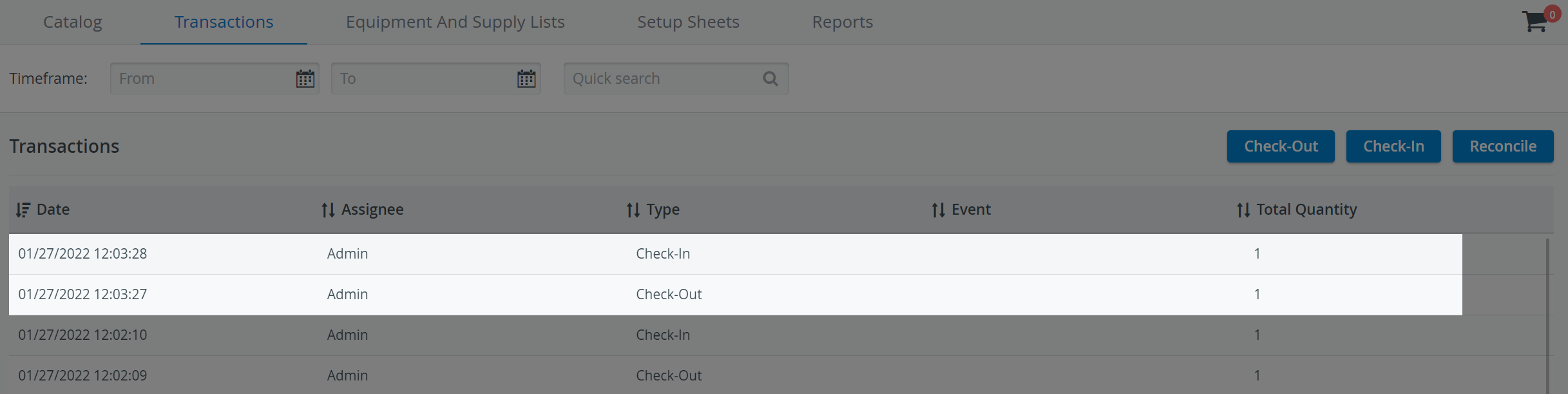
The system will create check-in logs in the transaction history each time you add items in the Item List tab, so you can trace back when items were stocked:

Easy Item Transfer
The Move to another location feature makes it easy to transfer multiple items or an asset from one location to another without conducting multiple transactions.
You can access the Move to another location option via the Edit button at each location or batch.
Like easy check-in, the system will automatically create transaction logs for any transfer made in the Item List tab, so you can trace every movement inside your inventory.

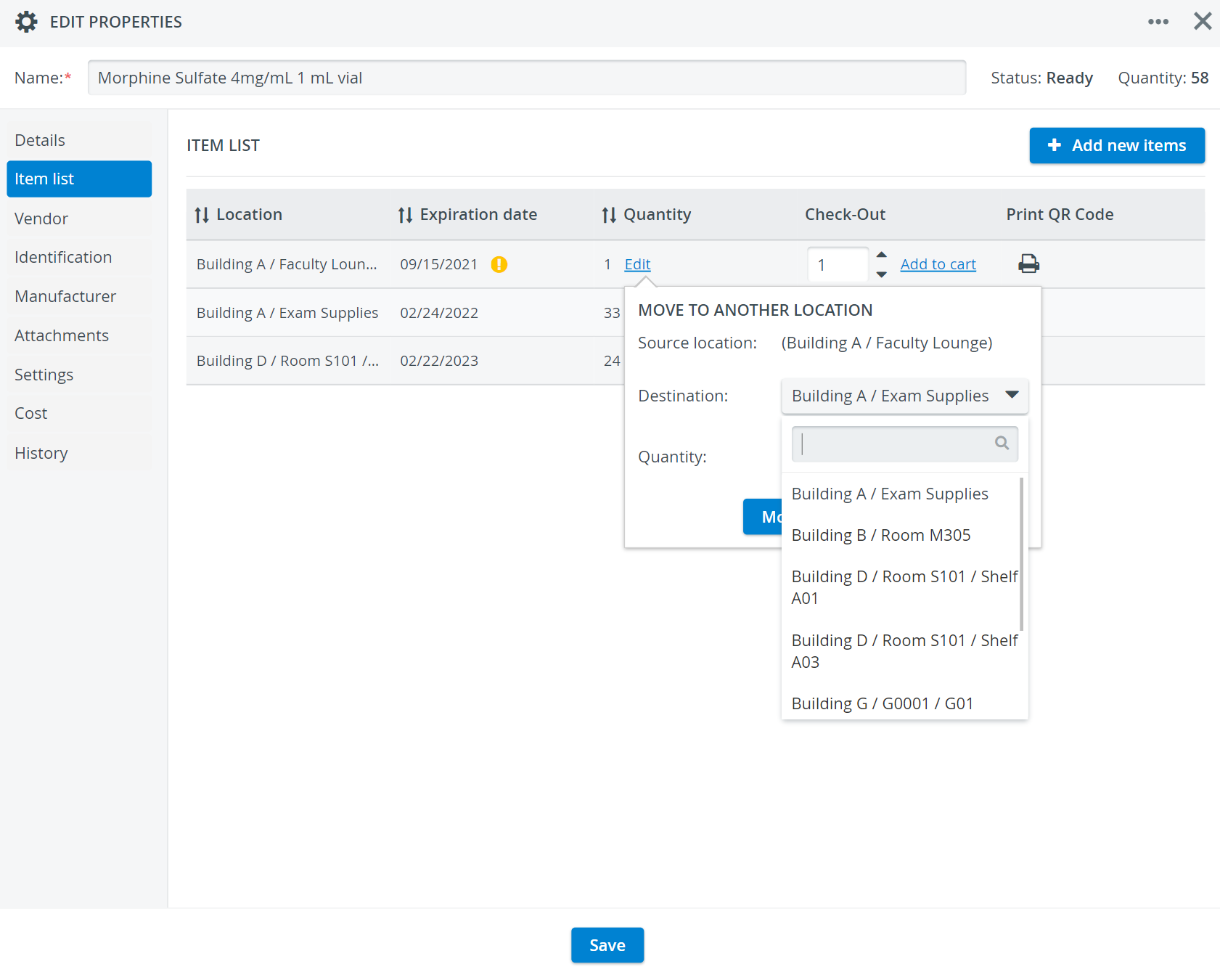
The Easy Item Transfer process creates two transaction logs in Transaction History: one for Check-out and one for Check-in.
To perform easy check-in or easy transfer, users must have the Transaction Assignee privilege activated in their user profile. If they do not have it, the Edit option will be inactive.

The + Add new items button is available only to users with the Transaction Assignee privilege.
Easy Item Check-Out
Using the Add to Cart option, you can add items to check out directly from the Item List. This will open a new cart for checkout, allowing you to continue the checkout workflow.
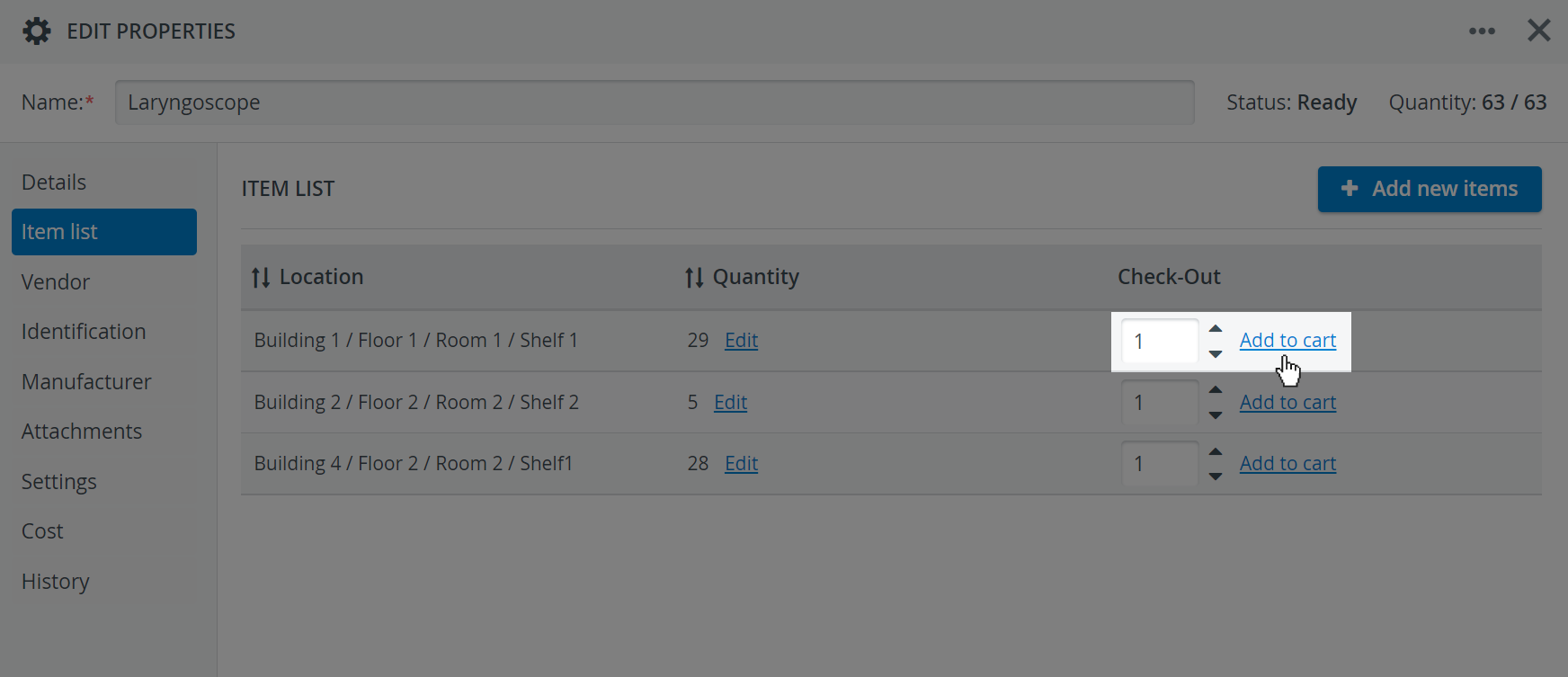
The Transaction Assignee privilege is not needed for the Add to Cart option.
Transaction history
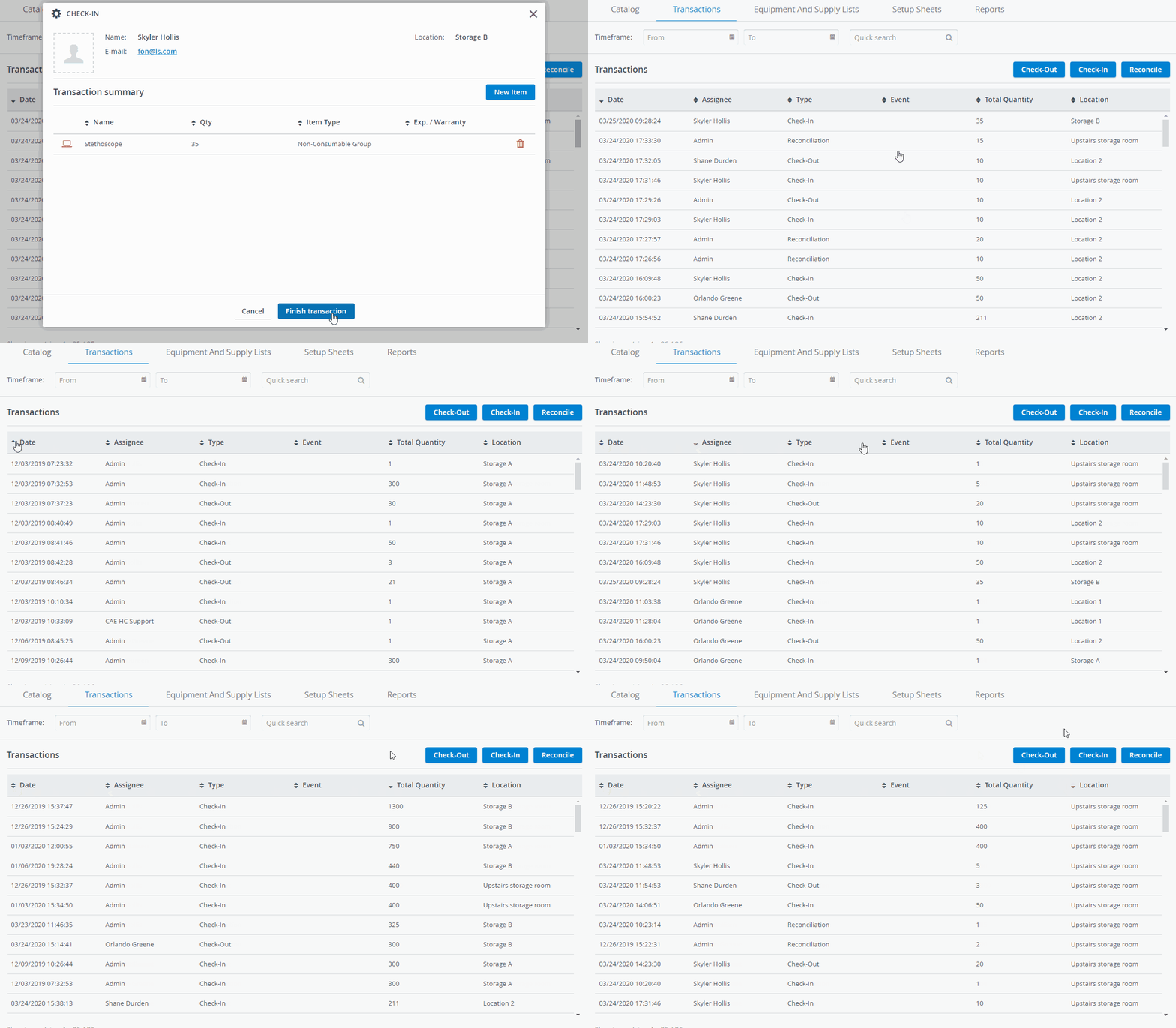
In the Transactions tab, you can look up the transaction history of your inventory. Any time you perform a regular transaction within your cart, check out your Setup Sheets, or perform an instant transaction inside the Item List tab of an item, there is an entry created that contains:
a timestamp that marks the date of the transaction,
a transaction assignee who is responsible for the transaction or trusted with the equipment,
the event the items were checked out for in the case of Setup Sheets,
the total number of items in the transaction,
the storage location.
Double-click on a transaction to display additional details, such as storage location, expiry date, reason for reconciliation, or warranty.

You can check in or out a specific item or multiple items in one go, and assign each transaction to the person responsible for the equipment.
The quantity of each item is automatically updated in the Catalog.
The latest transaction is always displayed at the top of the transaction list, but you can sort the transaction entries by any of the columns using the sorting arrows:
Cart Feature
You can access the Cart option on any tab inside the Inventory module. The cart saves your selected contents for later use while you complete other tasks in the module.
Users in charge of transactions first need to detect an item, then select a location and place it in their Cart. They are only required to select an assignee in the last step.
The Cart feature allows inventory managers to add multiple items from various locations to a single transaction and save their cart contents for later while completing other tasks in the Inventory module.

Users can create a new cart by clicking the empty Cart icon in the top right corner of the Inventory module:
After adding items to their cart, users can return to the module and continue browsing while their contents remain in the Cart.
Cart contents persist as long as inventory managers stay inside the Inventory module. If a transaction is not finalized, its cart will be discarded when returning to the Dashboard.
The Cart feature can only handle one launched transaction at a time, so if you launch a new transaction while an earlier cart is still active, you need to either finish the transaction or discard the contents of your existing cart.
Learn more about the Inventory Manager on our Inventory - How to pages, and watch the Inventory Manager Training Videos.