Timeslot Creation
Timeslots
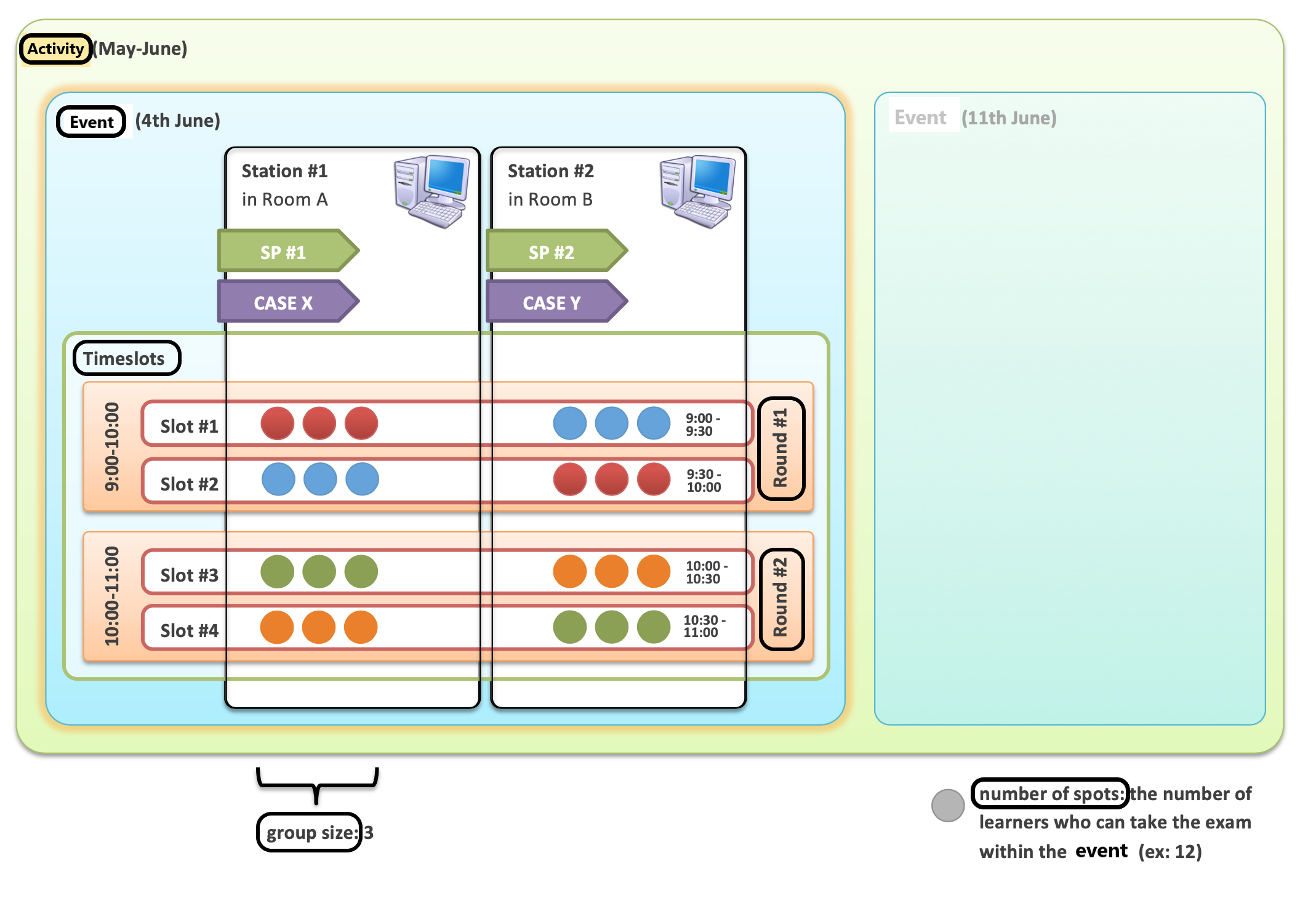
Timeslots are the smallest time units within an event. During a timeslot, one or more assigned learners must complete one Case with the help of an SP or a simulator.
See more details on the How to Understand Concepts within Advanced Scheduling page.
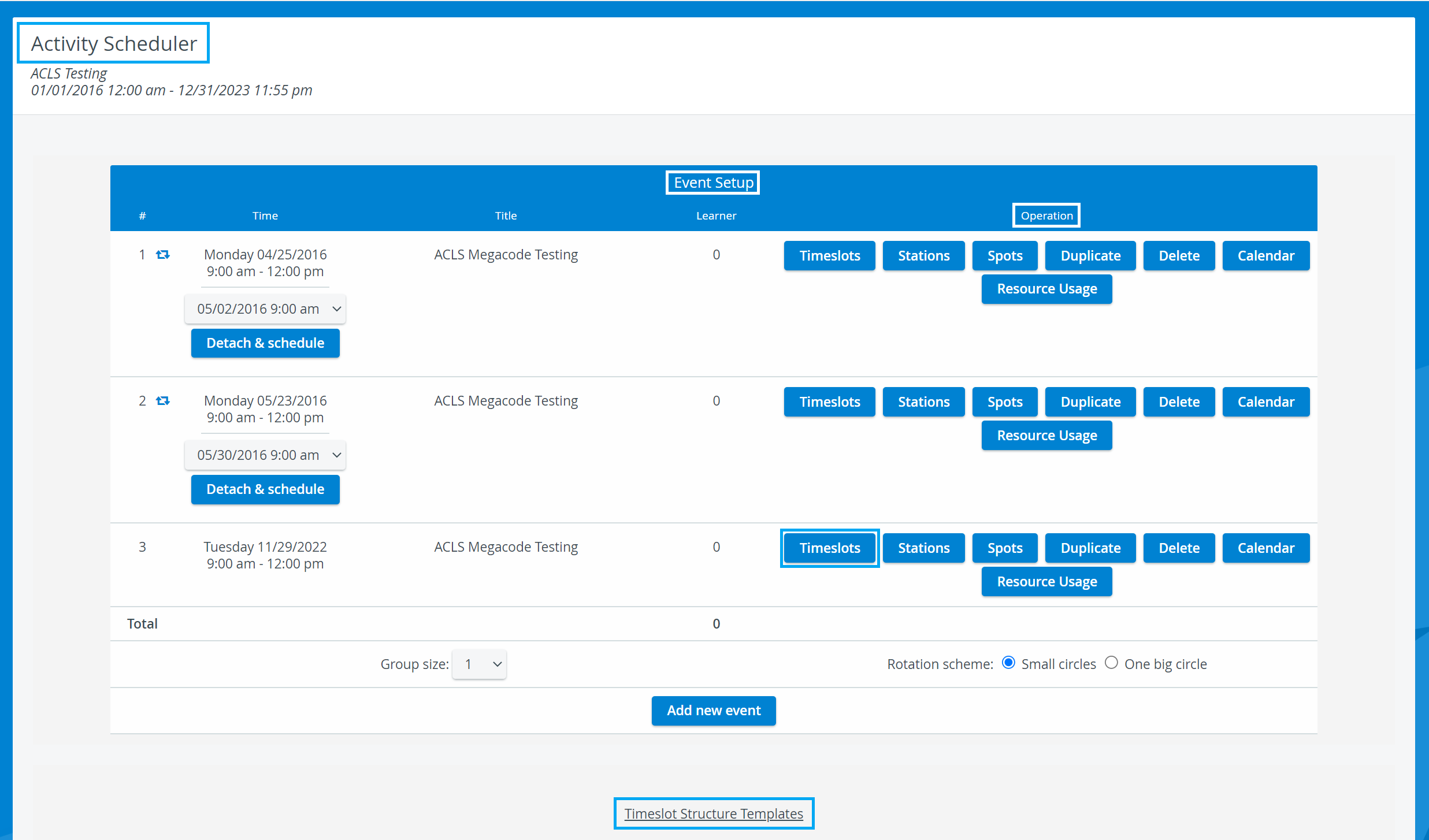
Rounds
A round is a session of consecutive timeslots that learners can sign up for or be assigned to complete all Cases required during a scheduled event.
Timeslots can only be created within rounds. A round can contain multiple timeslots.
A valid round consists of consecutive timeslots of which
The first timeslot "starts the new round," and
The last timeslot "ends the round."
A single timeslot can equal a valid round, too.
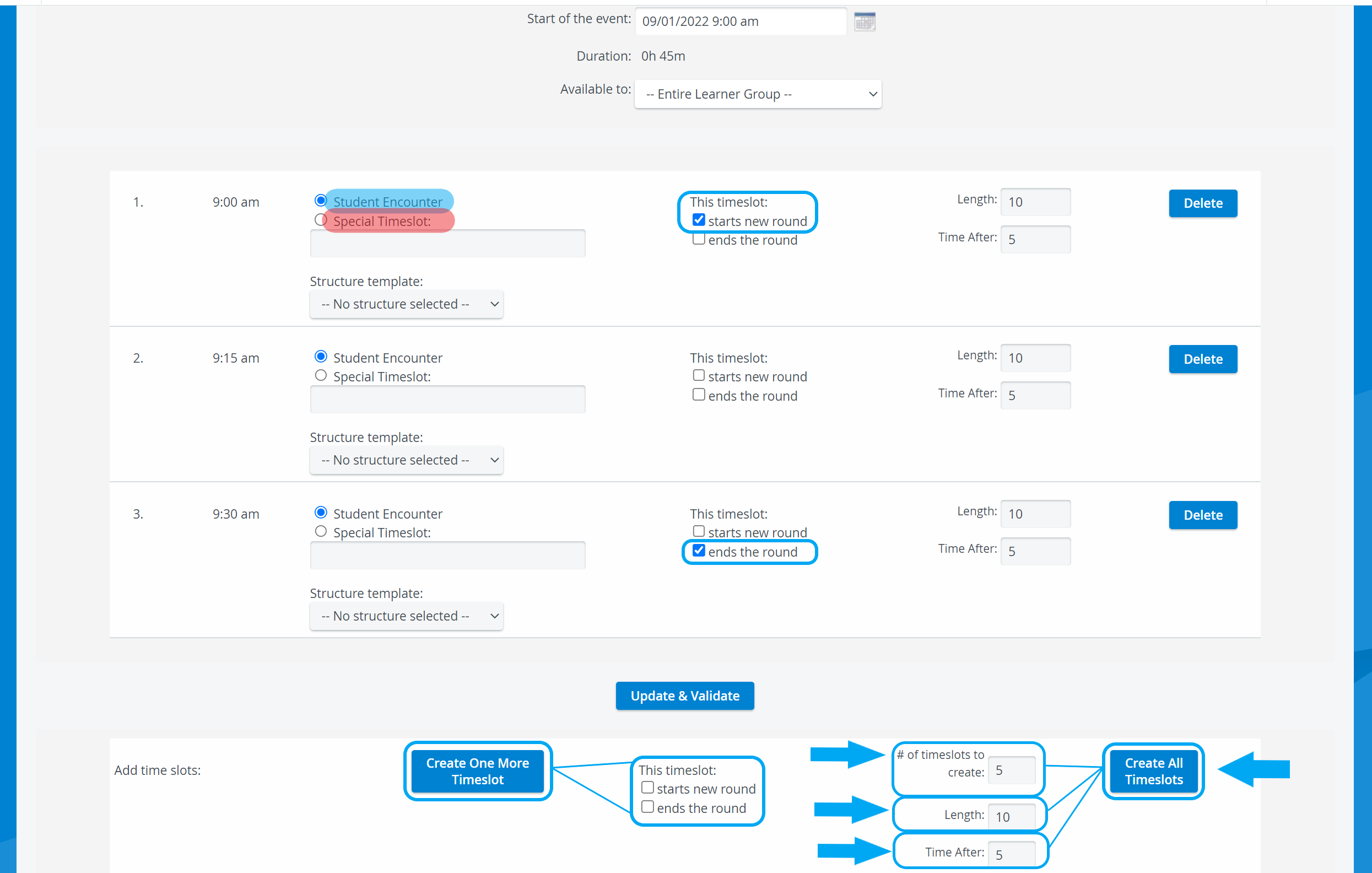
To create a round, you need to:
Define the number of timeslots - in the # of timeslots to create a field.
Determine the length of each timeslot in minutes - in the Length field.
Define a brief transitional period after each timeslot, in minutes, in the Time After field (can be used for breaks).
Click the Create All Timeslots button.
Your new round will be created with the starting and ending timeslot automatically marked.
A round can contain
regular timeslots (Student Encounter) used for completing a Case or
Special time slots can be used for debriefing or breaks (e.g., lunch).
If you want your learners to complete each Case of the Activity within a round:
The number of timeslots in a round → should be equal to/a multiple of → the number of required Cases.
Creating the correct number of timeslots within a round ensures that each learner assigned to the round can rotate and participate in each Case.
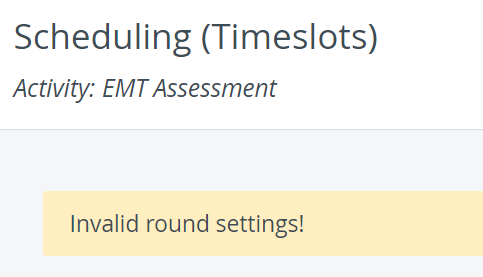
⚠️ If a round setup is invalid, an error message will appear at the top of the scheduling page, and changes will not be saved.
For a detailed guide, see How to Set Timeslots.
Timeslot Structure Template
Scenario recordings can be automatically controlled using a timeslot-structure template.
Such a template can
start and stop video recordings and
send out Intercom Announcements to the designated workstations or intercom endpoints.
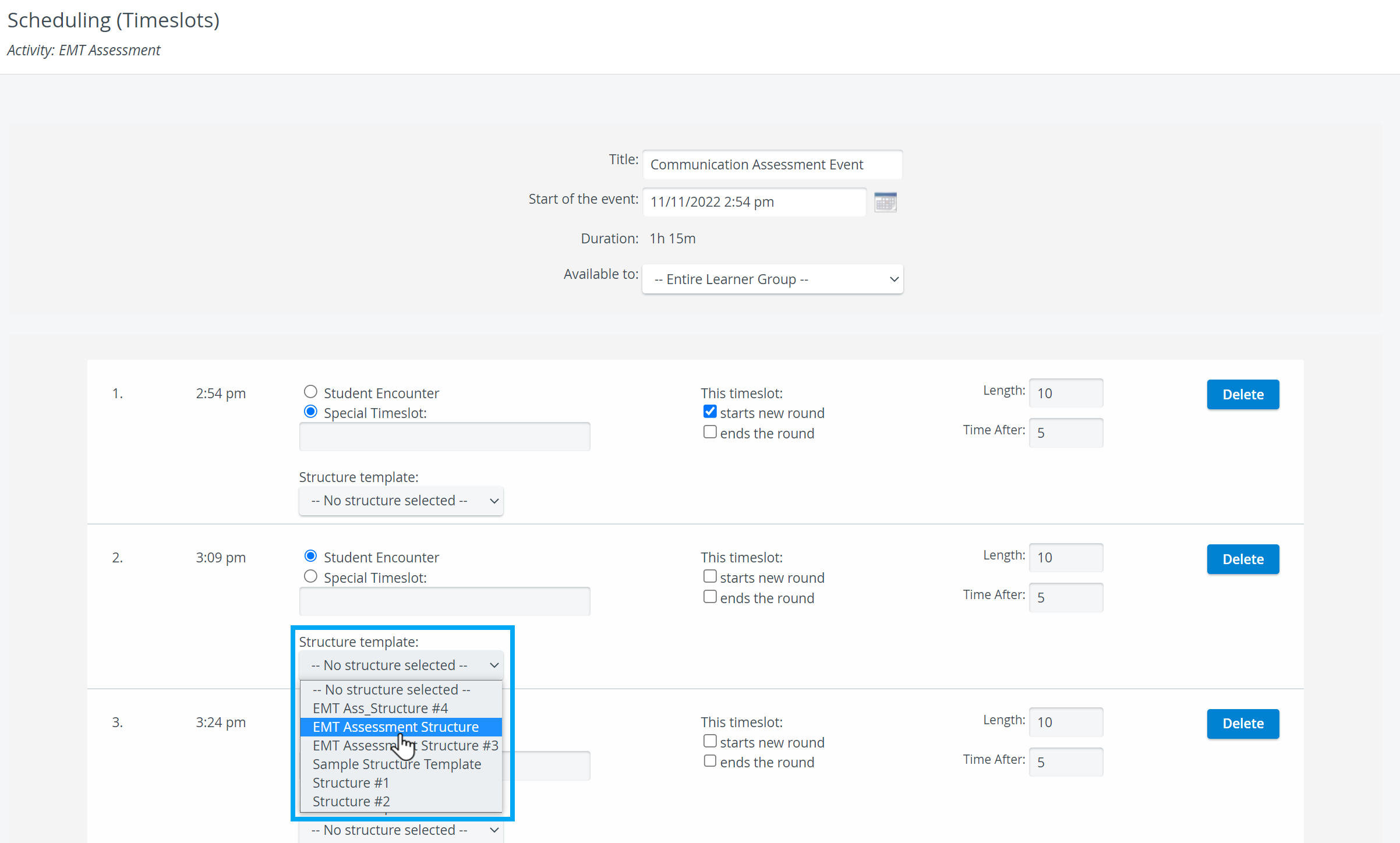
Structure templates can be added to the timeslots by selecting them from the respective dropdown on the Scheduling (Timeslots) page:
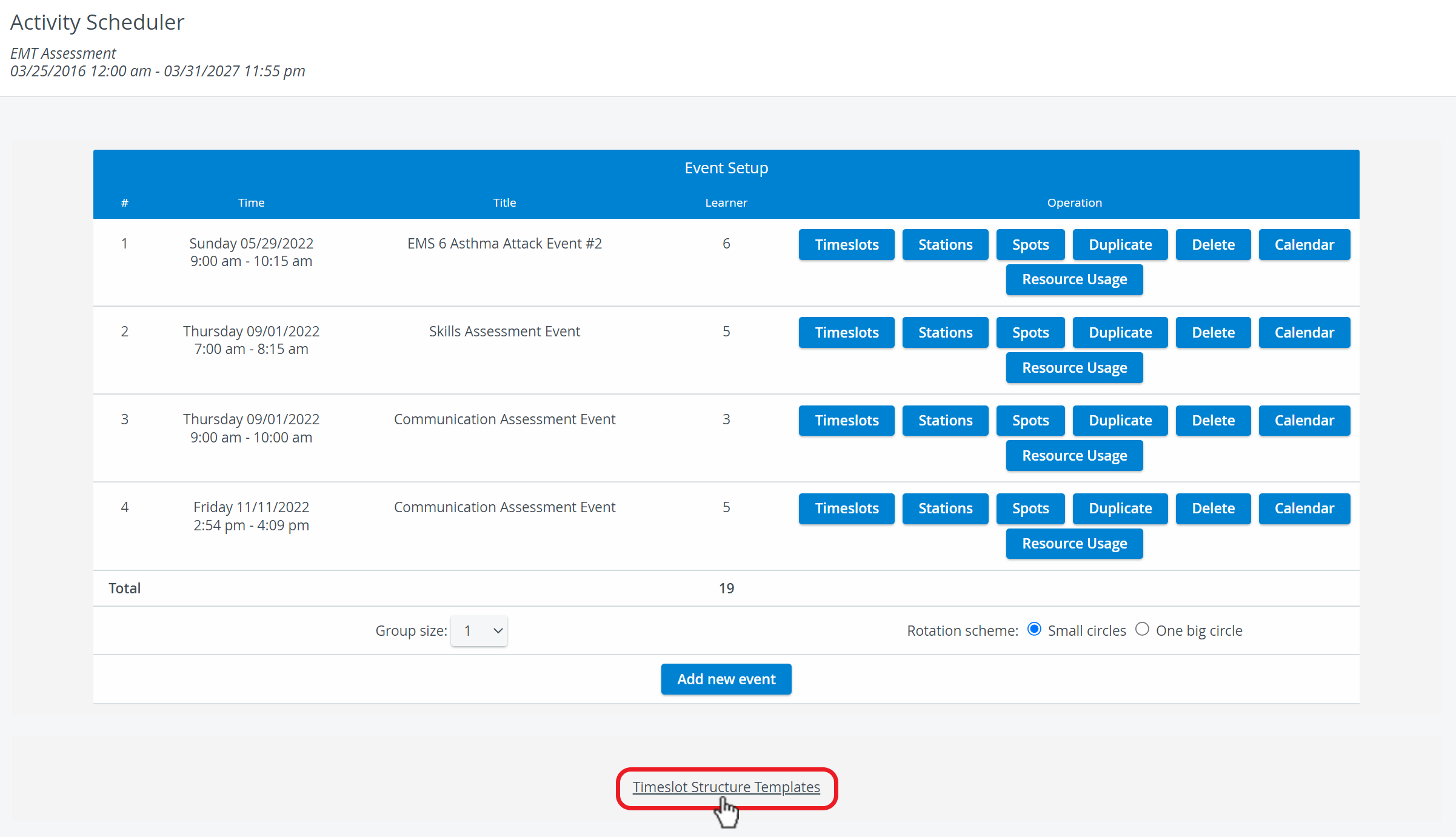
The timeslot structure template can be created on the Timeslot Structure Templates page, accessed via the Timeslot Structure Templates link in the Activity Scheduler under the Event Setup tab.
For a detailed guide, see How to Create a Timeslot Structure Template.
There are four timeslot structure actions to choose from:
Start Video
Stop Video
Send Audio to Hallway
Send Audio to In-room
If the "Send audio..." option is selected, an additional menu appears, allowing you to choose from preset audio announcements.
💡 Audio announcements can be recorded in the Intercom tab of the System module.
Each timeslot structure action needs to be set up in relation to the start time of a timeslot:
You need to determine how many minutes and seconds an action should take after the start of a new timeslot.
Example of a timeslot structure template
The structure of a 14-minute-long timeslot may be set up as follows:
Time of action (hh/mm/ss) | Timeslot structure action | Audio Announcement |
00:00:05 | Send Audio to Hallyway | "Learners, you may begin." |
00:00:10 | Start Video | |
00:08:30 | Send Audio to In-Room | "5 minutes remaining." |
00:13:30 | Send Audio to In-Room | "Your time is up. Please move to the next station." |
00:13:59 | Stop Video |
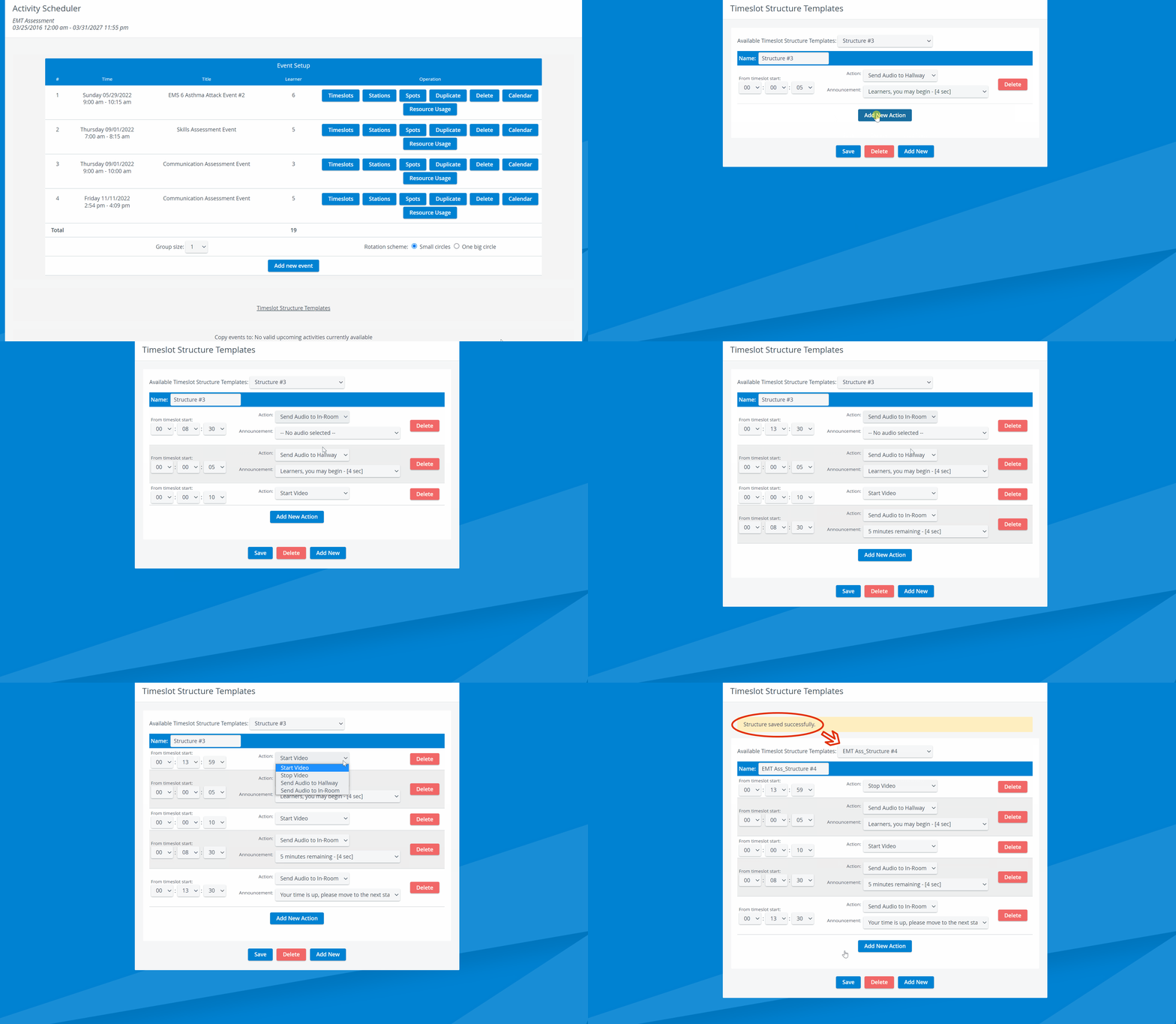
Every newly added action appears at the top of the structure, but will be placed in the correct order after being saved. The action will be carried out according to the time set under the From timeslot start.
The timing of timeslot structure actions cannot exceed the length of the timeslot itself.
The last action should occur at least one second before the end of the timeslot.
⚠️ If the length of a timeslot structure template is exactly the same as the timeslot's length that it was applied to, the system will warn you about the invalid settings and won't save the actions:

For further information, visit our Advanced Scheduling - How to pages and view our Activity Manager Training Videos.