SP Recruitment
After adding Cases (simulated patient scenarios) to Sessions within your Cast sheets, continue sending requests to selected SPs from inside your center management system.
With our simplified SP recruitment process, notifying SPs about open simulated patient positions requires only a few steps. After sending requests, review the availability status of each SP you have invited.
Privileges
SP Coordinators: Recruit SPs for Sessions and Cases by filtering candidates based on case requirements, sending participation requests, and tracking recruitment statuses.
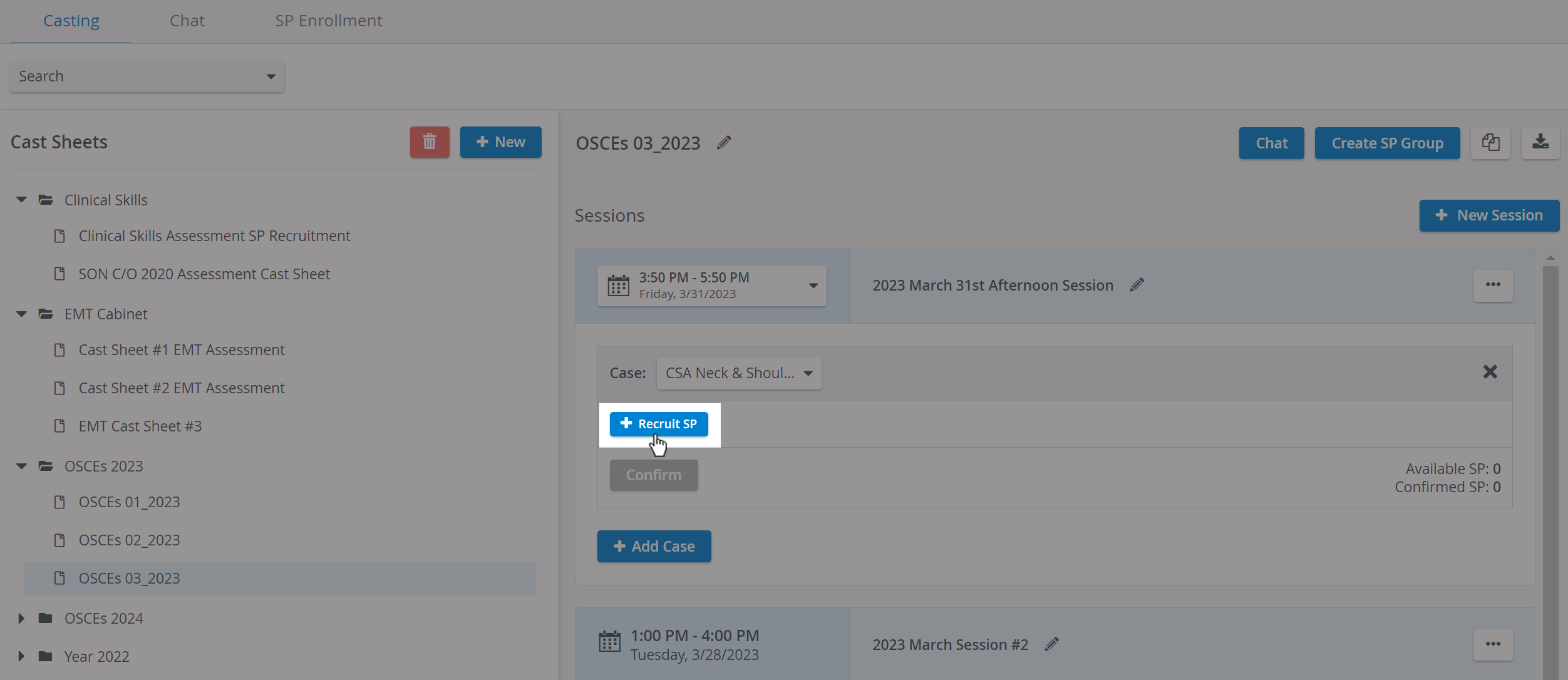
Go to a Case, and click the + Recruit SP button to open the Recruit SP tab.
The pop-up is divided into three parts: Filters, Results, and Responses:
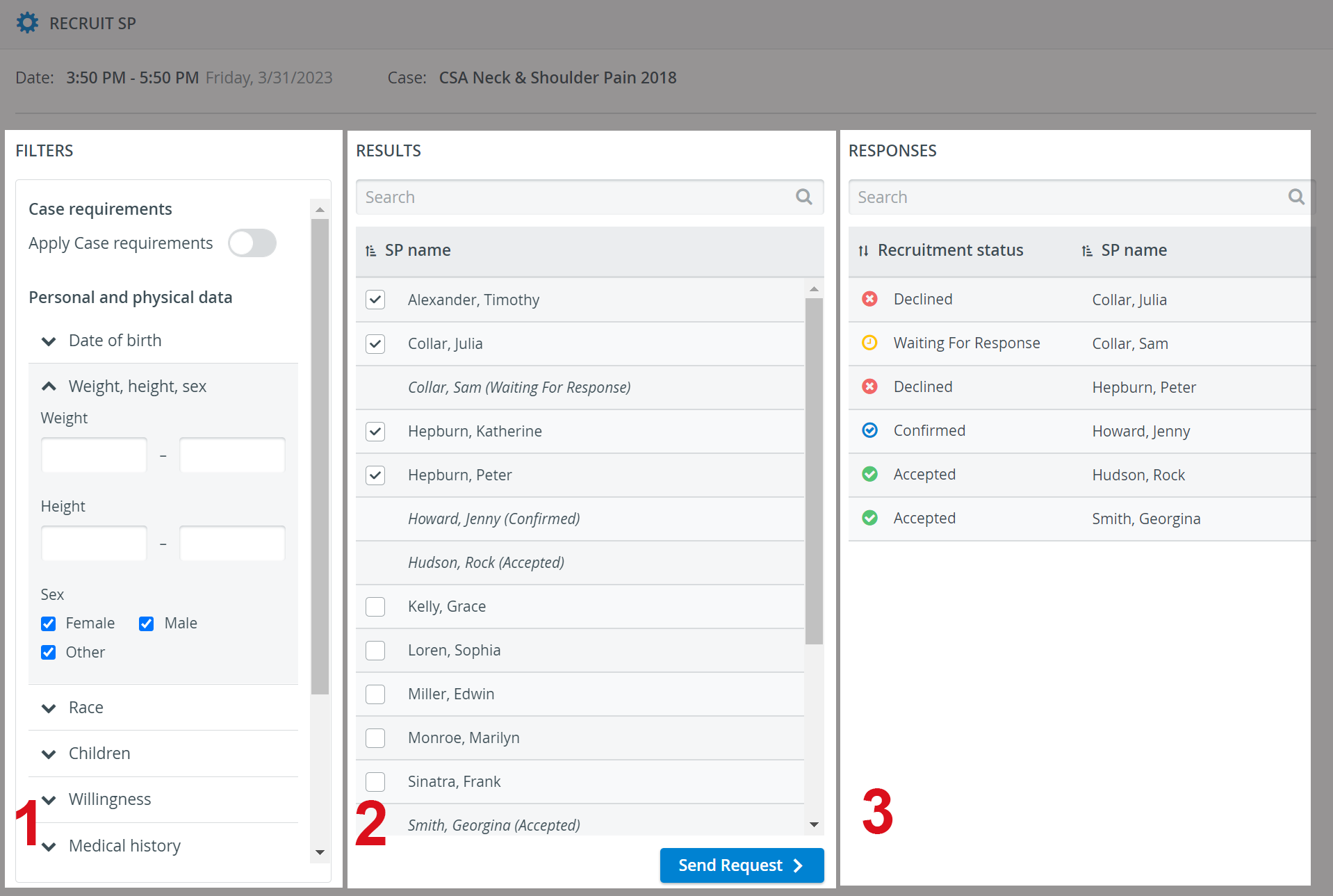
Filters
You can add search criteria by enabling Case requirements or manually setting up filters to find the best SP candidates for the scenario.
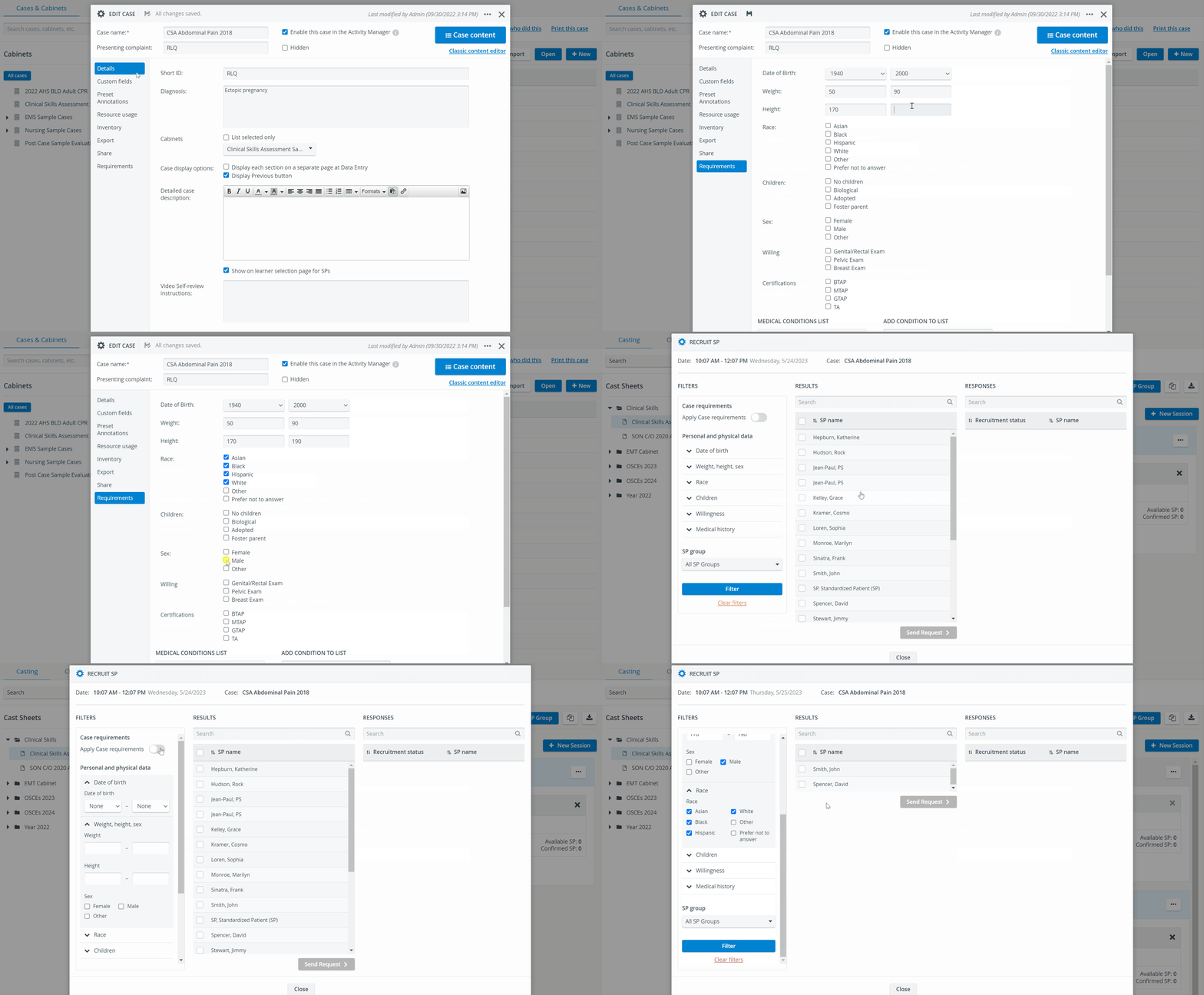
Learn more about filtering categories on this page.
Results: Upon filtering your user database, the second column lists every SP who met the applied search criteria. You can then select SPs from the list and send them requests to participate in the simulated patient scenarios.
Responses
In the last column, you can view every SP sent a request. Their current status is also displayed in the Recruitment Status column.
You can sort SPs alphabetically or by recruitment status using the arrows next to each column header.
SP requests can have the following Response statuses:
Status | Meaning | Note |
|---|---|---|
Waiting For Response | The request has been sent to the SP, but they have not yet shared their availability. | The SPs may or may not have viewed the notification on their mobile phones yet. |
Accepted | The SP has accepted the request and is ready to be confirmed for the Case by one of the SP coordinators. | The SP's name is displayed in grey in Session view at the Case. |
Confirmed | An SP coordinator has approved the accepted request. | The SP's name turns blue and gets ticked in the Session, at the Case. |
Declined | The SP has declined the request. | If necessary, the SP coordinator can repeatedly send a request to SPs who initially declined it. |
The Confirmed status can be withdrawn and granted again at any time.
For further information, visit our Standardized Patient Administration and Standardized Patient Administration - How to pages.