SP Confirmation
After receiving feedback from the requested SPs on their availability, you can finalize the SP recruitment process by confirming SPs for patient-scenario Sessions.
With SP Confirmation, you notify SPs in the SPA Mobile Application that they were approved for the Sessions they made themselves available for.
Once a Case is confirmed within a Session, SPs must arrive and present the patient scenario at the scheduled date and time, unless they cancel their confirmed appointment.
In the current version of the SPA Mobile Application, SPs can decline their confirmed appointments right until the start of a session.
Since this could make it difficult to find a new SP and/or reschedule the Session, please consult your SP coordinator before declining the appointment at such short notice.
Privileges
SP Coordinators: Confirm SPs for scheduled Sessions after reviewing their availability and finalize their participation in specific Cases.
Go through the Cases in your Cast sheets to see if anyone has responded to the requests you have previously sent.
You can spot available SPs right at the Case without needing to enter the Recruit SP tab:
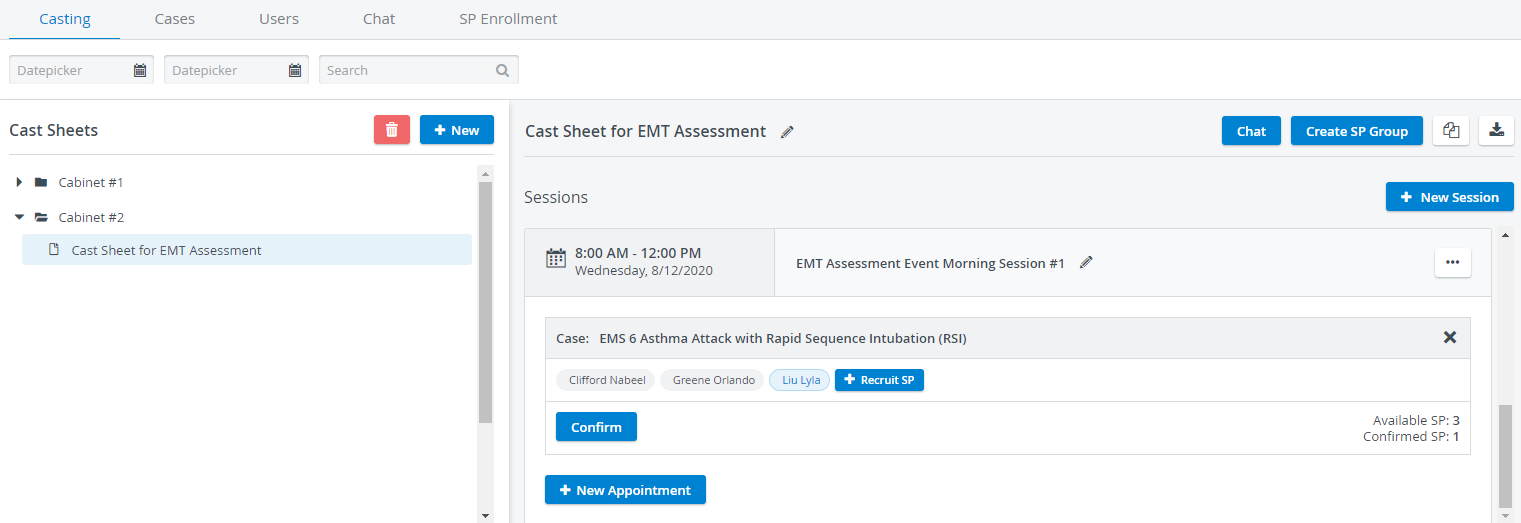
You can spot available but not yet confirmed SPs straight away, displayed in grey tags at Cases. The same SPs are displayed with Accepted status in the Recruit SP tab.

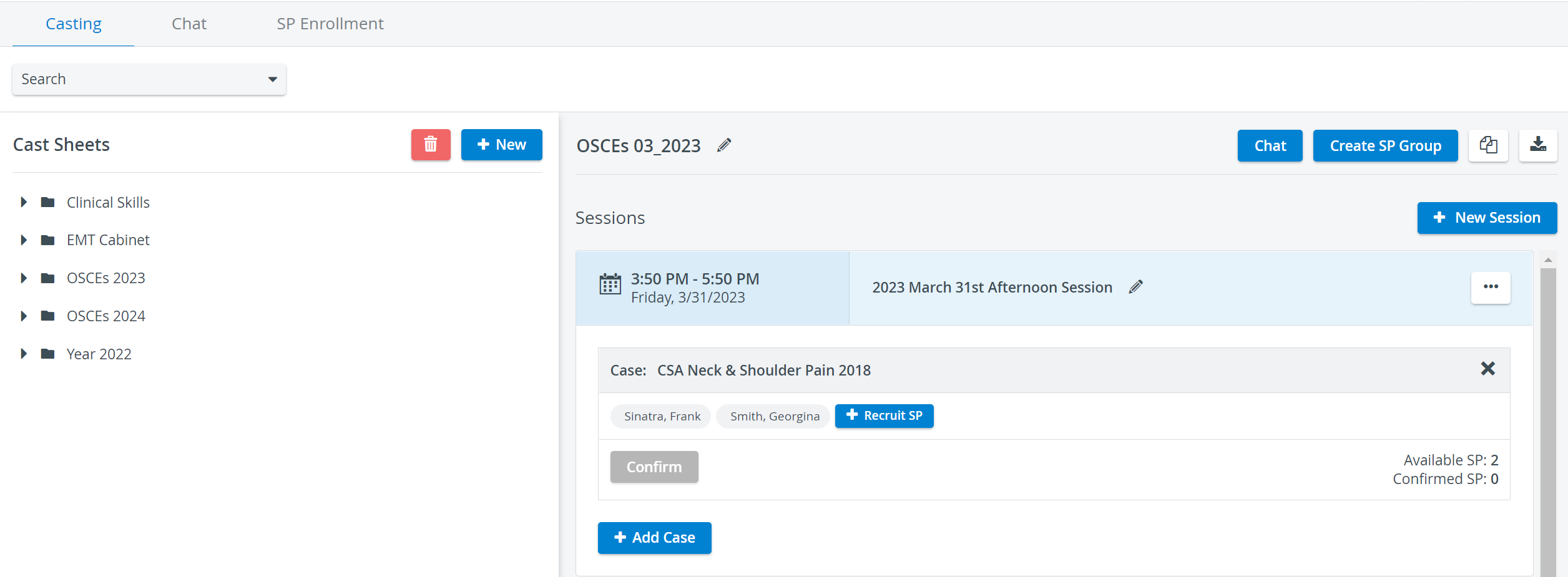
Click on one or more names to activate the Confirm button and start SP confirmation.
TIP:
You can create SP groups - including all confirmed SPs for a Session - by using the ‘Create SP Group’ option.
The group will be listed in the User Manager under Groups and can be used to set up Events (see Managing Events ) or Scheduling (Advanced Scheduling ).
See more at How to Create SP groups
Preventing Scheduling Conflicts
The SPA module does not let you book an SP for a Case if the SP has already been confirmed for another overlapping or concurrent date.

You will not be able to select this SP for confirmation, and your changes will not be saved unless you select another free SP.

This restriction applies to Cases inside the same Session or outside the current Cast sheet.
See how to withdraw confirmed status from SPs in case of Conflicting appointments.
When entering the Confirmation dialogue, you will see the SPs you are about to confirm listed.
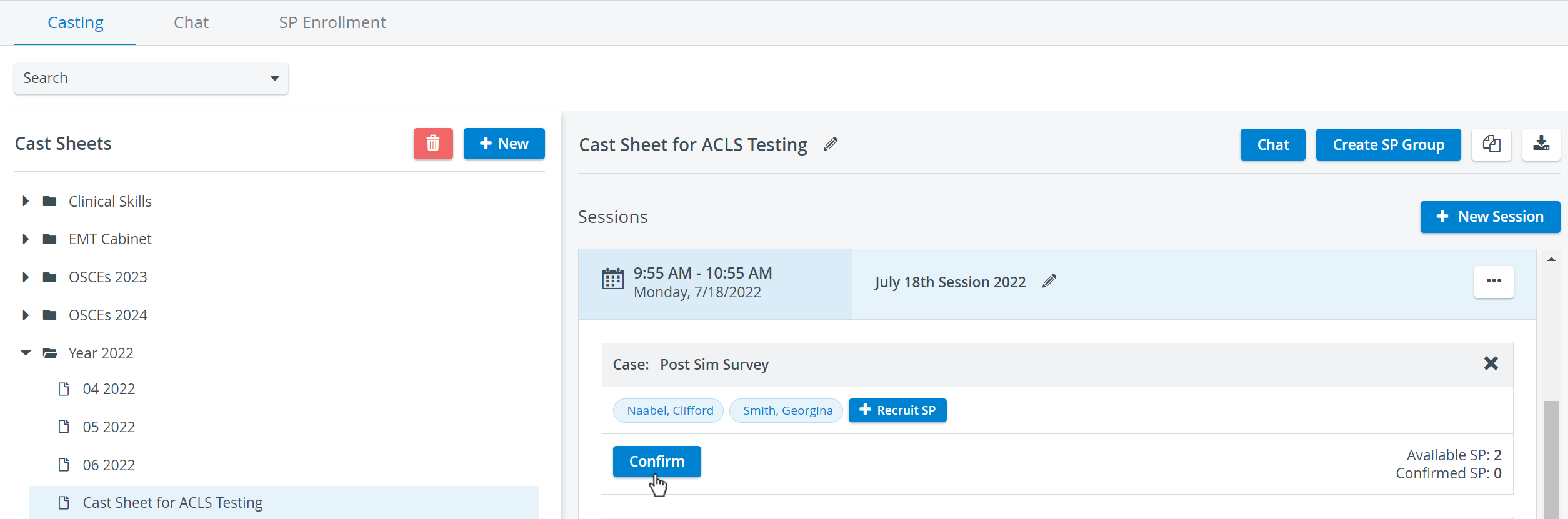

Upon confirming the selected SPs, their appointment will be moved from Pending to the Confirmed tab for the selected SPs in their SPA Mobile application:

You can view confirmed SPs in the Case, highlighted in blue:

You can also open the Recruit SP tab to view their status:

In case you want to withdraw the date confirmation from any confirmed SP, select them and return to the Confirmation dialog:

SPA Mobile App
The appointment will be moved back to the Pending tab in the SP's user account in the SPA Mobile app.
The Confirmed status can be withdrawn and granted again at any time.
For further information, visit our Standardized Patient Administration and Standardized Patient Administration - How to pages.